

Online ordering site settings
Site settings lists your locations for online ordering. Open a location’s settings from here to set up its online store.
In the sidebar, under Shop, open Online ordering and click Site settings.
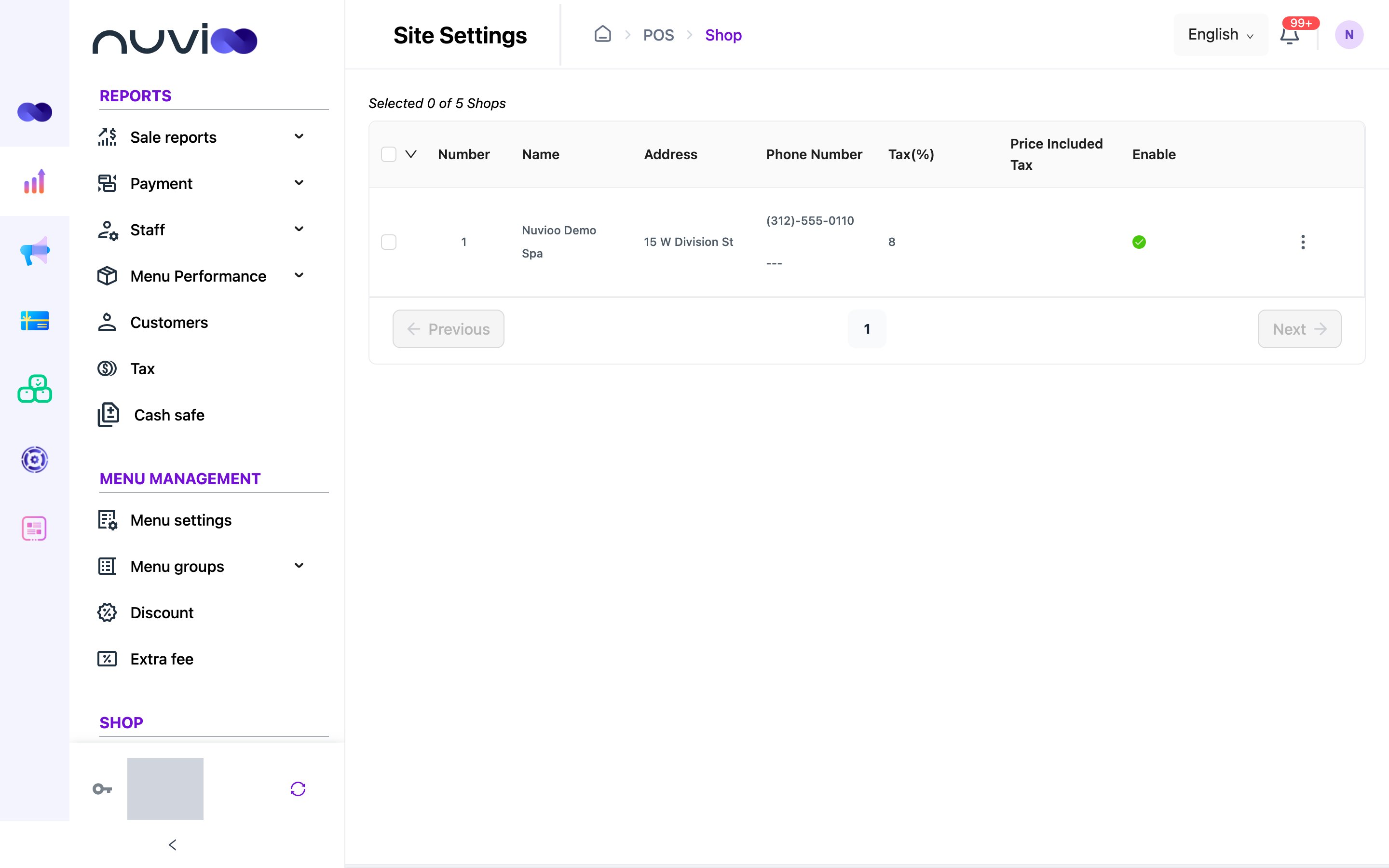
The site settings list
Section titled “The site settings list”The list has the same columns as Locations. The Enable column shows a check mark when the location’s Webshop setting is on. There is no Add New button here, because locations are added in Locations.
Set up a location’s online store
Section titled “Set up a location’s online store”Open the location's settings
Click ⋮ at the end of the location’s row, then Edit.
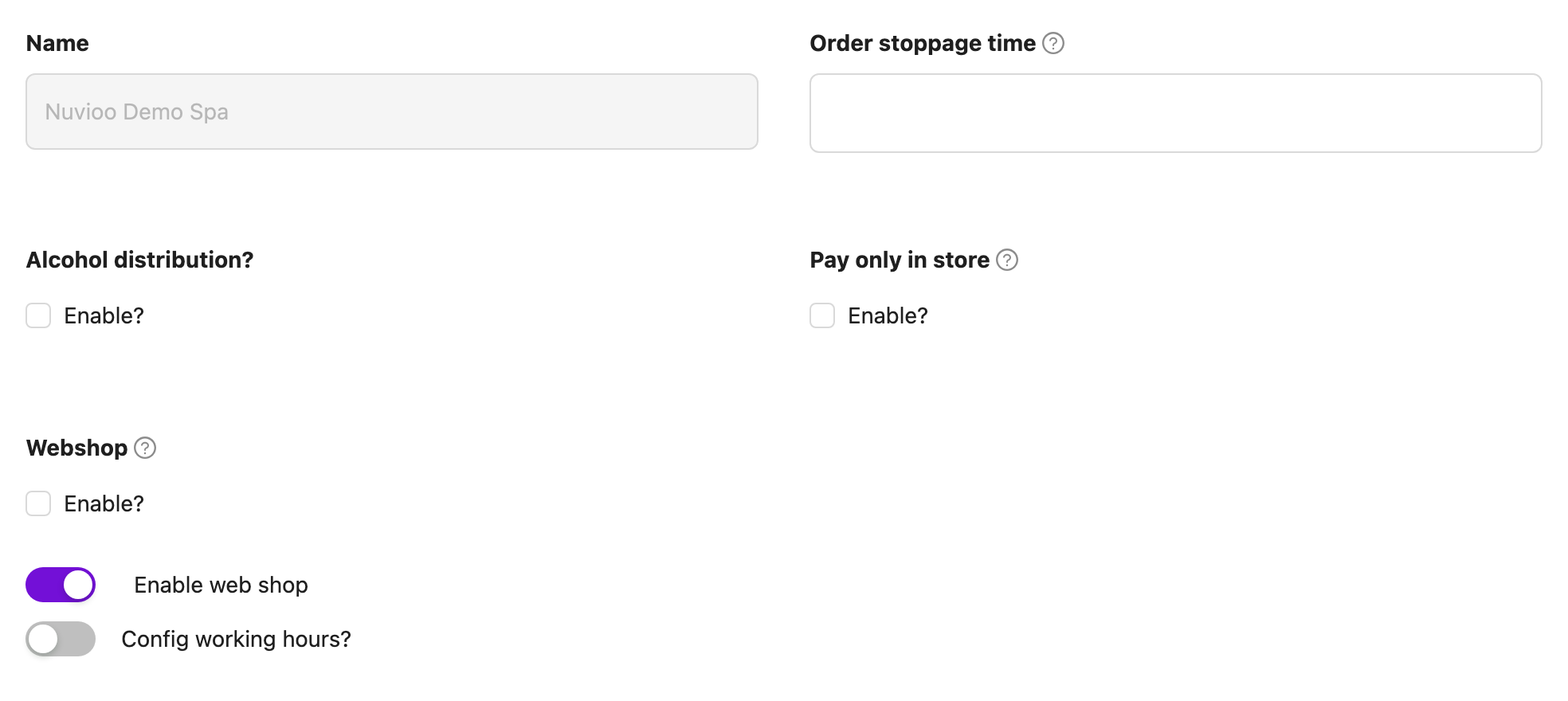
Update Site setting Choose the settings
Set the options in the settings table below.
Save
Click Complete. To leave without saving, click Cancel.
Site settings
Section titled “Site settings”| Setting | What it does |
|---|---|
| Name | The location name. It is read only here. Change it in Locations. |
| Order stoppage time | How many minutes before closing the location stops taking online orders. Choose from 0 to 120. It must be shorter than each order period you set. |
| Alcohol distribution? | Tick Enable? if this location sells alcohol online. |
| Pay only in store | Tick Enable? so customers pay when they pick up, not online. See Payment. |
| Webshop | Tick Enable? to show this location in the online ordering app. When it is off, the location doesn’t show and customers can’t check out. |
| Enable web shop | A switch. It turns online ordering on or off for the location. See When online ordering is off. |
| Config working hours? | A switch. It lets you set the hours the location takes online orders. See Order hours. |
When online ordering is off
Section titled “When online ordering is off”Turn off Enable web shop to pause online ordering for a location. Customers who click the order button then see a pop-up instead of the menu. Under Disabled Online Ordering Pop-up, choose the message.
- Standard Message: a ready-made apology that tells customers to call you. It shows a preview with your location’s name, phone numbers, address and opening hours filled in.
- Custom Message: write your own in the editor. A custom message can’t be empty.
In a custom message you can type these placeholders. Nuvioo replaces them with the location’s details.
| Placeholder | Replaced with |
|---|---|
{Shop_Name} |
The location name. |
{Shop_Phone_Number} |
The location’s phone numbers. |
{Shop_Address} |
The location’s address. |
{Shop_Opening_Hours} |
The hours from Config working hours?, or “All day” if none are set. |
The message is only used while Enable web shop is off. When you turn the switch back on, the message is cleared.
Order hours
Section titled “Order hours”Turn on Config working hours? to limit when customers can order. If it is off, the location takes online orders at any time.
- Choose a tab. All day in week uses the same hours every day. Specific for each day lets you tick the days you want and set hours for each.
- Under Start time and End time, pick the hours. Times move in 15-minute steps, and the end time must be after the start time.
- Click the plus button to add another period on the same day, for example a lunch and a dinner service. Click the delete button next to an added period to remove it.
Periods on the same day can’t overlap. If they do, Nuvioo shows Overlap times! and keeps the old value.
Customers pick a pickup time when they order. The ordering site checks it against these hours and against Order stoppage time. If the time is not allowed, the customer sees when the location opens next, or that it no longer takes orders today.
Payment
Section titled “Payment”Online payments use the payment methods you set up in Payments.
With Pay only in store on, customers don’t pay online. The order is recorded as a cash payment, and you collect payment at the location.
Pickup and delivery
Section titled “Pickup and delivery”Customers choose a pickup time when they order. The order records whether it is for pickup or delivery, and the time the customer picked. The portal has no delivery area, fee or minimum order settings.
How online orders reach the POS
Section titled “How online orders reach the POS”- The customer places the order on your online ordering site.
- The order is saved for the location the customer chose. It then shows in the POS app with the Online status. If the customer pays online by card, the order is saved as a draft until the payment goes through.
- An employee with the Approval and reject online order permission opens the order and taps Confirm or Reject. Set this permission in Roles and permissions.
- After Confirm, the order is served and paid like any other order in the POS app.
Edit several locations at once
Section titled “Edit several locations at once”Tick locations in the list and click the arrow in the header. For each of these settings, choose Enable or Disable:
- Alcohol distribution?
- Pay only in store
- Active Webshop: switches Enable web shop.
- Limit order access based on employee: the setting of the same name in Locations.
The menu is greyed out until you select at least one location.