

Refund reasons
Staff choose a reason when they refund an order on the POS. In the sidebar, under Settings, click General settings, then open the Refund setting tab. You only see this tab if your role has permission for refund settings.
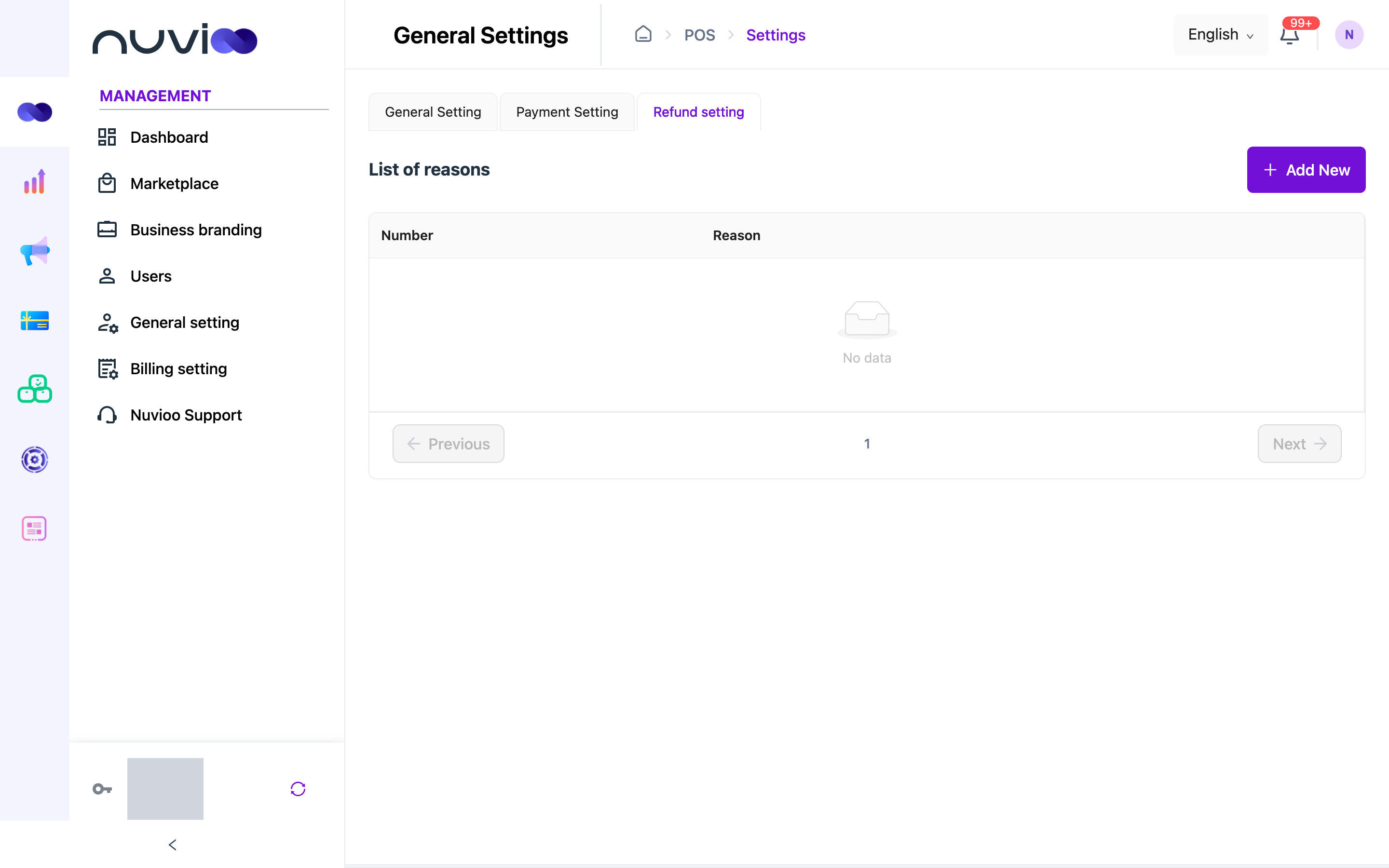
Reasons apply to your whole business, not to one location. Nuvioo has no other refund settings here. It has no refund limits, time windows or approval rules.
Manage reasons
Section titled “Manage reasons”The List of reasons shows each reason, 10 to a page by default. Roles with the matching permission can add, edit and delete.
| Action | How |
|---|---|
| Add a reason | Click Add New, type the Reason, then click Complete. |
| Edit a reason | Click the dots on the row, choose Edit, change the Reason, then click Complete. |
| Delete a reason | Click the dots on the row, choose Delete, then confirm. |
The Reason field is required. The drawer is titled Add new reason or Update reason.
Editing or deleting a reason doesn’t change refunds already made. Each refund keeps the reason text staff chose at the time.
Who can refund
Section titled “Who can refund”Refunding is controlled by the Refund order permission on a role. Only employees whose role has it can refund an order on the POS. Staff who can refund also receive your list of reasons.
To change who can refund, see Roles and permissions.
Where refunds show up
Section titled “Where refunds show up”Refunded orders and their reasons appear in the refunds report. See Payments and refunds. Printed refund lines are covered in Receipt templates.