

Track your cash safe
The cash safe report tracks the cash kept in your safe. It helps you find cash discrepancies early. It is a tracking tool, not a bank account.
In the sidebar, under Reports, click Cash safe. The page has two tabs, Reports and Settings. What you see depends on your role. You need permission to list cash safe transactions to see Reports, and permission to view cash safe settings to see Settings. See Roles and permissions.
If cash safe reporting is off, the page opens on Settings and Reports is disabled until you turn it on.
Read the report
Section titled “Read the report”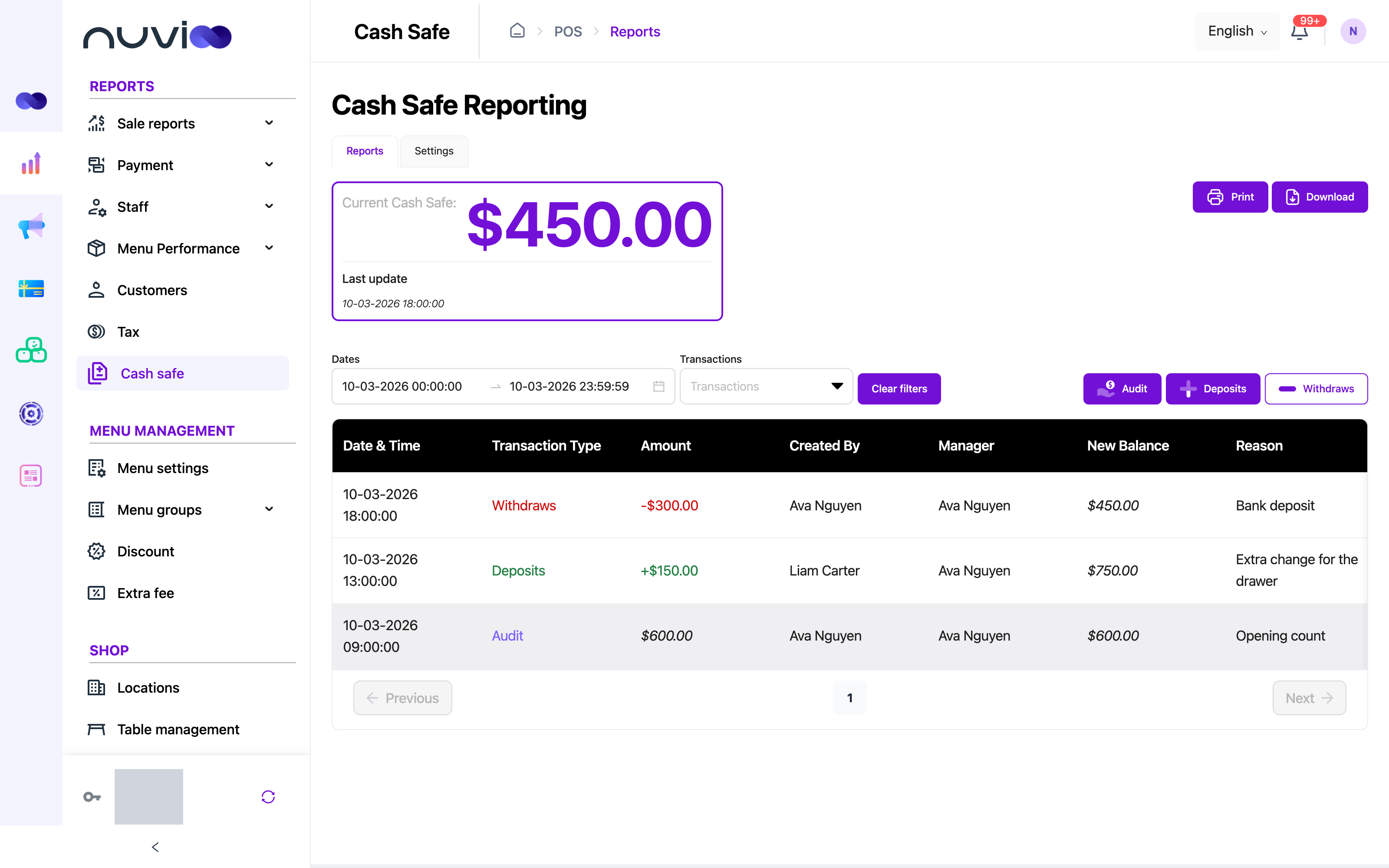
Current Cash Safe shows the balance. It is the New Balance of the latest transaction, whatever the filters are. Last update shows when that transaction was made. With no transactions, the balance is zero and Last update is hidden.
Transaction types
Section titled “Transaction types”| Type | What it does to the balance |
|---|---|
| Audit | A count of the cash in the safe. The balance becomes the amount you enter. |
| Deposits | Cash put into the safe. The amount is added to the balance. |
| Withdraws | Cash taken out, for example to take to the bank. The amount is taken off the balance. |
Where transactions come from
Section titled “Where transactions come from”- You add them in the portal. See Add a transaction.
- Closing a shift adds one automatically when the shift’s Drawer Net Cash isn’t zero. A positive amount is a deposit and a negative amount is a withdrawal, for the amount without the sign. The reason reads “Drawer Net Cash shift” and the shift number.
- The POS app adds cash counts and manager withdrawals during a shift.
Filters
Section titled “Filters”| Filter | What it does |
|---|---|
| Dates | The date and time range. It opens on today, so older transactions are hidden until you change it. Pick a preset (Yesterday up to This year) or your own range. You can’t pick a future date. |
| Transactions | Show one type: Audit, Deposits or Withdraws. |
| Clear filters | Removes the type and the date range, so every transaction shows. |
The newest transaction is first. Audits have a shaded row.
| Column | What it shows |
|---|---|
| Date & Time | When the transaction was made, in your browser’s time zone. |
| Transaction Type | Audit, Deposits or Withdraws. |
| Amount | A deposit has a plus sign and shows in green. A withdrawal has a minus sign and shows in red. An audit has no sign. |
| Created By | The person who made the transaction, with their role. For a shift, the employee who closed it. |
| Manager | The person who approved it, with their role. Transactions you add in the portal use your name here. Shift transactions have no manager. |
| New Balance | The balance after this transaction. |
| Reason | The reason entered. |
If no transaction matches, the table is empty.
Print and download
Section titled “Print and download”Click Print to open your browser’s print window. The printout has the balance and the transactions that match your filters. Click Download, then PDF or EXCEL, to keep a copy. For Excel you see “Downloading report is being processed. Please wait a moment.” The file downloads when it’s ready.
Add a transaction
Section titled “Add a transaction”You need permission to create cash safe transactions to see the Audit, Deposits and Withdraws buttons.
Choose the type
On the Reports tab, click Audit, Deposits or Withdraws. The form opens with the title Cash Safe Audit, Deposit or Withdrawal. You can switch type with the buttons on the right.
Check the date and time
Date & Time starts at now. Change it to when it happened. You can’t pick a future time. Manager shows your name.
Enter the amount
The label is Total Cash Safe Amount for an audit, Deposit Amount for a deposit, and Withdrawal Amount for a withdrawal. The amount can’t be negative.
Choose a reason
Click Confirm Safe Cash Amount, Drawer Balance, Cash Safe Refill or Other. With Other, type your reason in Reason / Description. A reason is required.
Submit
Click Submit. You see “Create successfully” and go back to the report. The close icon at the top right leaves the form without saving.
Settings
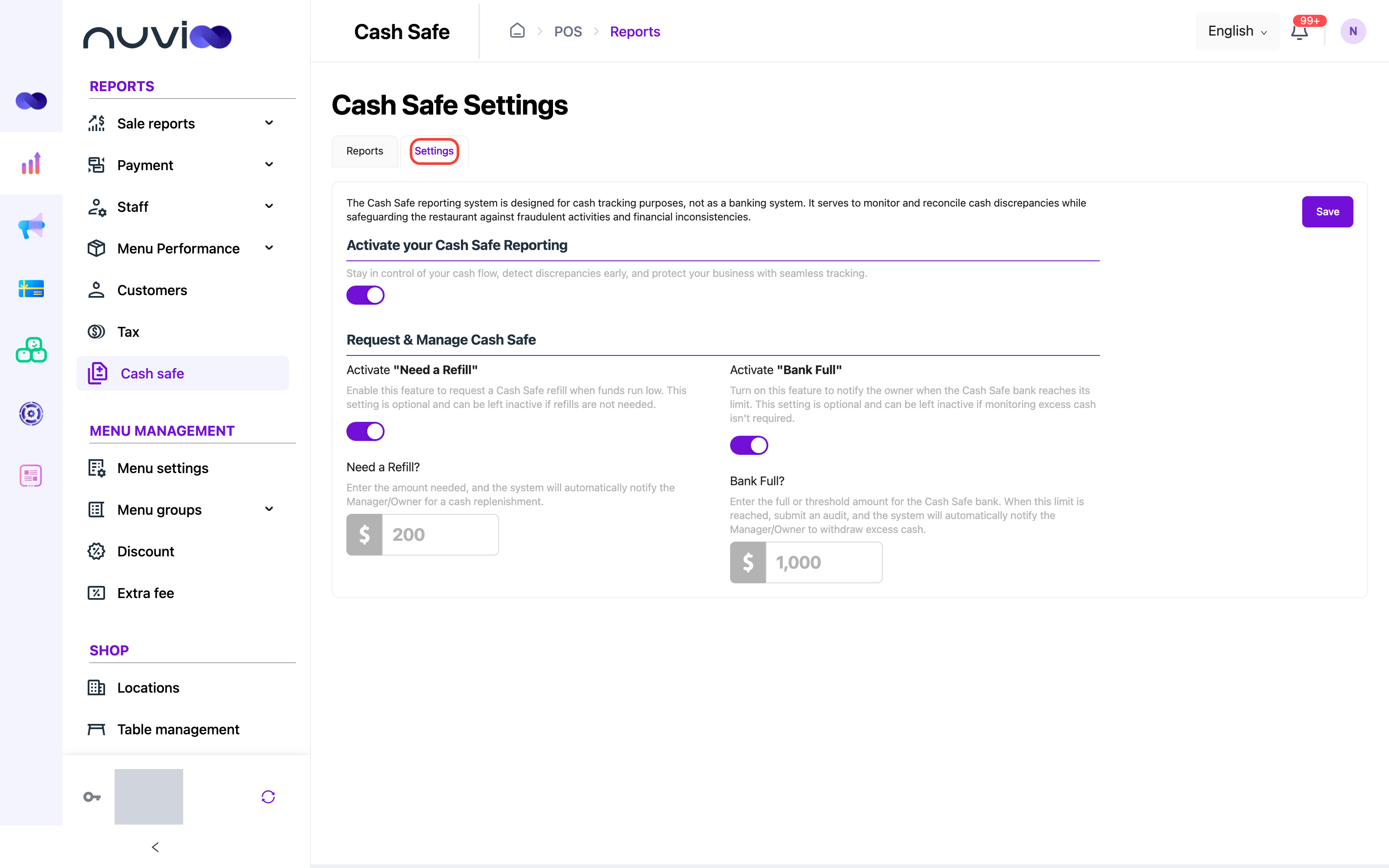
Section titled “Settings”Open the Settings tab. The heading is Cash Safe Settings. Click Save to keep your changes. Save only shows if your role can edit cash safe settings. You see “Update successfully” when it’s saved.
| Setting | What it does |
|---|---|
| Activate your Cash Safe Reporting | Turns cash safe reporting on for your business. The Reports tab opens when it is on. |
| Activate “Need a Refill” | Turns on the refill alert. |
| Need a Refill? | The amount for the refill alert. Required when the alert is on. It can’t be negative. |
| Activate “Bank Full” | Turns on the bank full alert. |
| Bank Full? | The amount for the bank full alert. Required when the alert is on. It can’t be negative. |
How the alerts work
Section titled “How the alerts work”Alerts are emails. They are sent only when cash safe reporting is on.
- After any new transaction, if Need a Refill is on and the new balance is the same as or below the amount, Nuvioo sends a refill alert.
- After any new transaction, if Bank Full is on, the amount is above zero, and the new balance is the same as or above it, Nuvioo sends a bank full alert.
- Each alert goes to the users on your business account. Users without an email address are skipped. It shows the balance, the amount you set, and a link to this report.
- You can’t choose who gets the alert.
An alert is sent after each transaction that leaves the balance past the amount, not once.