

Menu settings
Menu settings controls the order in which categories and items appear on your devices and in online ordering. Each layout belongs to one location and one channel. Arranging the POS layout of a location doesn’t change its WEB layout, and doesn’t change other locations.
Menu settings only changes order. To change what is on a menu, see Menus. To change which items are in a category, see Categories.
Choose a location and channel
Section titled “Choose a location and channel”In the sidebar, under Menu management, click Menu settings. The Select layout dialog opens straight away.
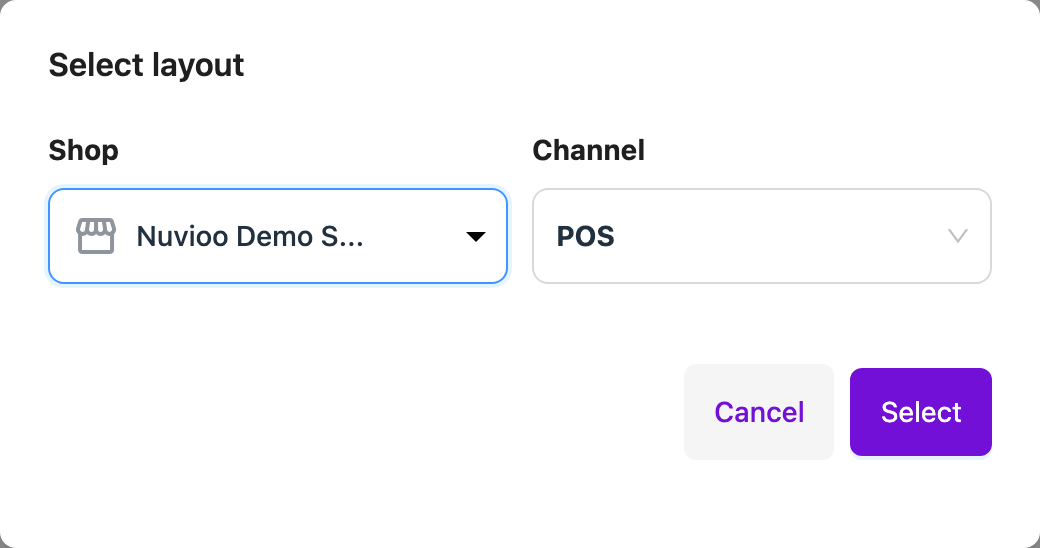
| Field | Required | What it does |
|---|---|---|
| Shop | Yes | The location to arrange. You can search the list. Names longer than 13 characters are cut in the list. |
| Channel | Yes | POS for your devices or WEB for online ordering. The default is POS. |
Click Select to load the layout. Cancel is turned off until you have loaded a layout once, so you must choose a location and channel the first time.
Arrange the layout
Section titled “Arrange the layout”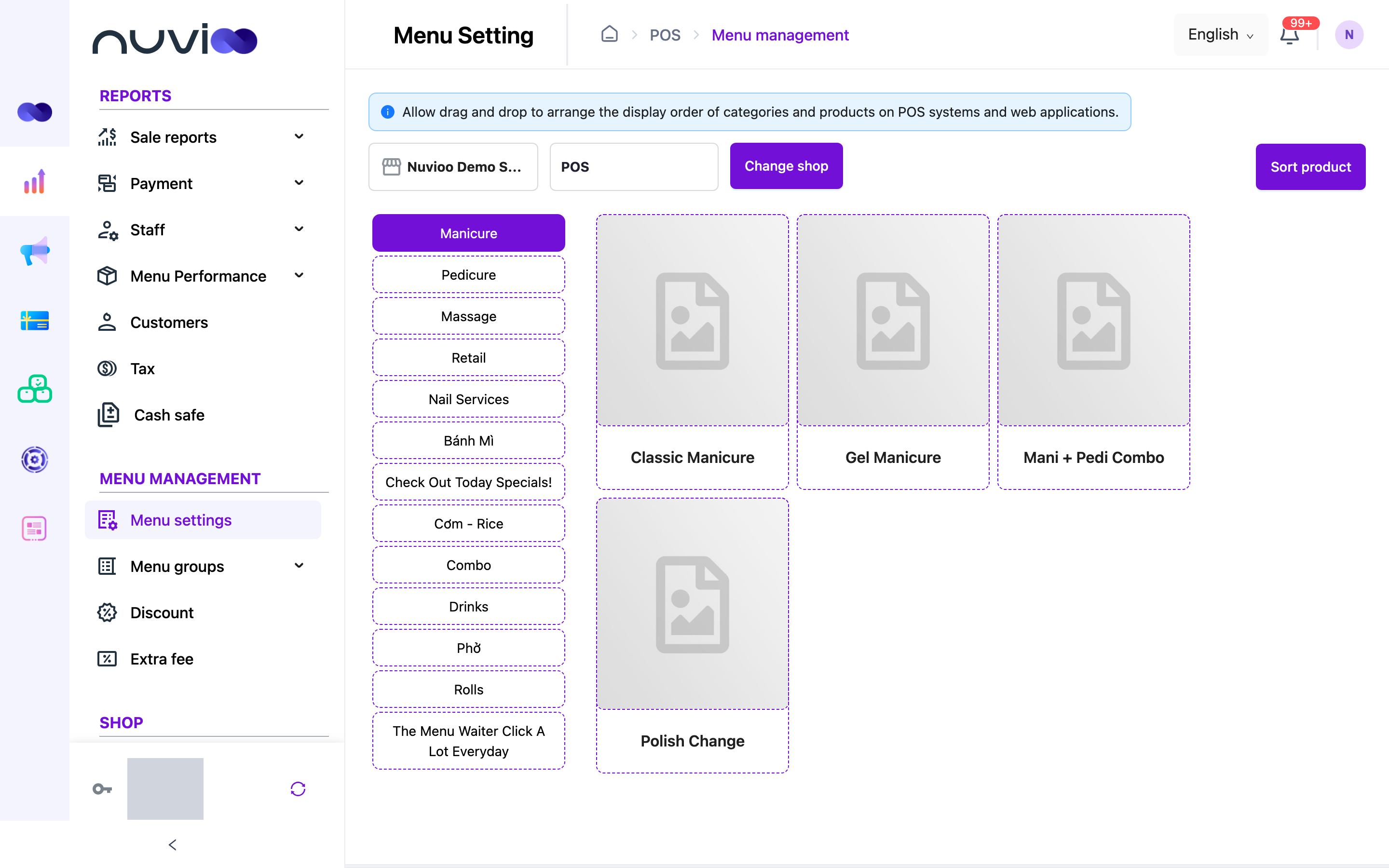
The page shows a note: Allow drag and drop to arrange the display order of categories and products on POS systems and web applications. Under it you see the location and channel you chose.
Order the categories
Categories and commodity groups are listed on the left. Drag a card up or down to move it. Click a card to select it and show its items on the right.
Order the items
Drag item cards on the right to reorder the items of the selected category. Items that aren’t Visible show a ribbon with their status. You can’t drag an item to a different category. To do that, edit the item.
Sort by name (optional)
Click Sort product and choose Name A-Z or Name Z-A. This sorts the items of the selected category only. You can still drag items afterwards.
Save
Click Save. You see Update successfully. Nuvioo clears its cached menu, so the new order is used the next time a device or online ordering loads the menu.
Save and Reset appear only after you change something. Click Reset to go back to the last saved order. This undoes every unsaved change, for all categories.
To work on another location or channel, click Change shop. Save first. Unsaved changes are lost when you load another layout.
What to expect
Section titled “What to expect”- Items with no saved position come after the ones you have placed, in alphabetical order.
- On the WEB channel, billable services aren’t listed.- A category or commodity group only appears in a location’s layout if it is sold at that location and on that channel.
- Saving the layout is recorded in the activity history.
- You need permission to edit items to save a layout. See Roles and permissions.