

Locations
A location is one of your shops. Menus, discounts, tables and employees are all set up per location.
The locations list
Section titled “The locations list”In the sidebar, under Shop, click Locations.
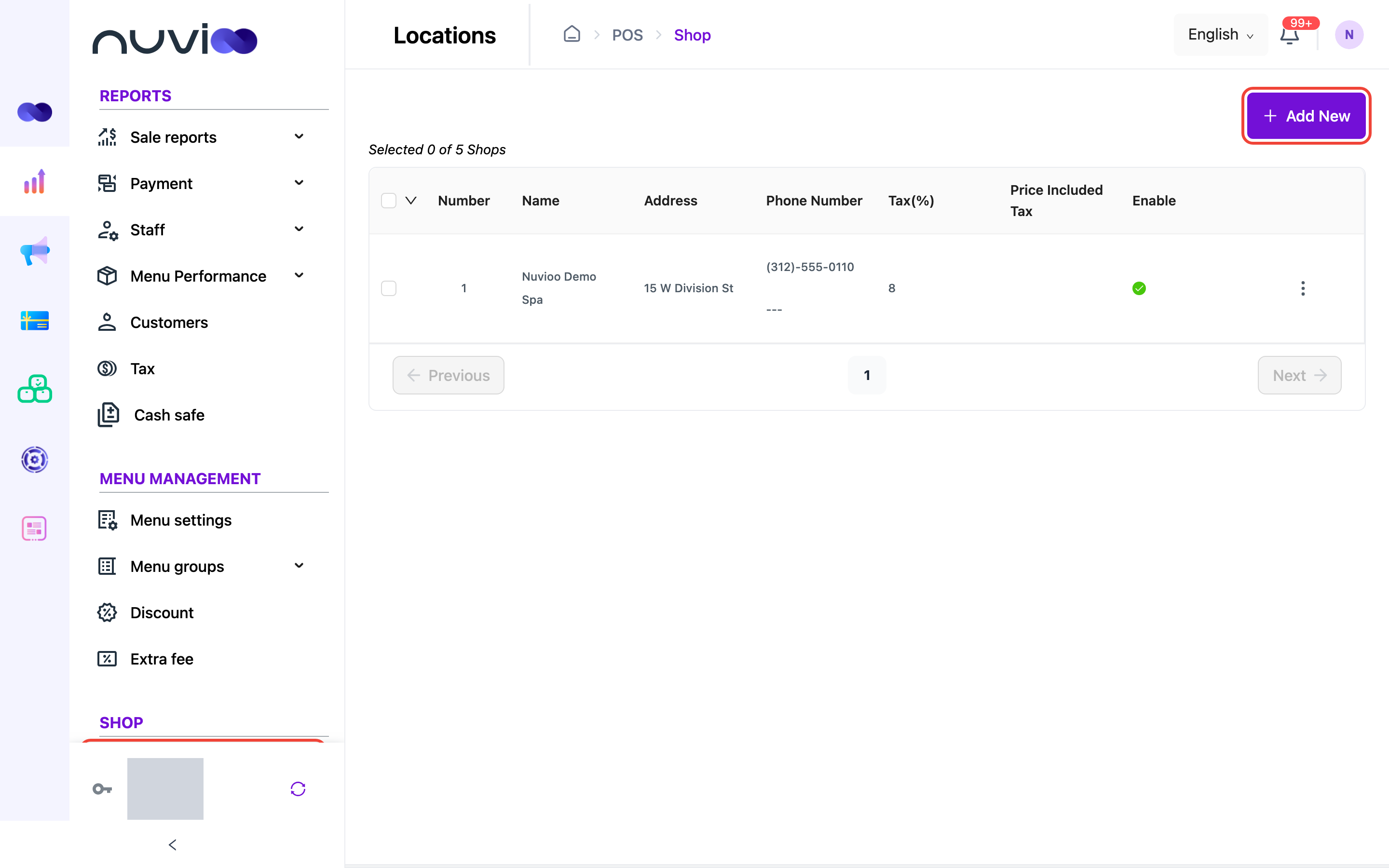
| Column | What it shows |
|---|---|
| Name | The shop name. |
| Address | The address you entered. |
| Phone Number | The main phone number, and the second number below it if you added one. |
| Tax(%) | The default sales tax rate. |
| Price Included Tax | A check mark when your prices already include tax. |
| Enable | A check mark when the location is active for online ordering. See Online ordering. |
The list shows 10 locations per page, newest first. The Add New, Edit and Delete controls appear only if your role has those permissions.
Add a location
Section titled “Add a location”Open the form
On the Locations page, click Add New.
Enter the details
In Add new Location, fill in the fields in the field table below. Fields marked with a red asterisk (*) are required.
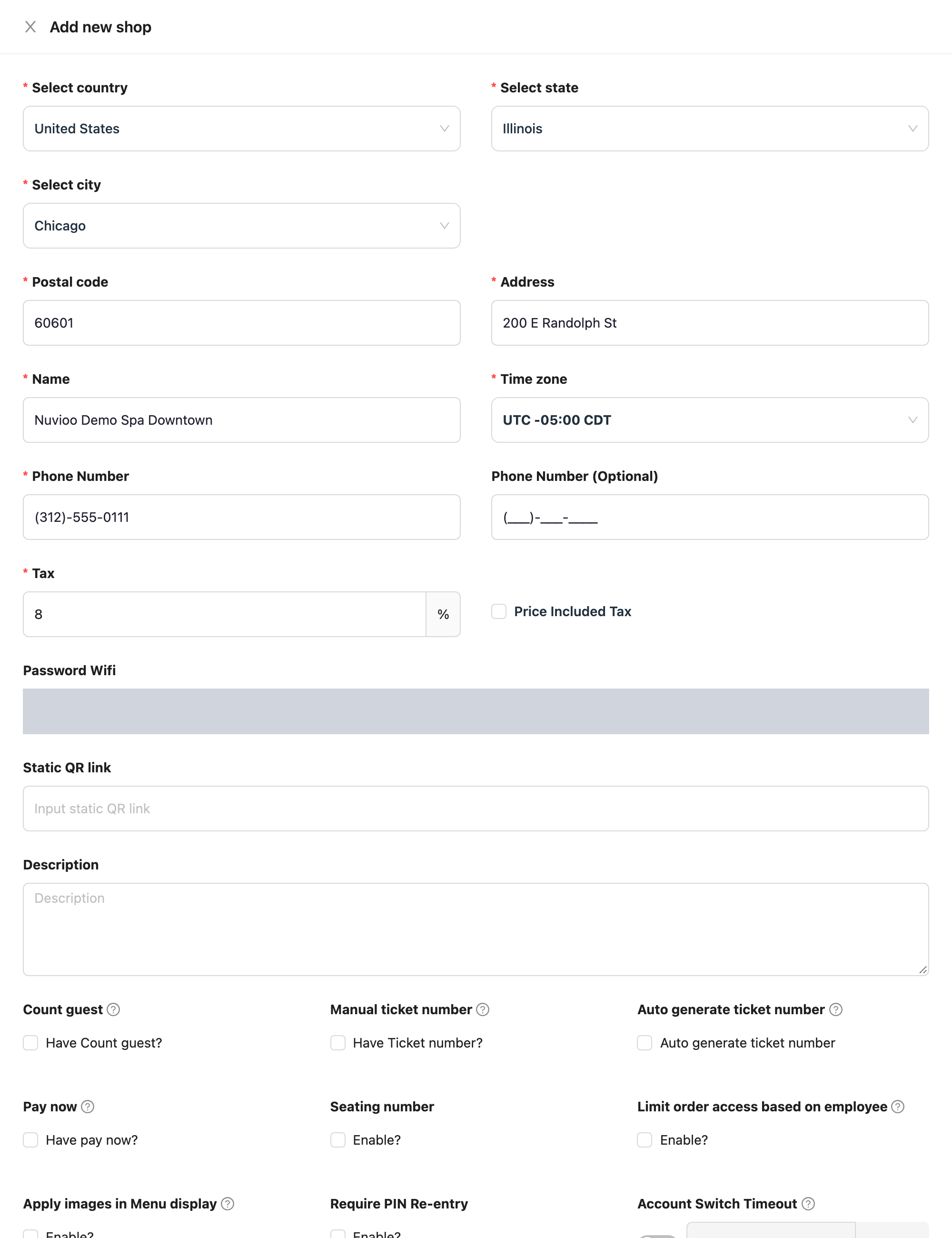
Add new shop Choose POS settings
Below the description, tick the POS settings this location uses. See POS settings. Point to the question mark next to a setting to see its hint.
Save
Click Complete. To leave without saving, click Cancel.
Location fields
Section titled “Location fields”| Field | Required | What it does |
|---|---|---|
| Select country | Yes | The country. This decides which address fields follow. |
| Select state | Yes (United States) | The state. Choose it after the country. |
| Select city | Yes | The city. Choose it after the state. |
| Select district, Select ward | Yes (Vietnam) | Shown instead of the state when you choose Vietnam. Choose the district, then the ward. |
| Postal code | Yes | A US postal code: five digits, or five digits and four more, such as 12345 or 12345-6789. |
| Address | Yes | The street address, up to 500 characters. |
| Name | Yes | The shop name, up to 200 characters. Staff and customers see it. |
| Time zone | Yes | The shop’s local time zone. Type to search. |
| Phone Number | Yes | The main number, in the format (000)-000-0000. |
| Phone Number (Optional) | No | A second number, in the same format. |
| Tax | Yes | The default sales tax rate, in %. It can’t be negative and takes up to two decimals. |
| Price Included Tax | No | Tick it if the prices on your menu already include tax. |
| Password Wifi | No | The shop’s guest Wi-Fi password. Receipt templates can print it. |
| Static QR link | No | A link that receipt templates can print as a QR code. |
| Description | No | Notes about the location, up to 500 characters. |
POS settings
Section titled “POS settings”These settings are in the same form, below Description. Each one is a tick box next to its name, or a switch where noted.
| Setting | What it does |
|---|---|
| Count guest | After staff choose a table in the POS app, they must enter the number of people. The Customers report adds these up. |
| Manual ticket number | For to-go orders in the POS app, staff must enter a ticket number. |
| Auto generate ticket number | The app gives each order a ticket number. It starts at 1 and resets every day. |
| Pay now | For dine-in orders, the POS app goes straight to the payment page and skips table selection. |
| Seating number | Staff can use seat numbers on dine-in orders. |
| Limit order access based on employee | Employees can’t open orders made by other employees. Managers keep access to all orders. |
| Apply images in Menu display | The POS app menu shows item images. When it is off, the menu shows colors instead. |
| Require PIN Re-entry | After an employee places an order or finishes a payment, the POS app asks for their PIN again. Roles with Disable PIN pad re-entry skip it. |
| Account Switch Timeout | A switch plus a number of seconds, from 1 to 86,400. After that long with no activity, the POS app asks for a PIN again. Roles with Disable account switch timeout skip it. |
| Enable Clock-in/out | Employees must clock in before they use the POS menu. Managers and general managers don’t have to. See Timesheets. |
| Busboy | Turn it on if someone clears tables after guests leave. The POS app then shows a Done tables count and a Clear all button. When it is off, the green Done status is hidden. |
| Auto Print Provisional To-Go Receipt | The app prints a provisional receipt right after a to-go order is placed. |
| Business hour | The time range that counts as one business day in reports. See Business hour. |
Business hour
Section titled “Business hour”Business hour sets two times, a start and an end. Reports use them as the default time range for the shop. It is not the shop’s opening hours and it doesn’t stop customers from ordering. If you leave it unset, reports use 12:00 AM to 11:59 PM. To set the hours online customers can order, see Online ordering.
Edit or delete a location
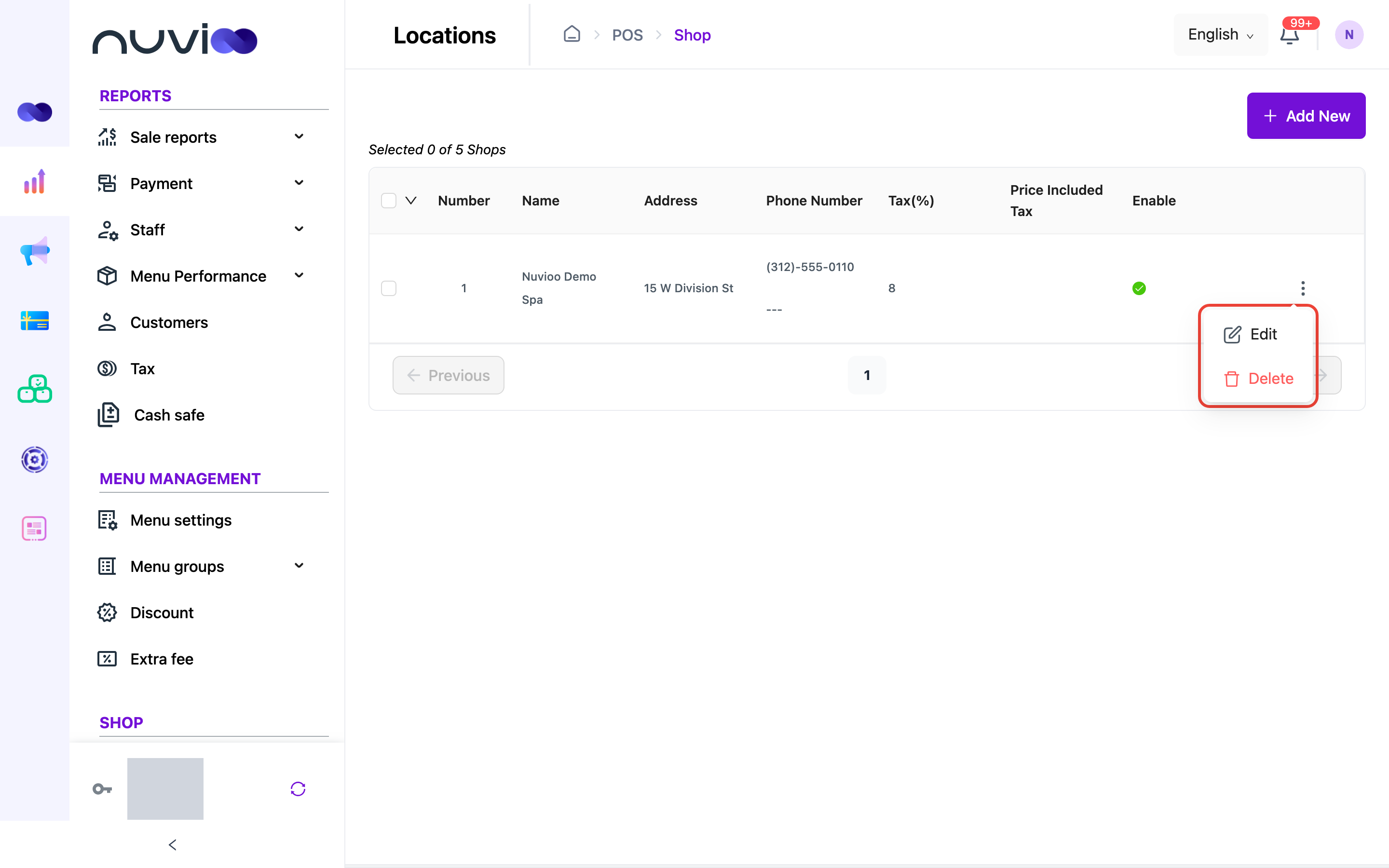
Section titled “Edit or delete a location”Click ⋮ at the end of the location’s row, then choose Edit or Delete. Edit opens the same form with the saved values.
Edit several locations at once
Section titled “Edit several locations at once”Tick the box in a row to select it. Tick the box in the header to select the whole page. The header shows Selected 0 of N Shops with your count. Click the arrow next to the header box to open the bulk menu.
- Price Included Tax: choose Enable or Disable for every selected location.
- Delete: deletes every selected location after you confirm. The warning above applies.
The bulk menu is greyed out until you select at least one location.