

Discounts
A discount takes money off an order. You choose what it applies to (Rule), how it is worked out (Action), when it runs and where.
A discount is active between its start and end dates, at the locations you choose. There is no on/off switch, so use the dates, locations and Sales time to control when it applies.
Types of discount
Section titled “Types of discount”The Rule decides who or what triggers the discount.
| Rule | Applies to | How it is applied |
|---|---|---|
| Cart | The whole order | Staff add it to an order on the device. Only cart discounts that are inside their dates and apply to that location are offered. |
| Products | Selected items, or all items | Automatic. The item is sold at its discounted price while the discount is active. |
| Categories | All items in selected categories, or in all categories | Automatic, like Products. |
| Coupon | The whole order | The customer gives a code and staff enter it on the order. |
The Action decides how the amount is worked out.
| Action | What it does | Available for |
|---|---|---|
| Fixed percentage | Takes a percentage off. You can cap the amount with Maximum Discount. | All rules |
| Fixed amount | Takes a set amount off, in your currency. The price never goes below zero. | All rules |
| Fixed price | Sells the item at the price you enter. | Products and Categories only |
Find a discount
Section titled “Find a discount”In the sidebar, under Menu management, click Discount.
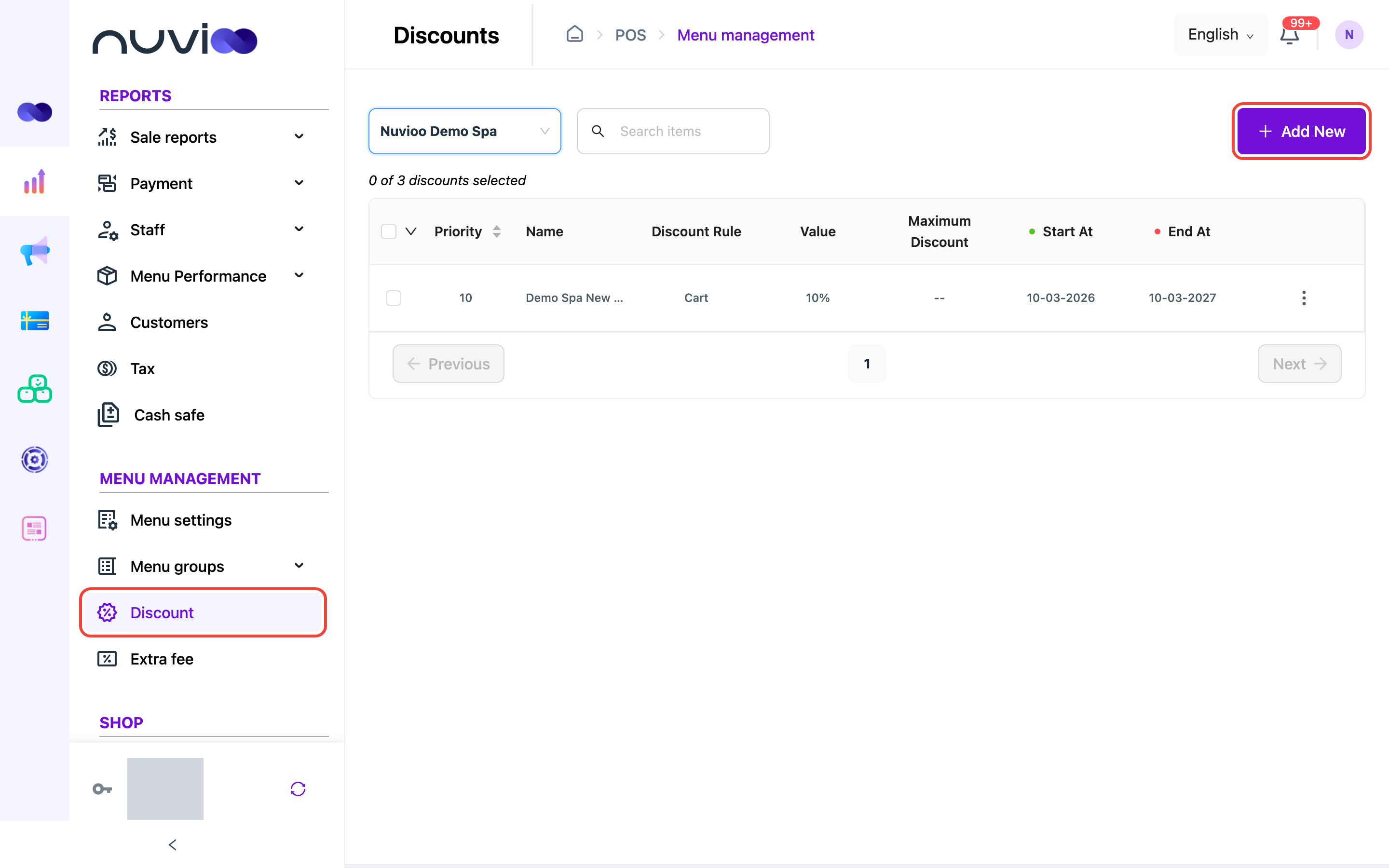
The list shows 10 discounts per page.
| Column | What it shows |
|---|---|
| Checkbox | Tick a row to select it. Tick the box in the header to select every row on the page. |
| Priority | The priority number. Click the header to sort ascending or descending. |
| Name | The discount name. |
| Discount Rule | Cart, Categories, Coupon or Products. |
| Value | A percentage, or an amount in your currency. |
| Maximum Discount | The cap on a percentage discount. Shows -- when there is none. |
| Start At and End At | The first and last day. |
Above the table, a counter shows how many discounts are selected, for example 0 of 12 discounts selected.
To narrow the list:
- Select any: pick a location. You see discounts for that location and discounts that apply to all locations.
- Search items: type part of a discount name.
By default the list is sorted by priority number, lowest first, then by name.
Add a discount
Section titled “Add a discount”Open the form
Click Add New. The Add discount drawer opens with a Discount tab. You only see Add New if your role can create discounts. See Roles and permissions.
Enter the basics
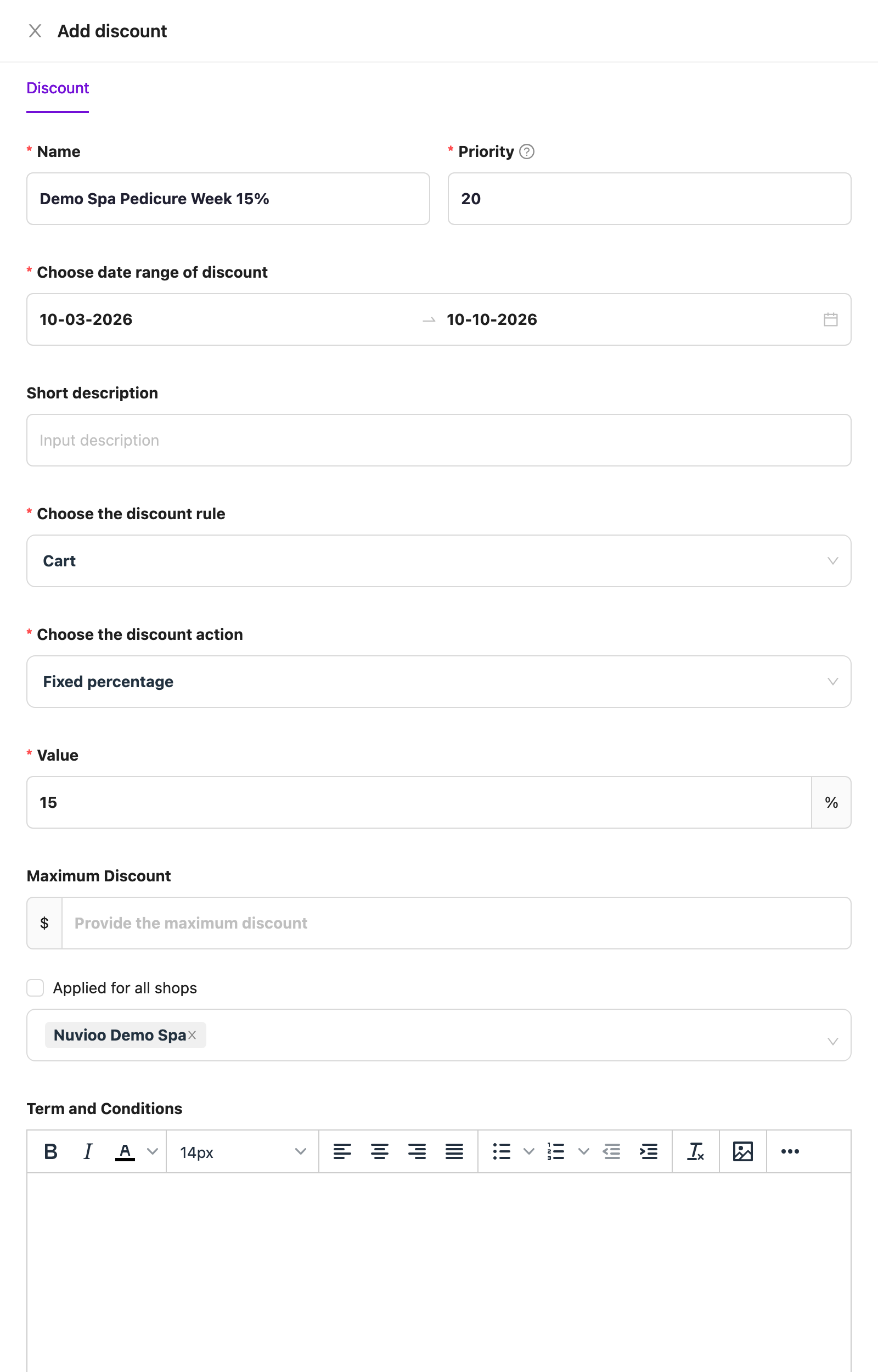
Add discount Field Required What it does Name Yes Up to 200 characters. It must be different from every other discount name. Priority Yes, except for Coupon A whole number from 1 to 99999. 1 is the highest priority. See Priority and stacking. Coupons don’t have this field. Choose date range of discount Yes The first and last day. The discount starts at the beginning of the first day and ends at the end of the last day. You can’t pick a day in the past. Short description No Up to 500 characters. Choose the discount rule Yes Cart, Products, Categories or Coupon. The default is Cart. Choose the discount action Yes Fixed percentage, Fixed amount or Fixed price. The default is Fixed percentage. Choose what it applies to
This step depends on the rule.
- Cart and Coupon: nothing to choose. The discount applies to the whole order.
- Products: Applied for all products other than service products is ticked by default. Untick it, then use Choose applied products to pick items. The list has a Products group and a Toppings group for add-ons. Pick at least one.
- Categories: Applied for all categories is ticked by default. Untick it, then use Choose applied categories. Pick at least one. Only categories are listed, not commodity groups.
Hidden or unavailable items and categories show their status in brackets before the name. Items you marked as non-discountable on the item are never discounted.
Enter the value
Action Field Required Rule Fixed percentage Value Yes A number from 1 to 100. Fixed percentage Maximum Discount No The most the discount can take off, in your currency. Leave it empty for no cap. Fixed amount Value Yes An amount in your currency. Fixed price Value Yes The price the item is sold at, in your currency. If you switch the rule to Cart or Coupon while Fixed price is selected, the action returns to Fixed percentage.
Choose the locations
Applied for all shops is ticked by default. Untick it, then use Choose applied shops to pick locations. Pick at least one.
Add terms (optional)
Term and Conditions is a text box with formatting tools. It is saved with the discount.
Set sales time (Products and Categories only)
Save
Click Complete, or Cancel to close without saving. You see Create successfully.
Limit a discount to certain hours
Section titled “Limit a discount to certain hours”For Products and Categories, a second tab called Sales time appears next to Discount. Cart and Coupon discounts don’t have it.
- Turn on Config working hours?. If it stays off, the discount runs all day while it is active.
- Choose All day in week to use the same hours every day, or Specific for each day to tick the days you want and set hours for each.
- Set Start time and End time. Times move in 15-minute steps.
- Click + to add another time range on the same day. Click the delete icon to remove one. Time ranges on the same day can’t overlap. If they do, you see Overlap times!.
Sales time follows the time zone of the location where the order is taken.
Coupons
Section titled “Coupons”When the rule is Coupon, the form shows extra fields after the value.
| Field | Required | What it does |
|---|---|---|
| Coupon quantity | Yes | How many codes to create. A whole number of 1 or more. |
| Generate coupons | - | Click to create the codes. It is turned off until you enter a quantity. |
| Coupon code table | Yes | One row per code, with Coupon code, Times used and Times quantity. Codes look like ABC-DEF-GHI-JKL. You must generate at least one, or the form shows Please generate coupon. |
| Times quantity | Yes | How many times each code can be used. A whole number of 1 or more. |
A code works while the discount is inside its dates, at the locations you chose, until it has been used Times quantity times.
Once any code has been used:
- You can’t change the Rule or the Action.
- You can’t delete a used code, and Coupon quantity can’t go below the number of used codes.
- You can’t lower Times quantity below what a used code already had.
Remove an unused code with the delete icon on its row.
Priority and stacking
Section titled “Priority and stacking”- Items (Products and Categories): only one discount applies to an item at a time. If more than one is active for the same item, the discount with the lowest priority number wins. If priorities tie, a Fixed price discount wins. If that also ties, the discount that gives the lower price wins.
- Orders (Cart and Coupon): you can add more than one cart or coupon discount to the same order. Nuvioo works them out one after the other.
- Staff: there is no setting here to limit a discount to certain employees.
Edit or delete a discount
Section titled “Edit or delete a discount”Click ⋮ on a row, then choose Edit or Delete. Edit opens the Update discount drawer with the same fields. The ⋮ column is hidden if your role can’t edit or delete discounts.
When you edit, the drawer shows a notice: If you change the value of this discount, it will affect old discounted data.
- Delete one: click Delete in the row menu, then confirm with Delete, or click No.
- Delete several: tick the rows, open the arrow in the header, and choose Delete. Confirm with Delete.
- There is no other bulk action on this list.
Receipts and reports
Section titled “Receipts and reports”- Receipts: the receipt data includes each discount’s name and amount, both on the order and on each item, and a discount total. What your printed receipt shows depends on its template. See Receipt templates.
- Reports: the Discounts report lists every discounted order with the discount name, reason, type and amount. See Menu performance. Order reports show the discount amount for each order, and shift reports count discounted orders. See Summary and sales and Staff and tips.