

Commodity groups
A commodity group collects items into one named group, whatever category each item sits in. For example, Nail Services can include manicures and pedicures from two different categories.
Nuvioo sends commodity groups to your devices together with your categories. You can put them in order in Menu settings.
Find a commodity group
Section titled “Find a commodity group”In the sidebar, under Menu management, open Menu groups and click Commodity groups.
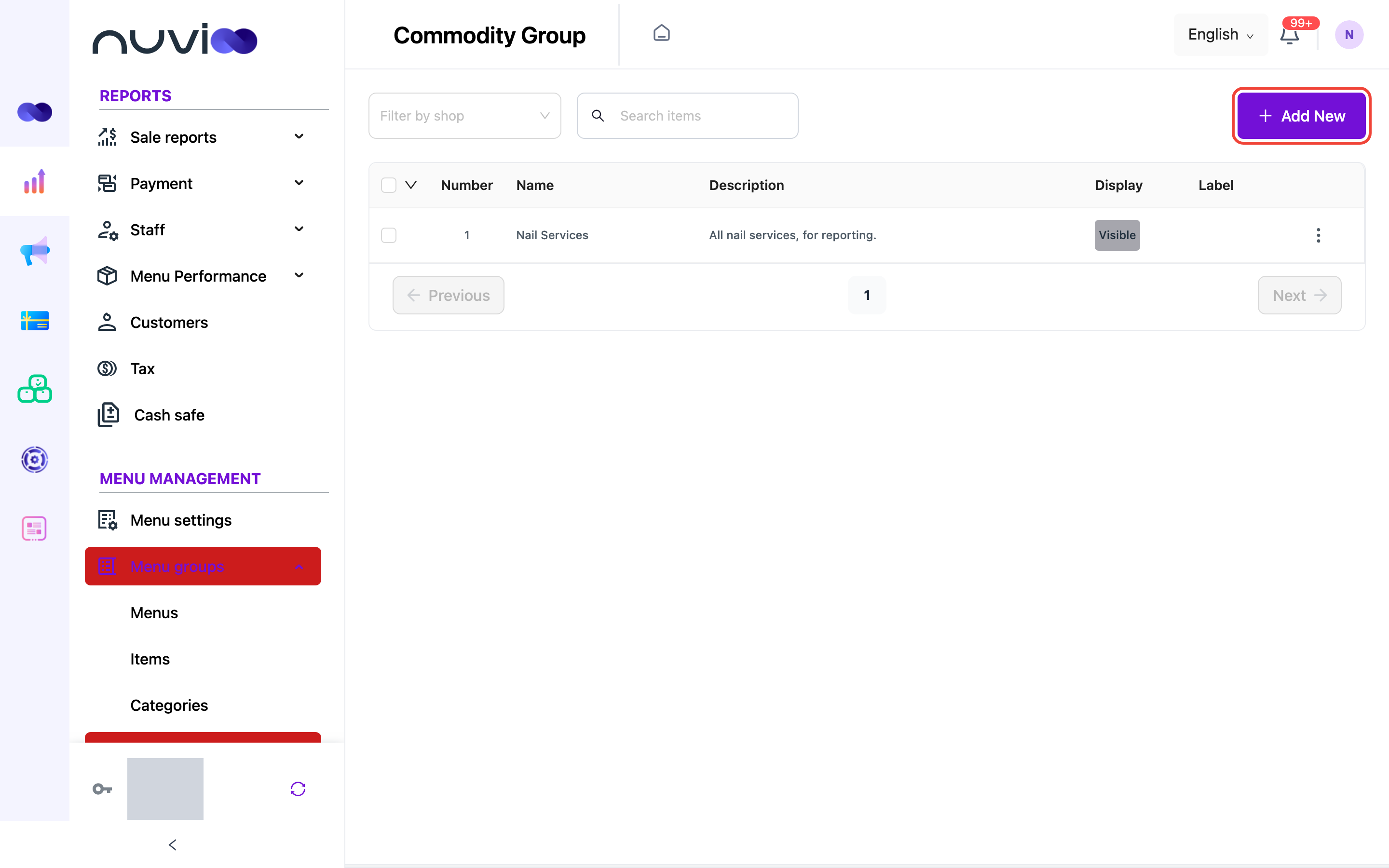
The list shows 10 groups per page, newest first.
| Column | What it shows |
|---|---|
| Checkbox | Tick a row to use the bulk menu. Tick the box in the header to select every row on the page. |
| Number | The row number. |
| Name | The group name. |
| Description | The description you entered. |
| Display | Visible, Hidden or Unavailable. |
| Label | The label, if you turned one on. Long labels are cut after 15 characters. |
To narrow the list:
- Filter by shop: pick a location to see only the groups sold there. Clear it to see all.
- Search items: type part of a group name. The list updates after you stop typing.
Add a commodity group
Section titled “Add a commodity group”Open the form
Click Add New. The Add commodity group drawer opens.
Enter the details
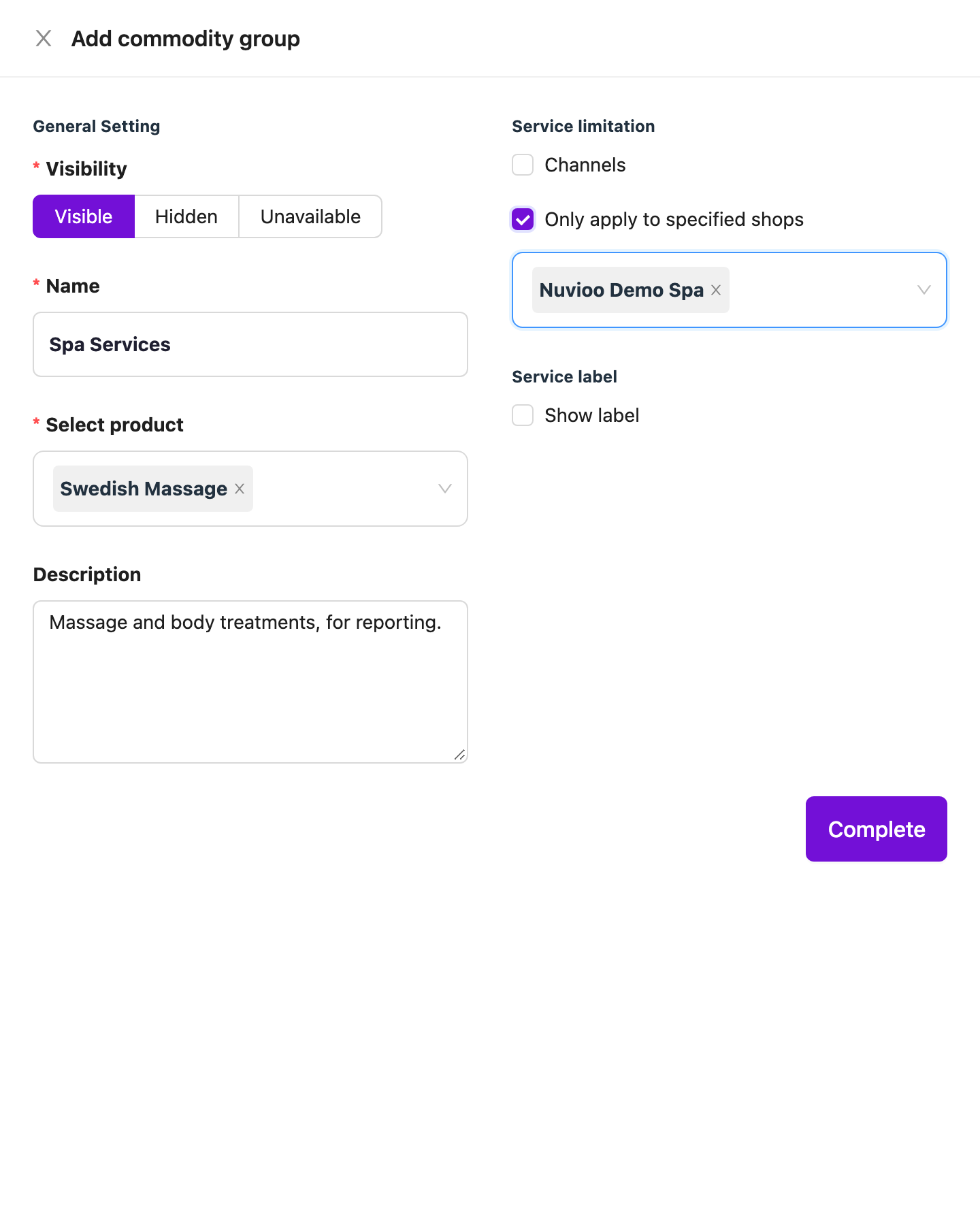
Add commodity group Field Required What it does Visibility No Visible shows the group. Hidden hides it. Unavailable marks it as not available. The default is Visible. Name Yes Up to 200 characters. A group can’t share a name with another group or with a category. Select product Yes The items in the group. Search by typing. Hidden or unavailable items show their status in brackets before the name. Description No Free text. It appears in the list. Choose where it's sold
Under Service limitation:
- Tick Channels to limit the group to pos, web or both. Leave it unticked to sell on both. Select channel is required once you tick it.
- Tick Only apply to specified shops to limit the group to some locations. Select shop is required once you tick it. Leave it unticked to sell at every location.
Add a label (optional)
Under Service label, tick Show label and type a Label. The label is required once you tick the box, and holds up to 200 characters.
Save
Click Complete. You see Create successfully.
Edit, change status or delete
Section titled “Edit, change status or delete”Click ⋮ on a row, then choose Edit or Delete. Edit opens the Update commodity group drawer with the same fields.
- Delete asks Are you sure to delete?. Confirm with Delete, or click No. Deleting a group doesn’t delete its items or their categories. Nuvioo doesn’t block the delete.
- Bulk actions: tick one or more rows, then open the arrow in the header. Choose Status to set Visible, Hidden or Unavailable on all of them, or choose Delete to remove them.
Where commodity groups show up
Section titled “Where commodity groups show up”- Menu settings: groups appear next to categories, so you can drag them into order.
- Menus and discounts: the category pickers list categories only. You can’t add a commodity group to a menu or choose it for a category discount.
- Reports: the Categories report counts an item under its category only, not under a commodity group. See Menu performance.