

Options
An option is a list of choices staff pick when they add an item, for example Massage Pressure: Light, Medium or Firm. Each choice is called a property.
Options work like modifiers, with these differences:
- An option can allow several choices at once, with a maximum.
- An option has no prices.
- You can hide the option name on the bill.
- You can hide a single property from online ordering.
Create an option here, then attach it to items on each item’s Add ons tab, under Modifiers types. See Add-ons, modifiers and options on an item.
Find an option
Section titled “Find an option”In the sidebar, under Menu management, open Menu groups and click Options.
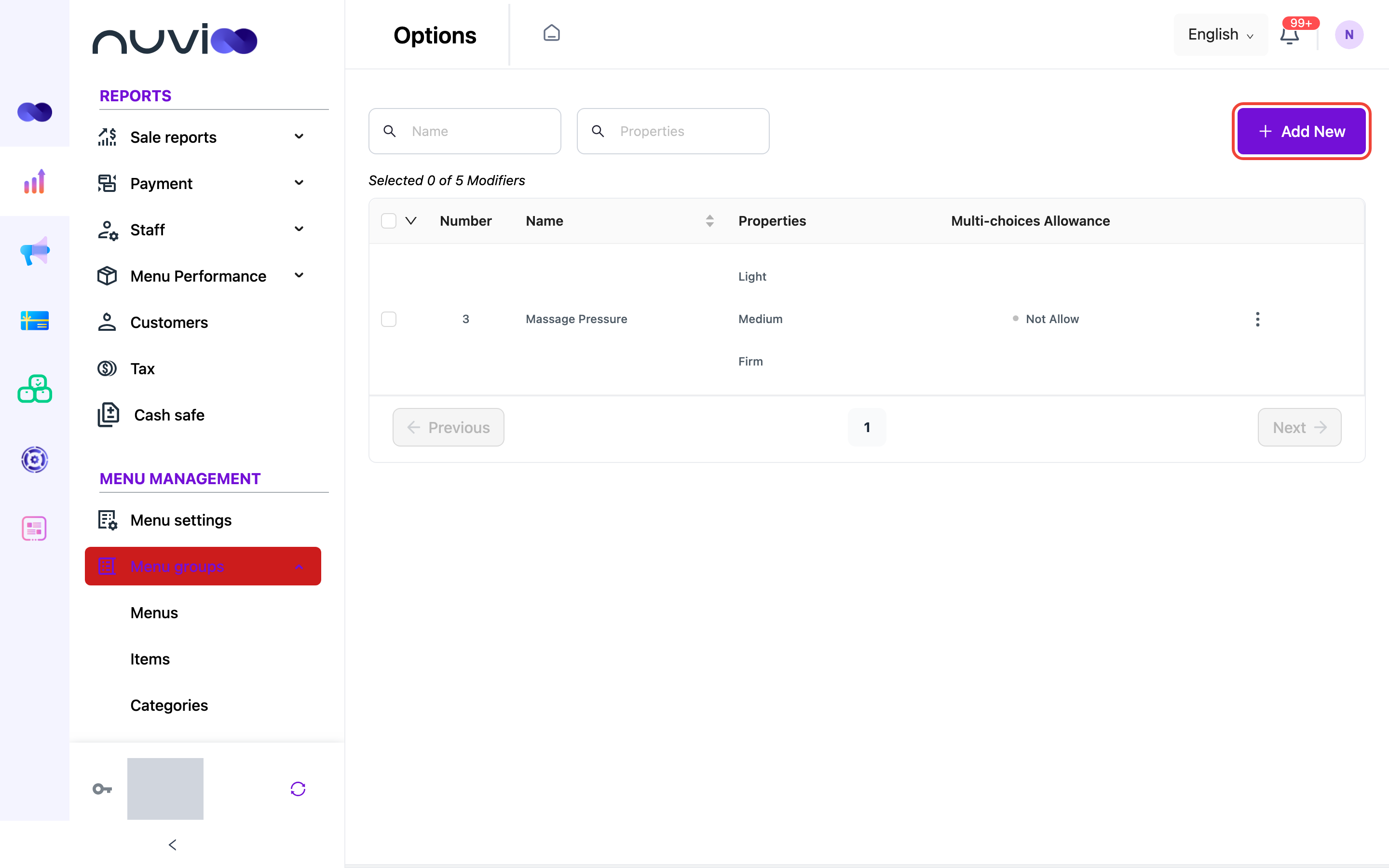
The list shows 10 options per page, sorted by name from A to Z. Above the table, Selected 0 of 6 Modifiers shows how many rows you ticked and how many options match.
| Column | What it shows |
|---|---|
| Checkbox | Tick a row to use the bulk menu. Tick the box in the header to select every row on the page. |
| Number | The row number on the page. |
| Name | The option name. Click the header to sort from A to Z or Z to A. |
| Properties | Every choice in the option. |
| Multi-choices Allowance | Allow or Not Allow. |
To narrow the list, use the two search boxes. Name matches part of an option name. Properties matches part of a choice name.
Add an option
Section titled “Add an option”Open the form
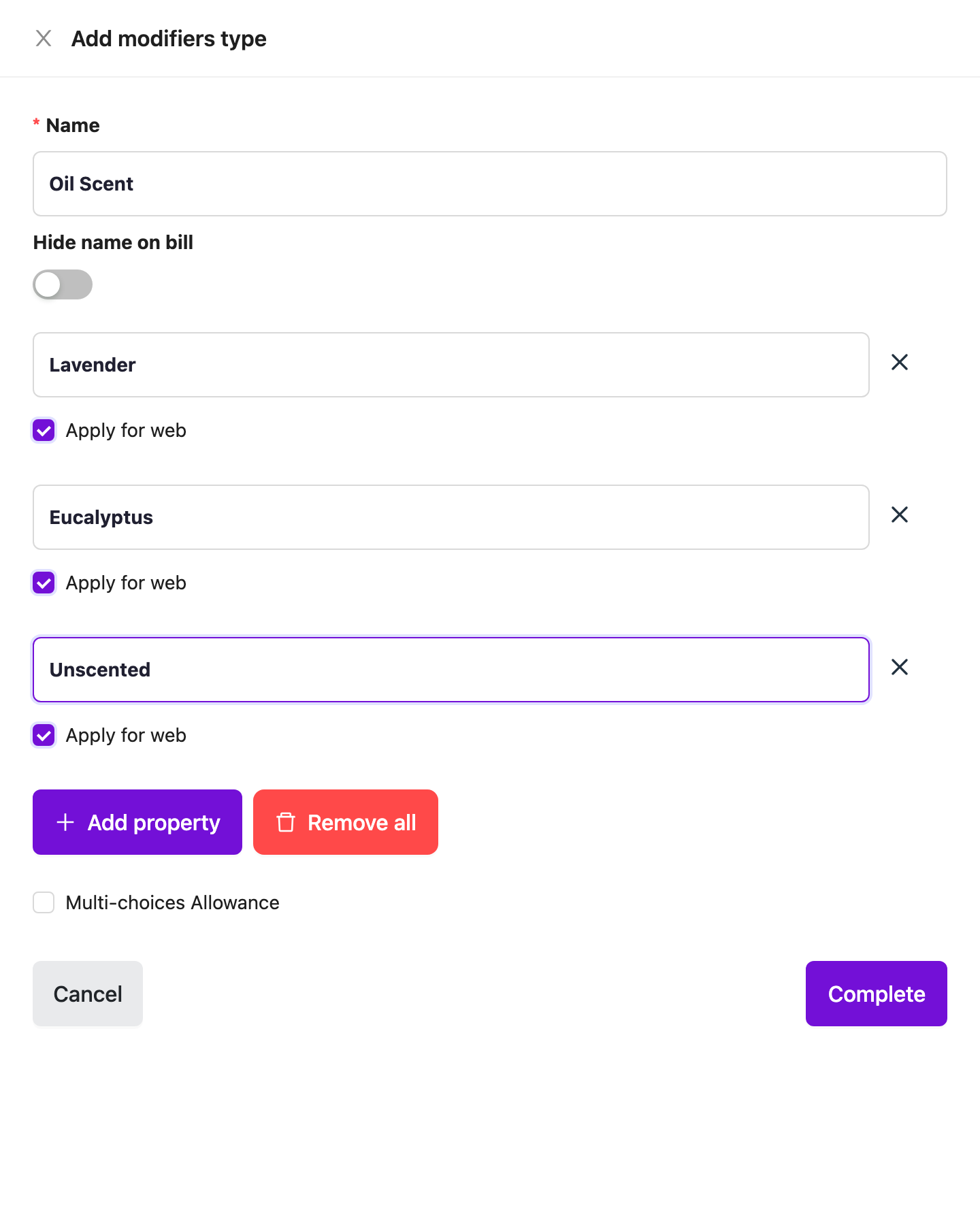
Click Add New. The Add modifiers type drawer opens.
Enter the details
Fill in the fields in the table below. Name and at least one property are required.
Adding an option Save
Click Complete.
Fields
Section titled “Fields”| Field | Required | What it does |
|---|---|---|
| Name | Yes | The option name, for example “Oil Scent”. Up to 50 characters. You see Please provide the modifiers type’s name if it is empty. |
| Hide name on bill | No | Turn it on to print only the chosen property, not the option name. Off by default. |
| Property name (Input modifier’s property) | Yes | A choice staff can pick. Up to 50 characters. Each name must be unique in the option, or you see The property is duplicated! |
| Apply for web | No | Ticked by default. Untick it to hide that property from online ordering. |
| Multi-choices Allowance | No | Tick it to let staff pick several properties. |
| Maximum choices | No | Shows when you tick Multi-choices Allowance. The most properties staff can pick. Whole number, 1 or more. Leave it empty for no limit. |
Under the list of properties:
- Add property adds a row.
- The remove icon at the end of a row removes that property. It shows only when there is more than one row.
- Remove all clears every property after you confirm, and leaves one empty row.
Edit an option
Section titled “Edit an option”Click ⋮ on the row and choose Edit. The Update modifiers type drawer has the same fields as the add form.
Click Complete. If you changed Maximum choices or added a property, Nuvioo asks Do you want to apply for all items? Otherwise it saves straight away.
| Answer | What happens |
|---|---|
| Yes | New properties are added to every item that uses the option. |
| No | Items that already use the option don’t get the new properties. |
Properties you remove are removed from every item either way.
Change several options at once
Section titled “Change several options at once”Select the rows
Tick the options. Tick the box in the header to select the whole page.
Choose an action
Click the arrow next to the header checkbox.
- Multi-choices Allowance, then Allow or Not Allow. This changes all selected options at once.
- Delete, then confirm.
The options stay greyed out until you tick at least one row. Selection clears when you change page.
Delete an option
Section titled “Delete an option”Click ⋮ on the row, choose Delete, and confirm with Delete.
On the POS
Section titled “On the POS”Options show on the Modifiers tab of the pop-up staff see when they tap an item.
- An option that doesn’t allow several choices has a red asterisk. Staff must pick exactly one property.
- An option that allows several choices shows (Multi-choices allowance) and (Max: n) if you set a maximum. Once staff reach the maximum, the other properties grey out.
- On the item’s Add ons tab you can leave a property out for that item only.
You need the matching role permission to see Add New, Edit and Delete. See Roles and permissions.