

Extra fees
An extra fee is a charge added to an order, such as a service charge. It is either a percentage of the order or a fixed amount.
A fee is added to an order automatically when it is set to auto apply for that order’s type. A fee that isn’t set to auto apply isn’t added on its own. Staff can still add it on the POS device: on the payment screen, they open the extra fees list and tick the fees to apply, or untick one to remove it.
Find an extra fee
Section titled “Find an extra fee”In the sidebar, under Menu management, click Extra fee.
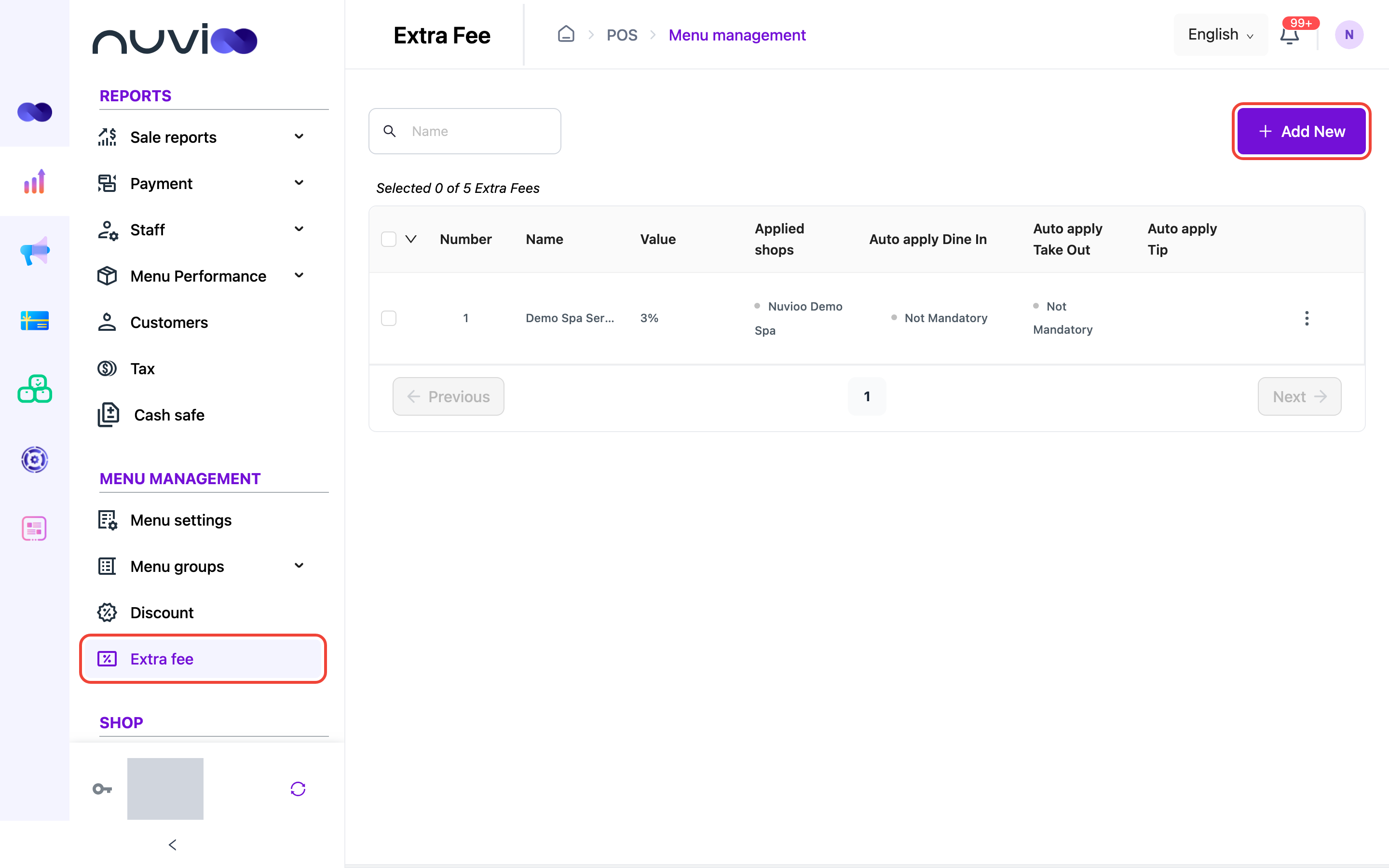
The list shows 10 fees per page, sorted by name from A to Z.
| Column | What it shows |
|---|---|
| Checkbox | Tick a row to use the bulk menu. Tick the box in the header to select every row on the page. |
| Number | The row number. |
| Name | The fee name. |
| Value | A percentage, or an amount in your currency. |
| Applied shops | Applied for all shops, or the names of the locations. |
| Auto apply Dine In | Mandatory when the fee is added to dine-in orders, otherwise Not Mandatory. |
| Auto apply Take Out | Mandatory when the fee is added to take-out orders, otherwise Not Mandatory. |
| Auto apply Tip | A tick when the fee is counted as a tip. |
Above the table, a counter shows how many fees are selected, for example Selected 0 of 3 Extra Fees. Type part of a fee name in the Name search box to filter the list. There is no location filter.
Add an extra fee
Section titled “Add an extra fee”Open the form
Click Add New. The Add Extra Fee drawer opens. You only see Add New if your role can create extra fees. See Roles and permissions.
Enter the details
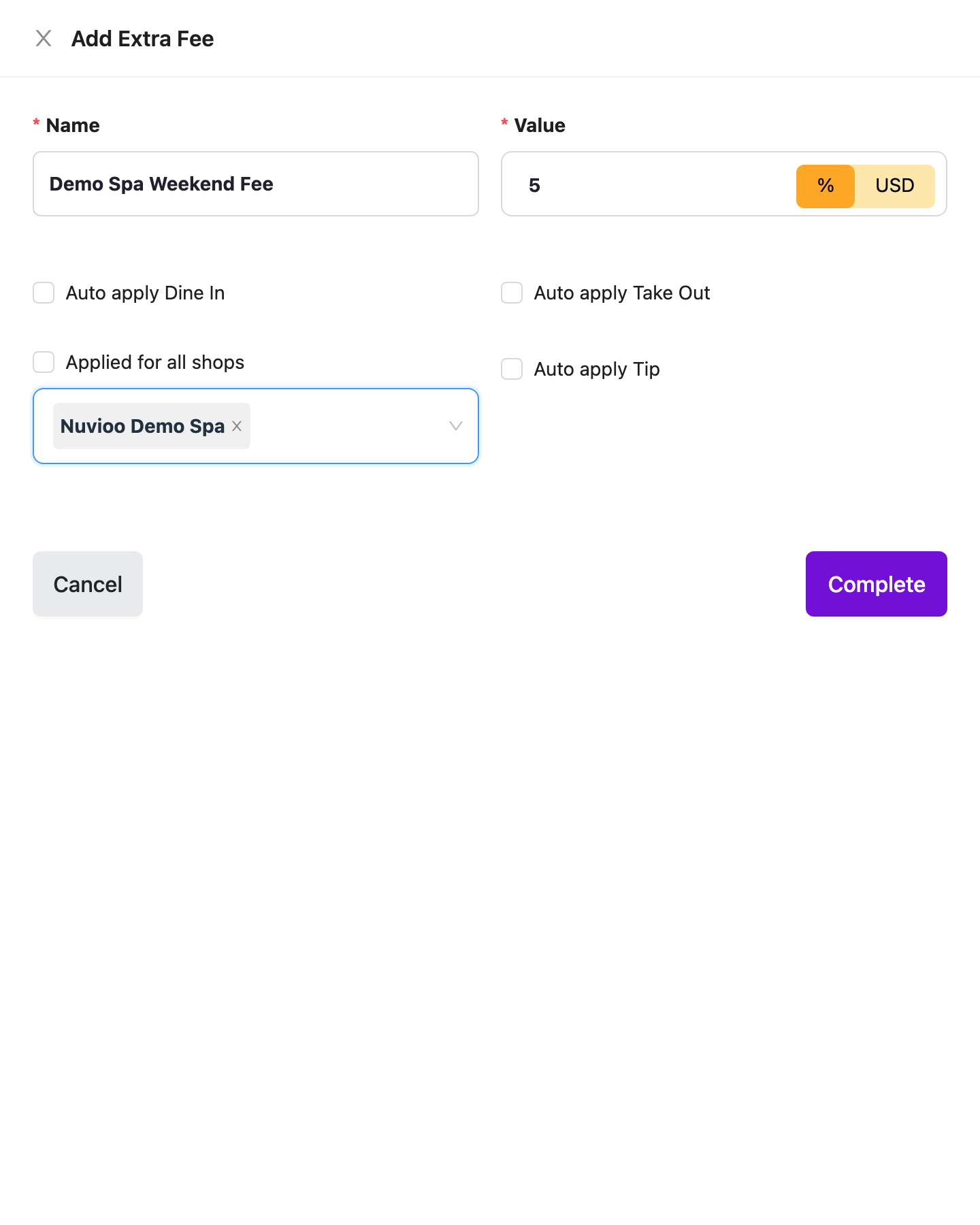
Add Extra Fee Field Required What it does Name Yes Up to 200 characters. It must be different from every other extra fee name. Value Yes Choose % for a percentage, or your currency for a fixed amount, then enter the number. Switching between the two clears the number. The default is %. Auto apply Dine In No Tick to add the fee to dine-in orders automatically. Auto apply Take Out No Tick to add the fee to take-out orders automatically. Auto apply Tip No Tick to count the fee amount as a tip in tip totals. On its own it doesn’t add the fee to an order. Use it with Auto apply Dine In or Auto apply Take Out. Applied for all shops No Ticked by default, so the fee applies at every location, including ones you add later. Applied shops Yes, when Applied for all shops is unticked Untick Applied for all shops, then pick the locations in Choose applied shops. Pick at least one. All three auto apply boxes are unticked when you add a new fee.
Save
Click Complete, or Cancel to close without saving. You see Create successfully.
Edit, update in bulk or delete
Section titled “Edit, update in bulk or delete”Click ⋮ on a row, then choose Edit or Delete. Edit opens the Update Extra Fee drawer with the same fields. The ⋮ column is hidden if your role can’t edit or delete extra fees.
- Delete one: click Delete in the row menu, then confirm with Delete, or click No. Nuvioo doesn’t block the delete.
- Bulk actions: tick one or more rows, then open the arrow in the header. The menu stays greyed out until you tick a row.
| Bulk action | Choices |
|---|---|
| Auto apply Dine In | Mandatory or Not Mandatory |
| Auto apply Take Out | Mandatory or Not Mandatory |
| Auto apply Tip | Enable or Disable |
| Delete | Deletes the selected fees after you confirm. |
Receipts and reports
Section titled “Receipts and reports”- Receipts: the receipt data lists each fee with its amount and gives a service fee total. What your printed receipt shows depends on its template. See Receipt templates.
- Reports: the Extra Fee total appears in the summary report, and the Extra fee report lists each order’s fee. See Summary and sales and Staff and tips.