

Close the day
The Daily closing report brings together what you check at the end of a business day. It shows sales, credit and cash totals, the cash in each employee’s drawer, and card settlements.
Open the report
Section titled “Open the report”Open the report
In the sidebar, open Reports, then Sale reports, then Daily closing.
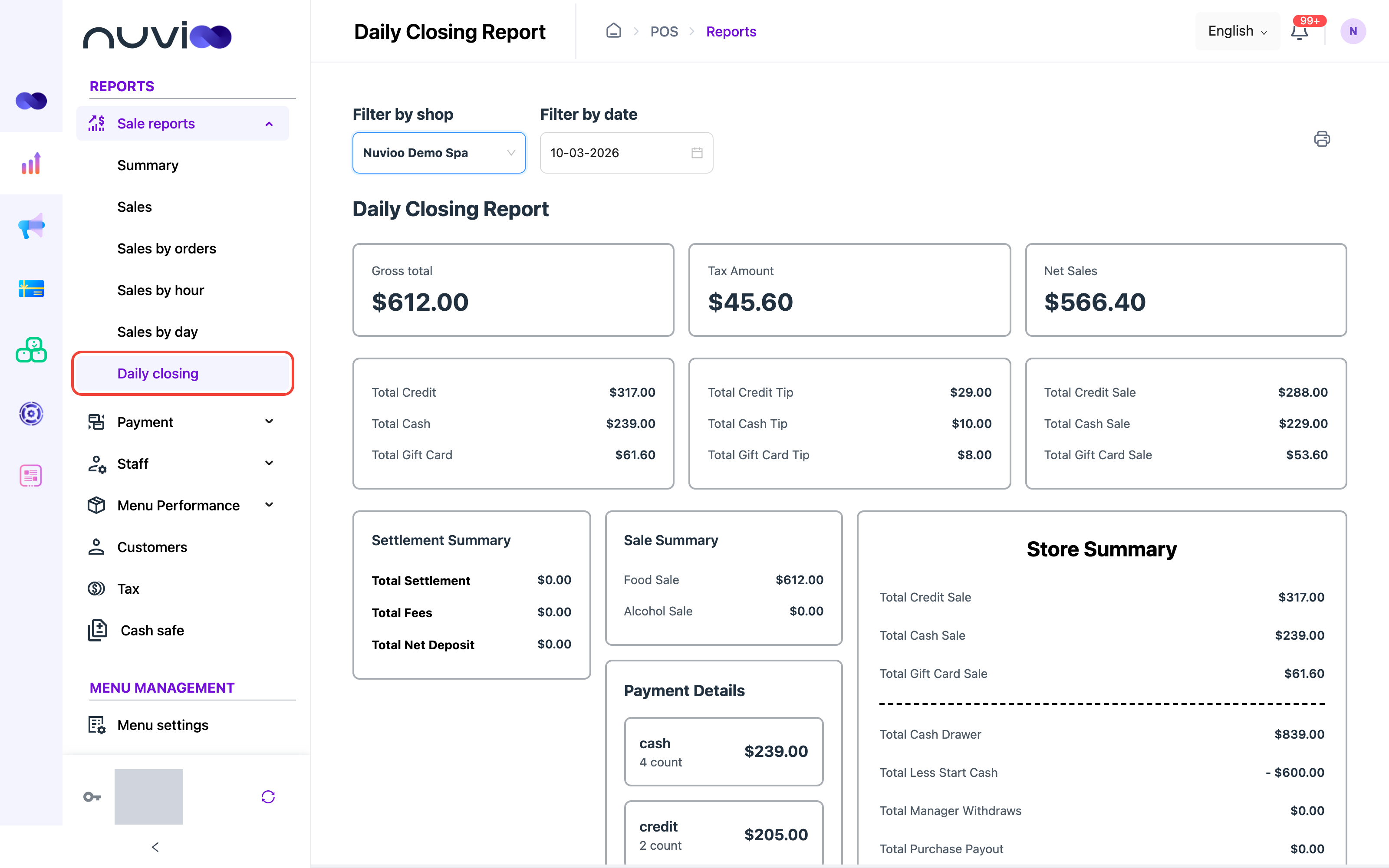
Daily closing (sample data) Choose the shop
Pick the location in Filter by shop. You see one location at a time.
Choose the day
Pick the day in Filter by date. You can’t pick a future date. The report opens on today. If it’s earlier than your shop’s Business hour start, it opens on yesterday, because that business day isn’t over.
What counts as one day
Section titled “What counts as one day”The report covers one business day, from the start to the end of your shop’s Business hour. If you haven’t set Business hour, that is 12:00 AM to 11:59 PM. If the end time is the same as or earlier than the start time, the day ends on the next calendar day. See Locations to set Business hour.
Sales totals
Section titled “Sales totals”The three cards at the top use the same rules as the Summary report.
| Card | What it counts |
|---|---|
| Gross total | Cash, card and gift card payments, minus refunds. No tips. |
| Tax Amount | Tax on completed orders, minus tax on refunds. |
| Net Sales | Gross total − Tax Amount + tips refunded in cash. |
Credit and cash
Section titled “Credit and cash”Three boxes sit under the cards. Card here means Nuvioo payments and traditional terminal payments together.
| Box | Line | What it counts |
|---|---|---|
| First | Total Credit | Card sales plus card tips. |
| First | Total Cash | Cash sales plus cash tips. |
| First | Total Gift Card | Gift card payments plus gift card tips. |
| Second | Total Credit Tip | Card tips. |
| Second | Total Cash Tip | Cash tips. |
| Second | Total Gift Card Tip | Gift card tips. |
| Third | Total Credit Sale | Card sales, no tips. |
| Third | Total Cash Sale | Cash sales, no tips. |
| Third | Total Gift Card Sale | Gift card payments, no tips. |
Food and alcohol
Section titled “Food and alcohol”Sale Summary shows Food Sale and Alcohol Sale. They are counted the same way as on the Summary report: item line totals by the item’s sale type, with tax included, after discounts, minus refunds, and without gift card items.
Cash drawers
Section titled “Cash drawers”Each employee has a card in Employee Shift Summary, under the Shift Details tab. Store Summary adds the figures of all those cards together.
Nuvioo lists every shift that was checked in during the day. If an employee worked two shifts, you see two cards. Each card shows the employee’s name, how long the shift lasted, and the check-in and check-out times. A shift that is still open counts up to now.
| Line | What it counts |
|---|---|
| Total Credit Sale | Card and other non-cash payments taken in the shift. |
| Total Cash Sale | Cash payments taken in the shift. |
| Cash Drawer | The starting cash plus the cash payments. |
| Less Start Cash | The starting cash, shown with a minus sign. |
| Manager Withdraws | Cash a manager took out of the drawer. |
| Purchase Payout | Cash paid out for purchases. |
| Credit Gratuity | Card tips from the shift’s payments, including tips on extra fees. |
| Drawer Net Cash | Cash Drawer, minus manager withdrawals, purchase payouts, card tips paid out of the drawer, and the starting cash. Card tips paid out are the card tips less any tips refunded in cash. |
In Store Summary each line has Total in front, for example Total Cash Drawer.
Compare Drawer Net Cash with the cash you count. When a shift is closed with a Drawer Net Cash that isn’t zero, Nuvioo also adds a deposit or a withdrawal to the cash safe.
Settlements
Section titled “Settlements”Settlement Summary lists the card settlements from your payment processor that fall in the day. This applies to locations that take Nuvioo card payments. For other locations the totals show zero.
| Line | What it shows |
|---|---|
| Created | When the settlement was created. |
| Id | The settlement ID. |
| Amount | The settlement amount. |
| Status | Succeeded, Approved, Awaiting approval, Canceled or Accruing. |
| Fees | The fees taken. |
| Net Amount Deposit | The amount minus the fees. |
At the bottom, Total Settlement, Total Fees and Total Net Deposit add up every settlement in the list. For more on settlements, see Settlements and disputes.
Click the print icon at the top right. Your browser’s print window opens with the report as a PDF. Use it to print the report or save a PDF. Daily closing has no Excel export.
The printout holds the top cards, the credit and cash totals and the settlements. When the day has shifts, it also holds Store Summary and Employee Shift Summary.
If the day has no sales, the cards and totals show zero. If no one worked a shift, Store Summary shows zero and there are no employee cards.