

Add-ons, modifiers and options on an item
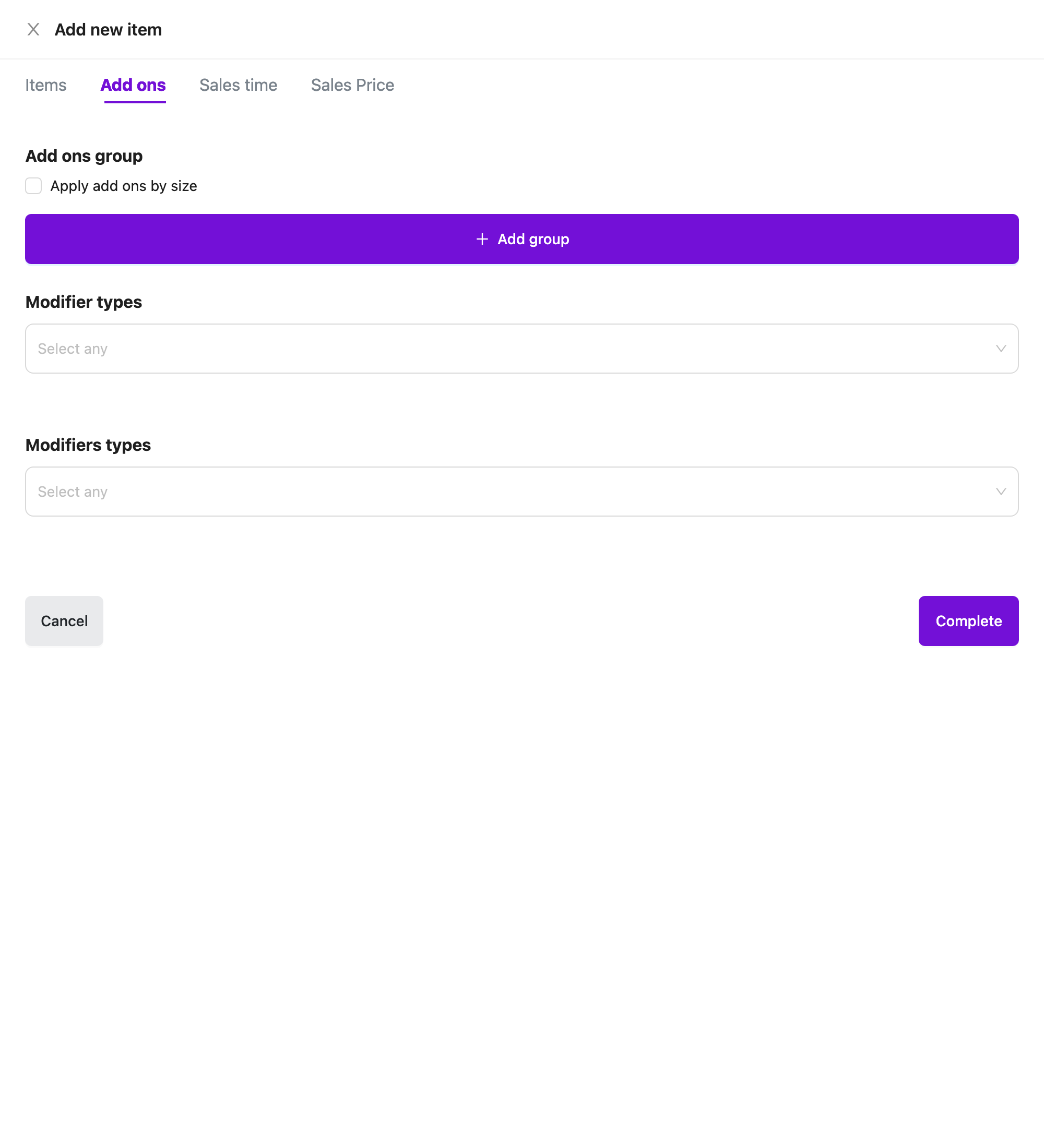
A product can offer three kinds of extras when staff sell it. You attach all three on the product’s Add ons tab.
| Kind | Where you create it | What staff do on the POS |
|---|---|---|
| Add ons group | Add-on items you create with Add-on/Extra | Pick add-ons from a group, each with its own price. |
| Modifier types | Modifiers | Pick from a list of choices, each with an optional price. |
| Modifiers types | Options | Pick one choice, or several if the option allows it. |
Create the add-ons, modifiers and options first. They don’t appear here until they exist.
Open the Add ons tab
Section titled “Open the Add ons tab”Open the product
In Items, click Add New and choose Product, or click ⋮ and Edit on an existing product.
Go to Add ons
Click the Add ons tab.
Save
After you attach what you need, click Complete at the bottom of the form.
Add-on groups
Section titled “Add-on groups”Under Add ons group, click Add group. A group is a named list of add-ons staff can choose from. Each group has these fields.
| Field | Required | What it does |
|---|---|---|
| Group name | Yes | What staff see, for example “Extras”. You see Please input group name if it is empty. |
| Max add ons | No | The most add-ons staff can choose from this group. Whole number, 1 or more. Leave it blank for no limit. |
| Required add ons | No | Tick it to make staff choose from this group. |
| Select add ons | Yes | The add-on items in the group. Type to search. Add-ons that aren’t visible start with (Hidden) - or (Unavailable) -. You see Please select add ons if it is empty. |
Click the ✕ at the top right of a group to remove it. Add as many groups as you need.
An add-on that has sizes appears once for each size, so you can offer only some sizes.
Different add-ons for each size
Section titled “Different add-ons for each size”If the product has sizes, a checkbox Apply add ons by size appears. Tick it to set up a separate set of groups for each size. Each set is headed by the size name. Untick it to use one set of groups for every size.
If you remove all sizes, this setting turns off.
Modifiers
Section titled “Modifiers”Under Modifier types, click the box and choose one or more modifiers. Each modifier you choose appears as a row with its properties as tick boxes.
- All properties start ticked. Untick a property to leave it out for this product only.
- If you untick every property, the modifier is removed from the product.
- Drag a row to change the order staff see.
- Click ✕ on a row to remove the modifier from the product.
Modifiers don’t change with the size. The same modifiers apply to every size.
Options
Section titled “Options”Under Modifiers types, click the box and choose one or more options. The rows work the same way: tick the properties to offer, drag to reorder, click ✕ to remove.
On the POS
Section titled “On the POS”When staff tap a product, a pop-up shows what you attached.
- Modifiers tab: your options and modifiers. This tab only shows if the product has at least one of them.
- Add-ons tab: your add-on groups. This tab only shows if at least one group has an add-on.
How each kind looks:
| What you set | What staff see |
|---|---|
| An option that doesn’t allow several choices | A red asterisk by the name. Staff must pick exactly one choice. |
| An option that allows several choices | (Multi-choices allowance) and (Max: n). Staff can pick up to the maximum. Once they reach it, the other choices grey out. |
| A modifier | Its properties as choices, with prices if you set them. Picking is optional, and there is no limit. |
| A group with Required add ons | A red asterisk by the group name. |
| A group with Max add ons | (Max: n) by the group name. |
| An add-on or choice that is Unavailable | Greyed out. Staff can’t pick it. |