

Review payments and refunds
The Payments reports show how customers paid and which orders were refunded. In the sidebar, under Reports, open Payments and choose Payment method, Transactions or Refunds.
This page covers those three screens. For card payouts and chargebacks, see Settlements and disputes.
Common filters and export
Section titled “Common filters and export”Every report screen in the POS back office uses the same controls. The other report pages in this section link here.
| Control | Default | What it does |
|---|---|---|
| Filter by range | Today, from the start to the end of the day. | Sets the period. Pick a preset (Yesterday, Today, Last 7 days, Last 14 days, Last 30 days, This week, This month, This year) or choose dates. You can’t pick a future date. Most screens also let you set the time of day. |
| Filter by shop | The location you last used on this screen in this browser tab. If there is none, the first location in alphabetical order. | Chooses the location. Nothing loads until a location is selected. |
- Filters are remembered for each screen until you close the browser tab.
- Tables show 10 rows to a page. On a wide screen with 50 or more rows, a page-size selector appears.
- When nothing matches, the table shows No data.
- Reports that group rows by day use your browser’s time zone to decide where a day starts and ends.
At the top right of the filters, two icon buttons export the report.
| Button | What it does |
|---|---|
| Print icon | Opens the print dialog with the rows as a PDF. It includes up to 9,999 rows. |
| Download icon | Exports an Excel file. You see Downloading report is being processed. Please wait a moment. The file downloads on its own when it is ready. |
Not every screen has both buttons. This guide notes the exceptions.
Payment method
Section titled “Payment method”Open Payments → Payment method. Each row is one day and one payment method, with the number of orders and the total.
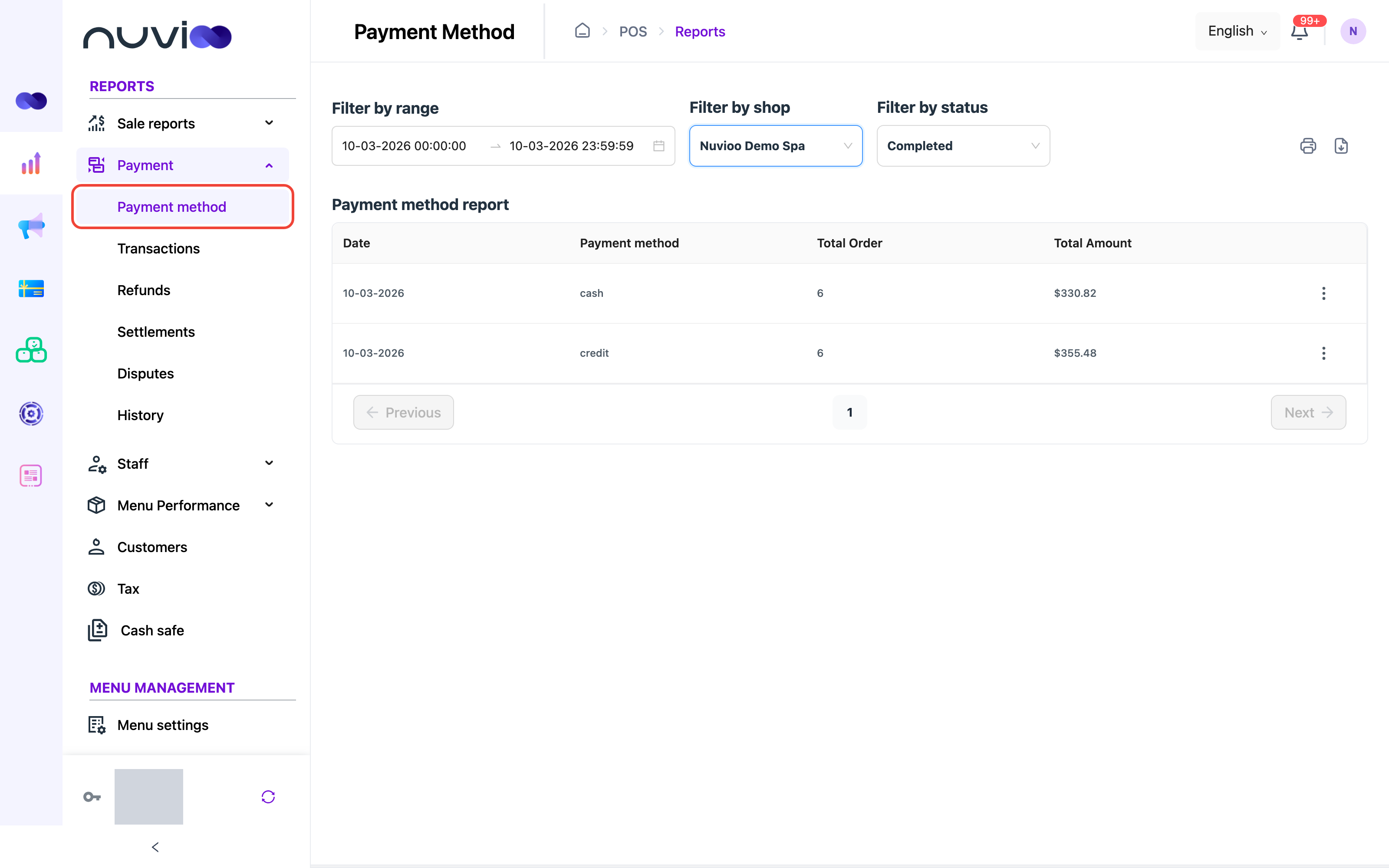
| Filter | Default | What it does |
|---|---|---|
| Filter by range | Today | Matches the date an order was last updated. |
| Filter by shop | See Common filters and export. | Chooses the location. |
| Filter by status | Completed | Completed counts succeeded payments on completed orders. Refunded counts refunded payments. No other status is offered. |
| Column | Definition |
|---|---|
| Date | The day, in your browser’s time zone. |
| Payment method | The method’s name from your Payment settings. If none is set, the method’s code. |
| Total Order | The number of different orders paid with this method on that day. |
| Total Amount | The sum of the payment amounts. Rebilled amounts and payments of zero are not counted. |
Newest days come first.
To see the payments behind a row, click the dots on the row and choose Show transaction. The Transactions screen opens for that day, payment method and location. It does not carry over the status. It starts on Succeeded.
Both the print and the download buttons are available.
Transactions
Section titled “Transactions”Open Payments → Transactions to see every payment. One row is one payment transaction.
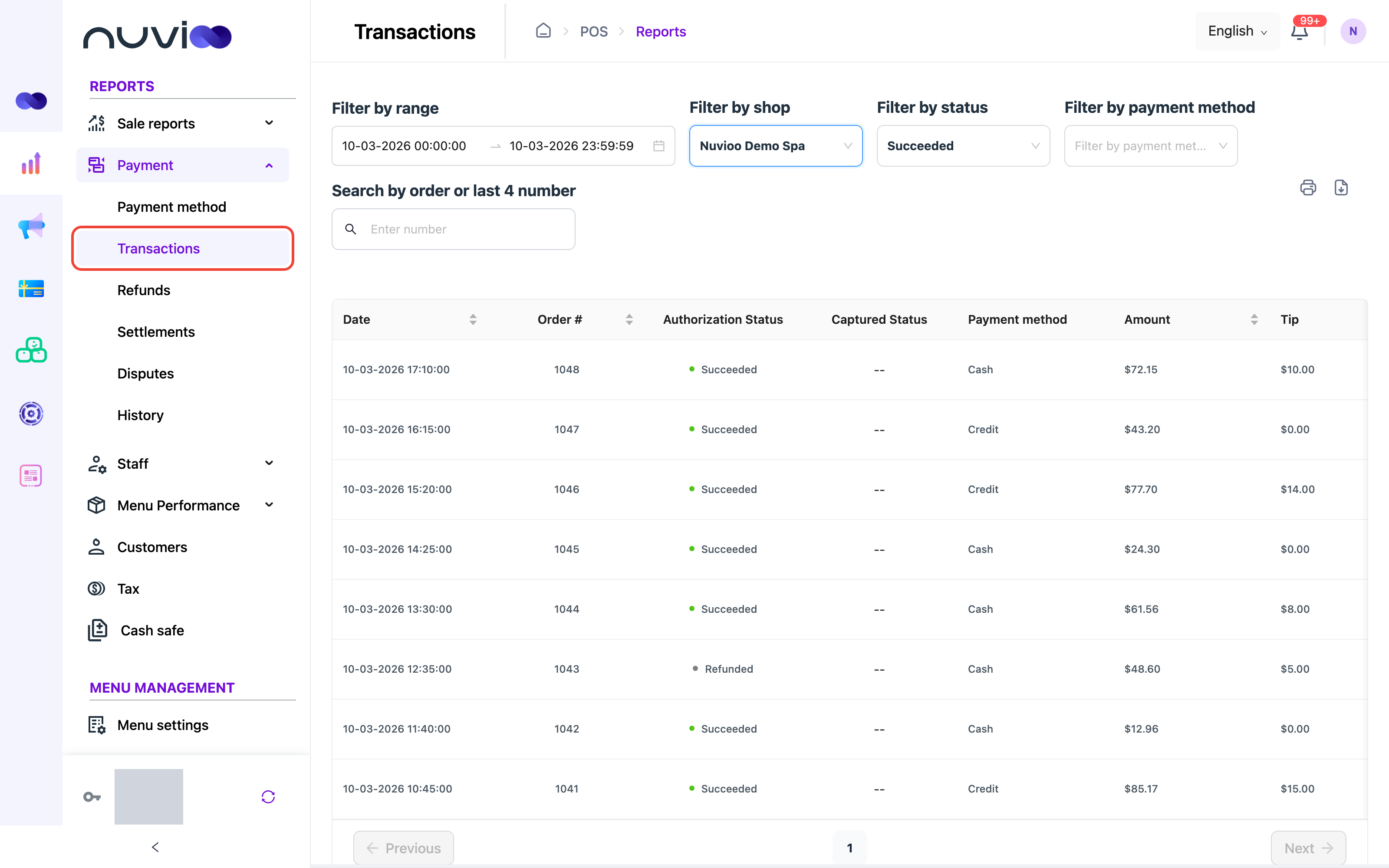
| Filter | Default | What it does |
|---|---|---|
| Filter by range | Today | Matches the date the transaction was last updated. |
| Filter by shop | See Common filters and export. | Chooses the location. |
| Filter by status | Succeeded | Succeeded lists completed payments. Voided lists refunded payments. |
| Filter by payment method | None, so all methods show. | Choose Cash, Credit, Standalone Terminal or Gift card. Click the clear icon to show all methods again. Pay later isn’t offered. |
| Search by order or last 4 number | Empty | Type digits. It matches any order number or card last 4 digits that contains them. Letters return no rows. |
In the Voided list, the Authorization Status column reads Refunded, or Recalled for a recalled payment.
| Column | Definition |
|---|---|
| Date | When the transaction was last updated. Click the header to sort. |
| Order # | The order number. Click it to open the order’s details. Click the header to sort. |
| Authorization Status | Succeeded, Refunded or Recalled. |
| Captured Status | For card payments through Nuvioo only. A check mark means the batch closed and the payment was captured. A failure icon means no capture was recorded. Other payments show --. |
| Payment method | The payment method’s name from your payment settings. |
| Amount | The payment amount. Click the header to sort. |
| Tip | The tip on the payment. Click the header to sort. |
| Last 4 number | The card’s last 4 digits. Cards only. |
| Card brand | For example VISA. Cards only. |
| Serial Number | The serial number of the card terminal. Cards only. |
Newest transactions come first.
- On a succeeded payment, Amount includes the tip. This does not apply to Cash and Standalone Terminal, where the tip is shown only in Tip.
- Tip also counts a tip that comes from an extra fee set to apply as a tip. See Extra fees.
- A tip added after the payment is merged into the payment’s row. It does not get a row of its own.
- A rebilled amount appears as its own row. See the next section.
Both the print and the download buttons are available.
Rebill a card payment
Section titled “Rebill a card payment”Rebill sends a new card authorization for an extra amount on the same card, for example a tip the customer agreed to after the day was closed.
Contact Nuvioo Support
Only Nuvioo Support can rebill, while signed in to your account on your behalf. Send them the order number and the amount.
Open the row menu
Support clicks the dots at the end of the payment’s row and chooses Rebill.
Enter the amount
Support types the Amount and clicks Create. You see Rebill Succeeded, or Rebill Error if it failed.
Rebill is available only when all of these are true. Otherwise it is greyed out and a tooltip says why.
| Tooltip | What it means |
|---|---|
| Rebill only use for Nuvioo method and captured transaction | The payment wasn’t a card payment through Nuvioo. |
| Not capture yet | The batch hasn’t closed. |
| Already rebilled | Each payment can be rebilled once. |
| Rebilled transaction | The row is the rebill itself. |
Refunds
Section titled “Refunds”Open Payments → Refunds to see refunded orders, with the reason chosen at the POS and the refunded total.
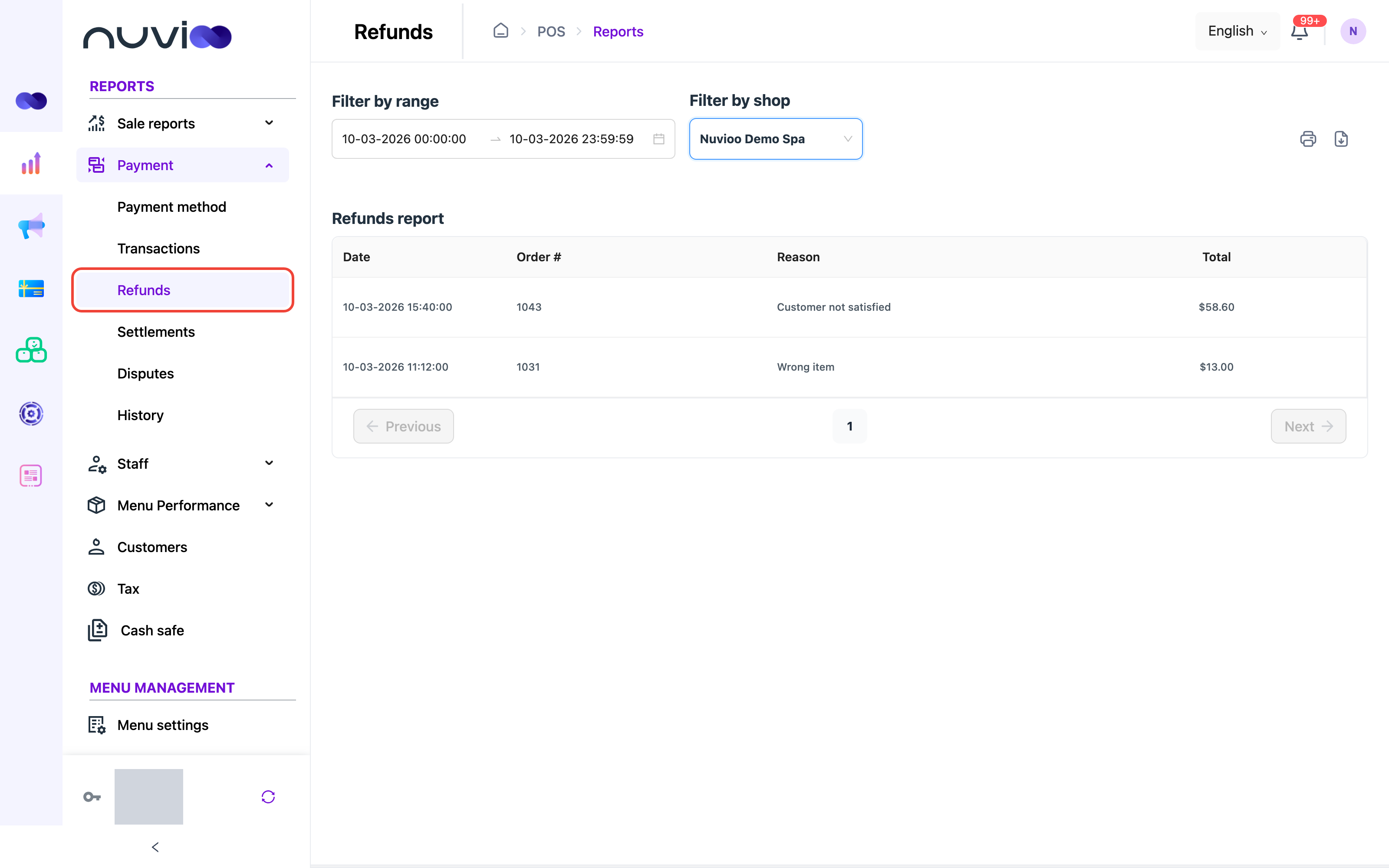
| Filter | Default | What it does |
|---|---|---|
| Filter by range | Today | Matches the date the order was last updated. |
| Filter by shop | See Common filters and export. | Chooses the location. |
| Column | Definition |
|---|---|
| Date | When the order was last updated. |
| Order # | The order number. |
| Reason | The reason staff chose when they refunded the order. |
| Total | The refunded amount, including the tip. |
- The report lists orders whose status is Refunded. An order refunded in part keeps its Completed status, so it isn’t listed here.
- Newest refunds come first.
- Both the print and the download buttons are available.
To set the refund reasons staff can choose, see Refund settings.