

Staff, shifts and tips reports
The Staff reports show what each employee sold, what happened during each shift, and how tips and extra fees were collected. In the sidebar, under Reports, open Staff and choose Employees, Shifts, Tips, Tip distributions or Extra fee.
The Filter by range and Filter by shop filters, the page size, the empty state and the print and download buttons work as described in Common filters and export. Each screen below lists only what is different.
Employees
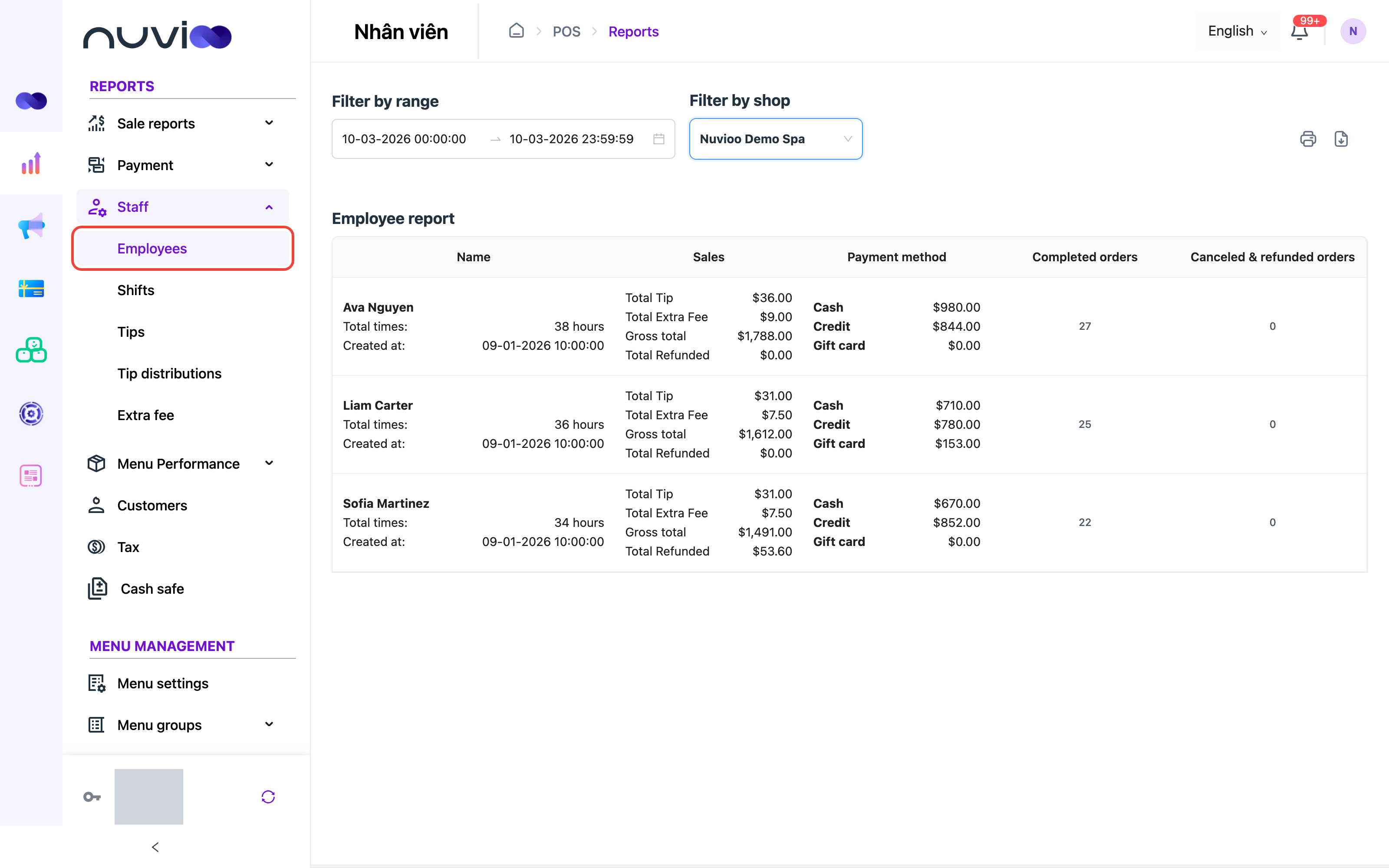
Section titled “Employees”Open Staff → Employees. Each row is one employee who had a shift during the period.
| Filter | Default | What it does |
|---|---|---|
| Filter by range | Today | An employee appears if a shift overlapped the range. Orders and payments count when they were last updated in the range. |
| Filter by shop | See the link above. | Chooses the location. |
Orders and payments belong to the employee whose shift they were taken in.
| Column | Definition |
|---|---|
| Name | The employee’s full name. Below it, Total times is the time worked in the range, in hours and minutes, and Created at is when the employee was added. |
| Sales | Total Tip: tips on succeeded payments, including extra-fee tips, minus refunded tips. Total Extra Fee: extra fees on succeeded payments, without extra-fee tips, minus refunded fees. Gross total: the payment total after refunds, minus Total Tip. Total Refunded: the amount of refunded payments. |
| Payment method | Cash, Credit and Gift card: payments by that method, minus refunds. Credit includes Standalone Terminal. |
| Completed orders | Completed orders with a total above zero. |
| Canceled & refunded orders | Failed, rejected, voided, recalled and refunded orders with a total above zero, plus completed orders that have a refunded payment. |
Both the print and the download buttons are available.
Shifts
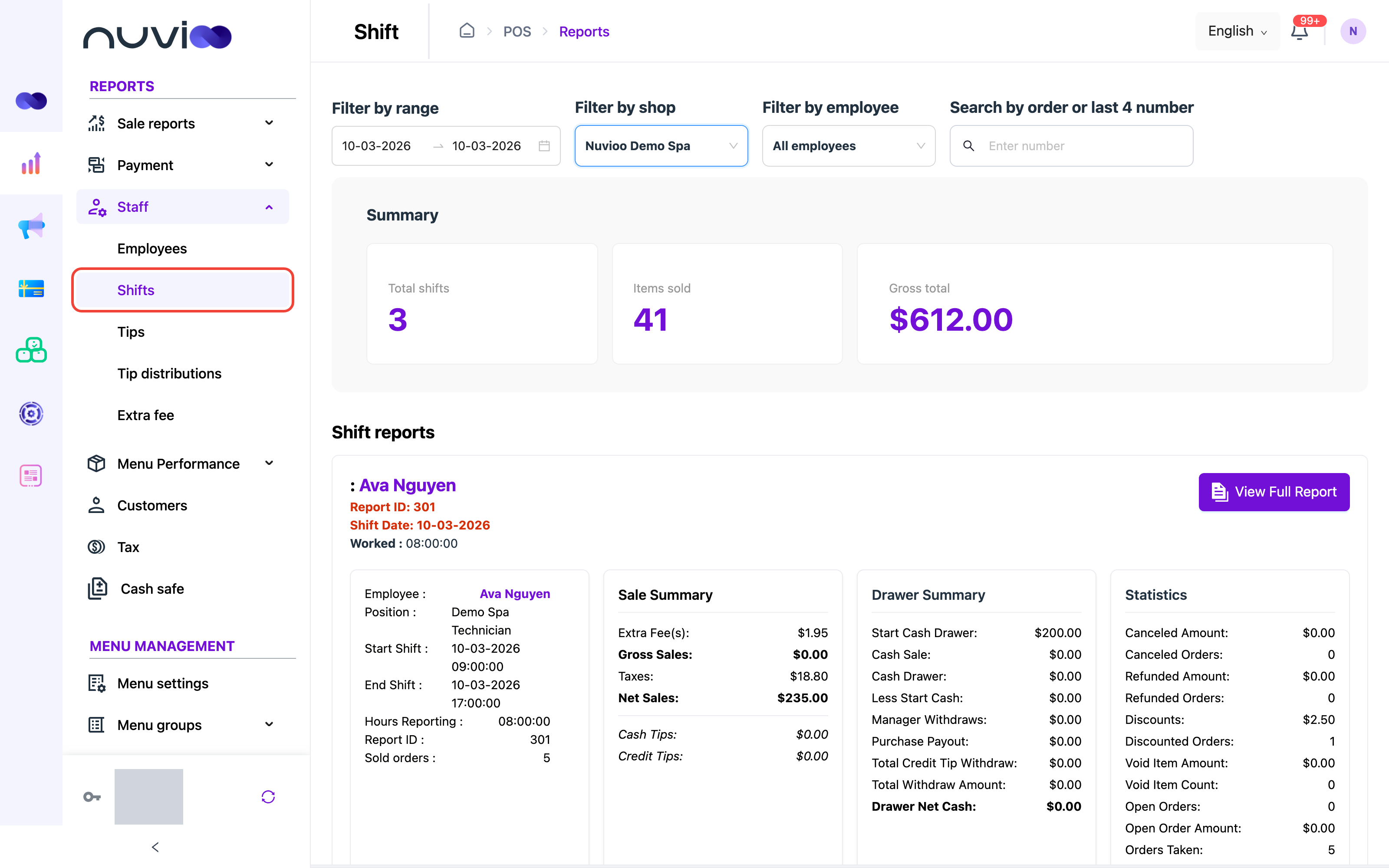
Section titled “Shifts”Open Staff → Shifts. The summary comes first, then one report for each shift.
| Filter | Default | What it does |
|---|---|---|
| Filter by range | Today | Whole days only, with no time of day. A shift counts when it started in the range. |
| Filter by shop | See the link above. | Chooses the location. |
| Filter by employee | All employees | Shows one employee’s shifts. It is turned off until a location is chosen. |
| Search by order or last 4 number | Empty | Type digits. Despite the label, on this screen it finds the shift whose Report ID matches exactly. It doesn’t search orders or cards. |
| Summary card | Definition |
|---|---|
| Total shifts | The number of shifts that started in the range. |
| Items sold | The quantity of items sold, after refunded items are taken off. |
| Gross total | Payments taken on those shifts, after refunds and without tips. |
Each shift report starts with the location and employee, the Report ID, the Shift Date and Worked, the time between check-in and check-out. A shift still open counts up to now. The four boxes below show the shift’s numbers.
Shift details box:
| Row | Definition |
|---|---|
| Employee and Position | The employee and the role they worked in. |
| Start Shift and End Shift | Check-in and check-out time. End Shift reads Shift in progress while the shift is open. |
| Hours Reporting | The time worked. |
| Report ID | The shift’s number. |
| Sold orders | The number of completed orders. |
Sale Summary box:
| Row | Definition |
|---|---|
| One row for each payment method | Payments by that method, after refunds and without tips. Methods that are off appear only if they have a total. |
| Extra Fee(s) | Extra fees on completed orders, after refunds and without extra-fee tips. |
| Gross Sales | The total of the payment method rows. |
| Taxes | Tax on completed orders, minus refunded tax. |
| Net Sales | Gross Sales minus Taxes, plus tips refunded in cash. |
| Cash Tips and Credit Tips | Tips taken by each method. |
Drawer Summary box. It tracks the cash drawer.
| Row | Definition |
|---|---|
| Start Cash Drawer | The cash in the drawer when the shift started. |
| Cash Sale | Cash payments, after refunds. |
| Cash Drawer | Start Cash Drawer plus Cash Sale. |
| Less Start Cash | The starting cash, taken off. |
| Manager Withdraws | Cash withdrawn by a manager, with each reason listed below. |
| Purchase Payout | Cash paid out for purchases, with each reason listed below. |
| Total Credit Tip Withdraw | Credit card tips, minus credit tips refunded in cash. It counts as a withdrawal from the drawer. |
| Total Withdraw Amount | Manager withdrawals, purchase payouts, credit tip withdrawal and starting cash, added together. |
| Drawer Net Cash | Cash Drawer minus Total Withdraw Amount. |
| Cash Count | The cash counted at the end of the shift. -- if it wasn’t counted. |
| SHORT, OVER or BALANCED | Cash Count minus Drawer Net Cash. Shown only when a count exists and the net cash is above zero. |
| CASH SAFE USED | The cash moved to the cash safe. Shown only when an amount was moved. A BALANCED line appears with it. |
| CASH SAFE NOT USED and Manager owes | Shown when cash safe reporting is on and the net cash was below zero when the shift closed. Manager owes is that amount. |
For the cash safe, see Cash safe.
Statistics box. Refunded and canceled amounts show as negative numbers.
| Row | Definition |
|---|---|
| Canceled Amount and Canceled Orders | Voided and rejected orders that have a total. |
| Refunded Amount and Refunded Orders | Refunds on the shift’s orders, partial or full. |
| Discounts and Discounted Orders | The discount amount on completed orders, and the number of completed orders that had a discount. |
| Void Item Amount and Void Item Count | Items removed from orders that were taken, when a reason was given. |
| Open Orders and Open Order Amount | Orders still waiting, confirmed or in progress, and their total. |
| Orders Taken | Every order taken in the shift. Hover over the label to read the note. |
View the full report
Section titled “View the full report”Click View Full Report on a shift. The report opens with a title, a print button and six tabs. Click View Less Report to close it. This is the only place on the Shifts screen with a print button. It has no download button.
| Tab | What it lists |
|---|---|
| Sales Break Down | The Sale Summary, Drawer Summary and Statistics side by side. It leaves out the tip rows. |
| Products | Product Name, Quantity and Total Sale. Highest sales first. |
| Add ons | The add-ons sold, with the same columns as Products. |
| Orders Taken | Order #, Status, Amount and Tip Amount. It includes completed, rejected, refunded, recalled and processing orders. A voided order appears here only when its subtotal is above zero. |
| Voided Orders | Time, Order #, Order Type, Amount, Reason and Voided By. It lists voided orders with a subtotal of zero. |
| Voided Items | Order #, Item Title, Quantity, Amount, Reason and Voided By. |
Each tab shows 20 rows to a page. Printing includes every tab’s data.
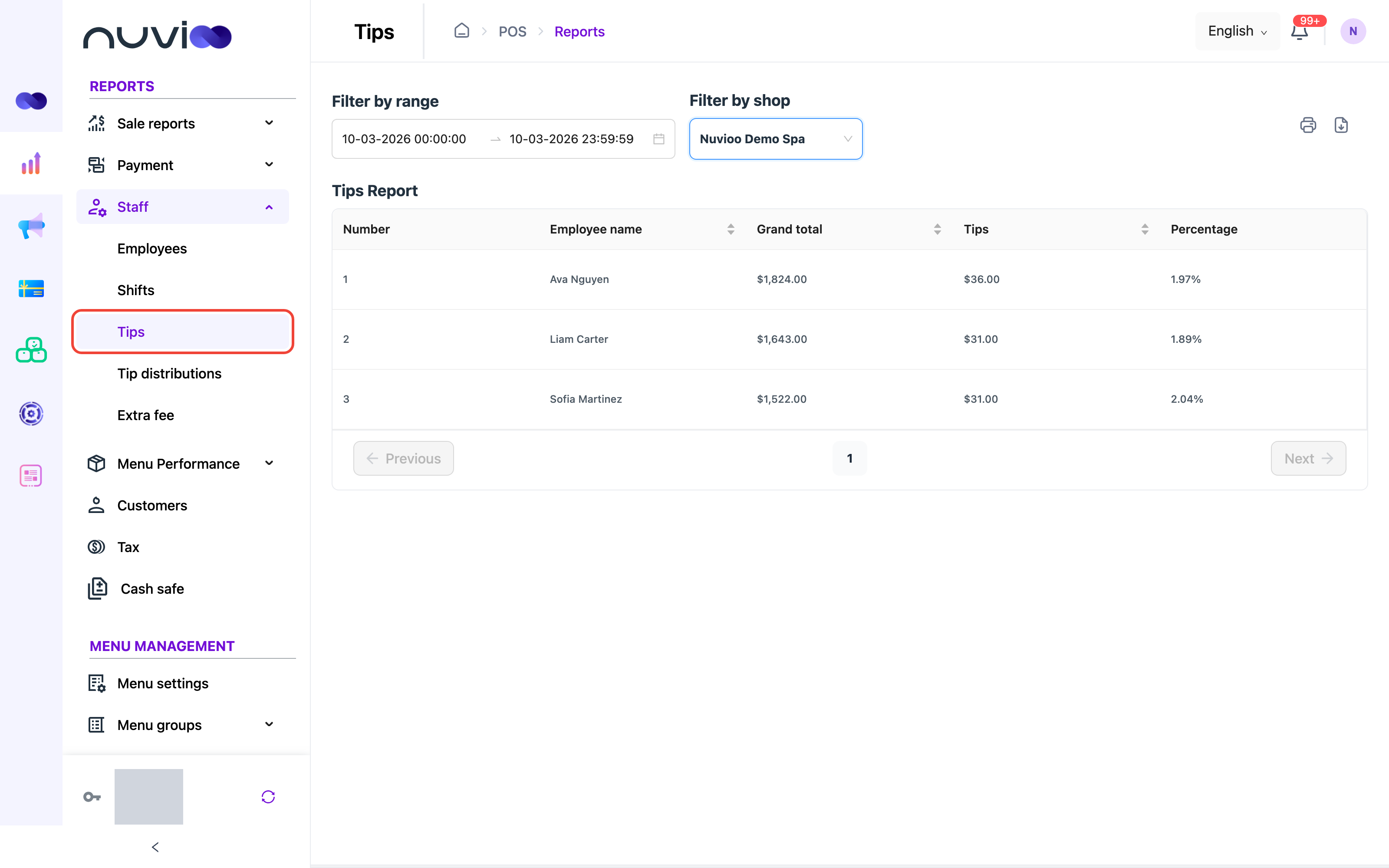
Open Staff → Tips to see each employee’s sales and tips.
| Filter | Default | What it does |
|---|---|---|
| Filter by range | Today | Matches orders last updated in the range. |
| Filter by shop | See the link on top. | Chooses the location. |
| Column | Definition |
|---|---|
| Number | The row number. |
| Employee name | The employee who took the payments. Online is for payments without an employee, such as online orders. Click the header to sort. |
| Grand total | The payment total on completed and refunded orders, after refunds, minus Tips. Click the header to sort. |
| Tips | Tips, after refunds. It includes tips from extra fees that apply as a tip. Click the header to sort. |
| Percentage | Tips divided by Grand total. -- if it can’t be worked out. |
Both the print and the download buttons are available.
Tip distributions
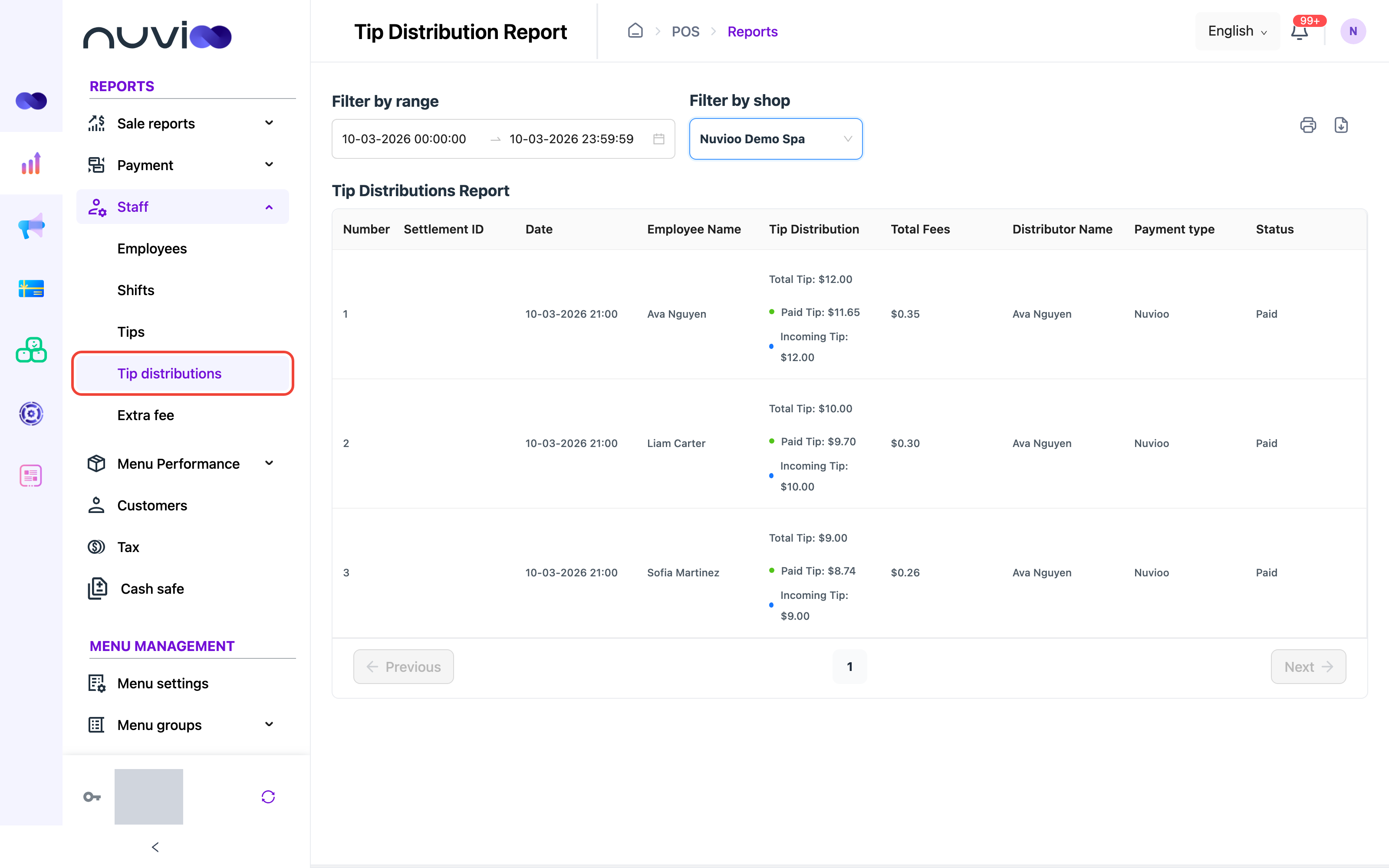
Section titled “Tip distributions”Open Staff → Tip distributions to see card tips paid out to employees. This report only reads. Nobody can start or change a payout here.
| Filter | Default | What it does |
|---|---|---|
| Filter by range | Today | Matches the date the distribution was created. |
| Filter by shop | See the link on top. | Chooses the location. |
| Column | Definition |
|---|---|
| Number | The row number. |
| Settlement ID | The card settlement that carries the payout. It is empty until one is known. |
| Date | When the distribution was created. |
| Employee Name | The employee who receives the tip. |
| Tip Distribution | Total Tip: the tip given to the employee. Paid Tip: what was paid after fees. Incoming Tip: what is still to come, which is the total tip minus the fees and the paid tip. |
| Total Fees | The fees taken from the distribution. |
| Distributor Name | The employee who closed the batch and made the distribution. -- if none. |
| Payment type | Nuvioo. |
| Status | See the table below. |
| Status | What it means |
|---|---|
| Pending | The distribution was created. Its settlement isn’t being processed yet. |
| Processing | The settlement that carries it is waiting for approval. |
| Paid | The settlement was approved, and the paid tip plus the fees equal the tip. |
Newest distributions come first. Both the print and the download buttons are available.
How tips are distributed
Section titled “How tips are distributed”Distribution happens on the POS, when an employee closes the card batch and splits the tips between employees. Tip distribution is a payment setting. See Payment settings.
- An employee is paid only if they have a verified payout account. Others are left out. See Set up a tip payout account.
- Each card payment must leave at least 1.00 for the location. A split that leaves less is rejected.
- Fees are taken from each employee’s share. They show in Total Fees.
Extra fee
Section titled “Extra fee”Open Staff → Extra fee to see the extra fees collected. Four cards come first, then one row for each order that has an extra fee.
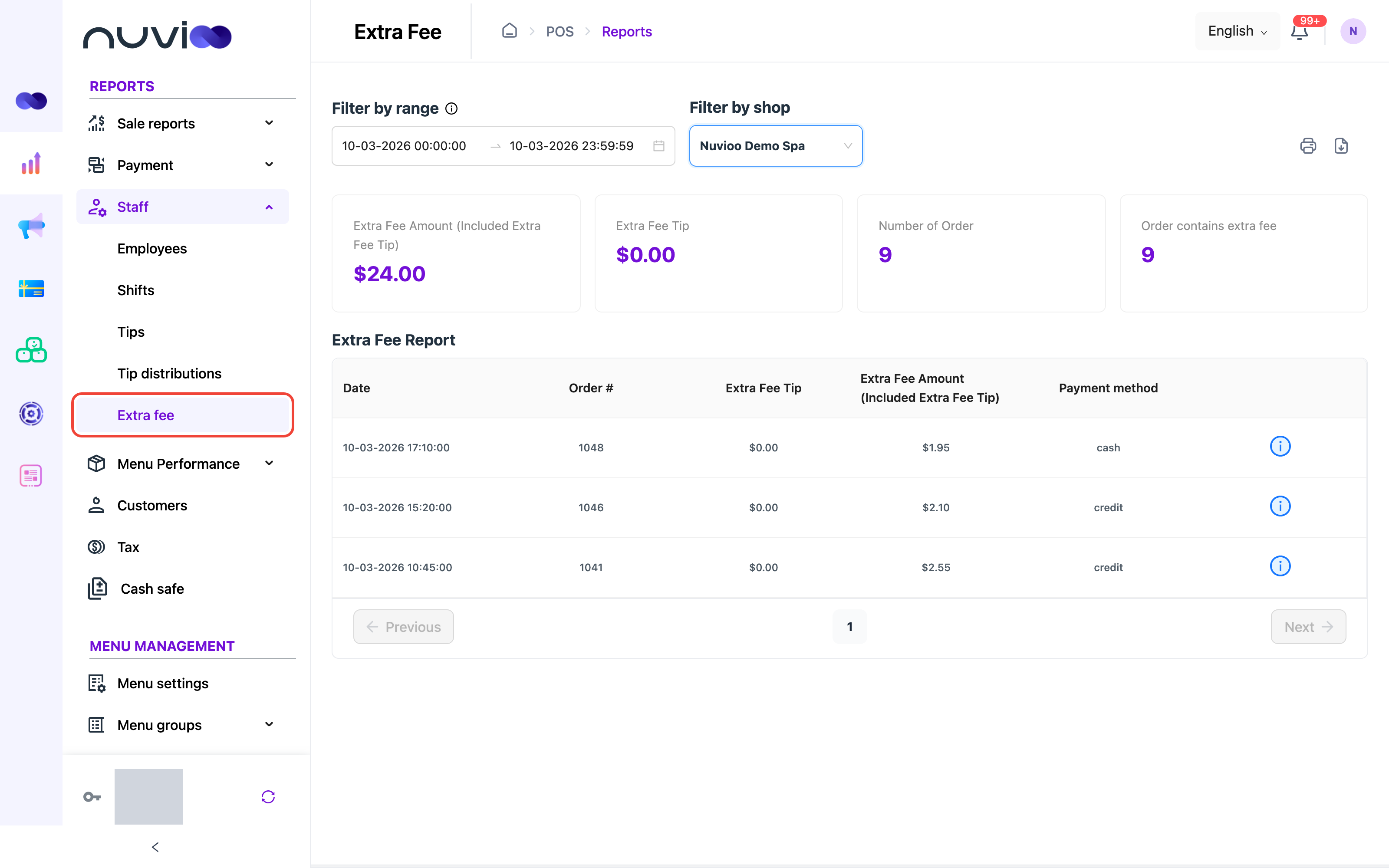
| Filter | Default | What it does |
|---|---|---|
| Filter by range | Today | Matches orders last updated in the range. The range can’t be longer than 30 days. A longer range isn’t applied. The on-screen message says 31 days, but 30 days is the limit. Presets are Yesterday, Today, Last 7 days, Last 14 days and Last 30 days. |
| Filter by shop | See the link on top. | Chooses the location. |
Only completed orders count.
| Card | Definition |
|---|---|
| Extra Fee Amount (Included Extra Fee Tip) | Extra fees charged, minus refunded fees. It includes the extra-fee tip. |
| Extra Fee Tip | The part of the extra fees that was counted as a tip, minus refunds. |
| Number of Order | All completed orders in the range, with or without a fee. |
| Order contains extra fee | Completed orders whose extra fee is still above zero after refunds. |
| Column | Definition |
|---|---|
| Date | When the order was last updated. |
| Order # | The order number. |
| Extra Fee Tip | The extra-fee tip on the order, after refunds. |
| Extra Fee Amount (Included Extra Fee Tip) | The extra fee charged on the order. Refunds aren’t taken off in this column. |
| Payment method | The methods used to pay the order. |
Click the i button on a row to open a panel titled with the order number. It lists the fees on the order with No., Name, Amount and Auto apply Tip, which has a check mark when the fee counts as a tip. The panel is empty when the fee was fully refunded.
Newest orders come first. Both the print and the download buttons are available. To set up extra fees, see Extra fees.