

Customers and tax reports
These two reports sit directly under Reports in the sidebar. They group your orders by day.
The Filter by range and Filter by shop filters, the page size, the empty state and the print and download buttons work as described in Common filters and export. Days start and end in your browser’s time zone.
Customers
Section titled “Customers”In the sidebar, under Reports, click Customers. Each row is one day.
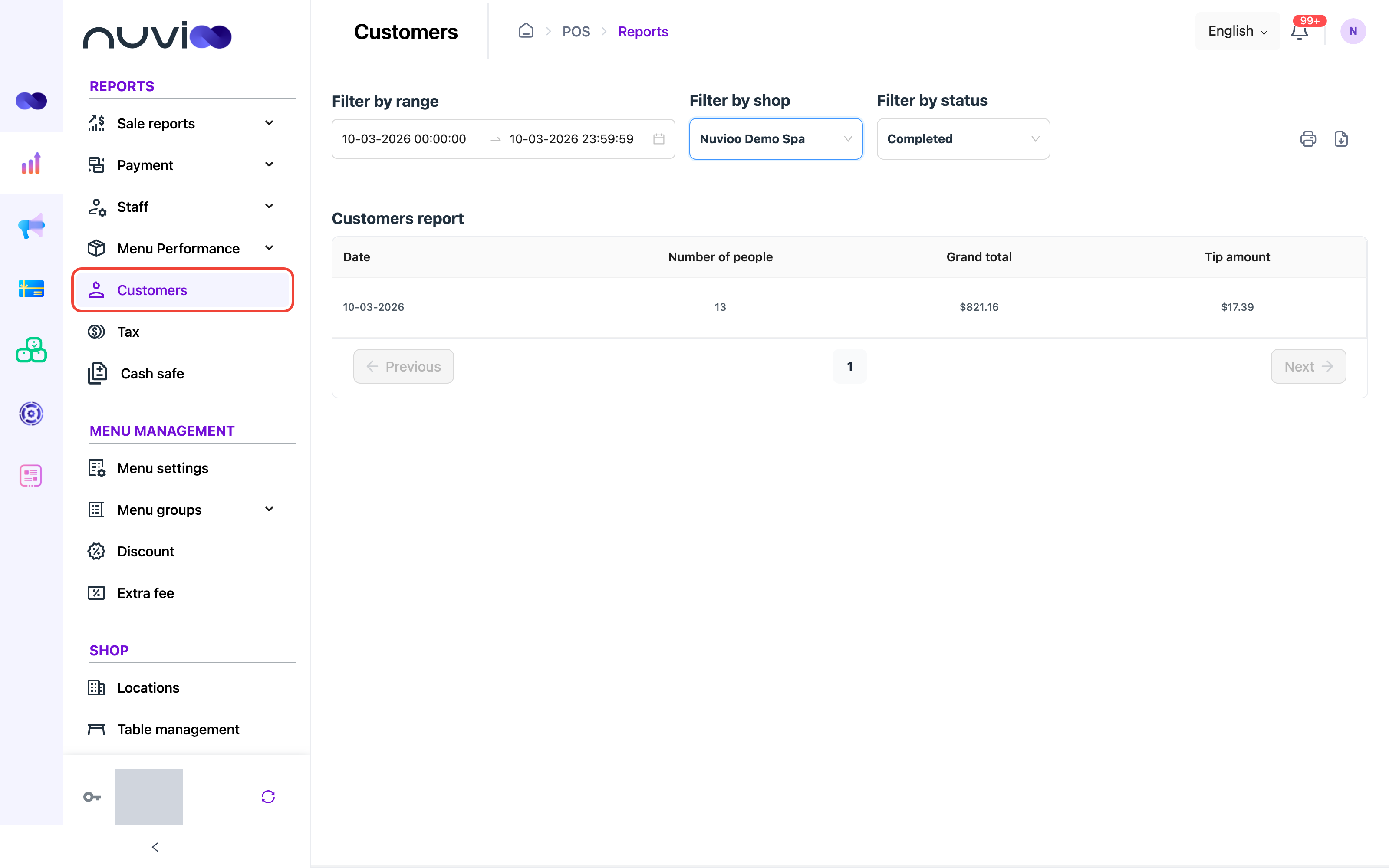
| Filter | Default | What it does |
|---|---|---|
| Filter by range | Today | Matches the date an order was created. |
| Filter by shop | See the link above. | Chooses the location. |
| Filter by status | Completed | Counts only orders in the status you choose: Processing, Confirm, Completed, Reject, Canceled, Refunded or Recalled. |
| Column | Definition |
|---|---|
| Date | The day the orders were created. Newest days come first. |
| Number of people | The total of the party size (number of guests) staff enter on each order at the POS. Orders without a party size add nothing. |
| Grand total | The total of the orders’ grand totals, minus refunds. Tips aren’t included. |
| Tip amount | The total of the tips, minus refunded tips. |
- With Refunded, Grand total and Tip amount come from the refunded payments dated that day. Grand total is the refunded amount without the tip.
- Staff enter a party size only when the Count guest setting is on. See Locations.
- The table shows 10 days to a page, with Previous and Next to move between pages. This screen has no page-size selector.
Both the print and the download buttons are available. Both use the status you chose.
Click Tax. Two cards sit above a table with one row for each day.
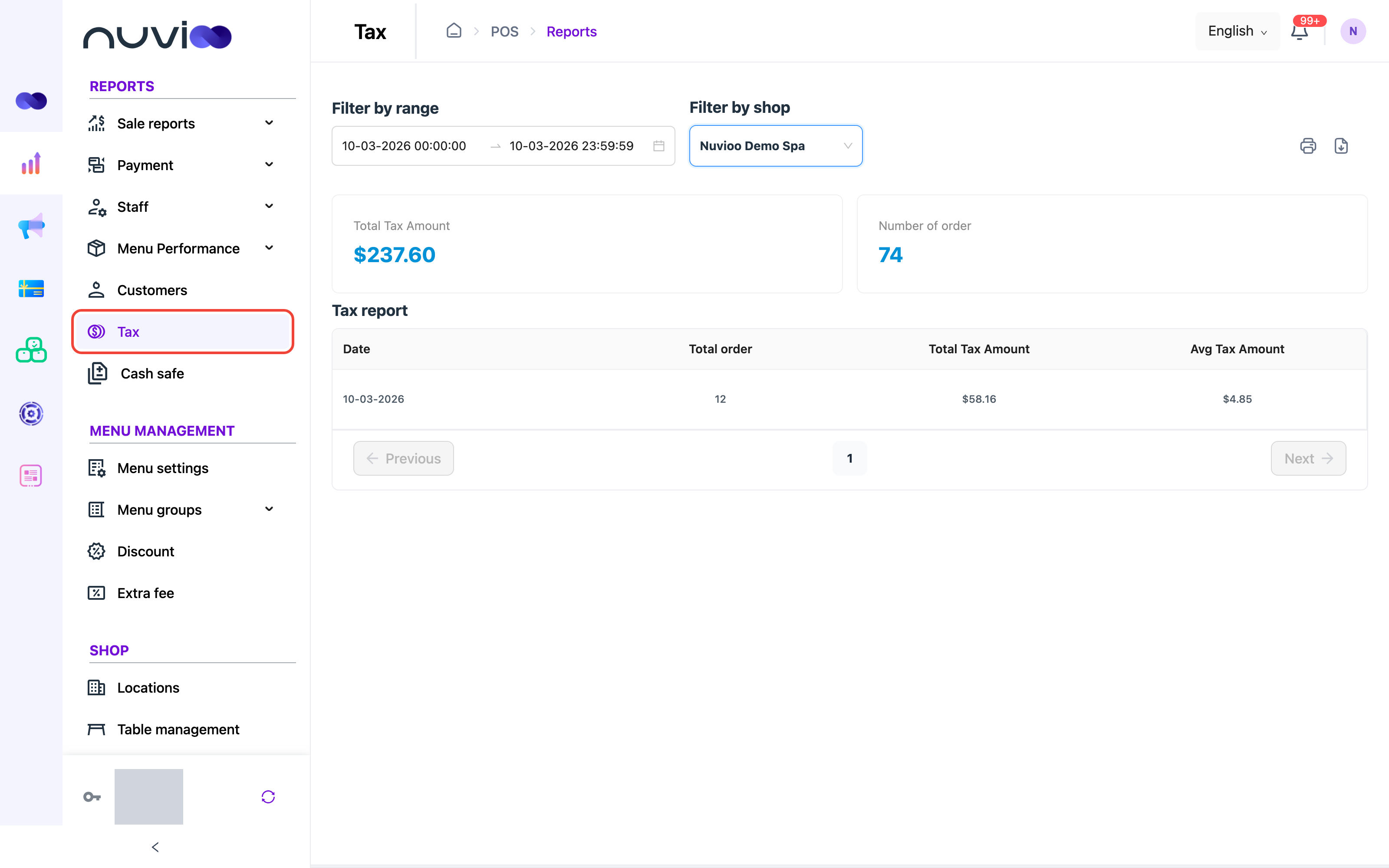
| Filter | Default | What it does |
|---|---|---|
| Filter by range | Today | Sets the period. |
| Filter by shop | See the link on top. | Chooses the location. |
The report counts completed orders only. Orders for gift cards are left out.
| Card | Definition |
|---|---|
| Total Tax Amount | The tax on the orders in the range, minus refunded tax. |
| Number of order | The number of those orders. |
| Column | Definition |
|---|---|
| Date | The day the orders were created. Newest days come first. |
| Total order | The number of orders created that day. |
| Total Tax Amount | The tax on those orders, minus refunded tax. |
| Avg Tax Amount | Total Tax Amount divided by Total order. |
The report shows the tax recorded on your orders. It isn’t a tax return. Both the print and the download buttons are available. The print includes the two cards and the table.
To change the tax rate, edit the location. See Locations.