

Services
Use Services for billable work that isn’t a stock item, such as a polish change or a massage. The POS charges a service by the time it takes, not by a fixed amount.
How a service is charged
Section titled “How a service is charged”- The Price you enter is the price for every 60 minutes.
- The POS counts time by the minute. A 30-minute service costs half the Price.
- If you set up a Setting price for certain hours, minutes that fall inside those hours are charged at the setting price. All other minutes use the normal Price. See Sales time and sales price.
- Services aren’t sent to the kitchen printer.
Find a service
Section titled “Find a service”In the sidebar, under Menu management, open Menu groups and click Services.
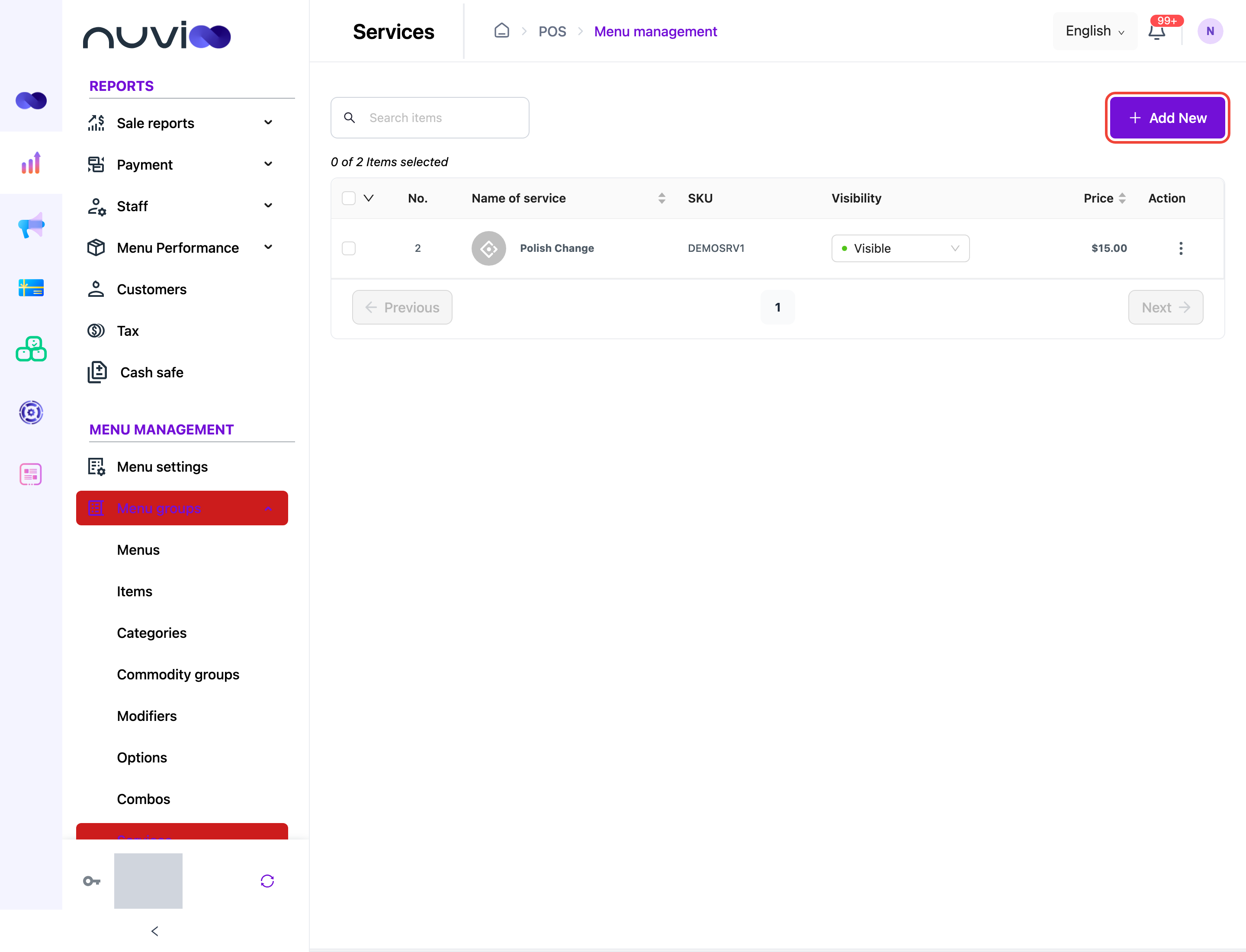
The list shows 10 services per page, sorted by name from A to Z. Above the table, 0 of 4 Items selected shows how many rows you ticked and how many services match.
| Column | What it shows |
|---|---|
| Checkbox | Tick a row to use the bulk menu. Tick the box in the header to select every row on the page. |
| No. | The row number. |
| Name of service | The service’s picture and name. Click the header to sort from A to Z or Z to A. |
| SKU | The first 10 characters of the SKU, or - if there is none. |
| Visibility | Visible, Hidden or Unavailable. Change it right here and it saves at once. |
| Price | The hourly price. |
To find a service, type part of its name in Search items.
Add a service
Section titled “Add a service”Open the form
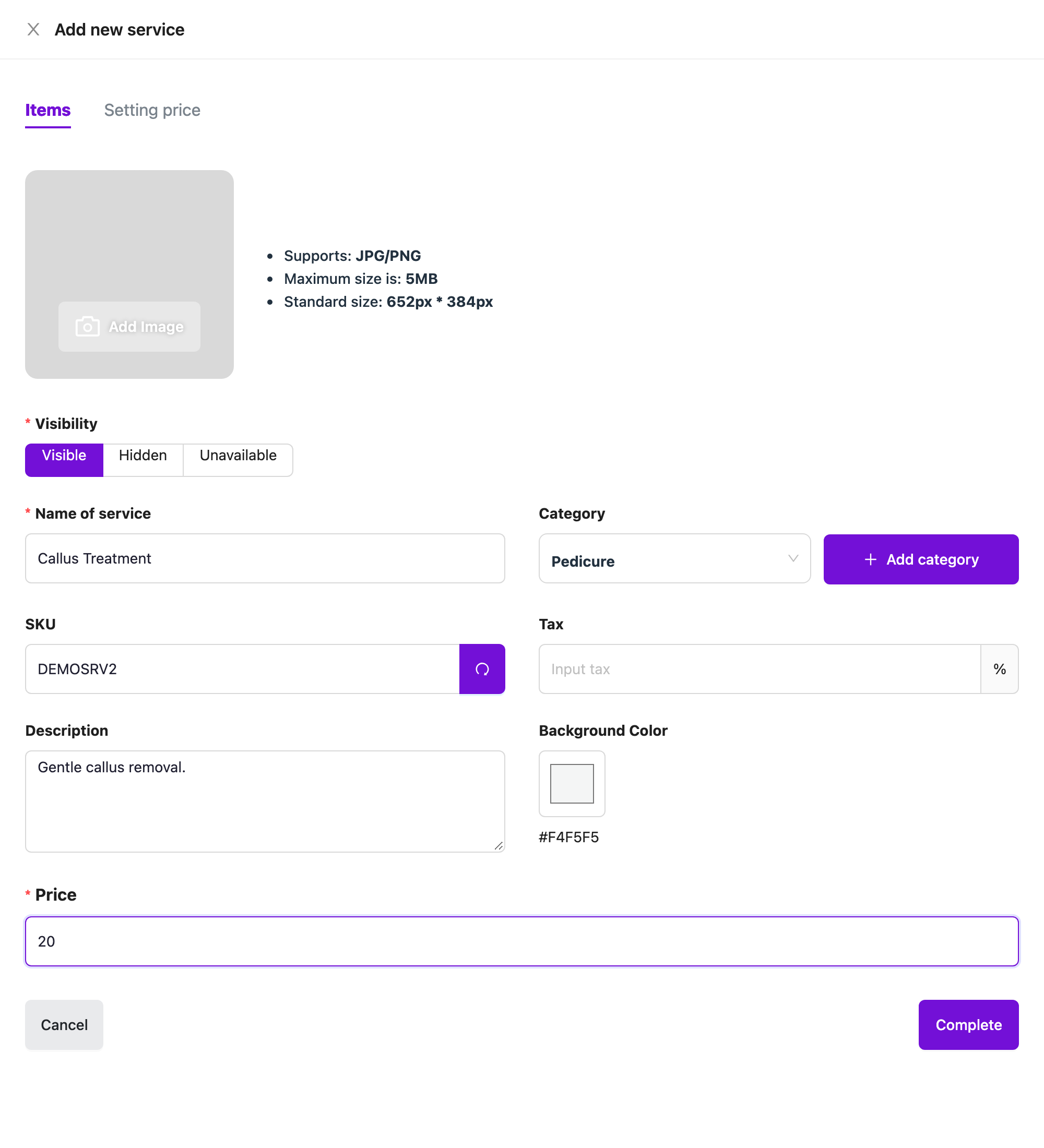
Click Add New. The Add new service drawer opens on the Items tab.
Enter the details
Fill in the fields in the table below. Name of service and Price are required.
Add new service Set time-based prices (optional)
Click the Setting price tab to charge a different price during chosen hours.
Save
Click Complete. If a required field is empty, you see Please fill full the form and the form stays open.
Fields
Section titled “Fields”| Field | Required | What it does |
|---|---|---|
| Add Image | No | A picture for the service. JPG or PNG, up to 5 MB, at least 652 px wide. |
| Visibility | Yes | Visible, Hidden or Unavailable. Defaults to Visible. |
| Name of service | Yes | Up to 400 characters. |
| Category | No | The category the service belongs to. Click Add category to create one here. |
| SKU | No | Your stock code, up to 50 characters, no spaces. Each SKU must be unique across items, combos and services. Leave it blank and Nuvioo creates one. The refresh button fills in a random code. |
| Tax | No | A tax rate in percent. Leave it blank to use the location’s tax rate. |
| Description | No | Up to 500 characters. |
| Background Color | No | The colour of the service’s tile on the POS. |
| Price | Yes | The price for every 60 minutes. A service has no sizes. |
Visibility, SKU, tax, category and image work the same way as for items.
Setting price
Section titled “Setting price”On the Setting price tab, turn on Setting price, then choose All day in week or Specific for each day. For each range, pick a Start time and End time and enter a Sale price. Click + to add more ranges. Ranges on the same day can’t overlap.
The full steps are in Sales time and sales price.
Edit, clone or delete a service
Section titled “Edit, clone or delete a service”Click ⋮ on the service’s row.
| Action | What it does |
|---|---|
| Edit | Opens Update service with the same fields as the add form. |
| Clone | Opens Add new service filled in with the service’s details. The SKU is left blank. Change the Name of service, then click Complete to save a new service. |
| Delete | Deletes the service after you confirm with Delete. |
You only see the actions your role allows. See Roles and permissions.
Change many services quickly
Section titled “Change many services quickly”Select the rows
Tick the services. Tick the box in the header to select the whole page.
Choose the action
Click the arrow next to the header checkbox.
- Change status, then Hidden, Unavailable or Visible.
- Delete, then confirm. If a selected service is in an order being processed, nothing is deleted and you see Products … in order processing.
The options stay greyed out until you tick at least one row.
On the POS
Section titled “On the POS”- A service appears as an item. Hidden services don’t appear. Unavailable services appear greyed out and staff can’t add them.
- The charge is worked out from the start and end time the POS records. While the service has no end time, it counts as in progress. The time is completed when the order is paid.
- The charge follows your Setting price hours, in the time zone of the location.