

Roles and permissions
A role is a set of permissions for the POS app, such as Create order, Refund order or Discount. You give each employee one or more roles at each location. See Employees.
Default roles
Section titled “Default roles”A new account starts with these roles. Their permissions are a starting point. You can edit them.
| Role | Starting permissions |
|---|---|
| Manager | Every permission. |
| Host | Create order, Void order, Approval and reject online order, Discount and Hardware setting. |
| Food_runner | None. |
| Kitchen | Kitchen and Hardware setting. |
Create a role
Section titled “Create a role”Open Roles and Permission
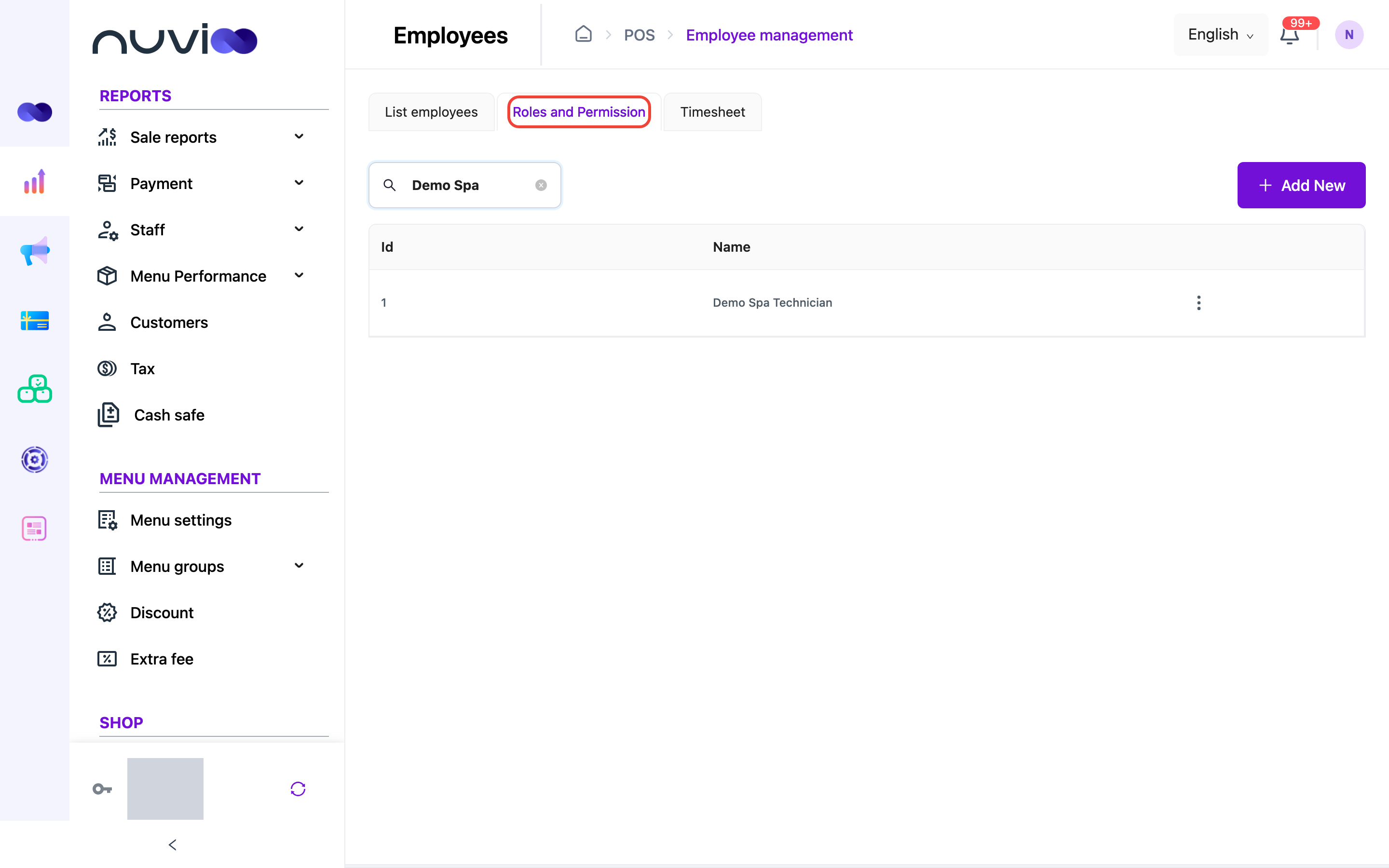
In the sidebar, under Employee management, click Employees, then open the Roles and Permission tab and click Add New.
Name the role and tick permissions
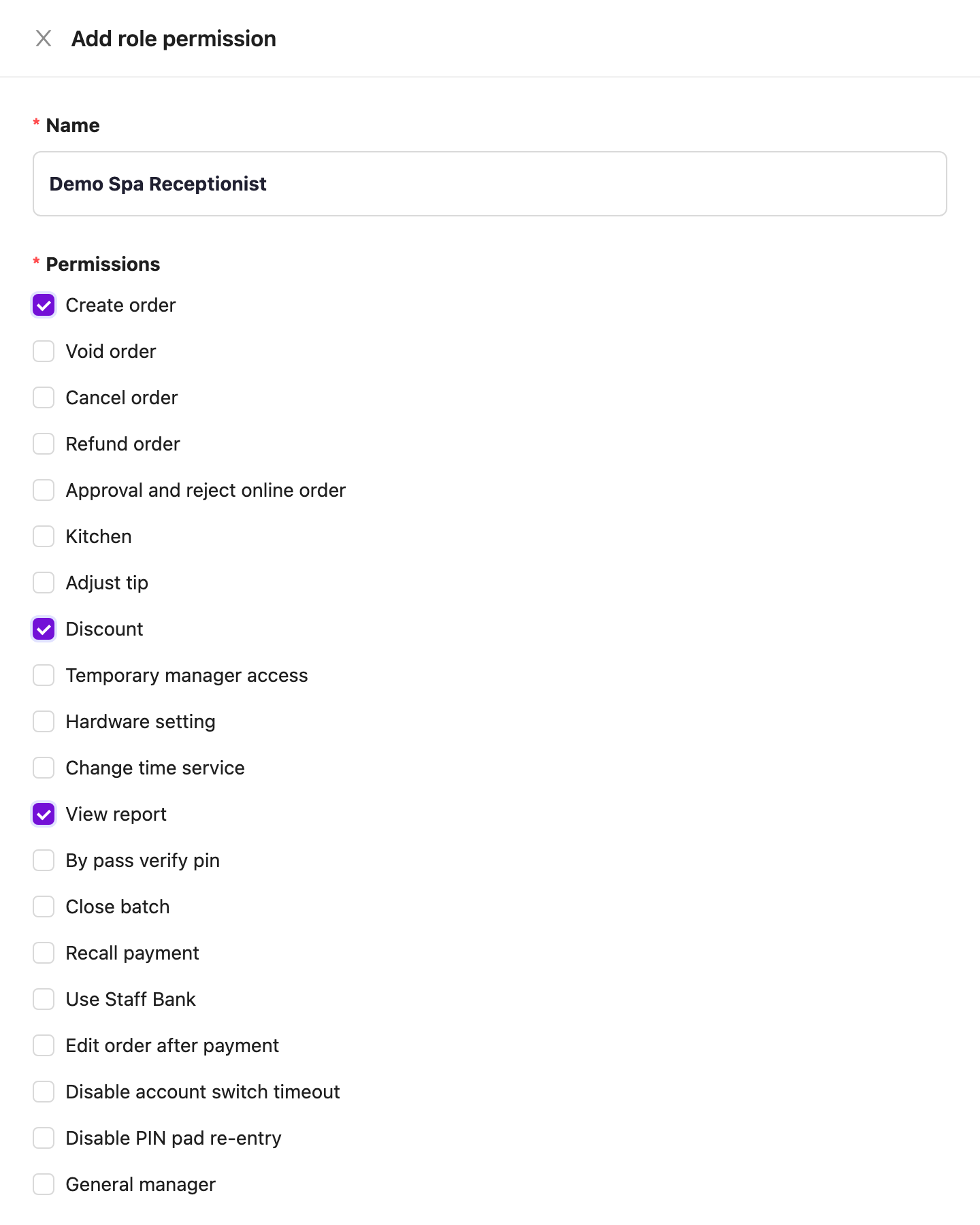
Enter a Name, up to 100 characters. Under Permissions, tick every permission this role needs. You must tick at least one. Give each role only what it needs. For example, a receptionist might have Create order, Discount and View report.
Add role permission Save
Click Complete.
Edit or delete a role
Section titled “Edit or delete a role”The list shows each role’s name. Use the search box to find a role. Click ⋮ on a row to Edit or Delete it.
Editing a role changes the permissions of every employee who has it.
Permissions
Section titled “Permissions”The list below is every permission in the Permissions group. Most permissions apply in the POS app.
| Permission | Allows |
|---|---|
| Create order | Take orders: open the menu, add items, choose a table and place an order. |
| Void order | Void items on an order. |
| Cancel order | Cancel an order. |
| Refund order | Refund a paid order. |
| Approval and reject online order | Tap Confirm or Reject on online orders that are waiting. See Online ordering. |
| Kitchen | Open the kitchen screen. A role with only Kitchen, or only Kitchen and Hardware setting, goes straight to the kitchen view. |
| Adjust tip | Change the tip on a card payment. |
| Discount | Apply discounts to an order. |
| Temporary manager access | Acts as a manager in the POS app. The employee can do most actions in this list without having them ticked, sees every employee’s orders, and can open reports. Their PIN approves other employees’ actions, and they can close a shift that has a cash difference. Use Staff Bank, Disable account switch timeout and Disable PIN pad re-entry still have to be ticked. |
| General manager | Lets the employee use the POS menu and browse screens without clocking in or opening a shift. A shift is asked for only when an action needs one. Allows the order, kitchen, tip, discount, hardware, billable time, batch close, recall and edit-after-payment actions without having them ticked. It doesn’t skip PIN checks, doesn’t override Limit order access based on employee, and doesn’t open reports. |
| Hardware setting | Open device and hardware settings in the POS app. |
| Change time service | Edit the billable time of a service on an order. |
| View report | Open reports in the POS app. |
| By pass verify pin | Skip the manager PIN prompt for actions the employee is already allowed to do. |
| Close batch | Close the card batch from the shift screen. |
| Recall payment | Recall the payment of a completed order. |
| Use Staff Bank | Marks the employee as a staff bank. The Enter cash count button is hidden for them, and closing their shift doesn’t need a manager’s approval for a cash difference. |
| Edit order after payment | Edit a paid order. |
| Disable account switch timeout | Skips the PIN prompt that appears after the Account Switch Timeout time. Set that time in Locations. |
| Disable PIN pad re-entry | Skips the PIN prompt that appears after each order when Require PIN Re-entry is on. Set that in Locations. |