

Read your sales summary
The Sale reports group shows how much a location sold and how customers paid. Summary gives a quick view of one period. Sales adds payment and order counts. Sales by orders lists every order so you can open one.
In the sidebar, open Reports, then Sale reports.
How sales are counted
Section titled “How sales are counted”Summary and Sales read the same completed orders, so their totals match. These rules apply to both.
| Rule | What it means |
|---|---|
| Orders counted | Completed orders, and refunds made on them. Voided, rejected and recalled orders are not counted. |
| Which day | An order counts at the time it was completed. A refund counts at the time you made it, as a negative amount. It doesn’t move the original sale to another day. |
| Tips | Left out of every sale amount. Tips are shown on their own cards. |
| Tax and extra fees | Included in Gross Sale. Net Sales takes tax off. It doesn’t take extra fees off. |
| Discounts | Already taken off. Sale amounts are the payments received. |
| Gift cards | A payment made with a gift card counts as a sale. |
Filters
Section titled “Filters”Every report in this group has a date filter and Filter by shop.
Date range
Section titled “Date range”Summary and Sales by day use the Filter by range picker. It opens on today, from the start of your Business hour to its end. If you haven’t set Business hour, the range is 12:00 AM to 11:59 PM. See Locations.
Open the picker
Click Filter by range.
Pick the dates
Click a preset: Yesterday, Today, Last 7 days, Last 14 days, Last 30 days, This week, This month or This year. Or click a start date and an end date in the calendar. You can’t pick a future date.
Change the hours (optional)
Turn on Advance Date & Time. Choose Business Hour to use your shop’s hours, or Custom to set your own start and end time. Click Apply. If the end time is the same as or earlier than the start time, the range ends on the next day.
Sales, Sales by orders, Sales by hour, Items & categories and Discounts use a range field with a date and a time. The presets are the same as above. Unless a page says otherwise, the range opens on today, 00:00:00 to 23:59:59, in your browser’s time zone.
Shop, status and remembered filters
Section titled “Shop, status and remembered filters”- Filter by shop: reports show one location at a time. The list is in alphabetical order. A report opens on the shop you used last in this browser session, or on the first shop in the list.
- Filter by status: only on Sales by orders. See Find an order.
- Nuvioo remembers each report’s filters until you close the browser tab.
Print and download
Section titled “Print and download”Most reports have two icon buttons at the top right. Summary has neither. Daily closing has Print only.
- Print opens your browser’s print window with the report as a PDF. Use it to print or to save a PDF.
- Download starts an Excel export of the current filters. You see “Downloading report is being processed. Please wait a moment.” The file downloads when it’s ready.
Summary
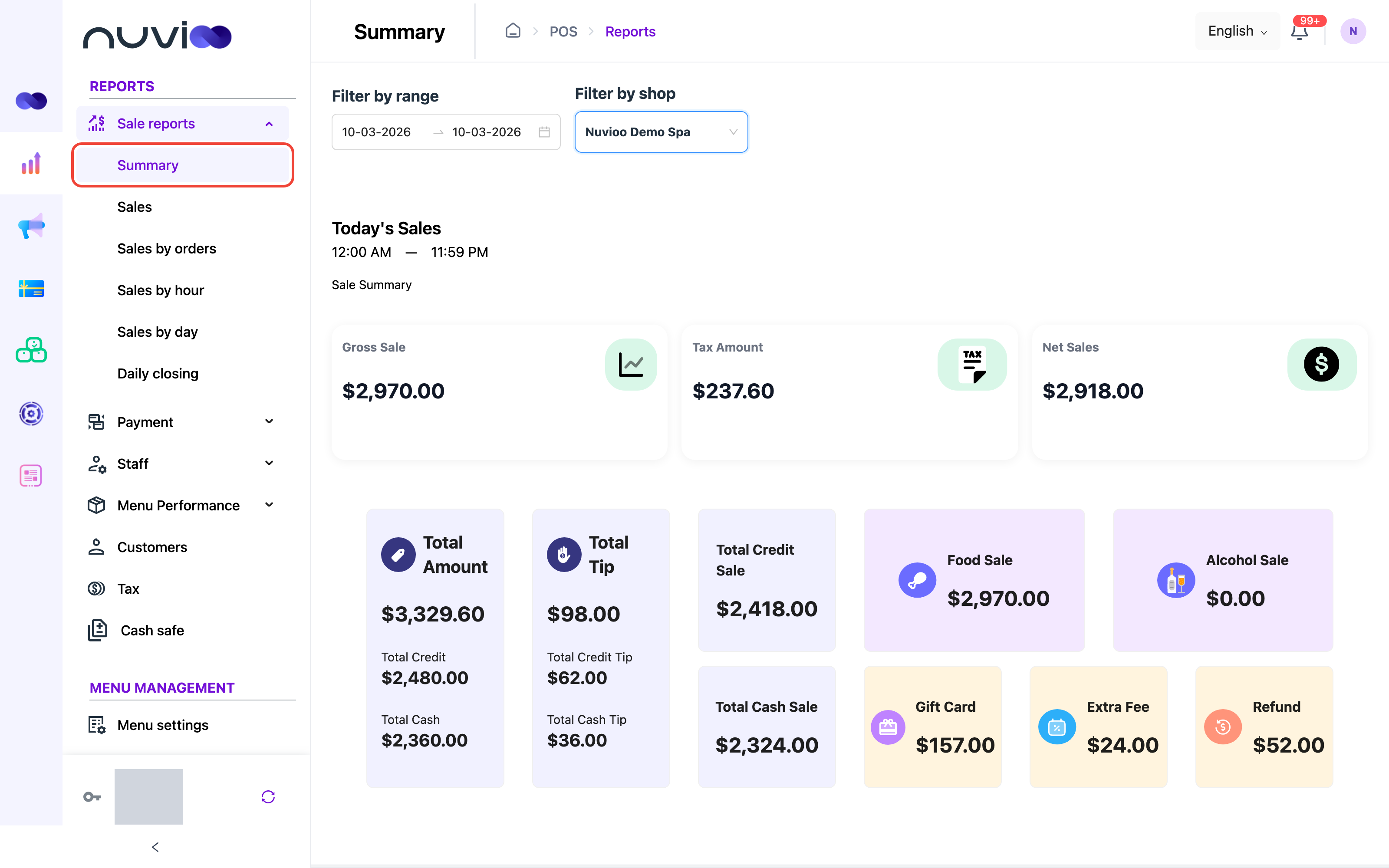
Section titled “Summary”Open Sale reports, then Summary. The page opens on Today’s Sales with the hours below it. If the range matches a preset, the preset name replaces the title. Otherwise you see the first and last date.
| Card | What it counts |
|---|---|
| Gross Sale | Cash sales, card sales (Nuvioo payments and traditional terminal), and gift card payments, minus refunds. No tips. |
| Tax Amount | Tax on completed orders, minus tax on refunds. |
| Net Sales | Gross Sale − Tax Amount + tips refunded in cash. |
| Total Amount | Gross Sale + Total Tip − Gift Card. This is money taken in with tips included, and gift card payments left out. |
| Total Credit | Card sales plus card tips. Under Total Amount. |
| Total Cash | Cash sales plus cash tips. Under Total Amount. |
| Total Tip | Card tips, cash tips and traditional terminal tips. Gift card tips are not included. |
| Total Credit Tip | Card tips plus traditional terminal tips. Under Total Tip. |
| Total Cash Tip | Cash tips. Under Total Tip. |
| Total Credit Sale | Card sales and traditional terminal sales, with no tips. |
| Total Cash Sale | Cash sales, with no tips. |
| Food Sale, Alcohol Sale | Item sales by the item’s sale type. See the next note. |
| Gift Card | Payments made with a gift card, minus refunds. |
| Extra Fee | Extra fees charged, minus fees refunded. Tips on extra fees are not included. |
| Refund | Money refunded in the range, including refunded tips. |
Click Total Amount to open Sales by orders with the same shop, range and the Completed status. Click Total Tip to open the Tips report. See Staff, shifts and tips reports.
If no orders match, every card shows zero.
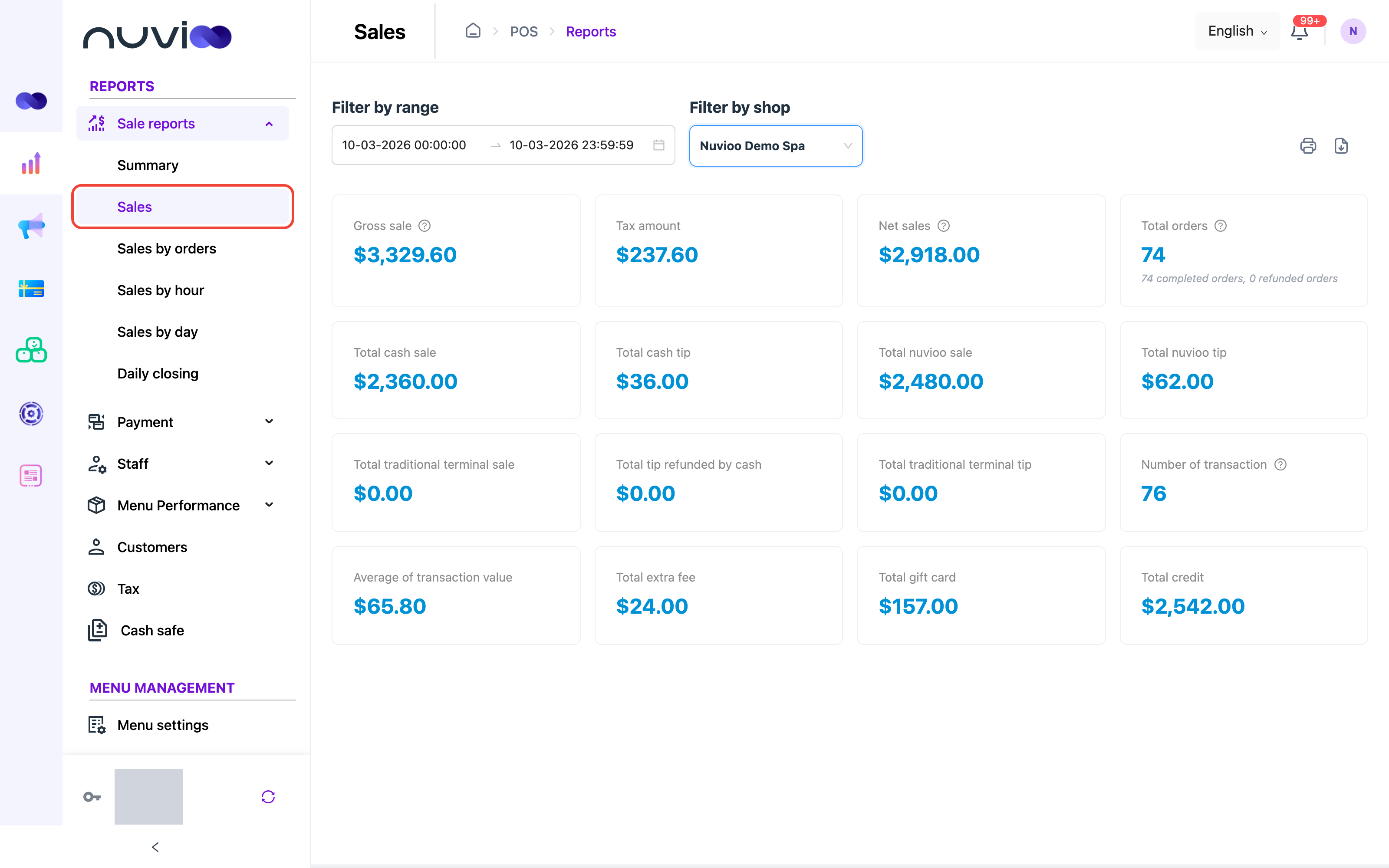
Open Sale reports, then Sales. It shows the same period in more detail. Point to the ? next to Gross sale, Net sales, Total orders or Number of transaction to read a short hint.
| Card | What it counts |
|---|---|
| Gross sale | Total cash sale + Total nuvioo sale + Total traditional terminal sale + Total gift card, minus refunds. No tips. |
| Tax amount | Tax on completed orders, minus tax on refunds. |
| Net sales | Gross sale − Tax amount + Total tip refunded by cash. |
| Total orders | Orders completed or refunded in the range. Under the number you see how many were completed and how many were refunded. “Refunded” means a completed order that was refunded in full in this range. |
| Total cash sale | Cash payments, no tips, minus refunds. |
| Total cash tip | Tips paid in cash. |
| Total nuvioo sale | Card payments taken through Nuvioo payments, no tips. |
| Total nuvioo tip | Tips on those card payments. |
| Total traditional terminal sale | Payments taken on a separate card terminal and recorded in the POS, no tips. Custom payment methods are counted here too. |
| Total traditional terminal tip | Tips on those payments. |
| Total tip refunded by cash | Tips you gave back in cash when you refunded an order. |
| Number of transaction | Successful payments on completed orders. One order can have more than one payment. Orders refunded in full in the range are not counted. |
| Average of transaction value | Gross sale divided by Number of transaction. It shows zero when there are no transactions. |
| Total extra fee | Extra fees charged, minus fees refunded. |
| Total gift card | Payments made with a gift card, minus refunds. |
| Total credit | Total nuvioo sale and Total traditional terminal sale, plus their tips. |
| Miscellaneous | The total of reconciliation payments on the orders. This card only appears when the amount is not zero. |
If no orders match, the cards show zero.
Find an order
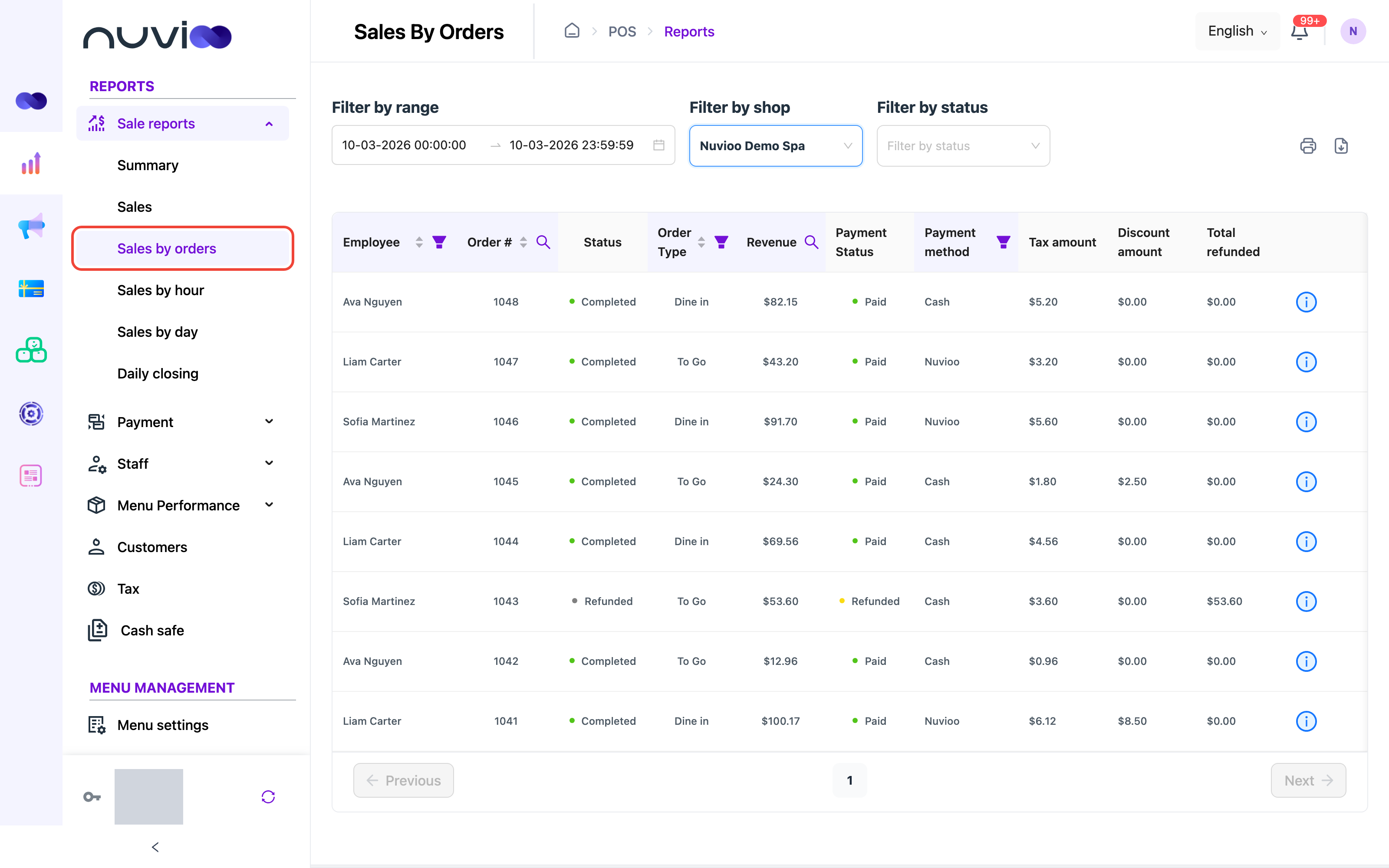
Section titled “Find an order”Open Sale reports, then Sales by orders. The table lists orders. Use it to find one order or to see why a total moved.
Filters
Section titled “Filters”- Filter by range and Filter by shop, as described above. The range matches the time each order was last updated. A refund updates an order, so a refunded order shows on the day of its refund.
- Filter by status: Completed, Refunded, Voided, Reject or Recalled. Click the clear icon to show all of them. Refunded lists completed orders that have a refund, and refunded orders.
Columns
Section titled “Columns”| Column | What it shows |
|---|---|
| Employee | The employee who took the order. Online means the order has no employee. Sort it, or filter by one or more employees. |
| Order # | The order number. Newest first by default. Click the search icon, enter the full order number and click Search. Click Reset to clear it. |
| Status | The order status. |
| Order Type | Dine in or To Go. Sort it, or filter by one type. |
| Revenue | The order total (tax and extra fees included), minus tips on extra fees, minus refunds. It never goes below zero. Filter by an exact amount. |
| Payment Status | Paid, Partial Refund, Refunded or Unpaid. A completed order is Paid, or Partial Refund if part of it was refunded. A voided, rejected or recalled order is Refunded only if it was refunded in full. |
| Payment method | The methods on the order’s successful payments, separated by /. Pay later means no payment succeeded. Filter by method. |
| Tax amount | The tax on the order. |
| Discount amount | The discount applied to the order. |
| Total refunded | The amount refunded on the order. |
When Filter by status is Refunded, completed orders show a dash in Revenue, Tax amount and Discount amount. Only Total refunded matters for them.
Order details
Section titled “Order details”Click the i button at the end of a row. The Order # drawer opens with:
- General information: Order on, Order updated, Order process (the status), Payment Status, Order Type, and Revenue. Click Revenue to see the price, tax, tip, extra fee, discount, gift card and refund amounts that are not zero.
- Refund: the refund amount, payment method and reason, when the order has a refund.
- Items info: Product name, Size, Quantity, Revenue, Option type and Adding.
- Transactions info: when each payment was created, its amount, status, payment method and transaction type.
- Void items info: items removed from the order, with the reason and the time they were deleted.
If no order matches, the table is empty.