

Items
Items are what you sell. There are two types:
- Product: a normal item, such as Classic Manicure.
- Add-on/Extra: something added to a product, such as Paraffin Wax.
Combos and services have their own pages. Changes appear on your POS and online ordering straight away.
Before you start
Section titled “Before you start”- Create the categories you need.
- To offer add-ons, modifiers or options with a product, create them first. See Add-ons, modifiers and options on an item.
Find an item
Section titled “Find an item”In the sidebar, under Menu management, open Menu groups and click Items.
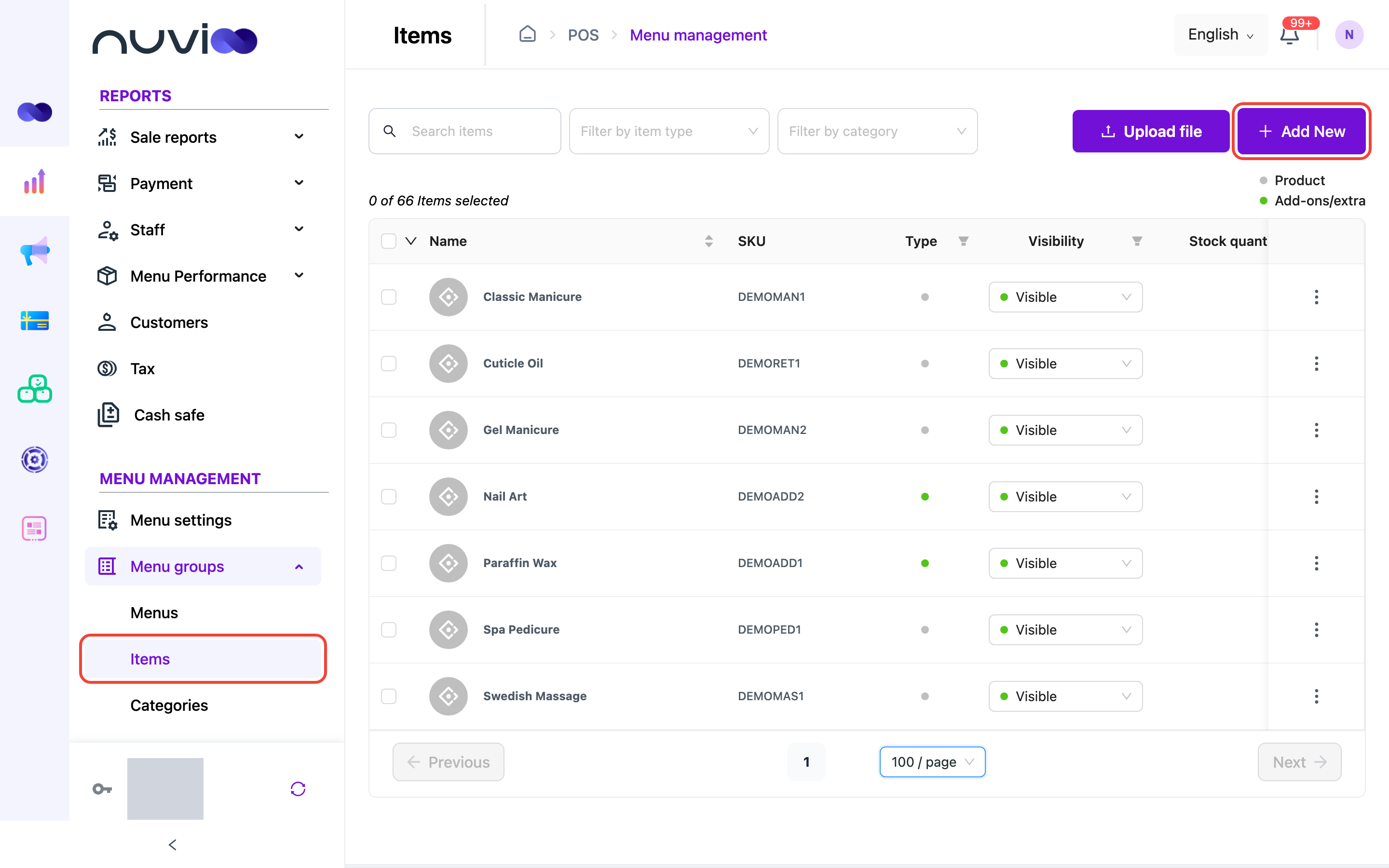
The list shows 10 items per page, sorted by name from A to Z. Above the table, 0 of 24 Items selected shows how many rows you ticked and how many items match. A key on the right explains the dots in the Type column: grey for Product, green for Add-ons/extra.
| Column | What it shows |
|---|---|
| Checkbox | Tick a row to use the bulk menu. Tick the box in the header to select every row on the page. |
| Name | The item’s picture and name. Click the picture to change only the image. |
| SKU | The item’s stock code. |
| Type | A green dot for an add-on, a grey dot for a product. |
| Visibility | Visible, Hidden or Unavailable. Change it right here. |
| Stock quantity | Stock left, per location. Shows - unless the item tracks stock. Click the number to see each location and size. |
| Price | The price. An item with sizes shows each size and its price. |
| Tax (%) | Default tax, or the tax rate you set for this item. |
To narrow the list:
- Search items: type part of an item name.
- Filter by item type: Product or Add ons.
- Filter by category: pick a category. Categories that aren’t visible start with (Hidden) - or (Unavailable) -.
- Type and Visibility: open the filter in the column header, tick values, and confirm. In Type, Add-ons and Product are the choices.
- Name: click the header to sort from A to Z or Z to A.
Change visibility, tax and image in the list
Section titled “Change visibility, tax and image in the list”- Visibility: open the drop-down in a row and pick a value. It saves at once.
- Tax (%): untick Default tax, type a rate, then click outside the box or press Enter. It saves at once. Tick Default tax again to use the location’s rate. The rate must be from 0 to 100 with up to 2 decimals, or you see Tax must be a number from 0 to 100 with up to 2 decimals. The box is greyed out if you can’t edit items.
- Image: click the item’s picture, choose an image, and click Select image. The image saves at once.
Add a product
Section titled “Add a product”Open the form
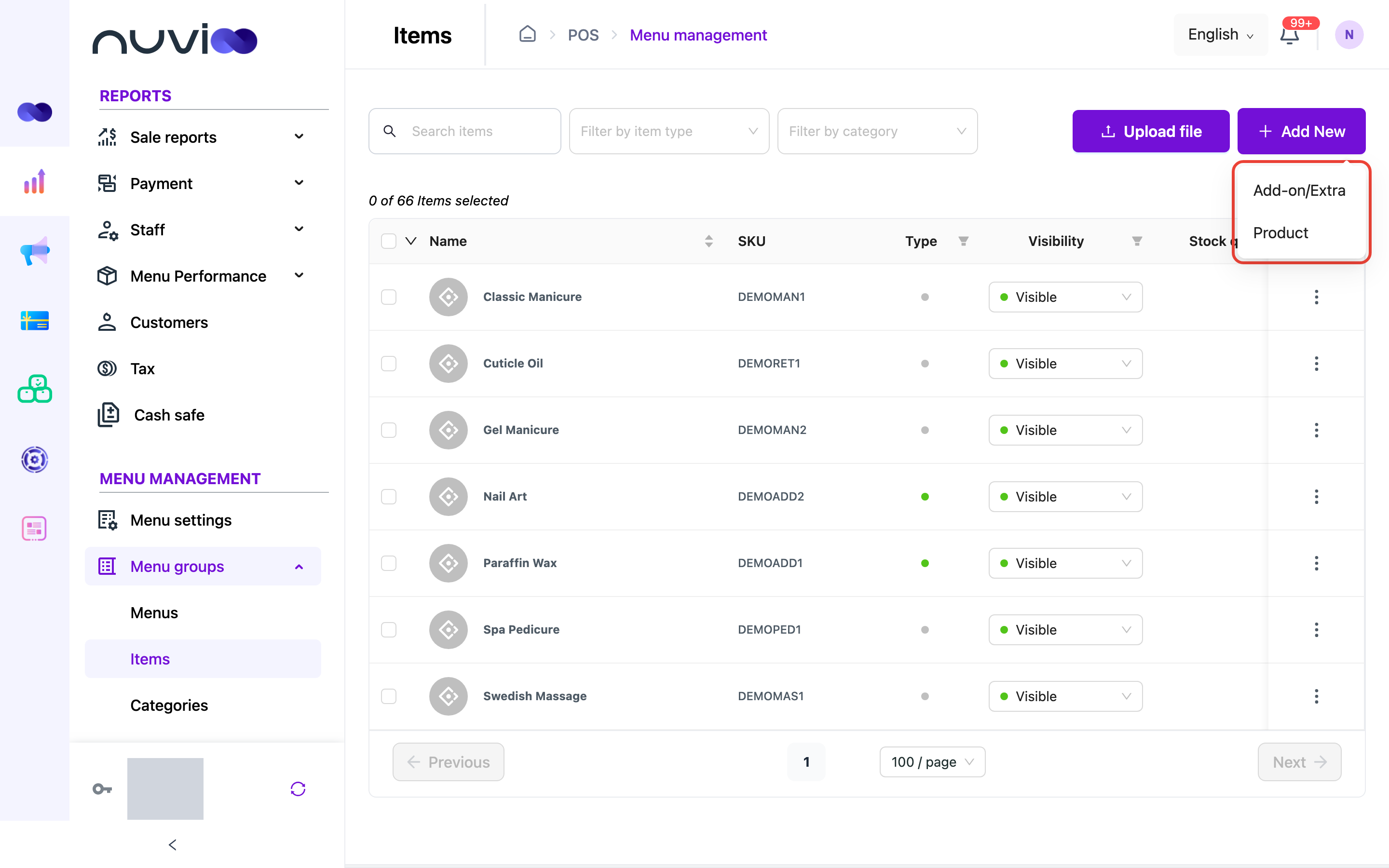
Click Add New, then choose Product. To add an add-on instead, choose Add-on/Extra. See Add an add-on.
Enter the details
On the Items tab, fill in the fields in the table below. Name and Price are required.
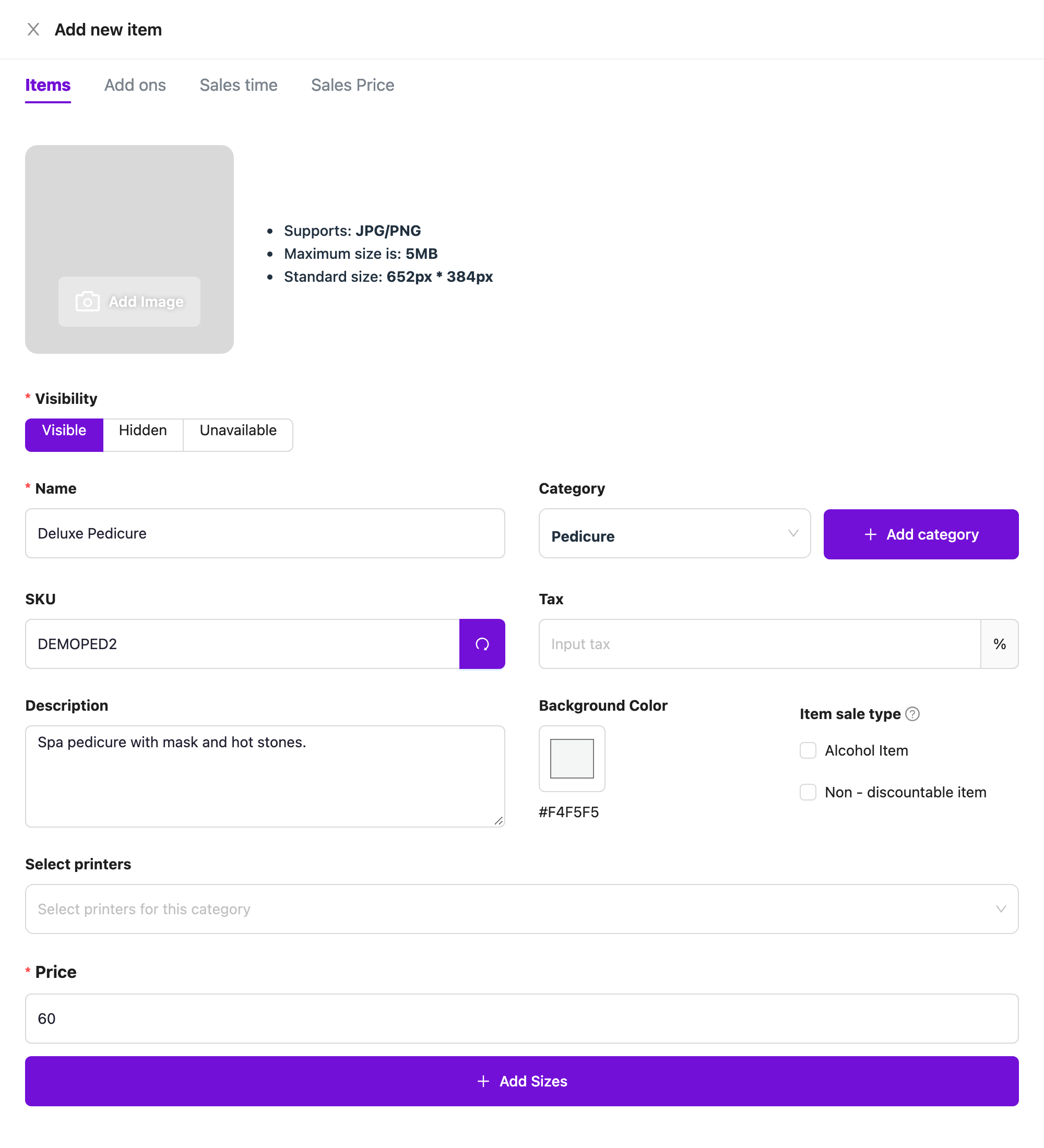
Add new item Add sizes (optional)
If the item comes in sizes or durations, click Add Sizes. See Sizes.
Add add-ons, sales time and sales price (optional)
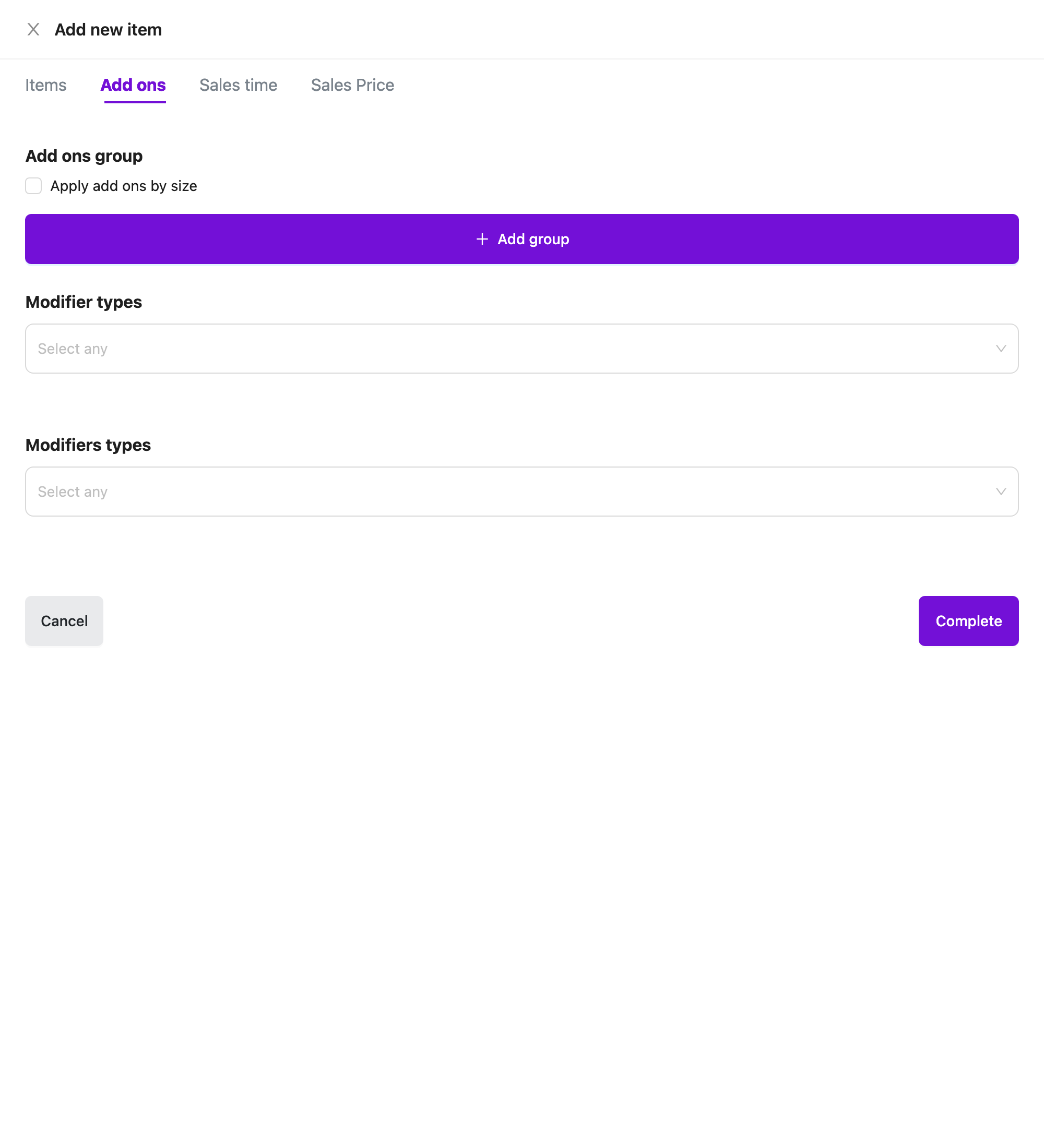
Use the other tabs. Add ons attaches add-ons, modifiers and options. Sales time limits when the item sells. Sales Price sets time-based prices.
Save
Click Complete. If a required field is empty or invalid, you see Please fill full the form and the form stays open.
Item fields
Section titled “Item fields”| Field | Required | What it does |
|---|---|---|
| Add Image | No | A picture for the item. JPG or PNG, up to 5 MB, at least 652 px wide. The standard size is 652 × 384 px. You can choose one from the library (Choose From Library) or crop your own (Upload Your Own). |
| Visibility | Yes | Visible sells the item. Hidden removes it from the POS and online ordering. Unavailable keeps it on the POS but greyed out, so staff can’t add it. Defaults to Visible. |
| Name | Yes | Up to 400 characters. Two items can have the same name. |
| Category | No | The category the item belongs to. Click Add category to create one here. You only see this field if your role can view categories. |
| SKU | No | Your stock code, up to 50 characters. Spaces are removed as you type. Each SKU must be unique. See SKU. |
| Tax | No | A tax rate in percent for this item. Leave it blank to use the location’s tax rate. |
| Description | No | Up to 500 characters. |
| Background Color | No | The colour of the item’s tile on the POS. |
| Item sale type | No | Tick Alcohol Item to report the item to the alcohol sales group. |
| Non - discountable item | No | Tick it so discounts don’t apply to the item. |
| Select printers | No | The printers that print this item’s orders, for example a kitchen printer. Printers set to receive all items are already selected and can’t be removed. See Devices and printers. |
| Price | Yes | The selling price. It is replaced by the size prices when you add sizes. |
When you click Add category, a small window asks for a Name. Click Create to add it and select it. If the name already exists, you see This category name already exists. To choose where the new category sells and its other settings, edit it afterwards in Categories.
- Click the refresh button next to the box to fill in a random six-character code.
- Leave the box blank and Nuvioo creates a code when you save.
- A SKU already used by another item, combo or service shows Sku is duplicated.
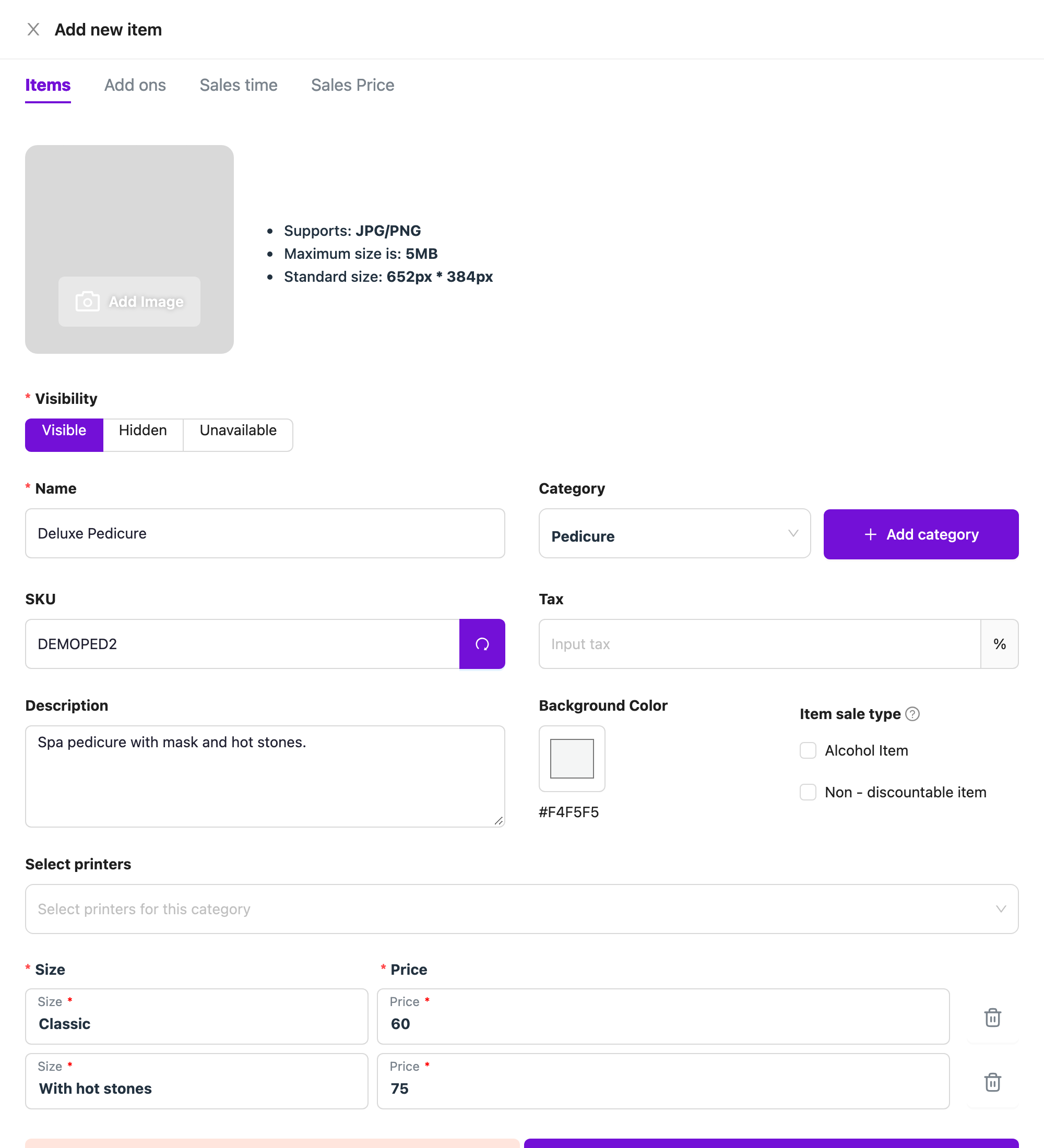
Click Add Sizes under Price. Nuvioo adds Size 1 with a price of 0, and the single Price box goes away.
- Size: the name staff see. It is required. You see Please input size if it is empty.
- Price: the price for that size. It can’t be negative.
- Add Size (9): adds another row. The number in brackets is how many more you can add. You can have up to 10 sizes.
- The delete icon on a row removes that size. Remove all size removes every size and brings back the single Price box.
Add an add-on
Section titled “Add an add-on”Choose Add-on/Extra from Add New. The form is shorter. It has Visibility, Name, SKU, Tax, Description and Price. It has no image, category, sizes, colour, printers or extra tabs.
Add-ons are a plan feature. If your plan doesn’t include them, saving an add-on fails with an error.
An add-on only sells inside a product. To offer it, open the product, go to Add ons, and add the add-on to a group. See Add-ons, modifiers and options on an item.
Edit, clone or delete an item
Section titled “Edit, clone or delete an item”Click ⋮ on the item’s row.
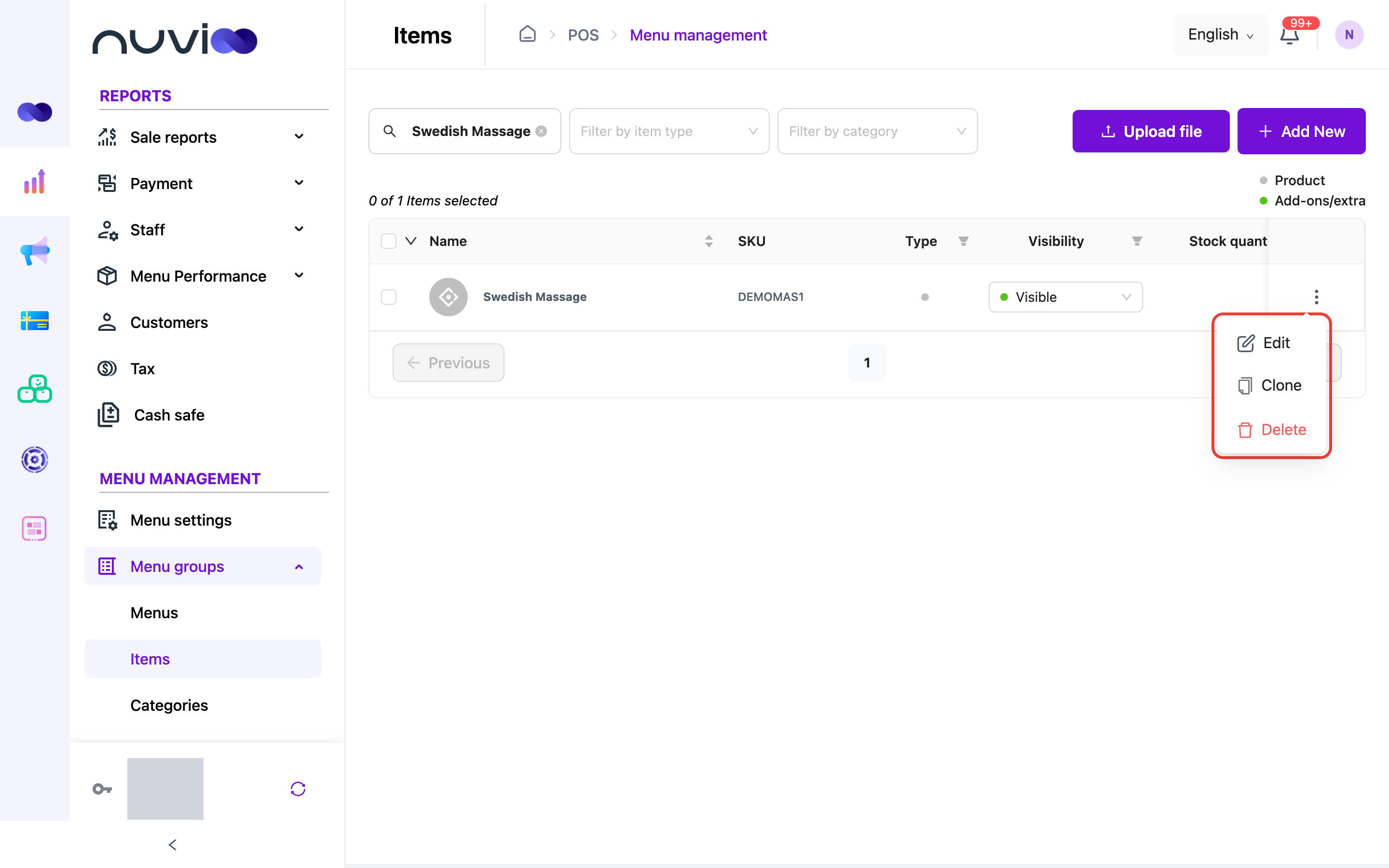
| Action | What it does |
|---|---|
| Re-stock | Adds stock for an item that tracks stock. Only shows when your account has the Inventory module and the item tracks stock. See Stock tracking. |
| Edit | Opens Update item (or Update Topping for an add-on) with the same fields as the add form. |
| Clone | Opens Add new item filled in with the item’s details, including its image, sizes and add-ons. The SKU is left blank. Change the Name, then click Complete to save a new item. |
| Delete | Deletes the item after you confirm with Delete. |
You only see the actions your role allows. See Roles and permissions.
What delete does
Section titled “What delete does”Deleting one item from its row doesn’t check open orders. Deleting several at once does. If any selected item is in an order being processed, nothing is deleted and you see Products … in order processing with the item names.
Change many items quickly
Section titled “Change many items quickly”Select the rows
Tick the items. Tick the box in the header to select the whole page.
Choose the action
Click the arrow next to the header checkbox.
- Change status, then Hidden, Unavailable or Visible.
- Delete, then confirm.
The options stay greyed out until you tick at least one row. Selection clears when you change page.
To import many items from a spreadsheet, or to download your current items, click Upload file. See Import and export items.
On the POS
Section titled “On the POS”- Hidden items don’t appear. Unavailable items appear greyed out and staff can’t add them.
- An item outside its Sales time doesn’t appear in the item list.
- Staff can search items by name or SKU.
- Add-ons are not listed on their own. They show inside the product they’re attached to.
- Modifiers, options and add-on groups show when staff tap a product. See Add-ons, modifiers and options on an item.