

Support resources
Support resources are the files and links your team keeps handy, such as price lists or aftercare guides. You keep them in folders.
In the sidebar, under Support, click Support resource.
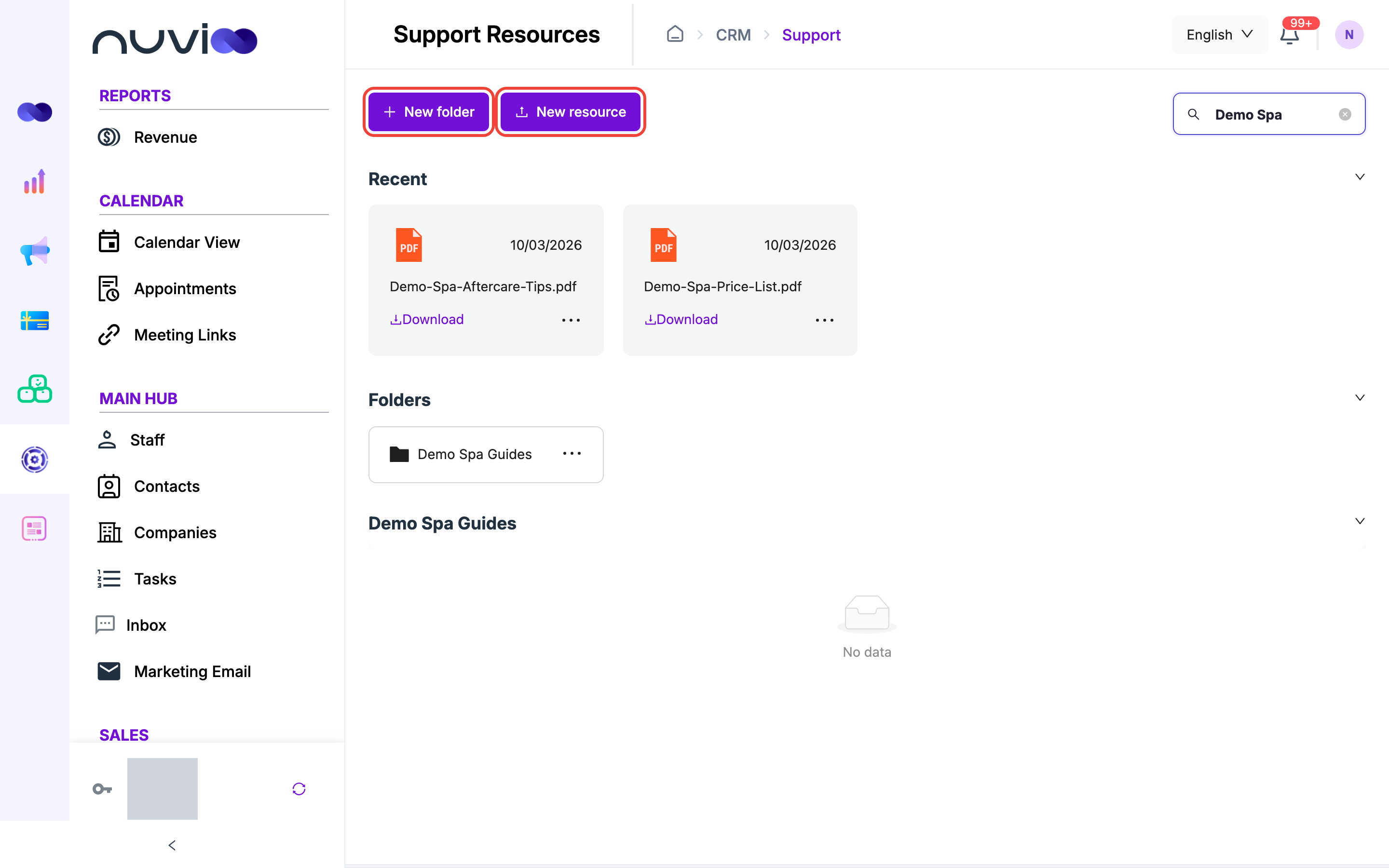
How the page is organized
Section titled “How the page is organized”Once you have at least one folder, the page has three kinds of section. Click a section’s header to collapse or expand it.
| Section | What it shows |
|---|---|
| Recent | The 4 files or links added most recently, from any folder. |
| Folders | Every folder as a tile. |
| One section per folder | The folder’s files and links, newest first. Click Load more to show more. |
Each file or link is a card with a type icon, the date it was added, and its name. Point to a name to see it in full.
Type in Search resources to filter the files and links in the folders by name. Clear the box to see everything again.
Until you create a folder, the page is empty.
Resource types
Section titled “Resource types”| Type | What you add | What the card does |
|---|---|---|
| File | A PDF, Word, Excel or PowerPoint file. | Download saves the file. |
| Link | A name and a web address. | Open opens the address in a new tab. |
Create a folder
Section titled “Create a folder”Start a folder
Click New folder.
Name it
Enter a Name. It is required and can be up to 100 characters.
Save
Click Save.
To rename or delete a folder, click the three dots on its tile.
- Edit opens Edit Folder. Change the Name and click Save.
- Delete asks Are you sure?. Click Yes to confirm. You can only delete an empty folder. If the folder still has files or links, Nuvioo shows Delete folder failed. Delete its contents first.
Upload a file or add a link
Section titled “Upload a file or add a link”You need a folder first. If you have none, the form tells you to create one.
Start an upload
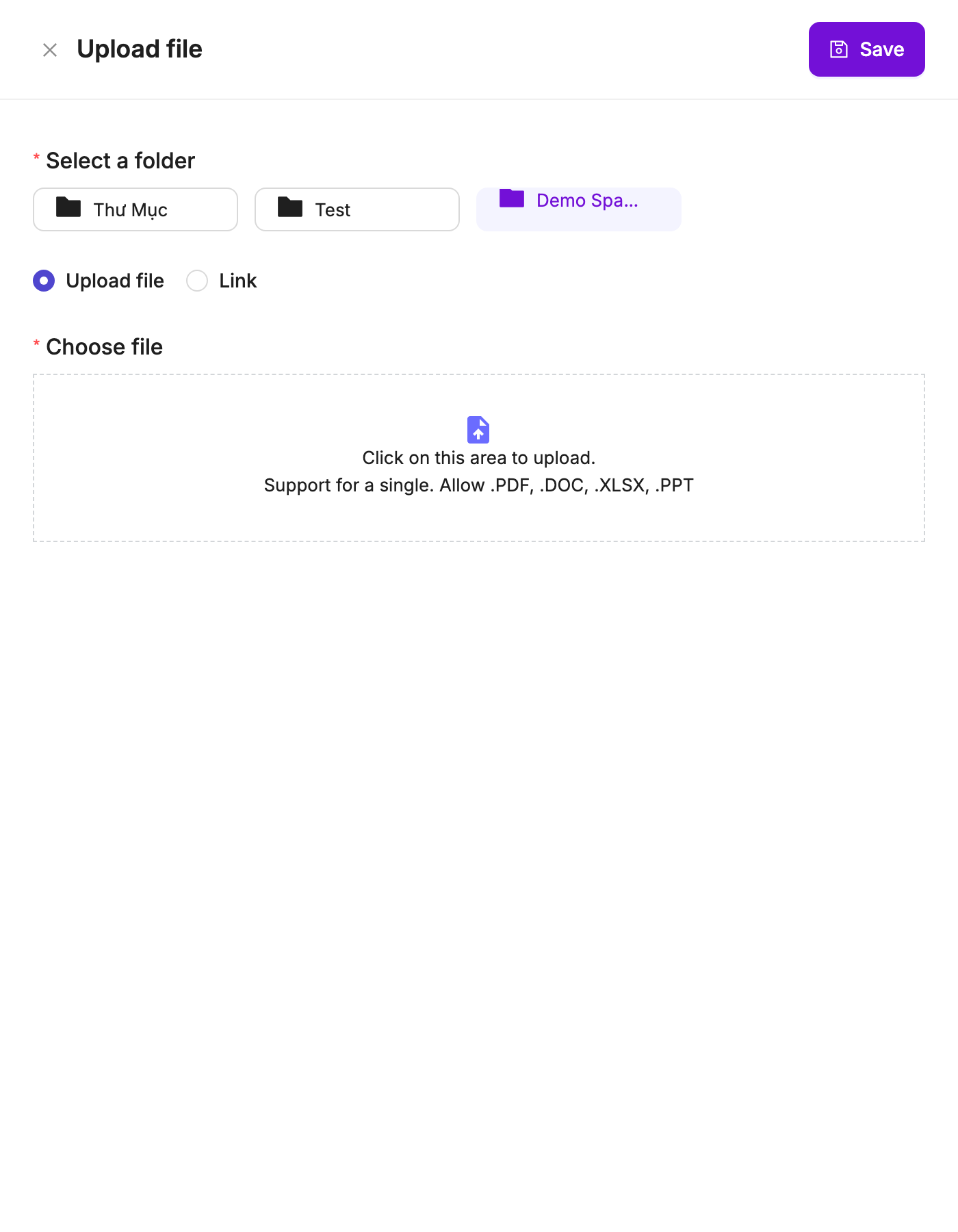
Click New resource. The Upload file panel opens.
Choose the folder
Under Select a folder, choose the folder to add it to. This is required.
Choose the type and add it
- Upload file: click the box and choose one file. It must be a PDF, Word, Excel or PowerPoint file, and smaller than 10 MB. You can add only one file at a time.
- Link: enter a Name (up to 100 characters) and the Link. Both are required.
Upload file Save
Click Save. The new card appears in the folder and in Recent.
You can’t rename a file or link after you save it. Delete it and add it again.
Delete a file or link
Section titled “Delete a file or link”Click the three dots at the bottom right of its card, click Delete, then click Yes.
Who can see and change resources
Section titled “Who can see and change resources”Resources have no visibility setting of their own. Everyone whose role includes the Support resource page can see every folder, file and link. This page doesn’t share resources with customers.
Your role also decides who can add, rename and delete:
- Without create access, New folder and New resource don’t appear.
- Without edit access, folders have no Edit.
- Without delete access, folders and cards have no Delete.
Ask your administrator to change roles. See Manage users and roles.