

Appointments
Appointments are meetings with your customers, such as a consultation or a treatment. You can schedule an upcoming appointment, or log one that happened outside Nuvioo. Appointments that customers book through a meeting link also appear here.
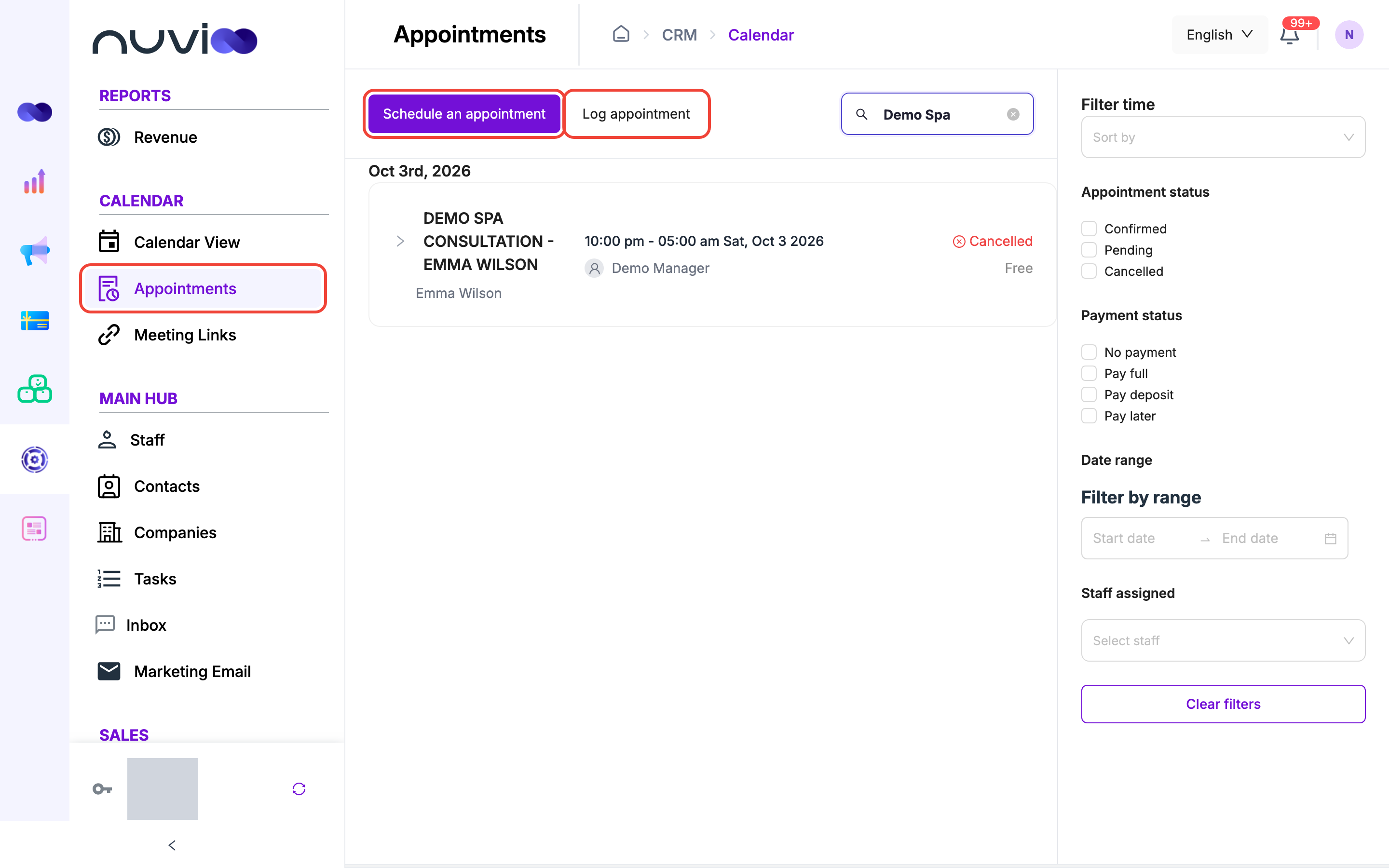
In the sidebar, under Calendar, click Appointments. Schedule an appointment and Log appointment show only if your role can create appointments.
Find an appointment
Section titled “Find an appointment”The list groups appointments by date, newest first. Scroll to load more. Click the arrow on a card to open its details.
Type in Search to find appointments by title or description. Use the filters on the right:
| Filter | What it does |
|---|---|
| Sort by | ASC lists the earliest date first. DESC lists the latest first. |
| Appointment status | Tick Confirmed, Pending or Cancelled. |
| Payment status | Tick No payment, Pay full, Pay deposit or Pay later. This is the payment option chosen on the appointment. |
| Date range | Pick dates, or a shortcut such as Today or Last 30 days. |
| Staff assigned | Show one staff member’s appointments. |
Click Clear filters to reset them all.
Statuses
Section titled “Statuses”| Status | When an appointment has it |
|---|---|
| Pending | You scheduled it with a payment option (pay full, deposit or later) and no payment is accepted yet. |
| Confirmed | You scheduled it with no payment, a customer booked it with no payment due upfront, or a payment was accepted. |
| Completed | It was logged with Log appointment. |
| Cancelled | Someone cancelled it. |
The payment label on each card is Free, Pay later, Unpaid, Partially paid, Paid, Partially refunded or Refunded.
Schedule an appointment
Section titled “Schedule an appointment”Start an appointment
Click Schedule an appointment. You can also click an empty time slot in the calendar.
Enter the details
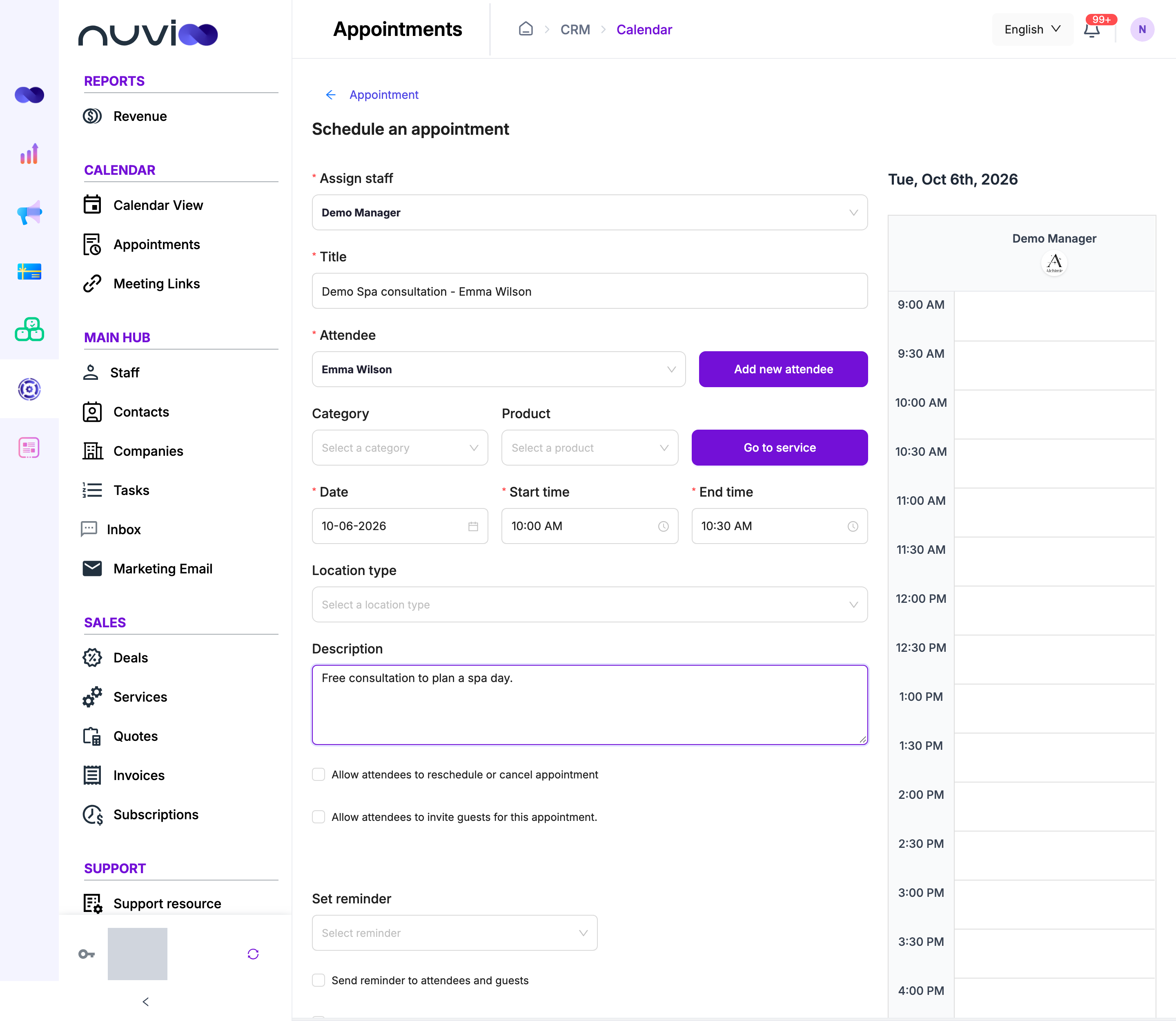
Fill in the fields in the next table. The staff calendar on the right shows the selected staff member’s day, so you can pick a free time.
Schedule an appointment Save
Click Schedule an appointment. You see Appointment saved successfully.
| Field | Required | What it does |
|---|---|---|
| Assign staff | Yes | The host. If your role can’t assign staff, the list shows only you. |
| Title | Yes | For example “Consultation - Emma Wilson”. |
| Attendee | Yes | The contact. Type to search. |
| Category, Product | No | Pick both or neither. Choosing a category limits the products. Required when Is paid service? is ticked. |
| Date | Yes | You can’t pick a past date. |
| Start time, End time | Yes | The end must be after the start. |
| Location type | No | See Location and video. |
| Description | No | Shown to the attendee in the confirmation. |
| Allow attendees to reschedule or cancel appointment | No | Adds reschedule and cancel links to the confirmation email. See Reschedule or cancel as the customer. |
| Allow attendees to invite guests for this appointment. | No | Shows Maximum guests allowed, which you must fill in. Attendees add guest emails on the page they open from your email. |
| Set reminder | No | See Reminders. |
| Is paid service? | No | Collects payment. See Payment. |
If your role can create contacts, Add new attendee opens a short form to create the attendee without leaving the page. First name, Last name, Phone and Email are all required. You see Duplicate email if a contact already uses that email.
If your role can open services, Go to service takes you to your services and products. See Services and products.
Staff conflicts
Section titled “Staff conflicts”When you save, Nuvioo checks two things. If either fails, a dialog asks you to confirm.
| Dialog | Why it appears | Your choices |
|---|---|---|
| The event time conflict with the staff member | The time is outside the staff member’s working hours, or overlaps their blocked-off time. | Cancel and choose another time. Confirm saves it anyway. |
| Error conflict with another synced calendar | The time overlaps an event in a Google or Outlook calendar that is set to Check for conflicts. | Cancel or Confirm. |
Location and video
Section titled “Location and video”Choose a Location type. Virtual stays disabled until you pick a staff member.
| Type | What you set |
|---|---|
| In person | Pick an Address from the staff members’ saved locations, or click Add new location. You set addresses in Calendar settings. |
| Virtual | Under Meeting platforms, click Add next to Google Meet or Zoom. A Google Meet link is created straight away. A Zoom meeting is created when you save. Click Remove to take one off. |
| Phone call | Pick a Call initiator. With Attendee, choose the staff Phone number the attendee calls, or click Add phone number. With Staff, choose the Attendee’s phone number. |
| Custom | Type any text in Custom location. |
For a virtual meeting, the selected staff member must connect Google Meet or Zoom first. If they haven’t, you see a message instead. If it’s you, click Go to Integration Settings. See Integrations. Everyone on the appointment gets the meeting link in the confirmation email.
Reminders
Section titled “Reminders”Set reminder adds an alarm to the calendar invite, and to the event in a synced Google or Outlook calendar. Pick 1 day(s), 7 day(s) or 1 month(s) before the start. Or type an amount, choose day or month, and click Add.
Nuvioo doesn’t send a separate email or text for this reminder. The attendee’s calendar app shows it.
Payment
Section titled “Payment”Tick Is paid service? and pick at least one Product. Then choose Collect for this service:
| Option | What happens |
|---|---|
| Pay full | Payment is required to confirm the appointment. |
| Pay deposit | A deposit is required to confirm it. Enter the Deposit. It can’t be more than the total. The Outstanding balance shows what remains. |
| Pay later | The customer pays when the service is done. |
The Summary lists each product with its price, which you can change for this appointment. Choose a Tax rate, or add one if your role allows it. The Total includes tax.
A paid appointment starts as Pending. The attendee gets a payment link in the confirmation email. It becomes Confirmed when a payment is accepted. Once a payment is taken, you can’t change the category, product or payment options.
Work with an appointment
Section titled “Work with an appointment”Open a card to see the attendee’s contact details, the location, Assigned staff, Notes and Payment summary. A phone call set to Staff shows Call Attendee. A virtual meeting shows Join Google Meet or Join Zoom. View confirmation opens a summary of the appointment with a link you can copy.
Manage appointment shows only if your role can edit appointments, and only until the appointment is completed, cancelled or past.
| Action | What it does |
|---|---|
| Reschedule | Change the Date, Start time and End time, and add a Reason. Click Save. The attendee, guests and staff get an updated invite. The same staff conflict checks apply. |
| Edit | Opens the same form as scheduling, filled in. Saving emails everyone an update. Only roles that can assign staff can change Assign staff. |
| Cancel | Sets the status to Cancelled straight away. It asks for no reason. If a payment was already taken, a dialog asks you to confirm. |
| Manage staff | Change who hosts. Search for staff, check their availability on the calendar, and click Save. At least one is required. |
Take payment and refund
Section titled “Take payment and refund”Click Accept payment while an appointment isn’t fully paid. Choose a Payment method: Terminal, Cash, Manual Entry or Check. A successful payment sets the appointment to Confirmed. View receipt then shows the receipt.
On a cancelled appointment with payments, Refund opens Select transaction to refund. Enter the amount for each transaction, up to what you can refund, and a Reason for refund. Refunds can take 5 to 10 business days to appear on the customer’s statement.
Log an appointment
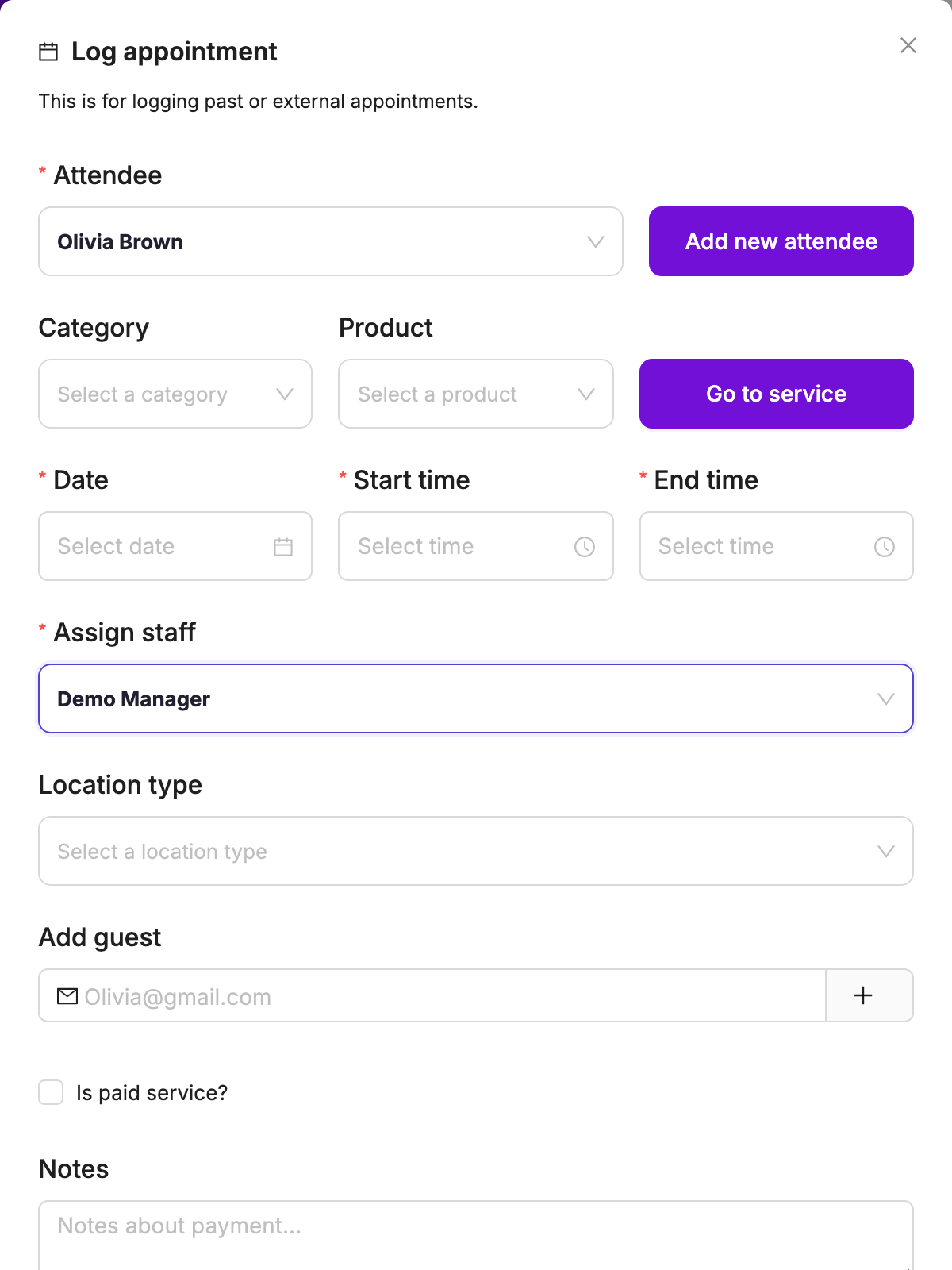
Section titled “Log an appointment”Use Log appointment to record an appointment that happened outside Nuvioo. Nothing is sent to anyone, staff conflicts are not checked, and past dates are allowed. The appointment is saved as Completed.
Open the form
Click Log appointment.
Enter the details
Choose the Attendee, the Date and times, and Assign staff. These are required. Optionally add a category, product, location and guest emails with Add guest.
Record payment
Tick Is paid service? to enter the Amount paid, Payment method (Cash, Check, Manual Entry or Terminal), Date of payment and notes. This is for record-keeping only. No payment is processed.
Save
Click OK.
A logged appointment shows as Logged appointment with Edit and Delete on its card. The title is the category name, or Logged appointment if you chose none.