Marketing email
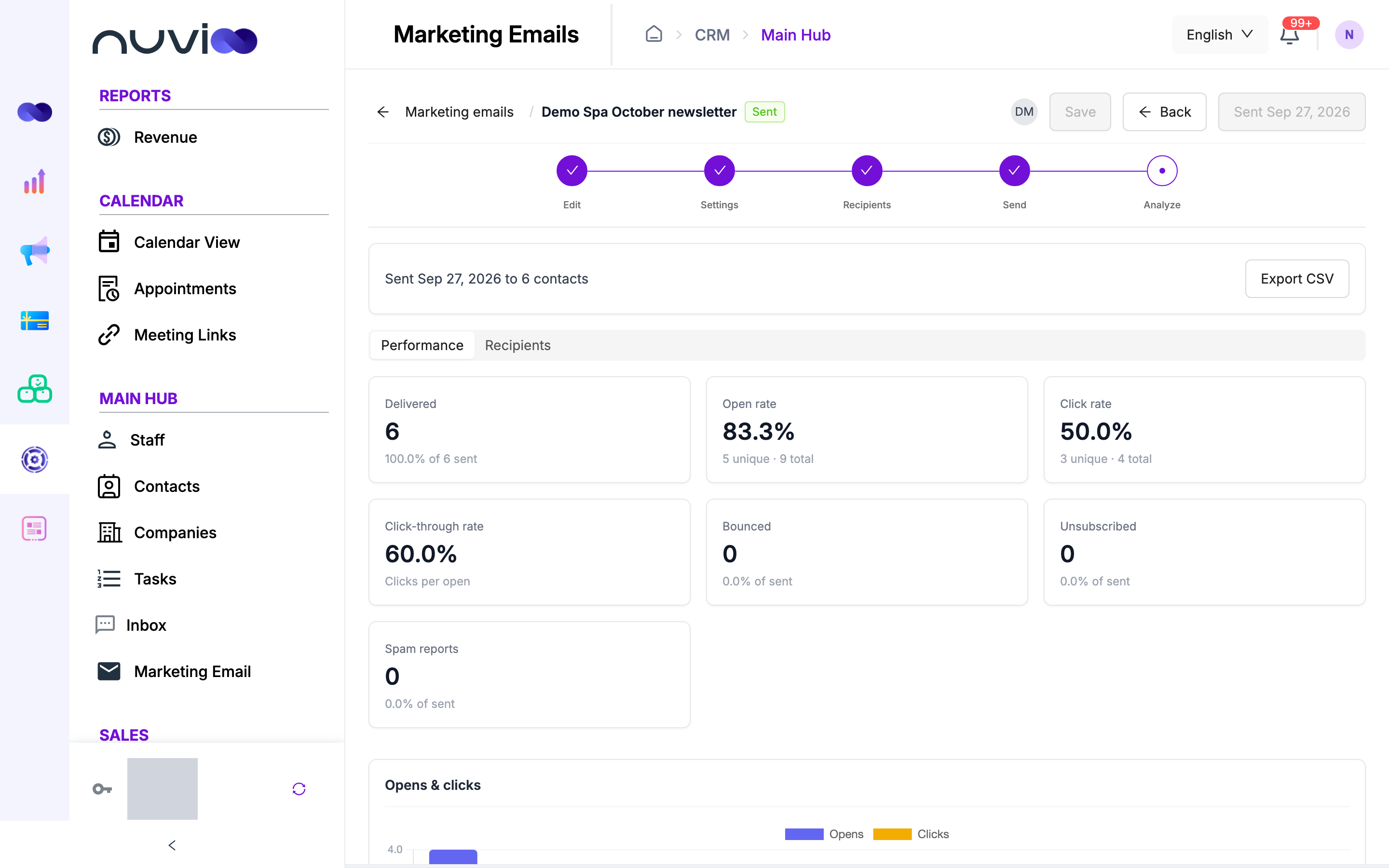
Marketing email sends campaigns, such as newsletters and offers, to groups of your contacts. Each campaign moves through five steps in one workspace: Edit, Settings, Recipients, Send and Analyze.
The campaign list
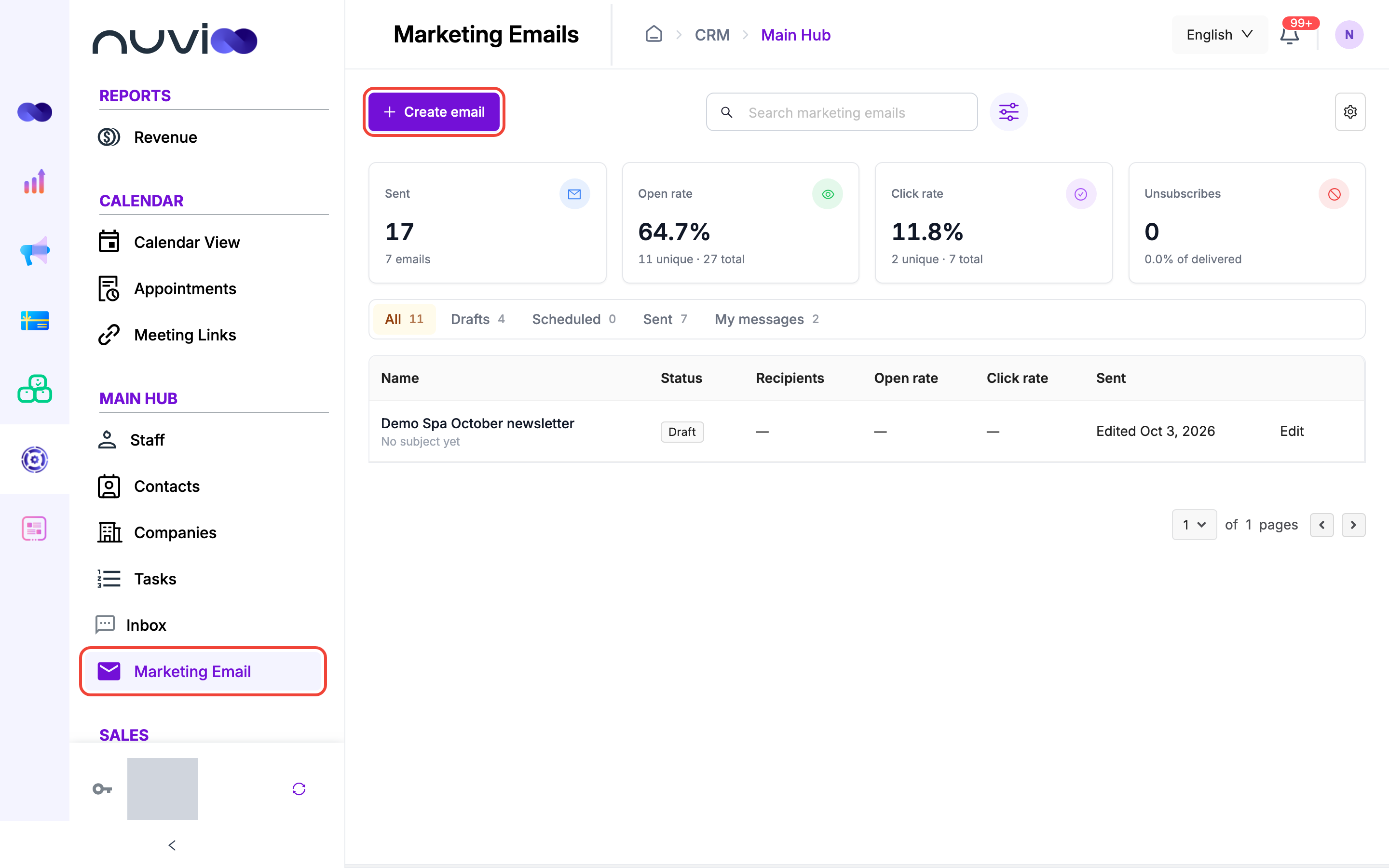
Section titled “The campaign list”The page shows four totals across all your sent emails: Sent, Open rate, Click rate and Unsubscribes.
| Control | What it does |
|---|---|
| Create email | Starts a new campaign. |
| Search box | Searches the name and subject of your emails. |
| Filter | Narrows the list by Status and Owner. Click Apply, or Clear filters. |
| Quick views | All, Drafts, Scheduled, Sent and My messages, each with a count. |
| Gear button | Opens Sending addresses. |
The table shows the Name with its subject, Status, Recipients, Open rate, Click rate and a date. The date reads Sends for a scheduled email, Edited for a draft and the send date for a sent email. Click a row to open it. A sent email opens in Analyze. Any other email opens in Edit.
Statuses are Draft, Scheduled, Sending, Sent, Paused and Cancelled.
Create a campaign
Section titled “Create a campaign”Name it and pick a starting point
Click Create email. Enter an Internal name. Only your team sees it. Choose Start from scratch or a template, then click Create.
Template What it contains Start from scratch An empty canvas. Monthly newsletter Header, article summary and a footer. Promotion Hero image, offer copy and a call-to-action button. Welcome A friendly onboarding message for new contacts. Event invite Event details with one RSVP button. Plain text A single text block styled like a personal note. 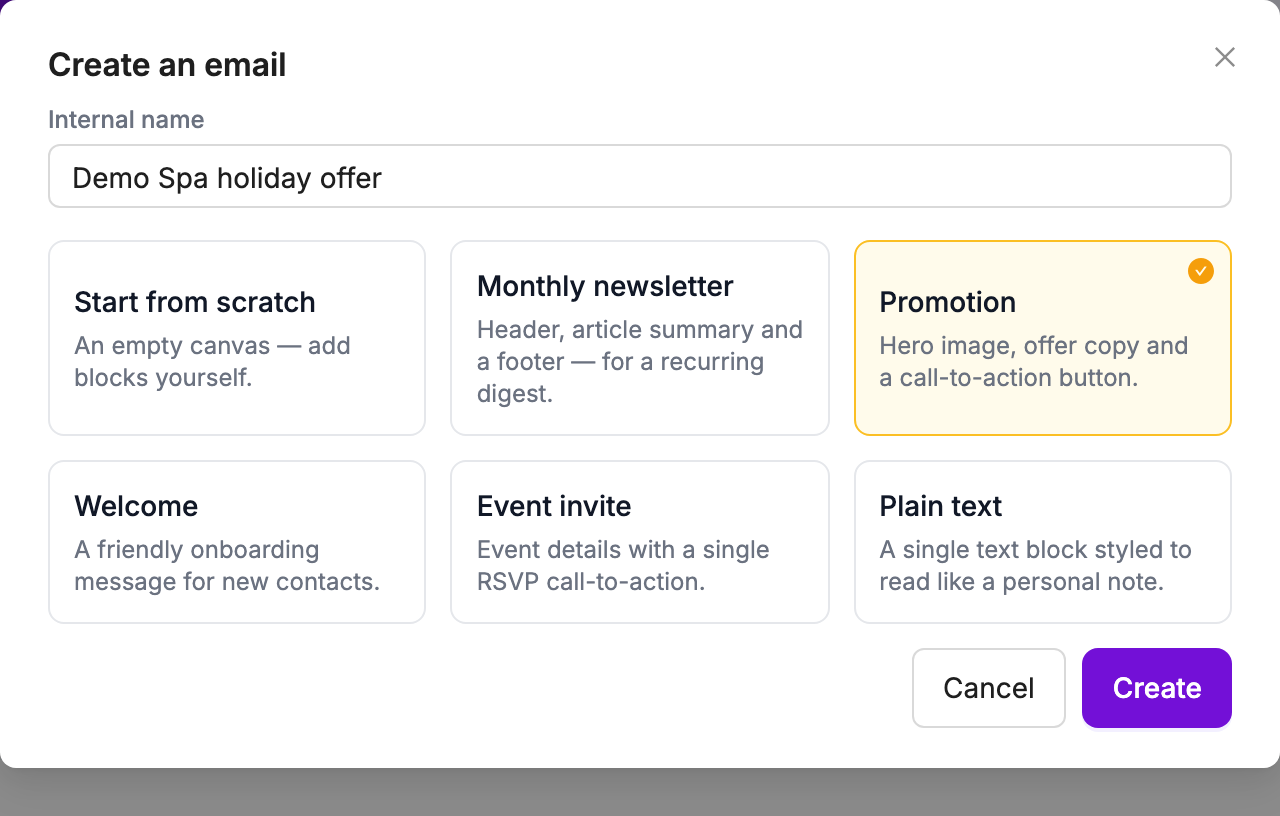
Edit the design
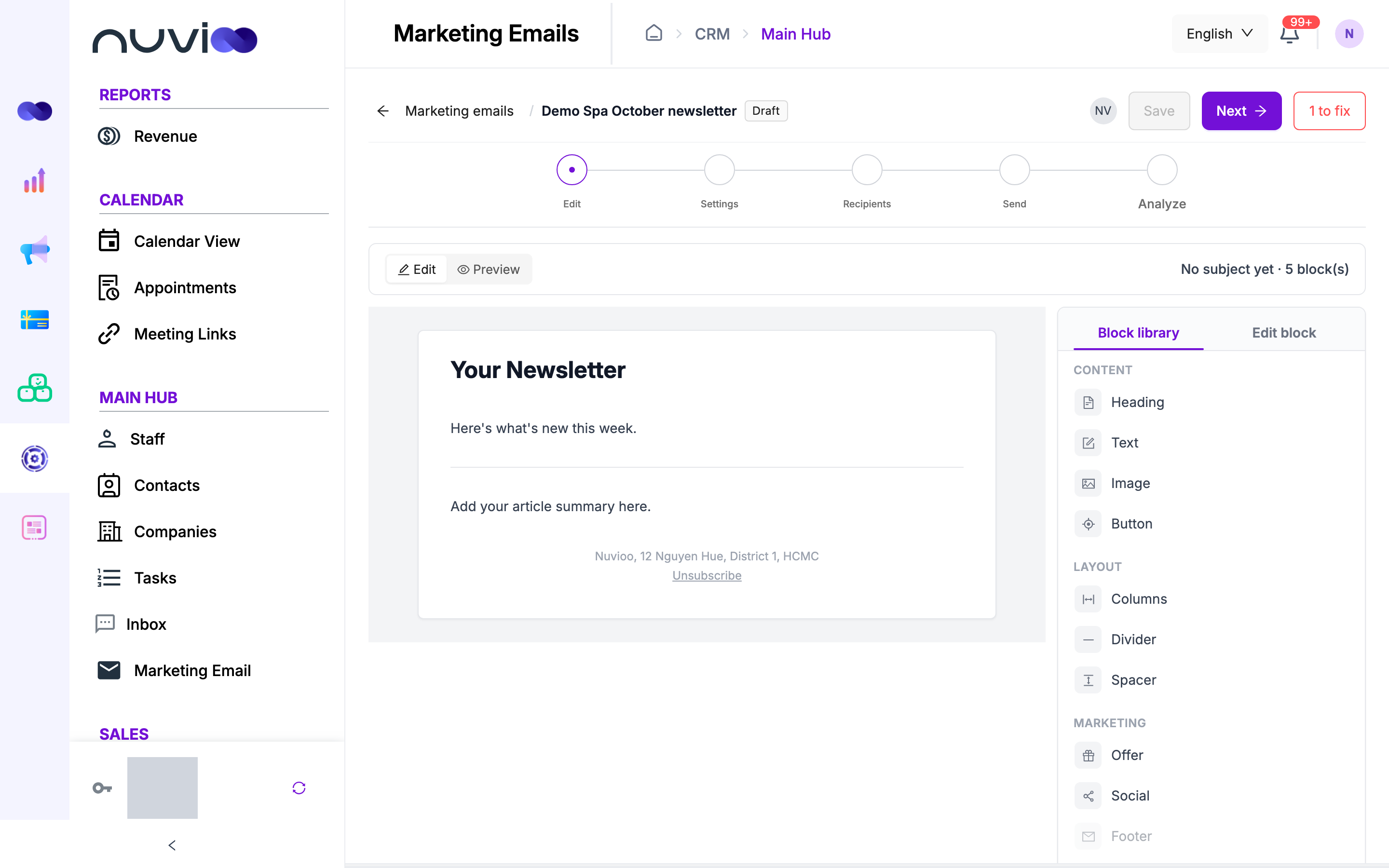
Add blocks from the Block library and click a block to change it. Use Preview to see the email. See Email editor blocks and tokens.
Settings
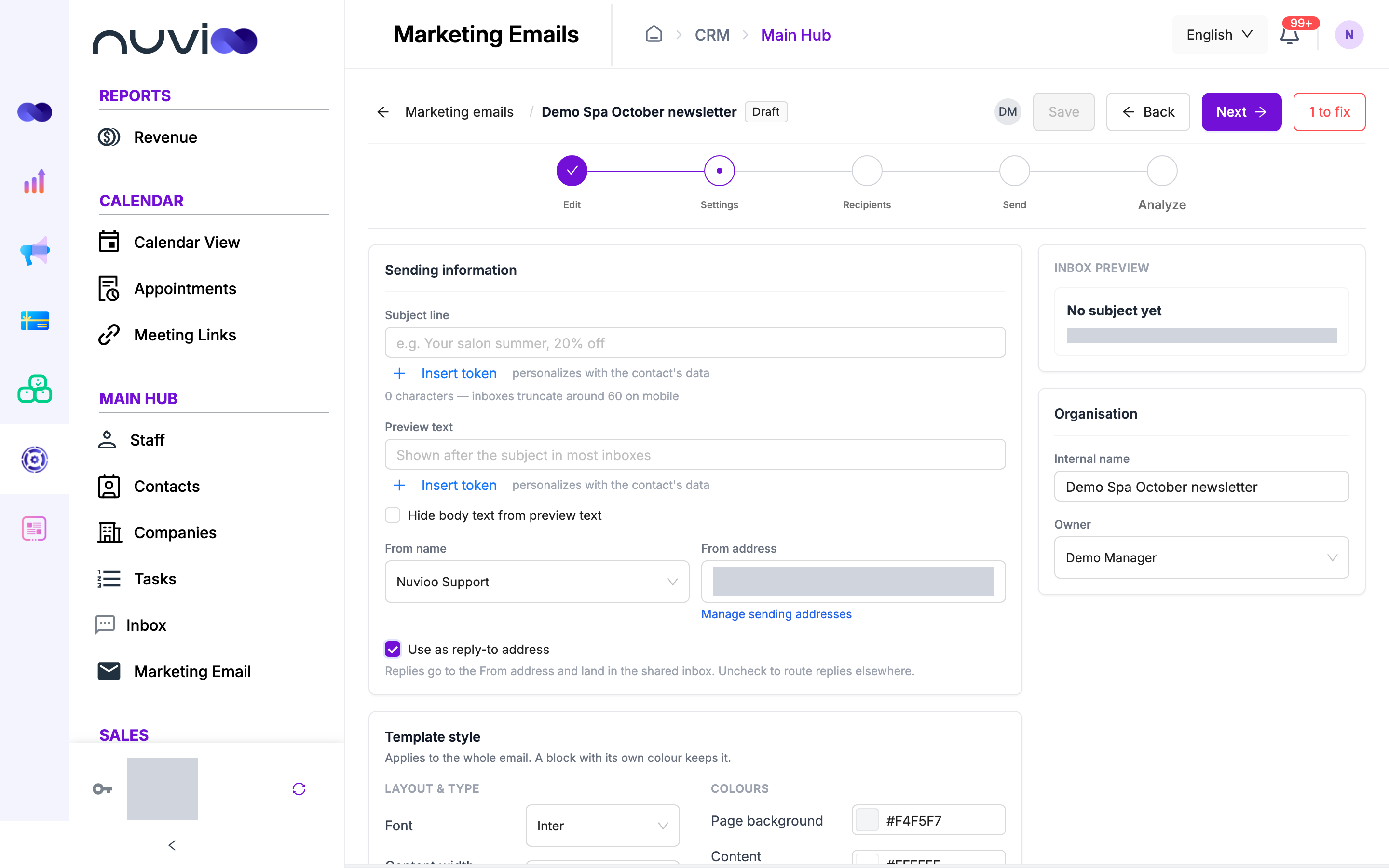
Enter the subject, preview text and sender, and style the template. See Settings step.
Recipients
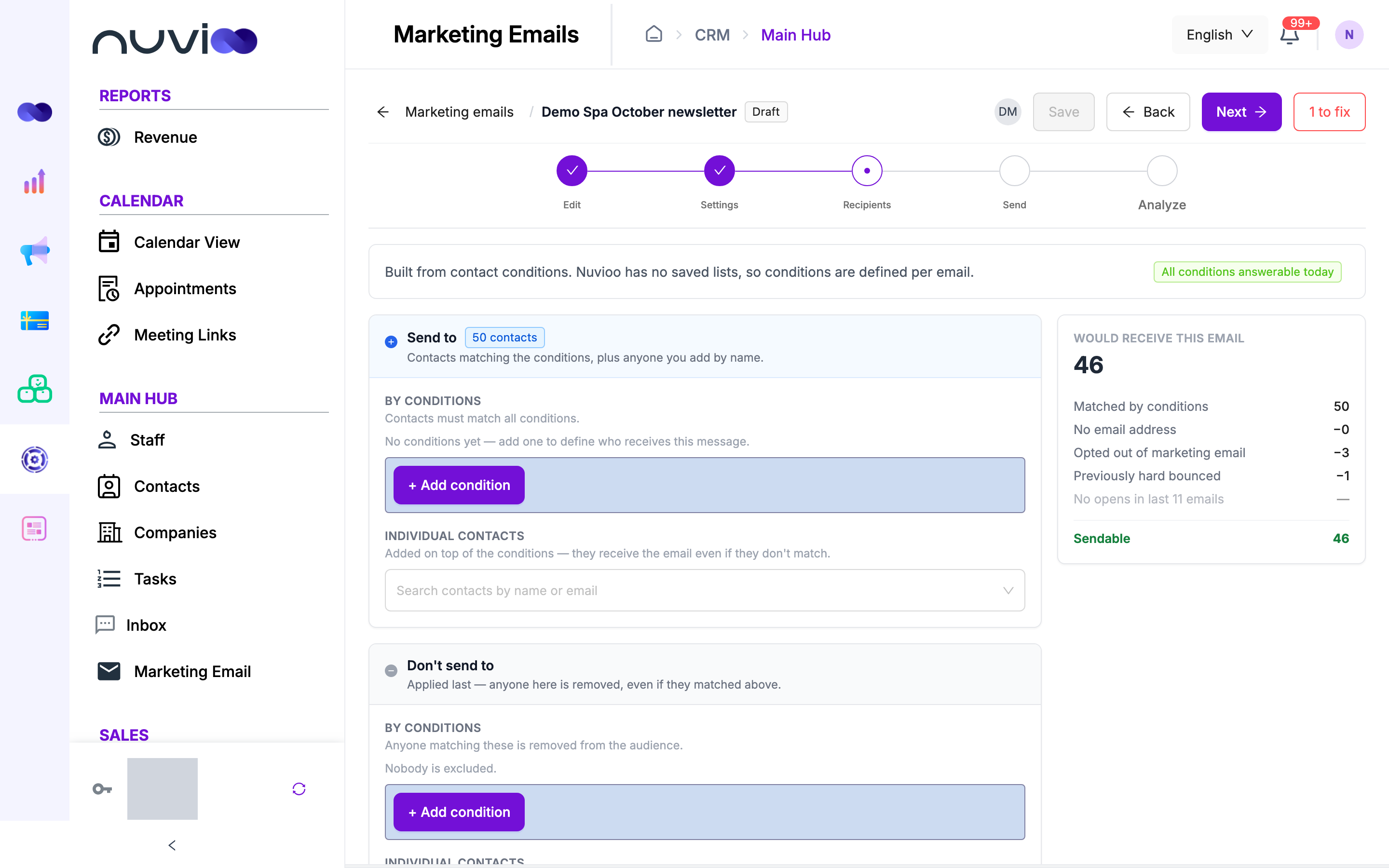
Choose who receives the email. See Recipients step.
Review and send
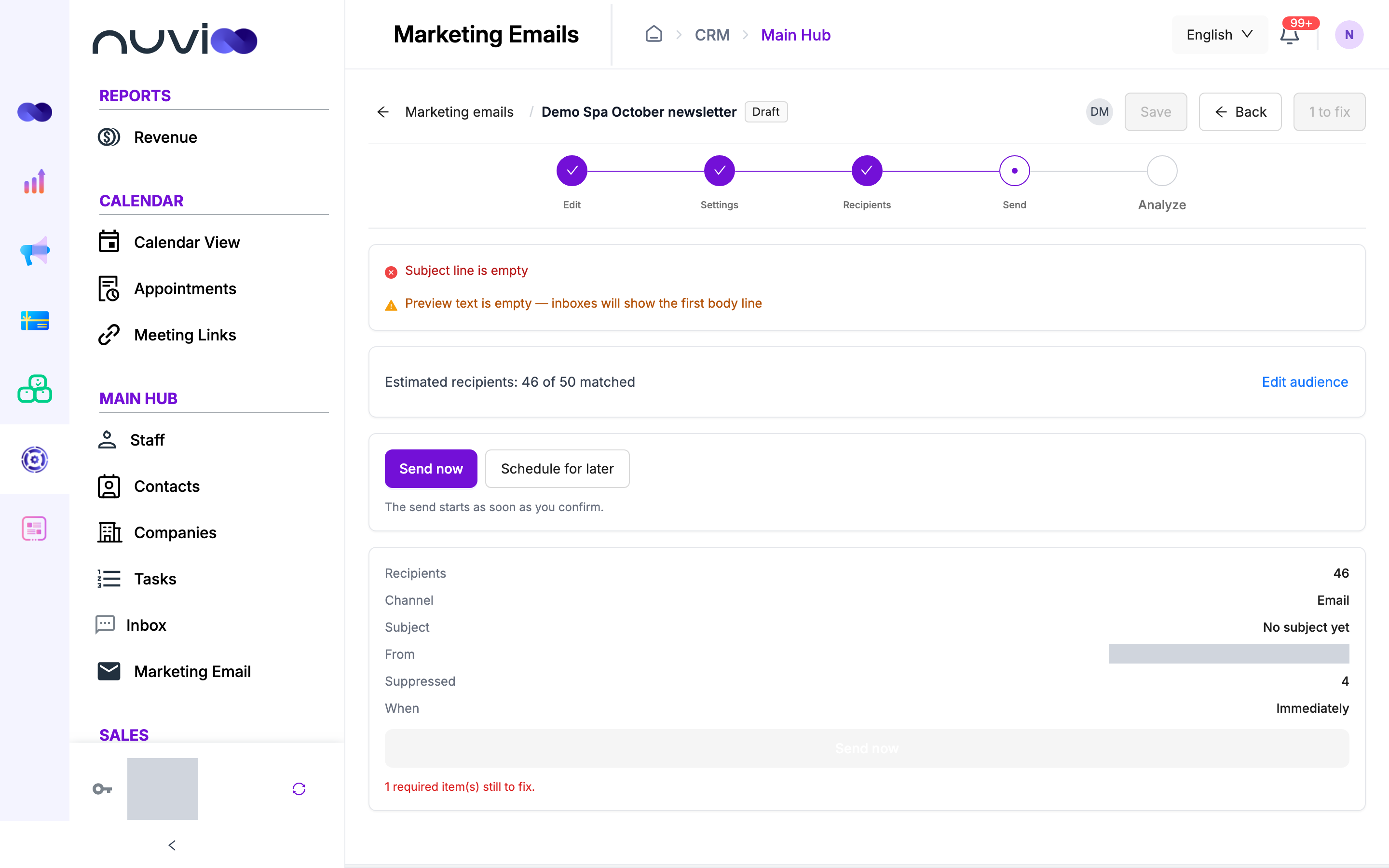
Fix anything listed as required, then send now or schedule. See Send step.
Work in the workspace
Section titled “Work in the workspace”The top of the workspace shows the campaign name, which you can click to rename, a status label and the five steps.
- Save saves your changes. Discard throws them away. Unsaved changes shows while you have edits that aren’t saved.
- There is no autosave. Moving to another step saves for you. If the save fails, you stay where you are.
- Back and Next move between steps. The Back link at the top left returns to the list and asks before it discards unsaved changes.
- A chip such as 2 to fix counts the required items still missing.
- Next and the step bar stop you at the first step that has a required item missing. A message says Complete this step and puts the cursor on the field.
- Analyze is greyed out until the email sends. A sent email is read-only.
Settings step
Section titled “Settings step”Sending information
Section titled “Sending information”| Field | Required | What it does |
|---|---|---|
| Subject line | Yes | The subject. A counter warns that inboxes truncate around 60 characters on mobile. Insert token adds personalization. |
| Preview text | The line many inboxes show after the subject. If it’s empty, inboxes show the first line of the body. | |
| From name and From address | Yes | Pick one of your verified sending addresses. Unverified ones show Not verified and can’t be chosen. Click Manage sending addresses to add one. |
| Use as reply-to address | When ticked, replies go to the From address. Untick it to enter a different reply-to address. |
If the sending address has its own reply-to in Sending addresses, that address is used when the email sends.
The Inbox preview card shows how the subject, preview text and sender appear.
Template style
Section titled “Template style”These options apply to the whole email.
| Group | Options |
|---|---|
| Layout & type | Font (Inter, System, Helvetica, Georgia, Times New Roman, Courier New, Trebuchet MS or Verdana), Content width (560, 600, 640 or 700 pixels) and Body size (12, 14, 16 or 18). |
| Colours | Page background, Content background, Body text, Headings and Links. |
| Button | Fill, Label, Label size, and Corners (from Square to Pill). |
A width of 600 is safest. Over 700 can clip in Outlook. If a colour pair is hard to read, a warning shows the contrast ratio.
Organisation
Section titled “Organisation”Internal name renames the campaign. Owner sets who owns it. Owner is what My messages and the Owner filter use.
Recipients step
Section titled “Recipients step”There are no saved lists. You define the audience for each email with conditions and individual contacts.
Send to includes people. Don’t send to removes them, even if they match.
| Part | What it does |
|---|---|
| By conditions under Send to | Contacts must match all conditions. Click + Add condition, choose a field, an operator and a value. |
| Individual contacts under Send to | Adds contacts by name or email. They receive the email even if they don’t match the conditions. |
| By conditions under Don’t send to | Removes anyone who matches. |
| Individual contacts under Don’t send to | Never sends to these contacts, whatever the conditions say. |
The fields you can use in a condition:
| Group | Field | Operators |
|---|---|---|
| Forms | Submitted form | is, is any of |
| Forms | Form UTM source, Form UTM campaign | is, is any of, contains |
| Deals | Deal stage | is, is any of |
| Company | Associated company | is, is any of |
| Contact | Contact owner | is, is not, is any of, is known, is unknown |
| Contact | Job title | is, contains, is known, is unknown |
Other fields appear greyed out because they aren’t available yet.
The panel on the right shows Matched by conditions and Would receive this email, with the reasons people were left out. These contacts never receive marketing email:
- Contacts with no email address.
- Contacts who opted out of marketing email.
- Contacts whose email previously hard bounced.
If two contacts share an email address, the address receives the email once.
Send step
Section titled “Send step”Review lists what must be fixed, what to check and suggestions.
| Level | Examples |
|---|---|
| Required | Subject line is empty, From name is not set, Email has no content blocks, Audience has no sendable contacts. A very large audience also blocks sending: the default maximum is 50,000 contacts per send. If the size can’t be counted exactly, you must refine the conditions. |
| Warning | Preview text is empty, or a subject over 60 characters. |
Send now is on by default. Choose Schedule for later to pick a date, time and Timezone: your account’s timezone or your own. The date must be in the future. The When row shows the result.
After you confirm, the Send step shows progress:
| Status | What you can do |
|---|---|
| Scheduled | Click Unschedule to return the email to a draft. |
| Sending | Click Pause to halt sending, or Cancel. The count shows how many are sent and how many failed. |
| Paused | Click Resume to continue, or Cancel. |
| Sent | Click View results. |
| Cancelled | Shows how many were already sent. Recipients not yet sent never receive the email. |
Some emails show indeterminate: Nuvioo couldn’t confirm whether they were delivered, and doesn’t retry them automatically.
See how a campaign did
Section titled “See how a campaign did”After sending, open the email and go to Analyze. See Analyze a campaign.