

Tasks
Tasks are your to-dos: calls to make, emails to send and other follow-ups. Link them to contacts, companies or deals so they also appear on those records.
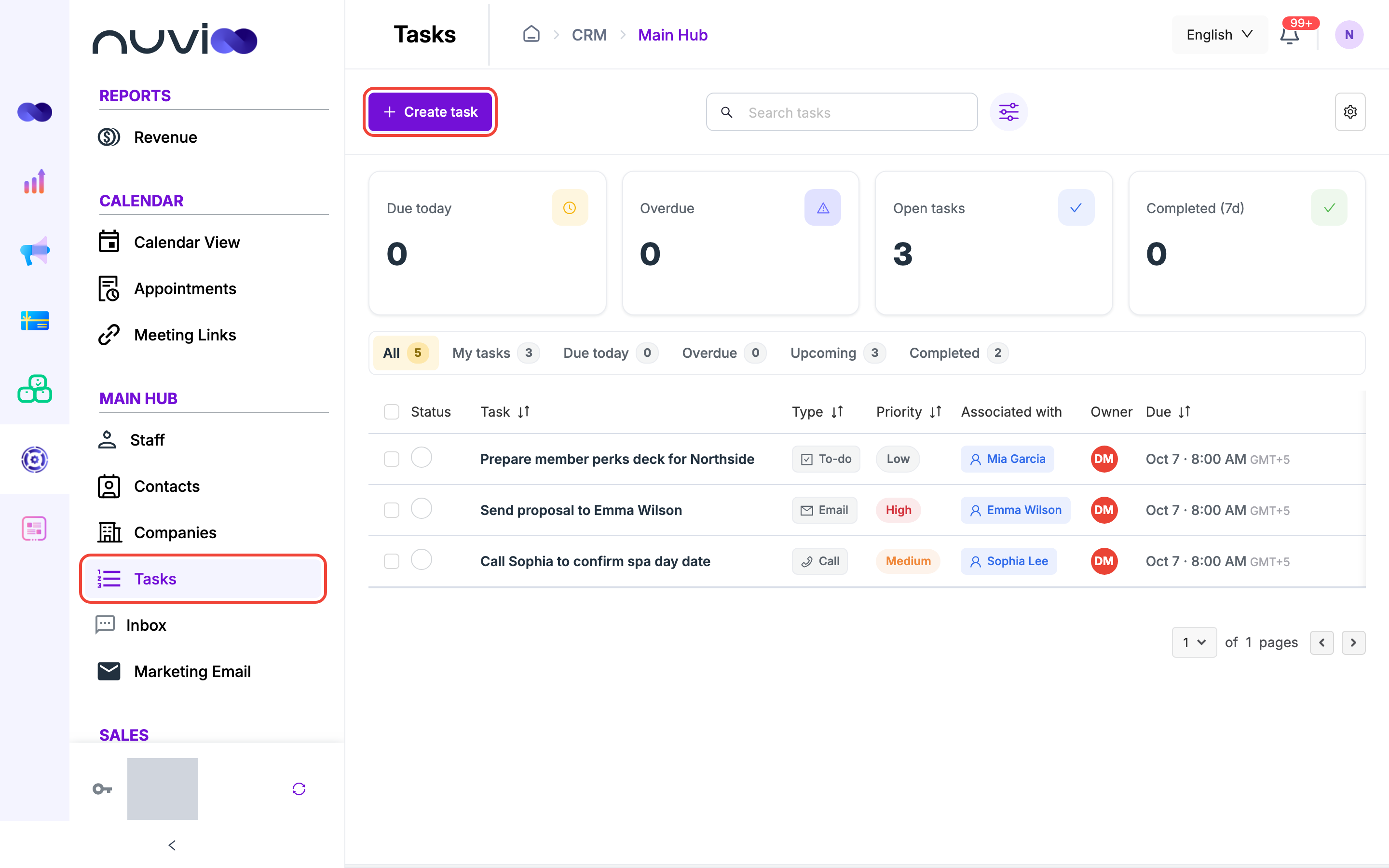
Due dates and times use your workspace time zone.
Find tasks
Section titled “Find tasks”The cards at the top show Due today, Overdue, Open tasks and Completed (7d) for the whole workspace.
Quick views
Section titled “Quick views”Each view shows a count. Your last choice is saved as your default view.
| View | Shows |
|---|---|
| All | Every task. |
| My tasks | Open tasks assigned to you. |
| Due today | Open tasks due today. |
| Overdue | Open tasks whose due time has passed. |
| Upcoming | Open tasks due after today. |
| Completed | Completed tasks. |
Search, filter and sort
Section titled “Search, filter and sort”The search box (Search tasks) looks in the title and the notes.
Filter opens a panel. Set any of these, then click Apply. Clear filters resets them.
| Filter | Options |
|---|---|
| Assignee | A teammate. |
| Type | To-do, Call or Email. |
| Priority | Low, Medium or High. |
| Status | Open, Completed or Overdue. |
| Associated record | A contact, company or deal. |
| Due date | Due from and Due to. |
- Click the Task, Type, Priority or Due column heading to sort. Pinned tasks always stay at the top.
- Quick view, filters, search, sort and page are kept in the page address, so you can share or bookmark a view.
The list
Section titled “The list”| Column | What it shows |
|---|---|
| Status | A circle. Click it to complete the task, or to reopen a completed one. |
| Task | The title, a pin icon if pinned, and a preview of the notes. Click the title to open the task. |
| Type | To-do, Call or Email. |
| Priority | Low, Medium or High. |
| Associated with | The linked records. A count shows how many more are linked. |
| Owner | The assignee, or Unassigned. |
| Due | Today, Tomorrow or a date, each with the time. A late open task starts with Overdue. |
On the right of each row, use Reschedule, Pin task (or Unpin task) and Edit task.
Create a task
Section titled “Create a task”Start a task
In the sidebar, under Main Hub, click Tasks, then click Create task.
Enter the details
Field Required What it does Title Yes Up to 200 characters. Type To-do, Call or Email. The default is To-do. Priority Low, Medium or High. The default is Medium. Due date Yes The day the task is due. It starts from your task settings. Due time The time of day. It starts from your task settings. Reminder None, 30 minutes before, 1 hour before or 1 day before the due time. Assignee Who owns the task. It defaults to you. Associated records Contacts, companies and deals the task is about. Notes Free text. Attachments Files to attach. Click Upload file. 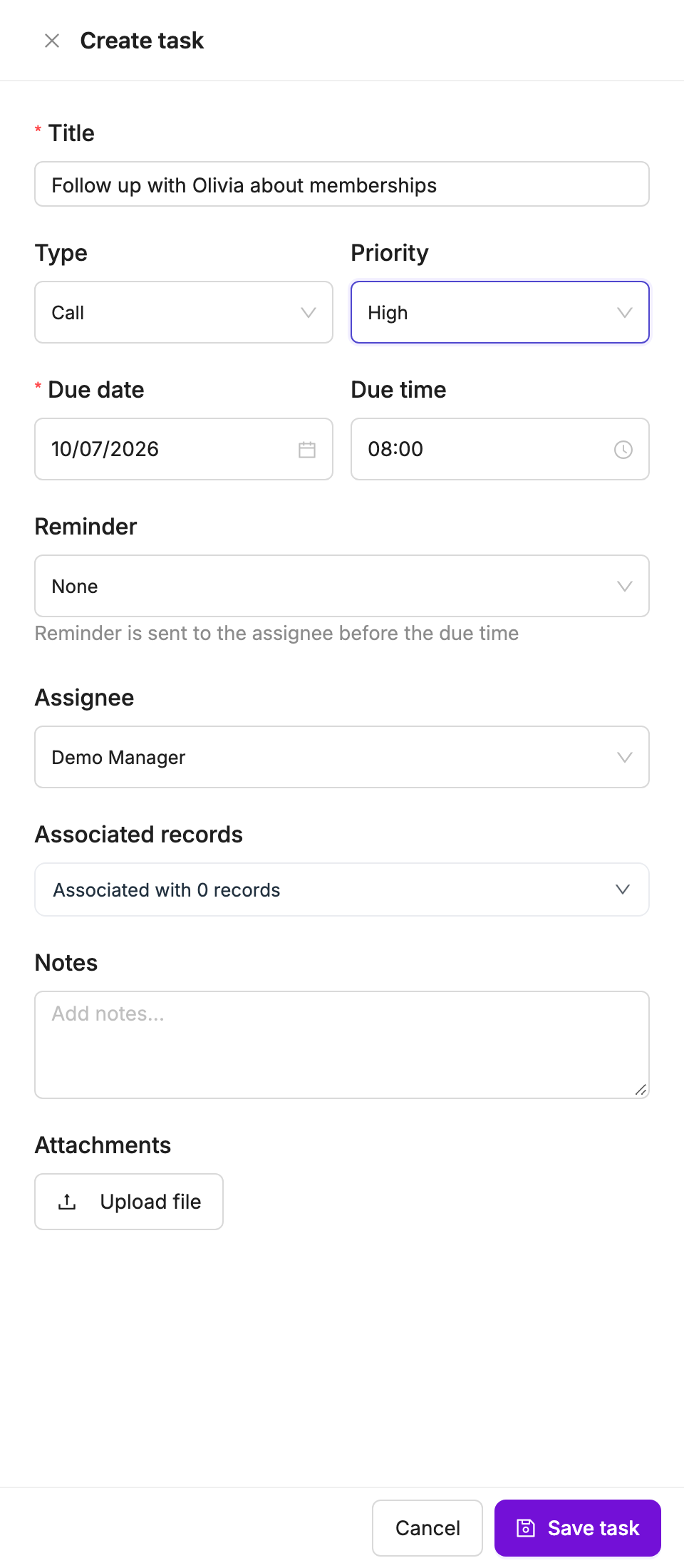
Create task Save
Click Save task.
To link records, type in Search contacts, companies, deals and click a result to add it. Click it again to remove it. One task can link up to 1,000 records.
Reminders
Section titled “Reminders”A reminder notifies the assignee in Nuvioo before the task is due. Keep these rules in mind:
- The task needs an assignee. A task with no assignee never sends a reminder.
- Reminders are checked every minute, and each task is reminded once.
- If the reminder time is more than a day in the past when it is found, it is skipped.
- Changing the due date or the reminder sets the reminder again.
- Completed tasks send no reminder.
When a reminder goes out, it is added to the task’s History.
Work on a task
Section titled “Work on a task”Click a task’s title to open it. The page has three columns.
- Task information: click any field to edit it. Changes save instantly. You can change the due date, due time, reminder, type, priority, assignee and notes.
- Activity: Comments (type under Add a comment, then click Add comment) and History. History records when the task was created, updated, completed, reopened, reassigned, commented on and reminded.
- Associated records: the linked contacts, companies and deals, with a way to add or remove them. Attachments are listed here too.
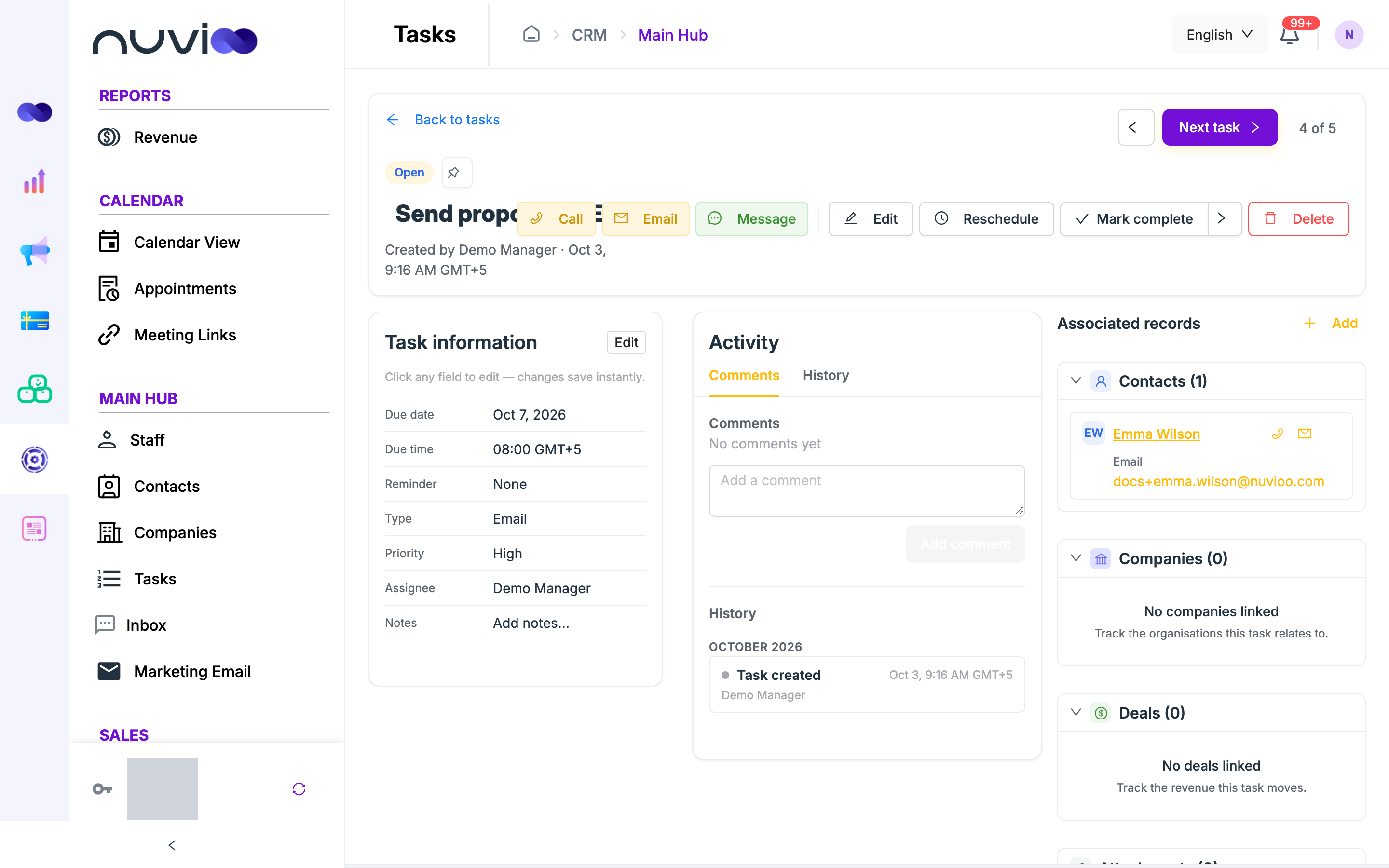
The header has these controls.
| Control | What it does |
|---|---|
| Title | Click it to rename the task. |
| Pin | Pins the task so it stays at the top of the list. |
| Call, Email, Message | Opens a linked contact to start that action. Each is available only when a linked contact has a phone number or an email address. If several contacts qualify, you pick one. |
| Edit | Opens the task form. |
| Reschedule | Opens Move to. Pick Today, Tomorrow, In 3, 7 or 14 business days, or Custom date, then a Time. |
| Mark complete | Completes the task. The arrow next to it adds Complete & Next, which completes the task and opens the next one in your list. |
| Reopen | Shown on a completed task. Reopens it. |
| Delete | Deletes the task after you confirm. |
| Previous task, Next task | Move through the tasks in your current list. The count reads like 3 of 12. |
Business days skip Saturdays and Sundays. They don’t skip public holidays.
Follow-up tasks
Section titled “Follow-up tasks”When you complete a task from the list, the Follow up prompt can appear. Choose when the follow-up is due under Due and Time, then click Create task, or click Not now.
The new task is titled Follow up: and the original title. It copies the type, priority, reminder, assignee, notes, linked records and attachments.
The prompt appears only when Prompt to create a follow-up task when completing a task from list view is on in your settings. Click Task settings in the prompt to change it.
Work in bulk
Section titled “Work in bulk”Tick the checkbox on one or more rows. A bar shows how many are selected and offers three actions.
| Action | What it does |
|---|---|
| Mark complete | Completes the selected tasks. |
| Reassign to… | Gives the selected tasks to one teammate. |
| Delete | Deletes them after you confirm. This can’t be undone from the screen. |
Click Clear selection to leave selection mode. If only some tasks were updated, a message says how many.
Task settings
Section titled “Task settings”Click the gear button (Settings) on the list. Task settings has two tabs.
| Setting | What it does |
|---|---|
| Due date | How far ahead new tasks are due: Today, Tomorrow, or in 3, 7 or 14 business days. The default is 3 business days. |
| Due time | The time of day new tasks are due. The default is 08:00. |
| Reminder | The reminder new tasks start with. The default is None. |
| Prompt to create a follow-up task when completing a task from list view | Turns the Follow up prompt on or off. It is on by default. |
My defaults applies to you. Workspace defaults appears if you can edit tasks. It applies to everyone who hasn’t set their own defaults. Teammates who already customized theirs keep them.
Tasks on other records
Section titled “Tasks on other records”Contact, company and deal pages show a Tasks panel with the tasks linked to that record. It groups them as Overdue, Today, Upcoming and Completed. You can search it, create a task from it and complete tasks there. See Contacts, Companies and Deals.