

Subscriptions
A subscription bills a contact on a schedule, for example a monthly membership. You choose how each payment is collected. Nuvioo can charge a payment method the customer has on file, or email them an invoice every cycle.
In the sidebar, under Sales, click Subscriptions.
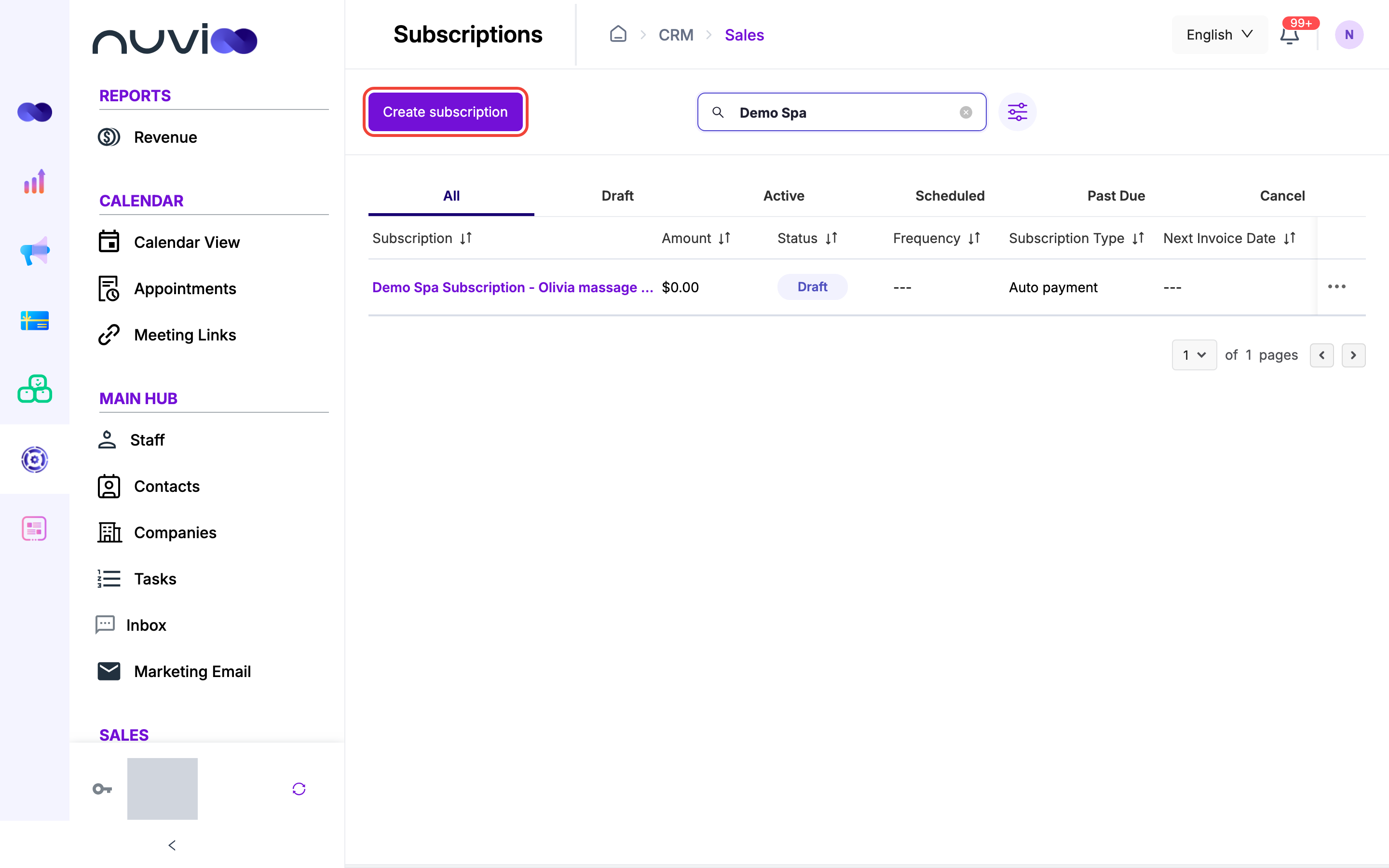
Find subscriptions
Section titled “Find subscriptions”The list shows each subscription’s name and number, Amount, Status, Frequency, Subscription Type, Next Invoice Date and Contact. The type is Auto payment or Send invoice.
- Tabs: All, Draft, Active, Scheduled, Past Due and Cancel.
- Search: type a name or number.
- Filter: click the filter icon next to the search box. Choose a Contact, Status, Amount range, Billing frequency, Subscription type or Date created range, then click Apply. Clear filters resets them.
Create a subscription
Section titled “Create a subscription”Click Create subscription. The builder has up to three steps. Each step saves a draft.
Subscription Setup
Enter the Subscription Name, Contact and Subscription Owner, all required. Click Next. This saves a draft. You can’t change the contact or owner afterwards.
Products
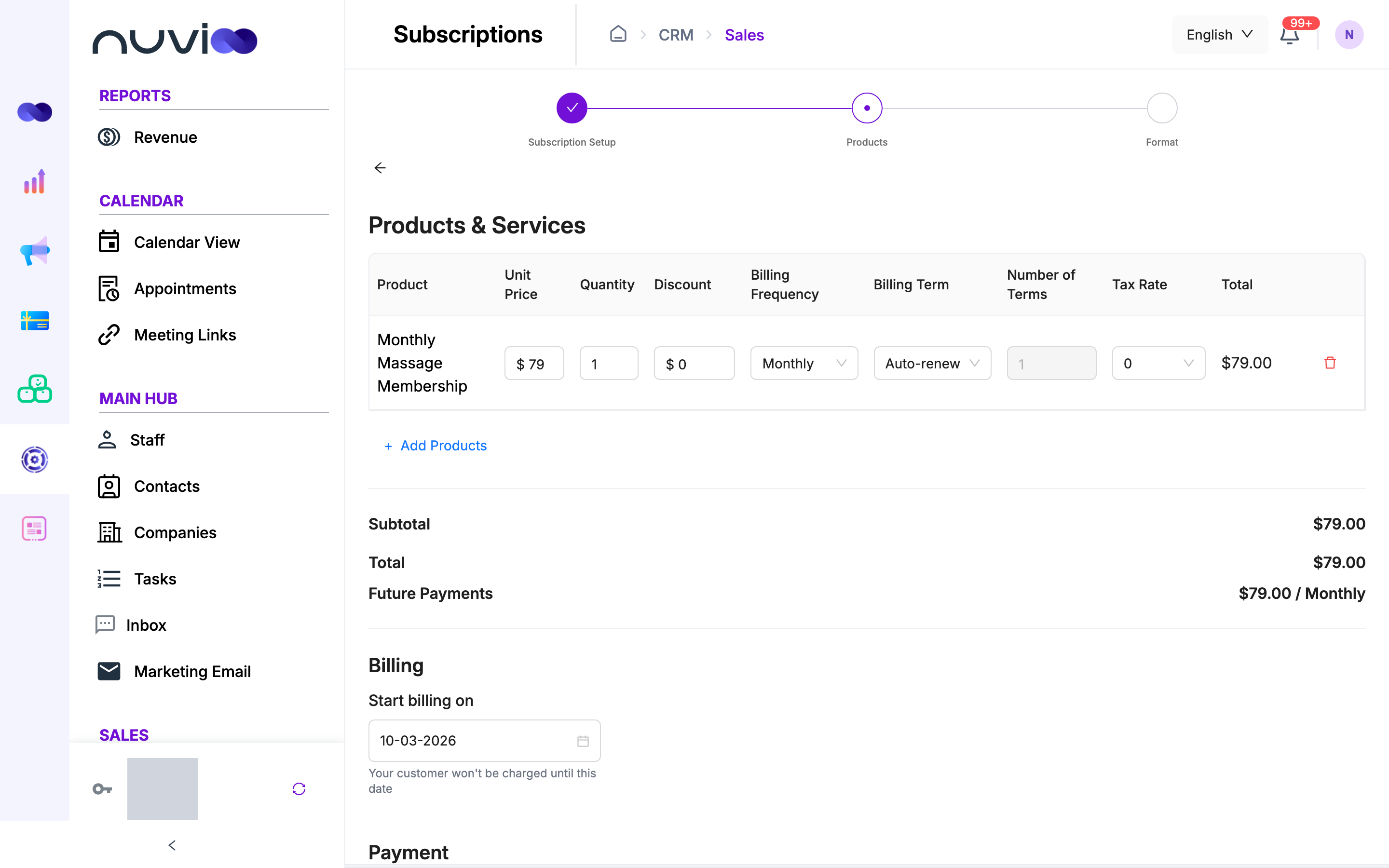
Add products, set the start date and choose how the customer pays. This one step holds the products, Billing, Payment and an Overview of upcoming bills.
Format
Only for Email invoice. Choose the Brand color and the required Brand logo, then click Create subscription.
Products
Section titled “Products”Click Add products and tick what to bill. See Services and products. Subscriptions use recurring frequencies only. A One Time Payment product is added as Monthly.
| Field | What it does |
|---|---|
| Unit Price and Quantity | Start at the product price and 1. |
| Discount | A dollar amount off each billing, never more than unit price times quantity. |
| Billing Frequency | Weekly, Bi-weekly, Monthly, Quarterly, Semi-annually or Annually. |
| Billing Term | Auto-renew bills until you cancel. Fixed Term bills a set number of times. |
| Number of Terms | For a Fixed Term: how many weeks, months or years. |
| Tax Rate | One of your active tax rates, or none. |
All lines share one frequency, billing term and number of terms. Change one and the others follow. A fixed term ends the subscription on its own after the last billing.
Billing and payment
Section titled “Billing and payment”| Setting | What it does |
|---|---|
| Start billing on | The first billing date. It can’t be in the past and defaults to today. The customer isn’t charged before this date. |
| Automatic payment | Charges the payment method on file. Click Change to pick another saved method, or + Add a new payment method to add a card or bank account. The fee for that method is shown under the choice. |
| Email invoice | Emails the customer an invoice each cycle to pay by hand. Set how many days they have to pay, from 1 to 365. The default is 7. |
The Overview lists the next three billing periods with the Billing period, Amount due and Bills on date.
Automatic payment
Click Next, read the Confirm Payment message, and click Confirm. The message says whether the card is charged now or saved until the start date. When the payment goes through, Nuvioo shows Your subscription is active! with a payment summary. With a future start date it shows Your subscription is scheduled successfully!
Email invoice
Click Next, set up the Format step and click Create subscription. If the start date is today or earlier, a window shows Share Subscription with a link to the first invoice. If it’s later, you see Subscription Scheduled and Nuvioo emails the invoice on the start date.
Statuses
Section titled “Statuses”| Status | Meaning | What you can do |
|---|---|---|
| Draft | Not finished. | Edit, delete. |
| Scheduled | Created, with a start date that hasn’t arrived. The list shows “Starts” and the date. | Edit, cancel, view billing. |
| Active | Billing is running. | Edit, cancel, view billing. |
| Past Due | An invoice is still unpaid after its payment days. The list shows this label in place of Active. | View billing, cancel. |
| Cancel | Billing has stopped. | View billing. |
Billing cycle
Section titled “Billing cycle”Nuvioo runs a billing job every morning. A subscription is billed when its current period has ended.
- Automatic payment: the saved payment method is charged. If the charge fails, Nuvioo creates an open invoice for the customer to pay by hand and emails the customer and the owner about the failed payment.
- Email invoice: Nuvioo creates and emails a new invoice for the next period. If the previous invoice is still unpaid past its due date, the subscription is cancelled.
- Fixed term: after the last billing, the subscription is cancelled.
Customers see these invoices on the pages in Paying for a subscription.
Billing history
Section titled “Billing history”Click ⋯ then Billing to open the billing history. Draft subscriptions don’t have it. Each row shows Created At, Period Start, Period End, Type and Amount. The type is Recurring for a normal cycle and Mid-cycle adjustment for a charge or credit from a plan change. Click Back to return.
Edit a subscription
Section titled “Edit a subscription”Click ⋯ then Edit on a Draft, Scheduled or Active subscription. You can’t edit while the subscription has an unpaid invoice. Collect the payment or void the invoice first.
For an active subscription:
- You can change products, prices, quantities, discounts and tax. The billing frequency is locked, and the Billing section with the start date is hidden.
- Next stays disabled until the amount changes.
- After a billing has happened, choose Schedule update: Today, or a Custom date that is no later than the end of the current period.
- Then choose Schedule payment for the price difference. Charge immediately collects it now. With a custom date, the same option reads Invoice when effective date arrives and collects it on that date. Add to next billing cycle adds it to the next invoice or automatic charge. A price drop can’t be charged immediately. The credit goes to the next billing.
Cancel or delete
Section titled “Cancel or delete”- Cancel: click ⋯, Cancel, then confirm. It works on Active and Scheduled subscriptions. Billing stops. If the latest invoice is still unpaid, Nuvioo voids it.
- Delete: click ⋯, Delete. It works only on Draft subscriptions.