

Approving a quote (customer view)
When you send a quote, your customer gets an email with a link to a public quote page. They don’t need an account. This page describes what they see and what they can do. What the page offers depends on the Signature options and Accept online payments choices you made in the quote’s Review step.
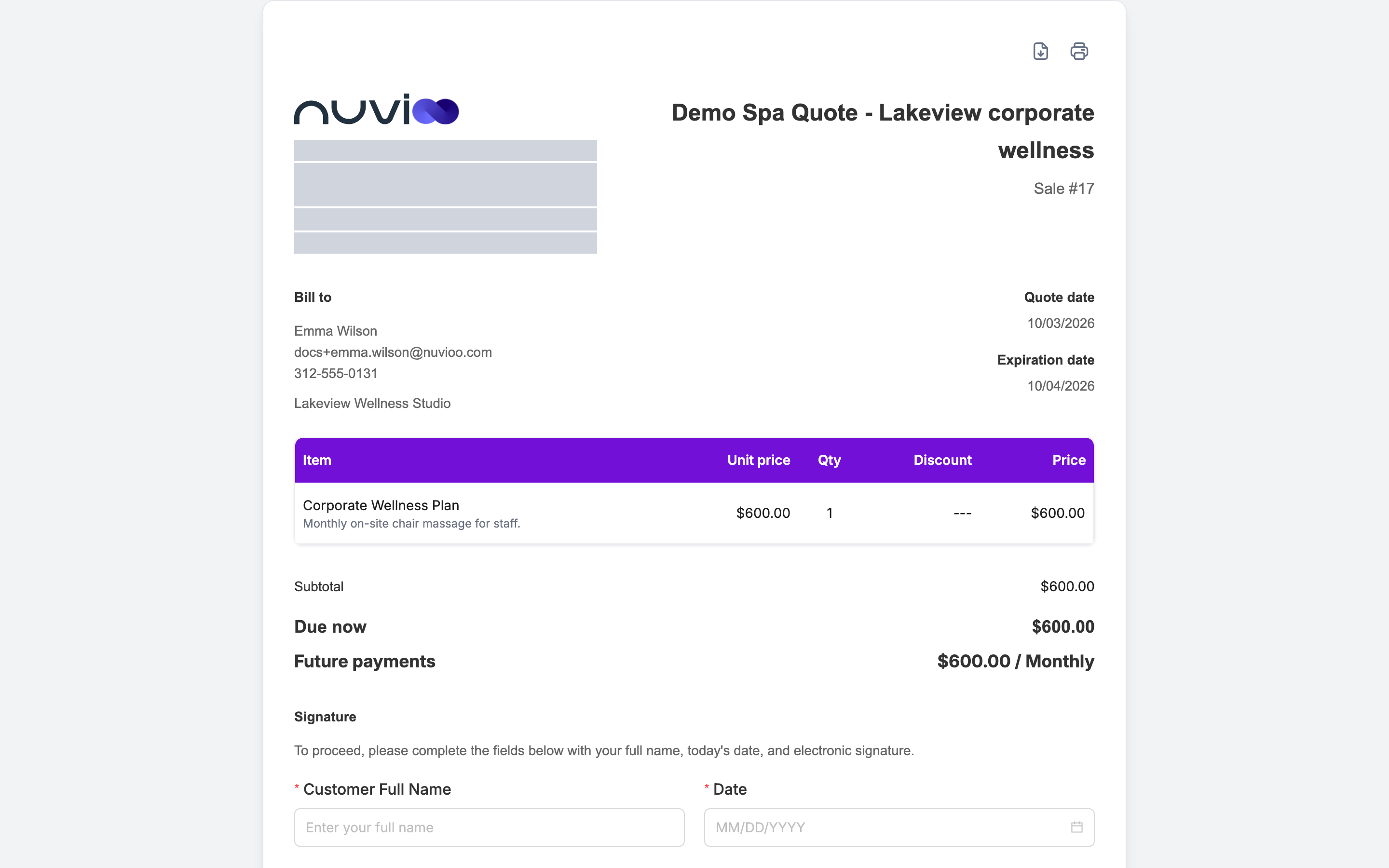
What the customer sees
Section titled “What the customer sees”The page uses the template, brand color and logo you chose. From top to bottom:
- Header icons: download as a PDF, and print.
- Quote details: your business details, the quote number and dates, and who it’s for.
- Items: each line shows the name, description, unit price, quantity, discount and price. A line with tax shows the tax amount under its price.
- Totals: the subtotal, the tax, and the total. When the quote has recurring lines, the page shows what’s due now and the future payments for each frequency. With a payment plan, it lists each installment with its due date and amount. The first is due Upon acceptance.
- Signature and payment sections: described below.
- Notes, terms and contact details: the text you wrote in the Terms & Conditions step.
What the customer can do
Section titled “What the customer can do”The Signature section asks for two things.
- Customer Full Name
- Date, in
MM/DD/YYYYformat. The date can’t be in the past.
Both are required before the button below works. The button depends on your payment choice.
- Online payment on: the button reads Pay now followed by the amount due. The customer chooses a payment method and pays. When they pay, the quote becomes Paid and Nuvioo creates an invoice.
- Online payment off: the button reads Approve quote. The quote becomes Approved. Nuvioo creates no invoice.
- Online payment on and a $0 total: the button reads Approve quote. The quote becomes Approved and Nuvioo creates an invoice.
The Signature section explains how to sign, and a list shows each signer with a status button.
- Sign now: appears next to the customer’s name. It opens a secure signing window on the same page, where the customer reviews the document and signs. No separate signing email is sent.
- Signed and Unsigned: show who has signed so far. The customer can only sign for themselves.
- Online payment on: the Pay now button stays disabled until every party has signed. Hover over it to read “Payment will be available after all parties have signed the agreement.”
- Online payment off: there is no payment or approve button. When the customer signs, the quote becomes Signed.
Paying
Section titled “Paying”Pay now opens a payment window.
- Under Payment method, choose Credit Card or Bank Account. You only see the methods you turned on in Payments and tax.
- Check the Summary: Subtotal, the processing fee line if you pass the fee on, and the Total.
- Enter the card or bank details and submit.
When the payment goes through, the page refreshes and the payment section disappears. With a payment plan, the customer pays the first installment. Nuvioo creates an invoice for each installment and emails them.
When a quote isn’t available
Section titled “When a quote isn’t available”| What the customer sees | Why |
|---|---|
| Quote has expired and “This quote is no longer available for signing or payment. Please contact us for an updated quote.” | The expiration date has passed. Edit the quote and send it again. |
| Quote is being updated and “This quote is no longer available for signing or payment. Please wait for the updated quote link.” | The quote is a draft again, for example because you edited it. |
| No signature or payment section | The quote is already Approved, Signed or Paid. An e-signature quote still lists its signers. |
The signature page for counter signers
Section titled “The signature page for counter signers”If you added counter signers, each one receives an email from Nuvioo with their own link, which opens a signature page. It shows the quote and the list of signers. A counter signer can click Sign now on their own entry only. The page has no payment or approve button.