

Companies
Companies group the contacts who work for the same business. A company page shows its details, its revenue, and the contacts and deals linked to it.
What you can do depends on your role. If a button or menu item described here is missing, ask an admin to check your role in Manage users and roles.
The companies list
Section titled “The companies list”In the sidebar, under Main Hub, click Companies.
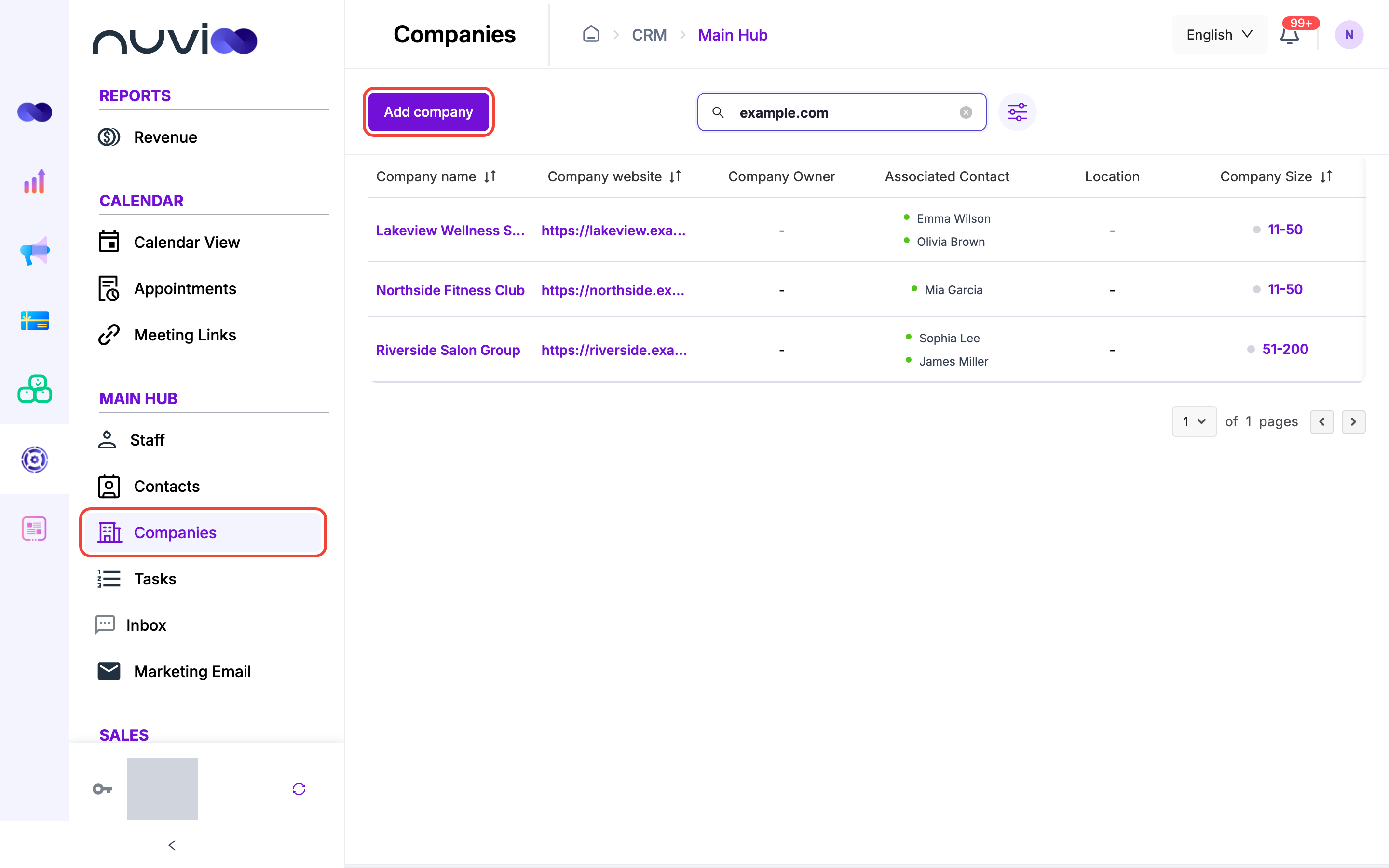
| Column | What it shows |
|---|---|
| Company name | Click it to open the company page. |
| Company website | The website, as a link that opens in a new tab. |
| Company Owner | The staff member responsible for the company. |
| Associated Contact | The contacts linked to the company. |
| Location | The address, joined into one line. |
| Company Size | The number-of-employees range. |
The list shows 10 companies per page, A to Z by name. Click the heading of Company name, Company website or Company Size to sort by it.
Search and filter
Section titled “Search and filter”Type in Search to find companies by name, website, company size, location or the name of an associated contact.
Click the filter button next to the search box to open Filter.
| Filter | What it does |
|---|---|
| Company | Shows only the companies you pick. |
| Company Owner | Shows companies owned by any of the staff you pick. |
| Date Created | Shows companies created between two dates. |
| Last Activity | Shows companies last changed between two dates. |
Click Apply to filter. Click Clear filters to remove all filters. Search and filters work together.
Row actions
Section titled “Row actions”Click the arrow at the end of a row.
| Action | What it does |
|---|---|
| Edit | Opens the Edit Company form. |
| View Company | Opens the company page. |
| Delete | Asks you to confirm with Confirm Delete, then deletes the company. |
Add a company
Section titled “Add a company”Open the form
On Companies, click Add company.
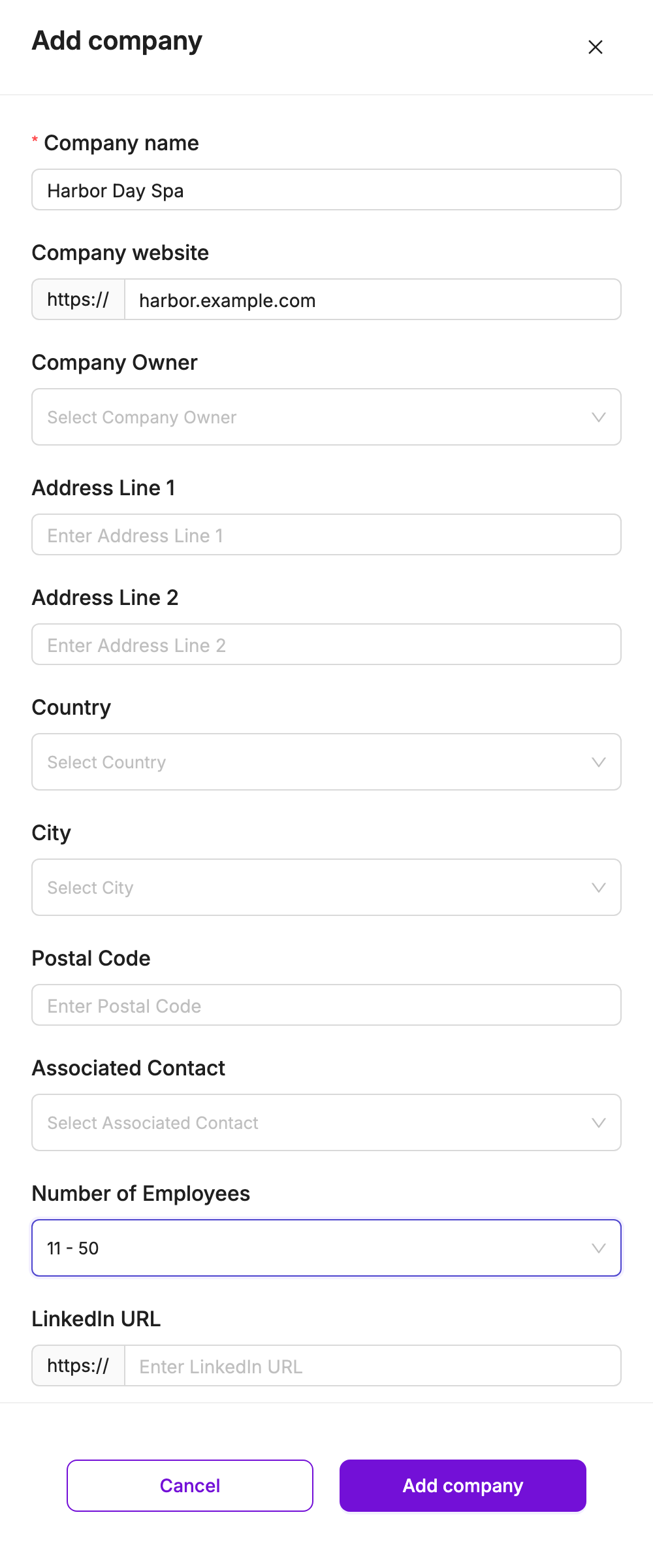
Add company Enter the details
Fill in the fields in the table below. Only Company name is required.
Save
Click Add company. The company appears in the list.
| Field | Required | What it does |
|---|---|---|
| Company name | Yes | Shows Name is required if empty. |
| Company website | No | Enter the domain only, for example example.com. https:// is already filled in. Anything that isn’t a valid domain shows Please enter a valid domain (e.g., example.com, google.com)! |
| Company Owner | No | The staff member responsible. |
| Address Line 1, Address Line 2, Country, State, City, Postal Code | No | The company’s address. State appears only when Country is the United States. Picking a different country clears State and City. |
| Associated Contact | No | One or more existing contacts to link to the company. |
| Number of Employees | No | A range: 1 - 10, 11 - 50, 51 - 200, 201 - 500, 501 - 1,000, 1,001 - 5,000 or 5,001+. |
| LinkedIn URL | No | The company’s LinkedIn page, without https://, for example linkedin.com/company/your-company. A value that starts with http or isn’t a LinkedIn address shows Please enter a valid LinkedIn URL (e.g., linkedin.com/company/your-company). |
To edit a company, choose Edit in the row menu. The Edit Company form has the same fields. Click Edit Company to save.
The company page
Section titled “The company page”Click a company’s name to open its page.
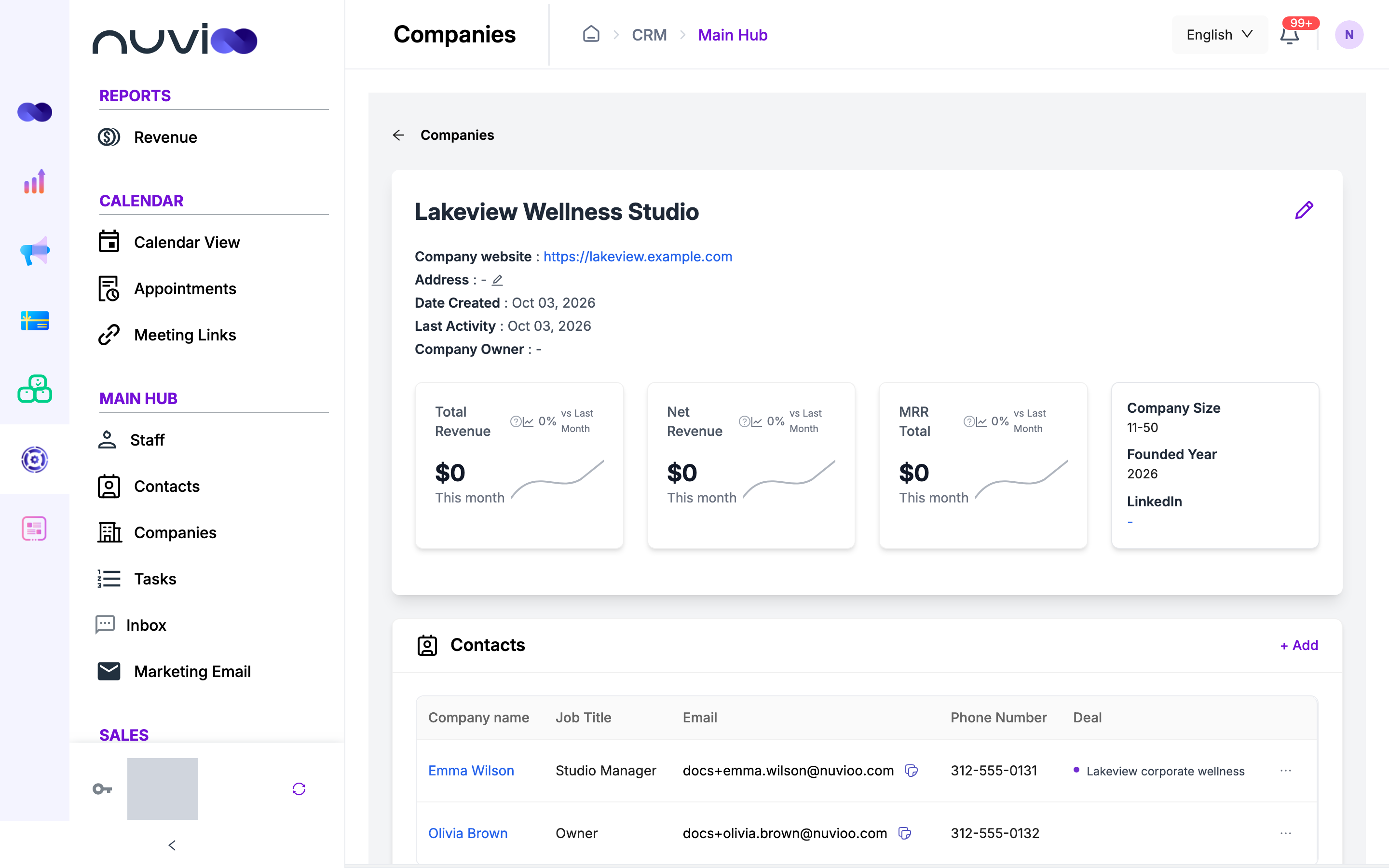
The top of the page shows:
- The name, Company website, Address, Date Created, Last Activity and Company Owner. Last Activity is when the company record was last changed.
- Company Size, Founded Year and LinkedIn. Founded Year is the year the company was added to Nuvioo, not the year the business started.
- The revenue cards.
Click Companies at the top to go back to the list.
Edit on the company page
Section titled “Edit on the company page”- Click the pencil icon next to the name to edit the name, website, owner, Company Size and LinkedIn link. Click Save to keep your changes or Cancel to discard them.
- Click the pencil icon next to Address to open Edit Address. Change the address fields and click Save.
Revenue cards
Section titled “Revenue cards”Each card shows an amount for the current month and how it compares with last month. Click the question mark on a card for a short explanation.
| Card | What it counts |
|---|---|
| Total Revenue | Payments received this month from the company’s contacts. Only successful payments count. |
| Net Revenue | The same payments after refunds, discounts and other deductions. |
| MRR Total | Payments received this month from the company’s active subscriptions. |
The figures come from the contacts linked to the company. A company with no linked contacts shows $0.
Contacts and deals
Section titled “Contacts and deals”The Contacts card lists the company’s contacts with their job title, email, phone number and deals. The Deals card lists the company’s deals with amount, close date, stage and pipeline. Click a name to open the contact or deal.
Click + Add on a card to link more:
| Card | + Add options | What they do |
|---|---|---|
| Contacts | Add New Contact | Opens the contact form with this company already selected. |
| Contacts | Add Associated Contact | Opens Associate Contact. Search for existing contacts, pick one or more and click Associate. |
| Deals | Add New Deal | Opens the deal form with this company already selected. See Deals. |
| Deals | Add Associated Deal | Opens Associate Deal. Search for existing deals, pick one or more and click Associate. |
Click the arrow at the end of a row for more:
- On a contact: Edit Contact, View Contact and Remove Associated Contact.
- On a deal: View Deal and Remove Associated Deal.
The Remove options only unlink the contact or deal from this company. They don’t delete the contact or the deal, even though the confirmation message says “delete”.
Below the cards, the page lists tasks for this company. See Tasks.