

Paying an invoice (customer view)
When you send an invoice, your customer gets an email with a link to a public invoice page. They don’t need an account. Invoices that Nuvioo creates from a quote or a subscription use the same page.
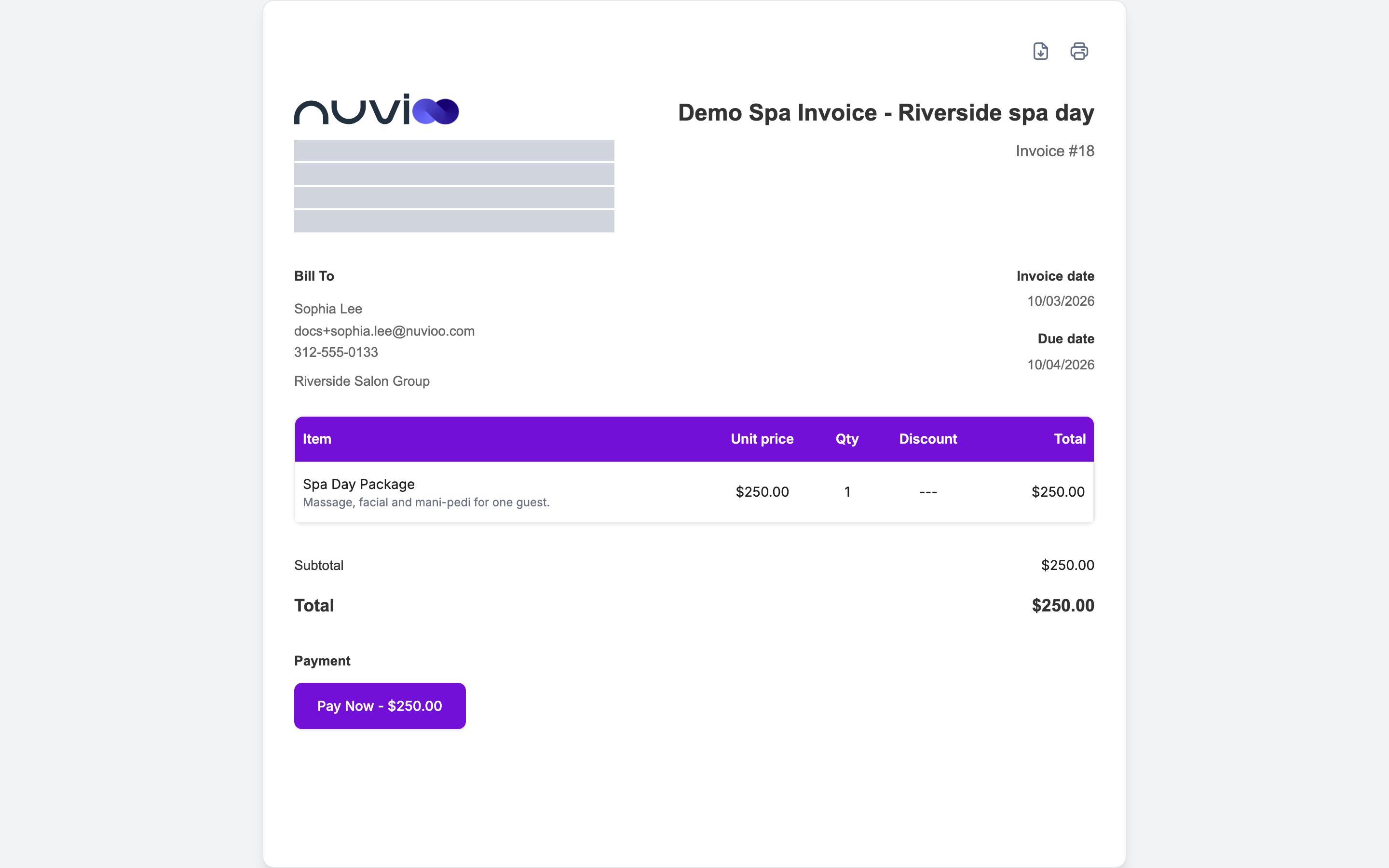
What the customer sees
Section titled “What the customer sees”The page uses the template, brand color and logo you chose.
- Header icons: download as a PDF, and print.
- Invoice details: your business details, the invoice date and due date, and who it’s billed to.
- Items: each line shows the name, description, unit price, quantity, discount and total. A line with tax shows the tax amount under its total.
- Totals: the subtotal, tax and the amount due. If the invoice has recurring lines, it also shows what’s due now and the future payments.
- Notes, terms and contact details: the text you wrote when you built the invoice.
If the invoice is one installment of a quote’s payment plan, the page lists all installments with their name, due date, percentage and amount. Each installment that belongs to this invoice has its own Pay Now button.
Pay the invoice
Section titled “Pay the invoice”Click Pay Now
An open invoice shows Pay Now followed by the amount. If the amount is $0, the button reads Approve invoice instead and the invoice becomes Approved without a payment.
Choose a payment method
Under Payment method, choose Credit Card or Bank Account. The list only has the methods you turned on in Payments and tax. With one method on, there’s nothing to choose.
Check the summary
The Summary shows the Subtotal, the fee line (Credit Card Fee or Bank Transfer Fee, with its percentage) and the Total. The fee is 0% unless you turned on Charge processing fee for that method.
Enter the details and submit
The customer enters the card or bank account details and submits.
When the payment goes through, the page refreshes and the invoice becomes Paid. The customer gets a receipt by email, and so does the invoice owner.
Good to know
Section titled “Good to know”- Closed invoices: once an invoice is paid, voided or refunded, the pay button is gone.
- Late invoices: an invoice past its due date shows as Past due in your list. The customer can still pay it from the same link.
- Full amount only: the customer pays the full amount shown. To split a bill, use a payment plan on the quote.