

Payments and tax
In the sidebar, under Settings, click Payments. The page has two tabs: Payment Terminal for payment methods and fees, and Tax Rate for tax.
Payment methods
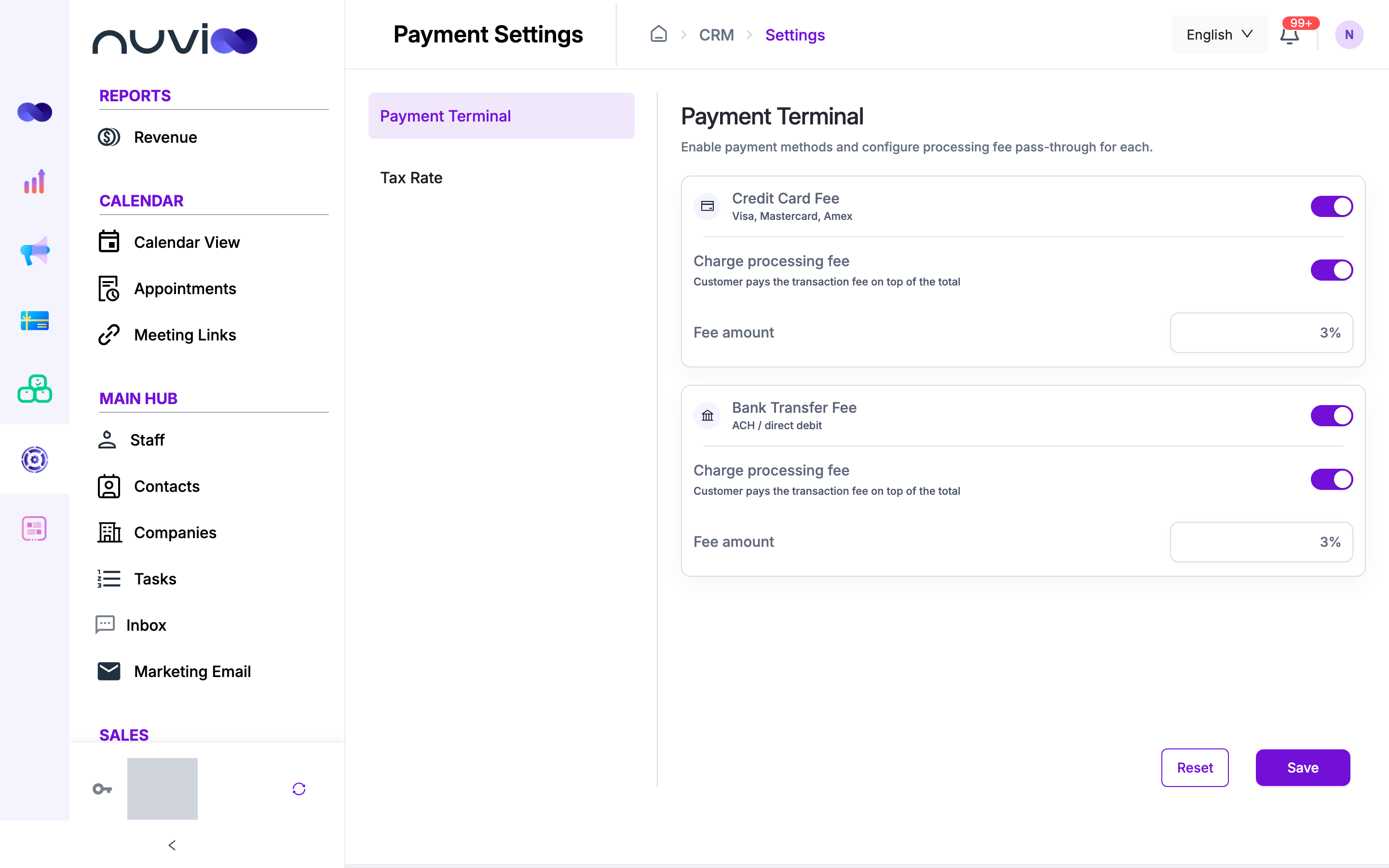
Section titled “Payment methods”The Payment Terminal tab has one card for each method customers can use to pay quotes, invoices and subscriptions.
| Method | Covers |
|---|---|
| Credit Card Fee | Visa, Mastercard and Amex. |
| Bank Transfer Fee | ACH and direct debit. |
Each card has these settings.
| Setting | What it does |
|---|---|
| Method switch (top right of the card) | Turns the method on or off. A method that is off isn’t offered at checkout. |
| Charge processing fee | When on, the customer pays the transaction fee on top of the total. Available only while the method is on. |
| Fee amount | The fee as a percentage of the amount paid, from 0% to 100% with up to two decimals. For example, enter 2.5 or 2.5%. Available only while the method and Charge processing fee are on. |
Click Save to apply your changes. Reset puts the card back to the last saved values.
What customers see
Section titled “What customers see”At checkout the customer picks a Payment method from the ones you turned on: Credit Card or Bank Account. If only one is on, there’s nothing to choose. A summary shows the Subtotal, the fee line (Credit Card Fee or Bank Transfer Fee, with its percentage) and the Total to pay. When Charge processing fee is off for a method, the fee is 0%.
For a subscription with Automatic payment, the fee for the saved method is shown when you choose it, and it’s included in each charge.
Tax rates
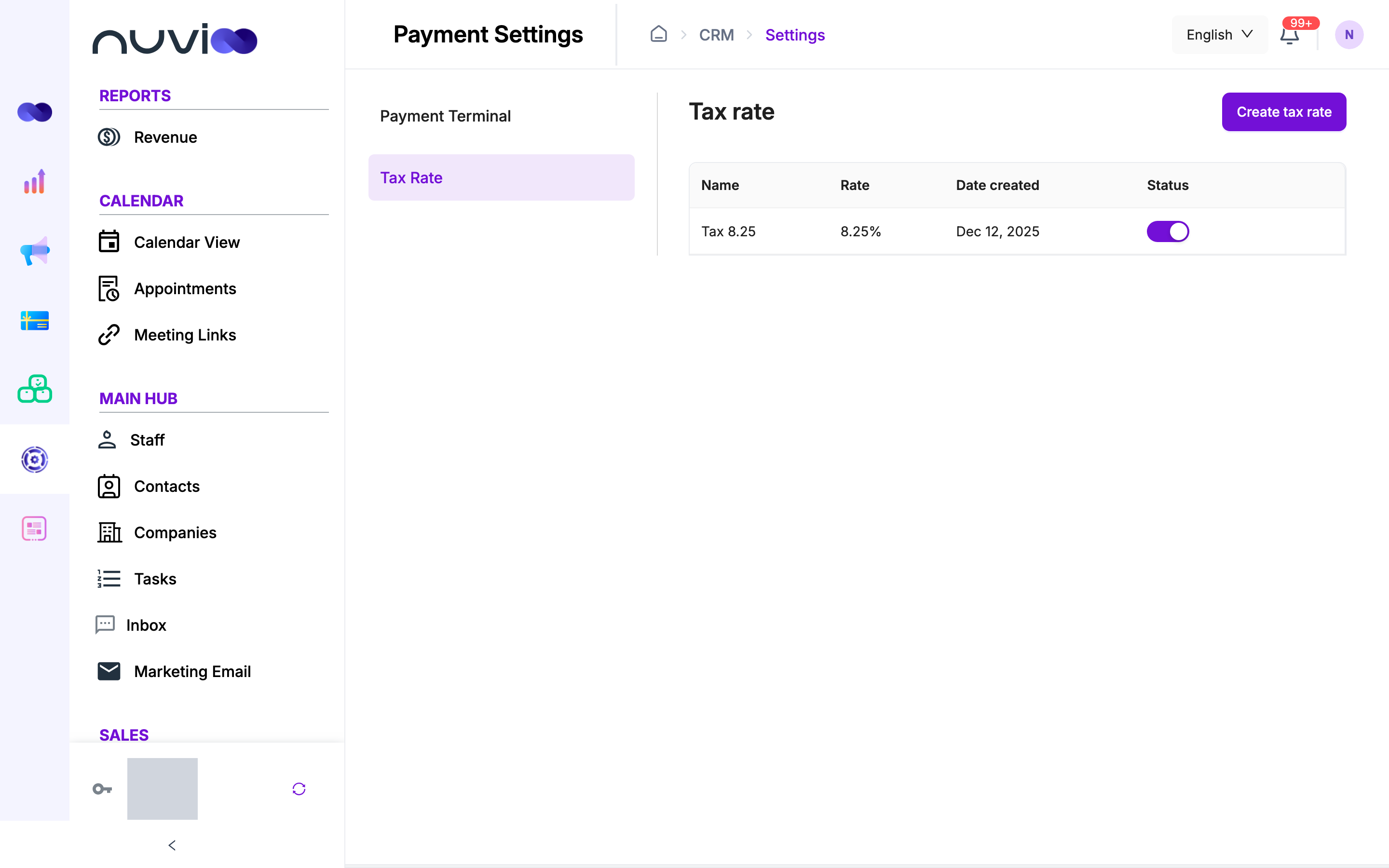
Section titled “Tax rates”The Tax Rate tab lists the tax rates you can apply to line items. Until you add one, it shows a short description and a Create tax rate button.
Add a tax rate
Section titled “Add a tax rate”Open the form
Click Create tax rate.
Enter the rate
Fill in the fields, then click Save.
| Field | Required | What it does |
|---|---|---|
| Name | Yes | The label you see in the line item list, for example “Sales tax”. |
| Rate | Yes | The percentage, zero or more, with up to two decimals. For example, 8.25. |
Manage tax rates
Section titled “Manage tax rates”The table shows Name, Rate, Date created and Status.
- Status: turn the switch off to stop offering a rate. Inactive rates no longer appear in the line item lists. Turn it back on to offer the rate again.
- Edit: click ⋯, then Edit.
- Delete: click ⋯, then Delete, and confirm.
Where tax rates are used
Section titled “Where tax rates are used”Quote, invoice and subscription lines each have a tax rate list. It shows your active rates as the name and percentage, for example “Sales tax - 8.25%”. Tax is the rate applied to the line price after the discount. Each line keeps the percentage it was given, so editing or deleting a rate doesn’t change quotes, invoices or subscriptions you already built.