

Pipelines
A pipeline is your sales process as a series of stages, such as Contacted → Proposal Sent → Closed Won. Each stage has a deal probability. The probability decides how much a deal counts toward the Weighted deal amount on the Deals board, and whether it counts as open or closed.
Your whole team shares the same pipelines. You can have more than one, for example one per service line. Each deal belongs to one pipeline.
What you can do depends on your role. Adding a pipeline needs permission to create deals, editing needs permission to edit deals, and deleting needs permission to delete deals. Ask an admin to check your role in Manage users and roles.
Switch pipelines
Section titled “Switch pipelines”In the sidebar, under Sales, click Deals. Click the pipeline button next to Add deal and choose a pipeline from the list. A check mark shows the one you’re on. The board, the totals and the search and filter all work on the pipeline you pick.
Add a pipeline
Section titled “Add a pipeline”Open the pipeline menu
On Deals, click the pipeline button next to Add deal and choose Add new pipeline. If you have no pipelines yet, click Add new pipeline on the empty board instead.
Name it and set the stages
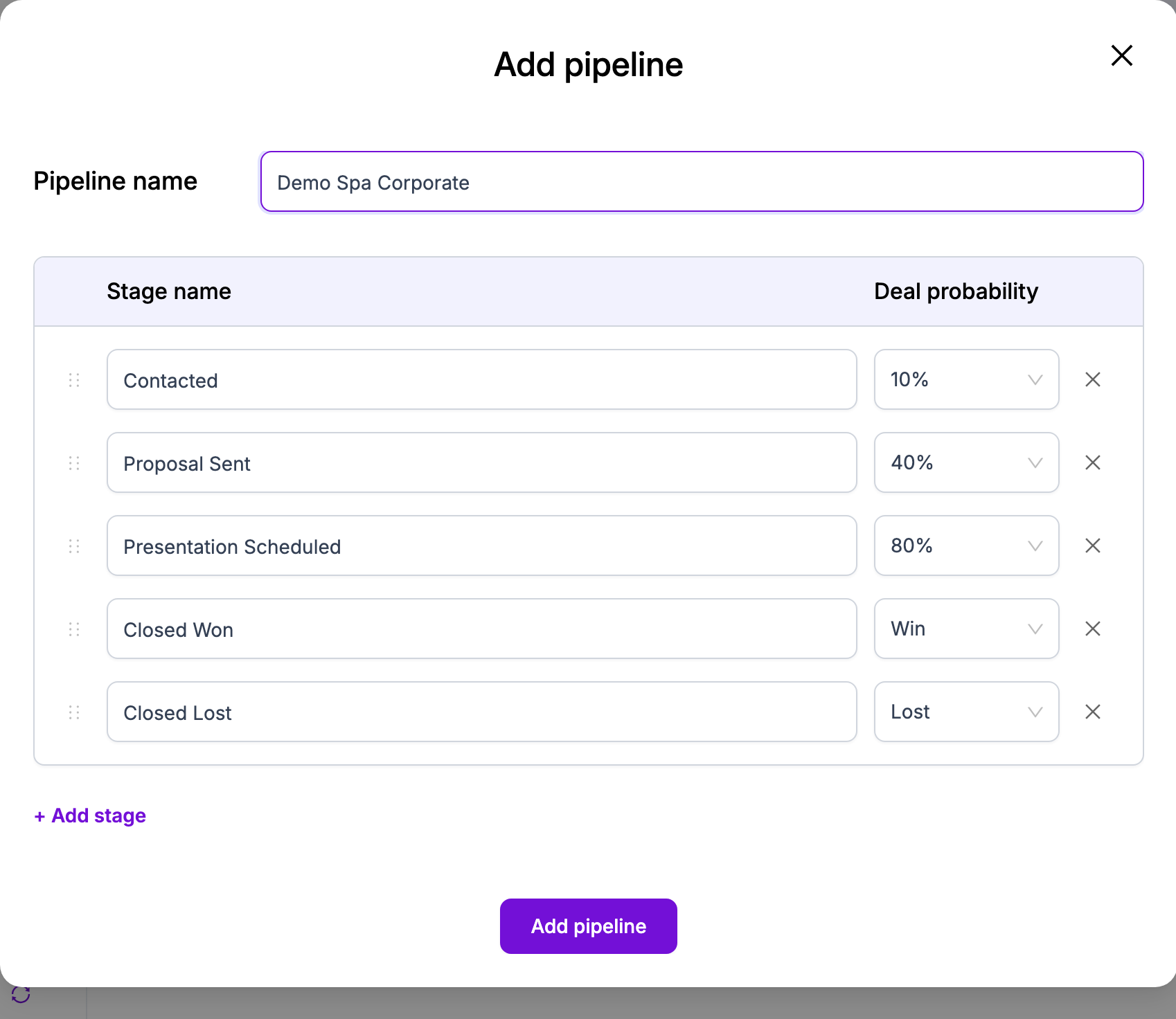
Enter the Pipeline name, then set up the stages. See the table below.
Add pipeline Save
Click Add pipeline. The board switches to the new pipeline.
A new pipeline starts with five stages:
| Stage name | Deal probability |
|---|---|
| Contacted | 10% |
| Proposal Sent | 40% |
| Presentation Scheduled | 80% |
| Closed Won | Win |
| Closed Lost | Lost |
Set up stages
Section titled “Set up stages”| Setting | Required | What it does |
|---|---|---|
| Pipeline name | Yes | Shows Please enter pipeline name if empty. |
| Stage name | Yes | Shows Please enter stage name if empty. |
| Deal probability | Yes | How likely a deal in this stage is to close. |
- Rename a stage: change its Stage name.
- Reorder stages: drag a stage by the handle on its left. The order here is the order of the columns on the board, left to right.
- Add a stage: click + Add stage. A new stage starts with an empty name and the probability Lost, so set both.
- Remove a stage: click X at the end of its row. You can’t remove the last stage.
Deal probability
Section titled “Deal probability”Pick a probability from the list: 10% to 90% in steps of 10, Win or Lost.
- Win means the deal is won. It counts as 100% in the weighted total.
- Lost means the deal is lost. It counts as 0% in the weighted total.
- Deals in a Win or Lost stage count toward Closed deal amount. Deals in any other stage count toward Open deal amount.
To use another percentage, type a number in the box at the bottom of the list and click +. The number must be between 1 and 99. The new percentage is then available for the other stages in the same dialog. Typing 0 or 100 isn’t needed: use Lost and Win.
Every pipeline should end with a won stage and a lost stage so the open and closed totals make sense.
Change a pipeline
Section titled “Change a pipeline”On Deals, switch to the pipeline you want, click Manage pipeline and choose Manage pipeline. The same dialog opens with the current name and stages. Click Update pipeline to save.
Renaming or reordering stages keeps their deals in place.
Delete a pipeline
Section titled “Delete a pipeline”Switch to the pipeline
On Deals, pick the pipeline you want to delete.
Delete it
Click Manage pipeline, choose Delete pipeline, then click Yes to confirm. The confirmation reads Are you sure you want to delete this pipeline? and warns that this can’t be undone.
Delete pipeline is greyed out when:
- The pipeline still has deals. Move them to another pipeline first: edit each deal, change its Pipeline and Stage, then save. Or delete the deals.
- It’s your only pipeline.
After you delete a pipeline, the board switches to another one.