

Invoices
Invoices bill your customers. Customers open them from a link and pay online by card or bank. Nuvioo also creates invoices for you from quotes and subscriptions.
In the sidebar, under Sales, click Invoices.
Find invoices
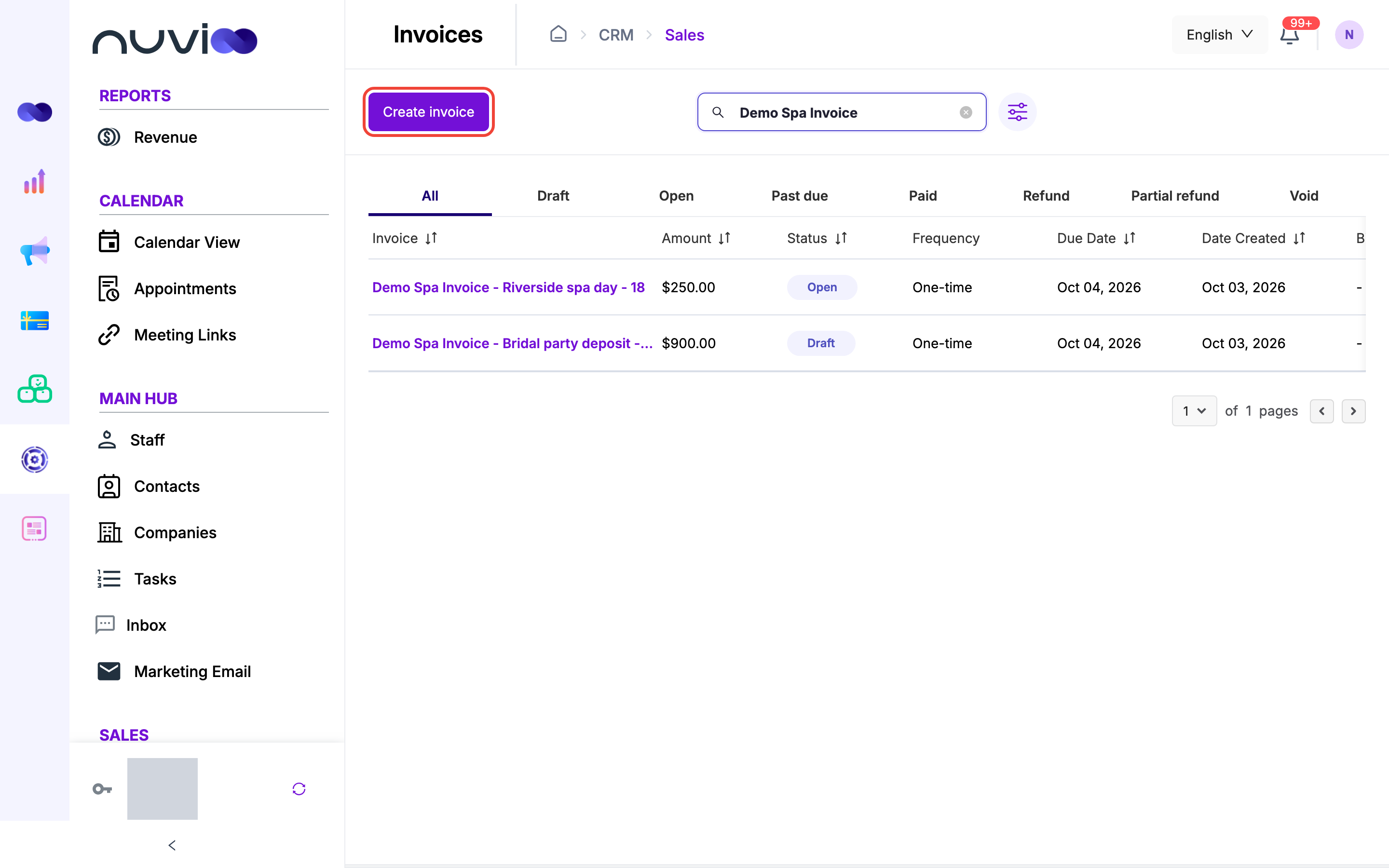
Section titled “Find invoices”The list shows each invoice’s name and number, Amount, Status, Frequency, Due Date, Date Created, Billing source and Contact. Click a column heading to sort.
- Frequency is Recurring for invoices from a subscription and One-time for all others.
- Billing source shows the subscription or quote the invoice came from, or - for an invoice you created by hand.
- Tabs: All, Draft, Open, Past due, Paid, Refund, Partial refund and Void.
- Search: type an invoice name, an invoice number or a contact name.
- Filter: click the filter icon next to the search box. Choose a Contact, Status, Invoice owner or Deal, an Amount range, a Date created range or a Date expiration range (the due date), then click Apply. Clear filters resets them. Applying filters clears the tab selection.
The Amount filter runs from $0 to $10,000 in $100 steps. Leave the top at $10,000 to include larger invoices.
Create an invoice
Section titled “Create an invoice”Click Create invoice. The builder has four steps: Invoice Setup, Products, Terms & Conditions and Format. Each step saves a draft.
Invoice Setup
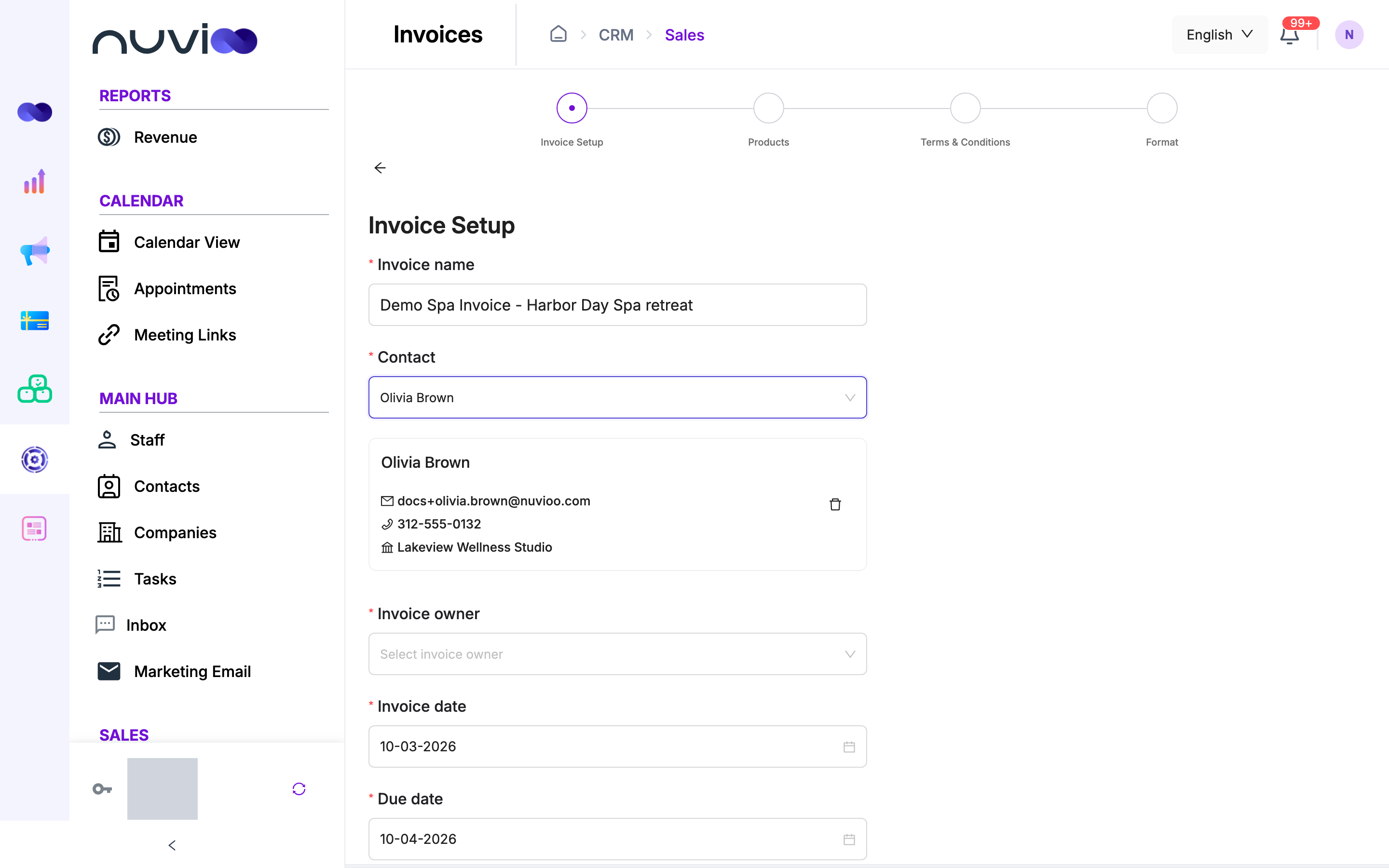
Fill in the details, then click Next. This creates the invoice as a Draft.
Products
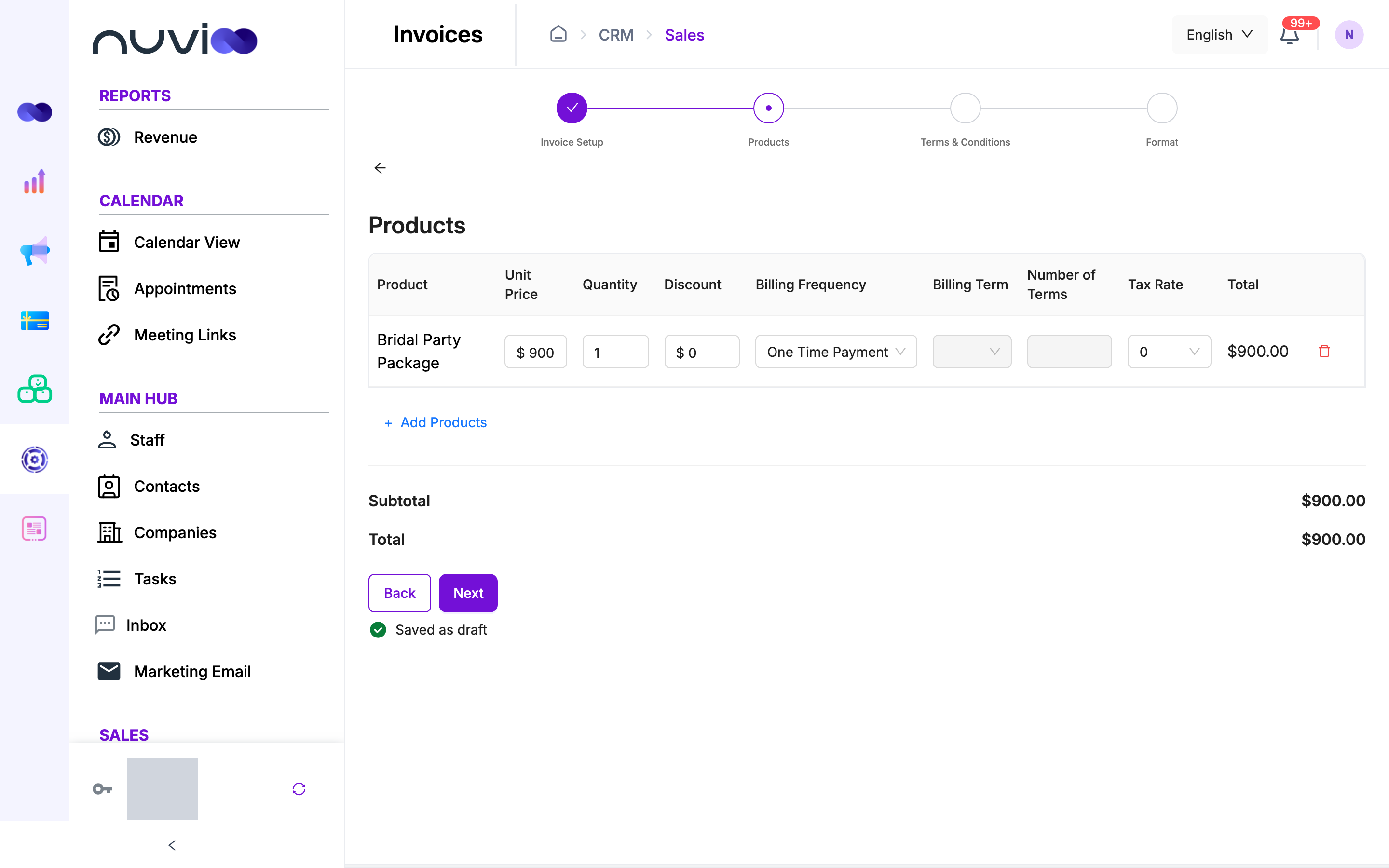
Add the line items, set discounts and tax, then click Next.
Terms & Conditions
Write the Notes, Terms & Conditions and Contact us text. Click Next.
Format
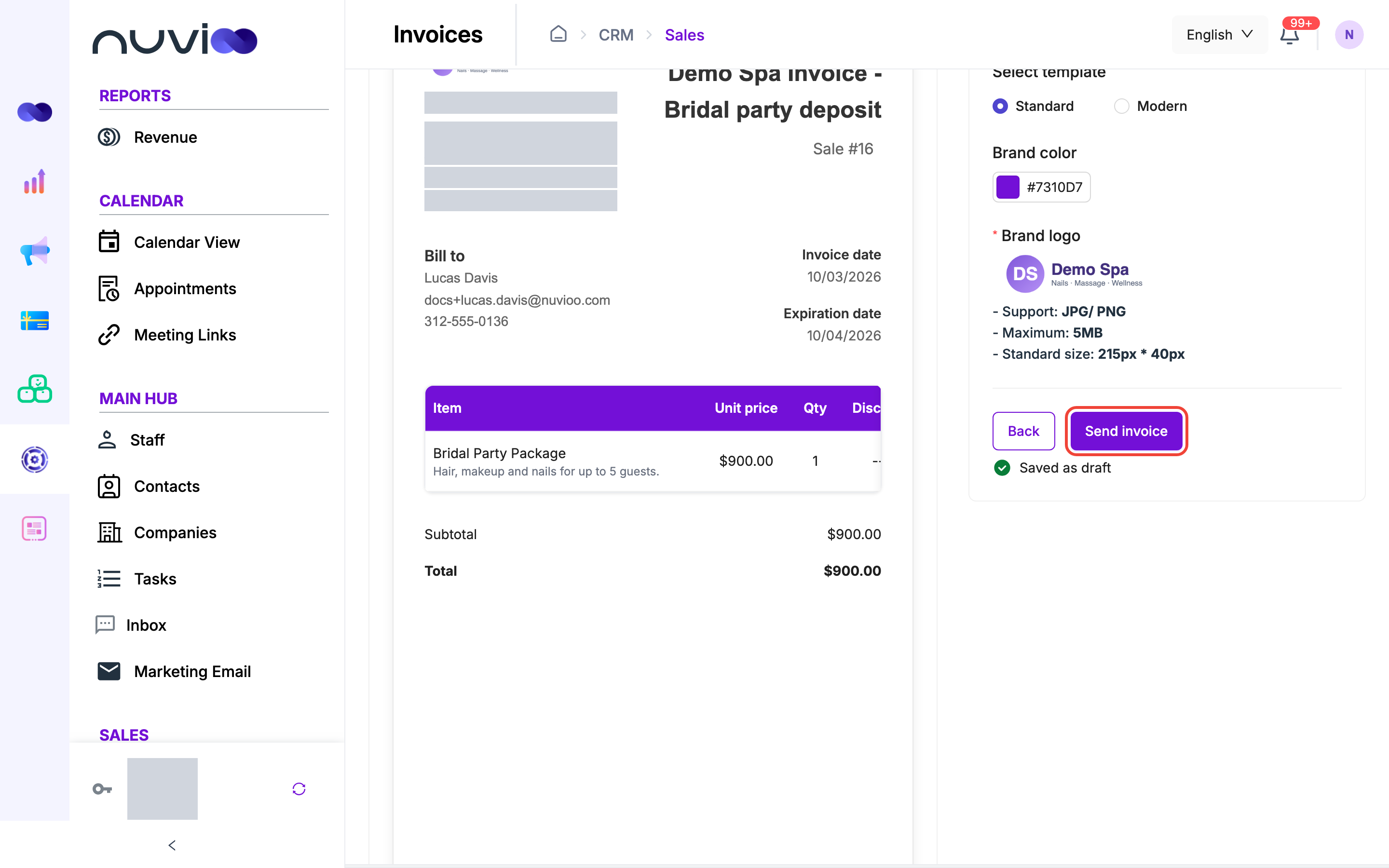
Choose the template, brand color and logo, check the preview, then click Send invoice.
Format (business details hidden)
Invoice Setup
Section titled “Invoice Setup”| Field | Required | What it does |
|---|---|---|
| Invoice name | Yes | Your own label for the invoice. |
| Contact | Yes | The customer who receives the invoice. You can’t change it after you click Next. |
| Invoice owner | Yes | The staff member who owns the invoice. You can’t change it after you click Next. |
| Invoice date | Yes | Defaults to today. |
| Due date | Yes | Defaults to tomorrow. It must be after the invoice date. |
Products
Section titled “Products”Click Add products and tick the products to bill. You can create a product from the picker with Add new product. See Services and products. The line fields work as they do on a quote.
| Field | What it does |
|---|---|
| Unit Price | Starts at the product price. You can change it for this invoice. |
| Quantity | At least 1. |
| Discount | A dollar amount taken off the line. It can’t be more than unit price times quantity. |
| Billing Frequency, Billing Term, Number of Terms | Shown for each line. All recurring lines share the same values. |
| Tax Rate | One of your active tax rates, or none. |
| Total | The line price after the discount, with the tax amount shown under it. |
The line price is unit price times quantity, minus the discount. Tax is the tax rate applied to that price. Below the table you see Subtotal, the tax on one-time and recurring lines, and the amount Due Now.
Terms & Conditions and Format
Section titled “Terms & Conditions and Format”These steps match the quote builder. For a new invoice, the text fields start with your defaults from Calendar settings. The Format step has a Select template choice of Standard or Modern, a Brand color and a required Brand logo.
Click Send invoice. Nuvioo sets the invoice to Open and emails the contact a link to pay. A window then shows Share invoice link with a Copy button, in case you also want to send the link yourself. Closing the window takes you back to the list.
Statuses
Section titled “Statuses”| Status | Meaning | What you can do |
|---|---|---|
| Draft | You haven’t sent it. | Edit, void, delete. |
| Open | Sent and waiting for payment. | View, edit, duplicate, void, delete. |
| Past due | An Open invoice whose due date has passed. The customer can still pay it. | The same as Open. |
| Approved | A $0 invoice the customer approved. | View, duplicate. |
| Paid | The customer paid in full. | View, duplicate, refund. |
| Partial refund | You refunded part of a payment. | View, duplicate, refund the rest. |
| Refund | You refunded the whole payment. | View, duplicate. |
| Void | You cancelled it. | View, duplicate. |
Past due is a label the list shows, not a separate stage. Nuvioo marks an invoice Paid when the customer’s online payment goes through. You can’t mark an invoice paid by hand, so record cash or cheque payments outside Nuvioo.
Row actions
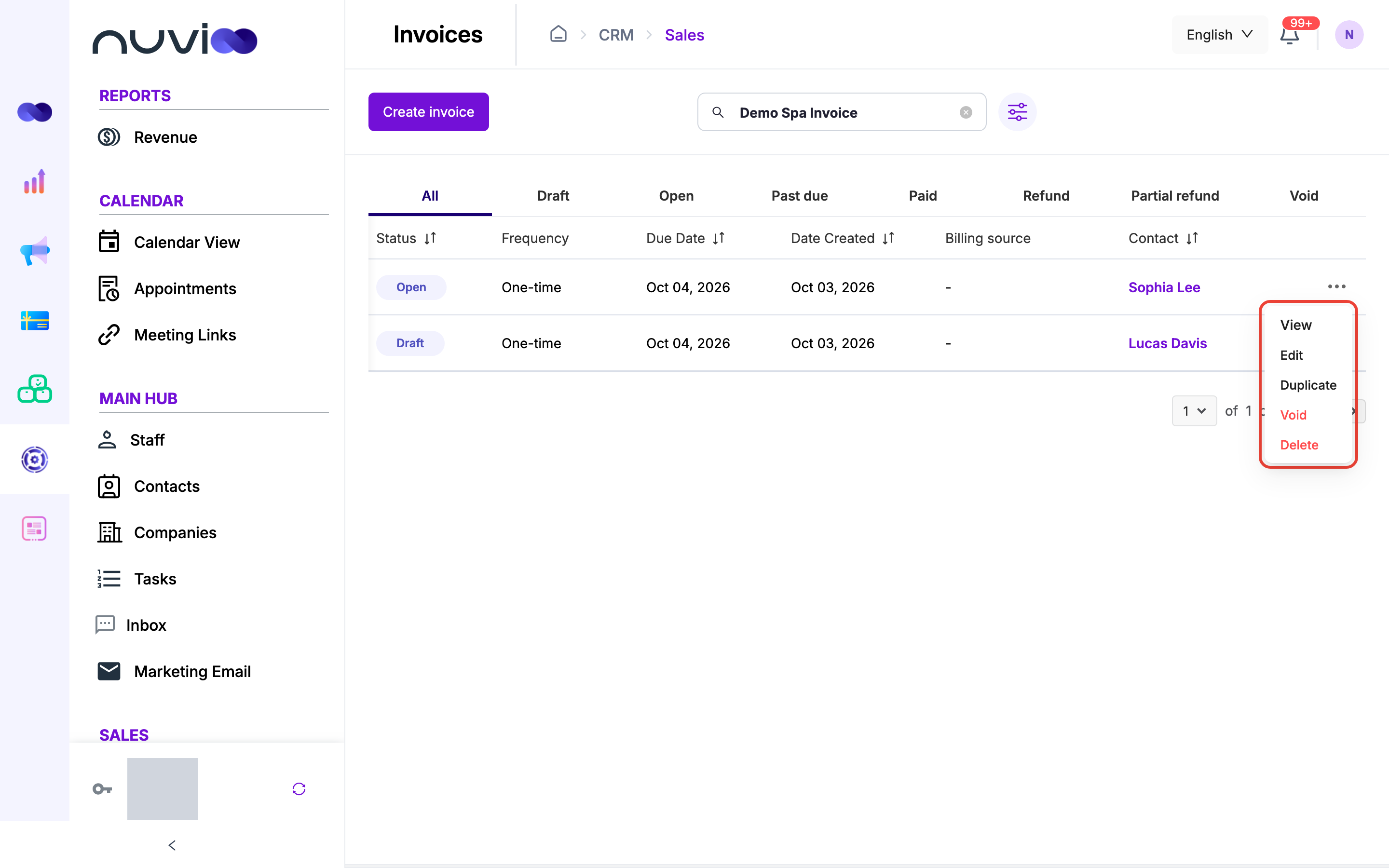
Section titled “Row actions”Click ⋯ on a row.
| Action | Available for | What it does |
|---|---|---|
| View | All | Opens the invoice as the customer sees it. |
| Edit | Draft and Open | Opens the four steps. Disabled for subscription invoices. |
| Duplicate | Every status except Draft | Copies the invoice as a new Open invoice and emails it to the contact. Invoices created for a subscription plan change can’t be duplicated. |
| Refund | Paid and Partial refund | Opens the refund window. |
| Void | Draft and Open | Cancels the invoice after you confirm. |
| Delete | Draft and Open | Removes the invoice after you confirm. Disabled for subscription invoices and for drafts created from a quote. |
View, download and share
Section titled “View, download and share”View opens a read-only copy. The download icon saves a PDF named after the invoice number. The share icon opens a menu with Duplicate and Share. Share shows the invoice link with a Copy button.
Refund a payment
Section titled “Refund a payment”Refunds go back to the customer’s original payment method. In the Refund window you see the invoice, customer name, payment date, Amount paid, Refunded amount, Remaining balance and payment method.
| Field | Required | What it does |
|---|---|---|
| Refund amount | Yes | From $0.01 up to the remaining balance. It starts at the full remaining balance. |
| Notes | No | Up to 500 characters. |
Click Issue refund. A refund of the full remaining balance sets the status to Refund. A smaller amount sets it to Partial refund, and you can refund the rest later. The window won’t open when nothing is left to refund.
What the customer pays
Section titled “What the customer pays”The customer pays the invoice amount. If you pass on a processing fee, the fee for the method they choose is added at checkout. They get a receipt by email, and so does the invoice owner. See Paying an invoice.