

Choose your appointment notifications
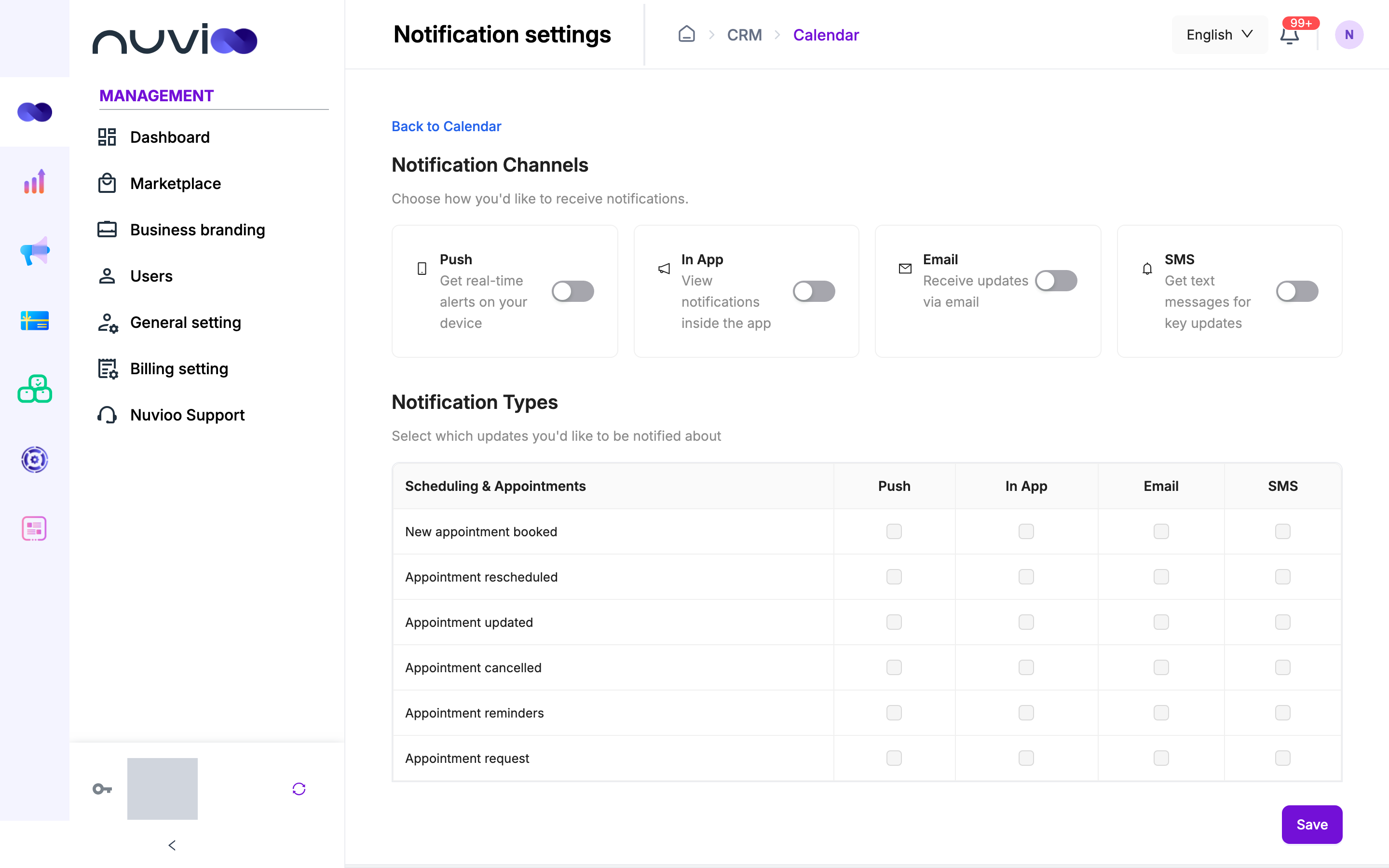
Notification settings are your personal choices for how you hear about appointments: when one is booked, rescheduled, updated or cancelled, appointment reminders, and appointment requests. Each staff member sets their own.
Open notification settings
Section titled “Open notification settings”In Calendar View, click More actions, then Notification settings. Click Back to Calendar to return.
Turn channels on or off
Section titled “Turn channels on or off”Under Notification Channels, use the switch on each channel:
| Channel | Description on the page |
|---|---|
| Push | Get real-time alerts on your device. |
| In App | View notifications inside the app. |
| Receive updates via email. | |
| SMS | Get text messages for key updates. |
A channel switch saves as soon as you change it. You see Channel status updated successfully.
Choose which updates you get
Section titled “Choose which updates you get”Under Notification Types, the Scheduling & Appointments table has one row per update and one column per channel.
The rows are New appointment booked, Appointment rescheduled, Appointment updated, Appointment cancelled, Appointment reminders and Appointment request. The columns are Push, In App, Email and SMS.
Tick the boxes you want, for example New appointment booked by Email and Appointment cancelled by Push. You can only tick a channel that is turned on. Click Save. You see Save successfully.
Reminders for attendees
Section titled “Reminders for attendees”There are no email or SMS reminders for attendees. To remind an attendee, use Set reminder when you schedule an appointment. It adds an alarm to the calendar invite.
The confirmation, reschedule and update emails that attendees get are sent when you save the appointment. You can’t turn them off here.