

Meeting links
A meeting link is a booking page. Share it, and customers pick a free time and book an appointment themselves. Each booking becomes an appointment, and the customer becomes a contact.
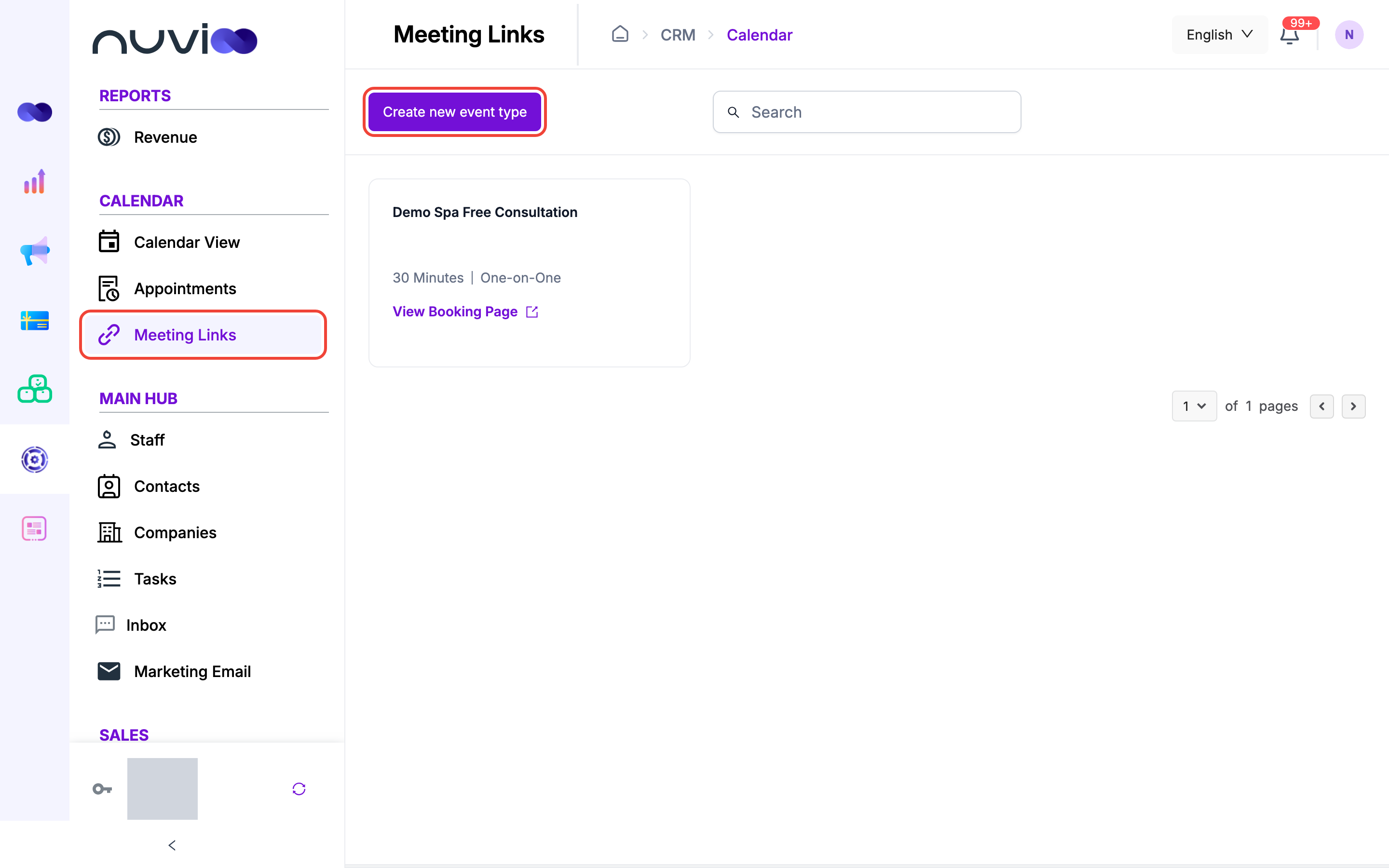
In the sidebar, under Calendar, click Meeting Links. Each link is a card with its title, duration, type and an Active or Inactive badge. Type in Search to find a link. See what customers see in Booking page.
Create a meeting link
Section titled “Create a meeting link”Choose the type
Click Create new event type. It shows only if your role can create meeting links. Pick a type, then click Proceed.
Type Hosts One-on-One One staff member. It starts as you. Group One or more staff, with one Primary Meeting Host. Round Robin Staff you tick from a list, with one Primary Meeting Host. 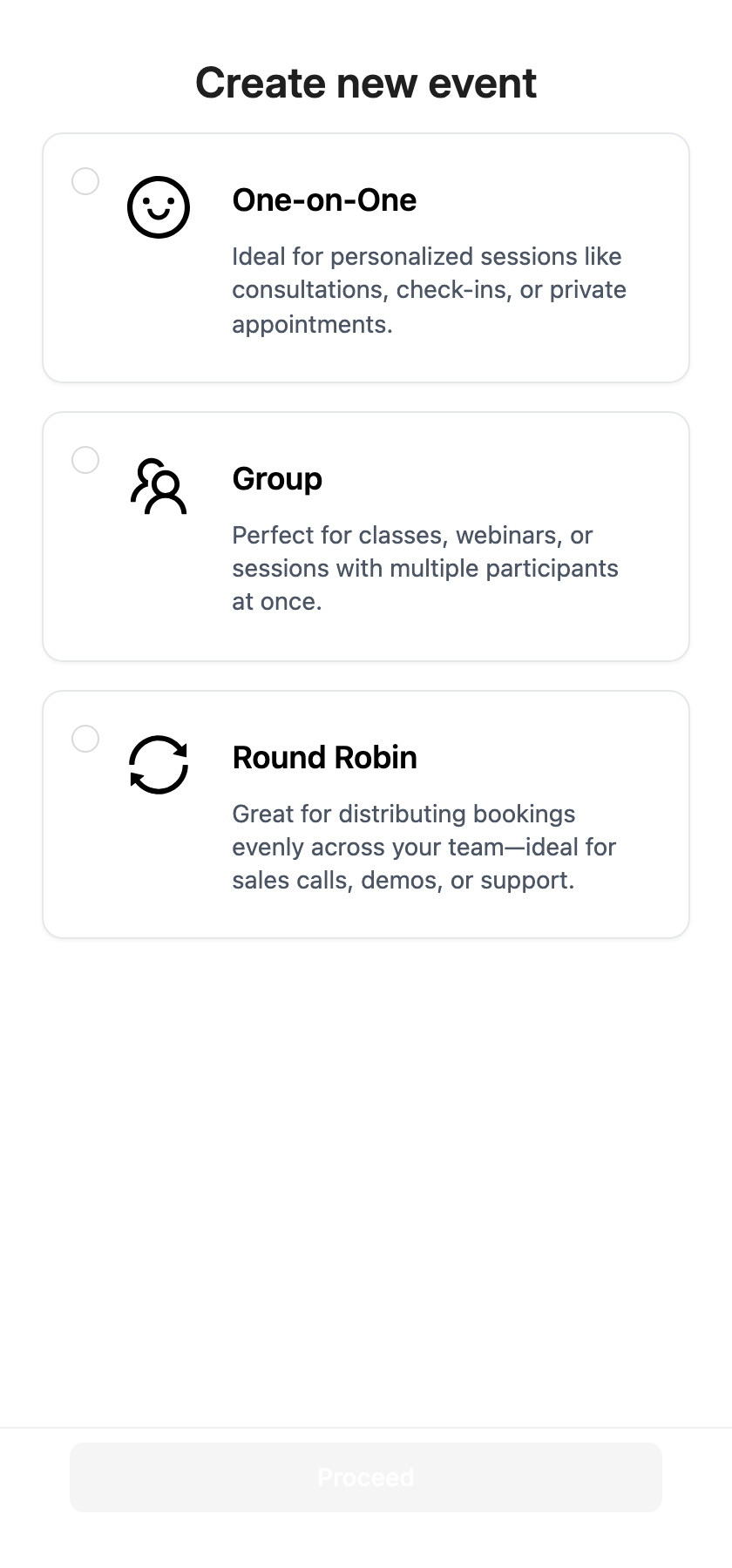
Fill in the form
The form has four sections: Event details, Host and attendees, Scheduling settings and Payments. Open each one. The left side is a preview of the booking page.
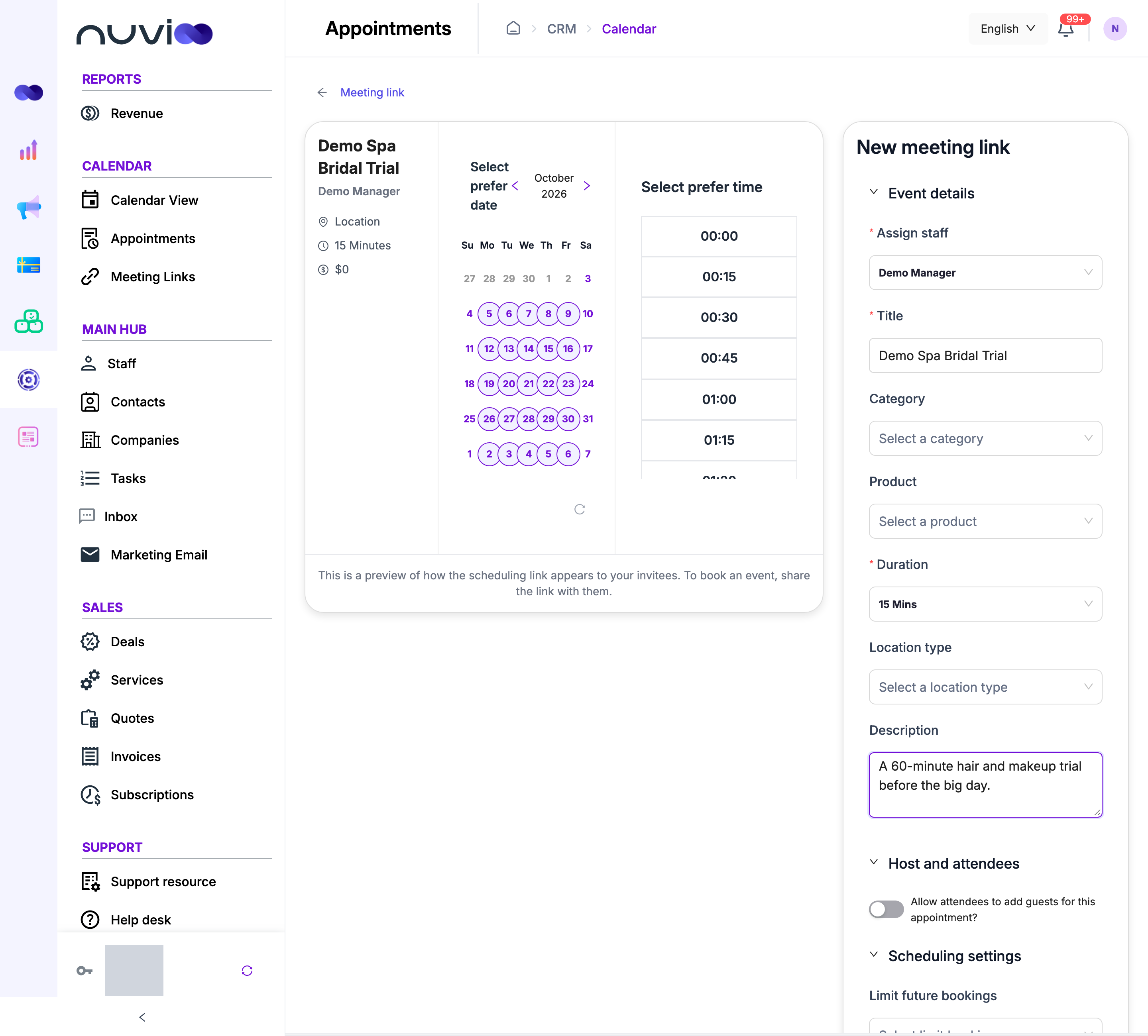
New meeting link Create and share
Click Create. A dialog gives you the link to share. Reset clears the form.
Event details
Section titled “Event details”| Field | Required | What it does |
|---|---|---|
| Assign staff (or Select staff for this event on Round Robin) | Yes | Who hosts. On an existing link, only roles that can assign staff can change it. |
| Primary Meeting Host | Yes, with 2 or more staff | The first host. Their Google Meet or Zoom is used for virtual meetings. |
| Title | Yes | Shown on the booking page and on every appointment it creates. |
| Category, Product | No | Choosing a category limits the products. You need a product to charge for the link. |
| Duration | Yes | 5 Mins, 10 Mins, 15 Mins, 30 Mins or 1 Hour. It starts at 15 Mins. |
| Location type | No | In person, Virtual, Phone call or Custom. Works as in Appointments. With Phone call and Staff as the initiator, the customer’s number comes from the booking form. |
| Description | No | Placeholder: “Add details before appointment”. |
Host and attendees
Section titled “Host and attendees”On One-on-One and Group links, switch on Allow attendees to add guests for this appointment? to let customers add guest emails when they book. Maximum guests allowed is then required. A booking with more guests than the limit is refused.
Scheduling settings
Section titled “Scheduling settings”| Setting | What it does |
|---|---|
| Limit future bookings | 30 days, 60 days or 90 days. Customers can’t book further ahead. Leave it empty for no limit. |
| Set your weekly hours | Tick the days customers can book and set the hours. Click + for another range on a day and - to remove one. A day left unticked shows Unavailable. |
| Allow attendees to cancel or reschedule this appointment? | Adds reschedule and cancel links to the confirmation email. |
The weekly hours start as the staff members’ working hours, and reset whenever you change the staff. For Group and Round Robin with several staff, they start as the hours when everyone works. Customers see start times spaced by the Duration, beginning at the start of each range. A time is never offered if a host already has an event then. Times today are offered only if they start at least one hour from now.
If you turn off every day, Nuvioo uses the staff members’ working hours instead.
Payments
Section titled “Payments”To charge for a link, choose at least one Product first. Then, under Collect for this service, pick Pay full, Pay deposit or Pay later. No pay keeps it free.
The Summary works as in Appointments: you can change each product’s price for this link, choose a Tax rate, and enter a Deposit. The customer sees the amount on the booking page and pays when they book, for Pay full and Pay deposit. With Pay later, nothing is charged at booking.
Preselect a time
Section titled “Preselect a time”In the preview, click a date and a time to preselect them. The booking page then opens on that date and time, and the card shows it. Customers can still choose another. Click the date again to clear it.
Share and embed
Section titled “Share and embed”After you click Create or Update, a dialog opens. You can open it later with Share on the card.
| Tab | What you get |
|---|---|
| Link | The booking page address. Click Copy Link. |
| Embed code | An iframe to paste into your website. Click Copy code. The embedded page leaves out the Nuvioo header. |
View Booking Page on the card opens the page in a new tab. You can also email a link to contacts. See Invite clients to book.
Edit, pause or delete a link
Section titled “Edit, pause or delete a link”- Edit opens the form. The button is off if your role can’t edit meeting links. Click Update to save.
- The switch on the card turns the link on or off. When it’s Inactive, customers who open it can’t book, Share is off, and it isn’t offered in invitations. Bookings already made stay.
- The … menu on the card has Delete, if your role can delete meeting links. You confirm first.