

Request inbound
Use a request inbound when stock needs approval before it moves. A request goes through these statuses:
- Requested: someone creates the request.
- Approved or Rejected: a manager reviews it.
- Confirmed: when the stock arrives, someone enters the actual quantities and confirms. Only then does stock change.
Create a request
Section titled “Create a request”Open Request inbound
In the sidebar, under Management, click Request inbound, then click Add New.
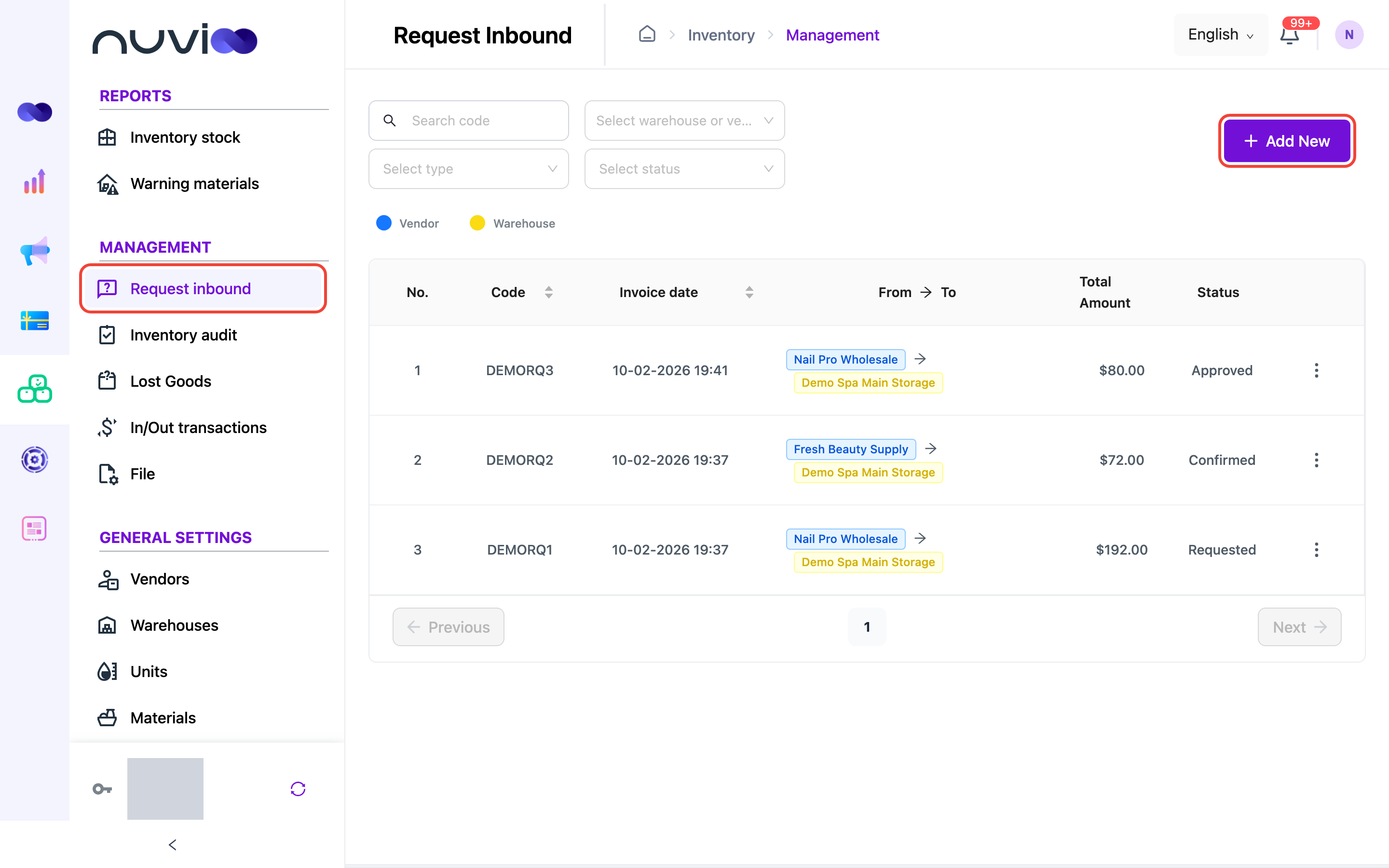
The Request inbound list Fill in the request information
Field What to enter Request type * Import vendor to warehouse, Return from warehouse to vendor, or Distribution from warehouse to retail location. Code Filled in for you. Click the refresh button for a new one, or type your own. From * Where the stock comes from: a vendor or a warehouse, depending on the type. Invoice date * Defaults to now. To * Where the stock goes. Add the materials
Under Material details, choose a Material, its Measure, the Quantity and the Unit cost. Click Add Item for each extra material. To add many lines at once, click Upload and use the sample Excel file.
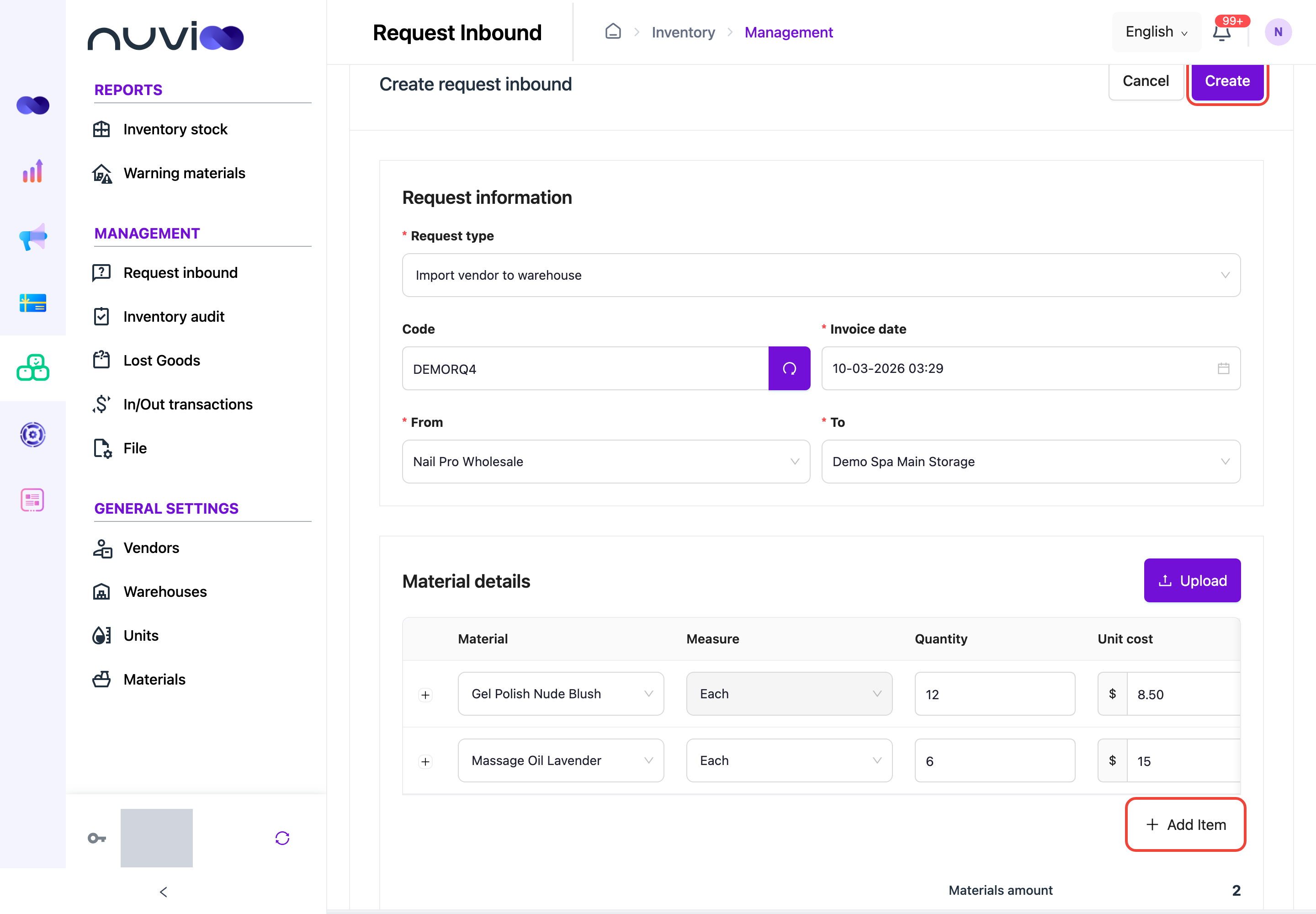
Create request inbound Create
Click Create. The request appears in the list with the status Requested.
Approve or reject a request
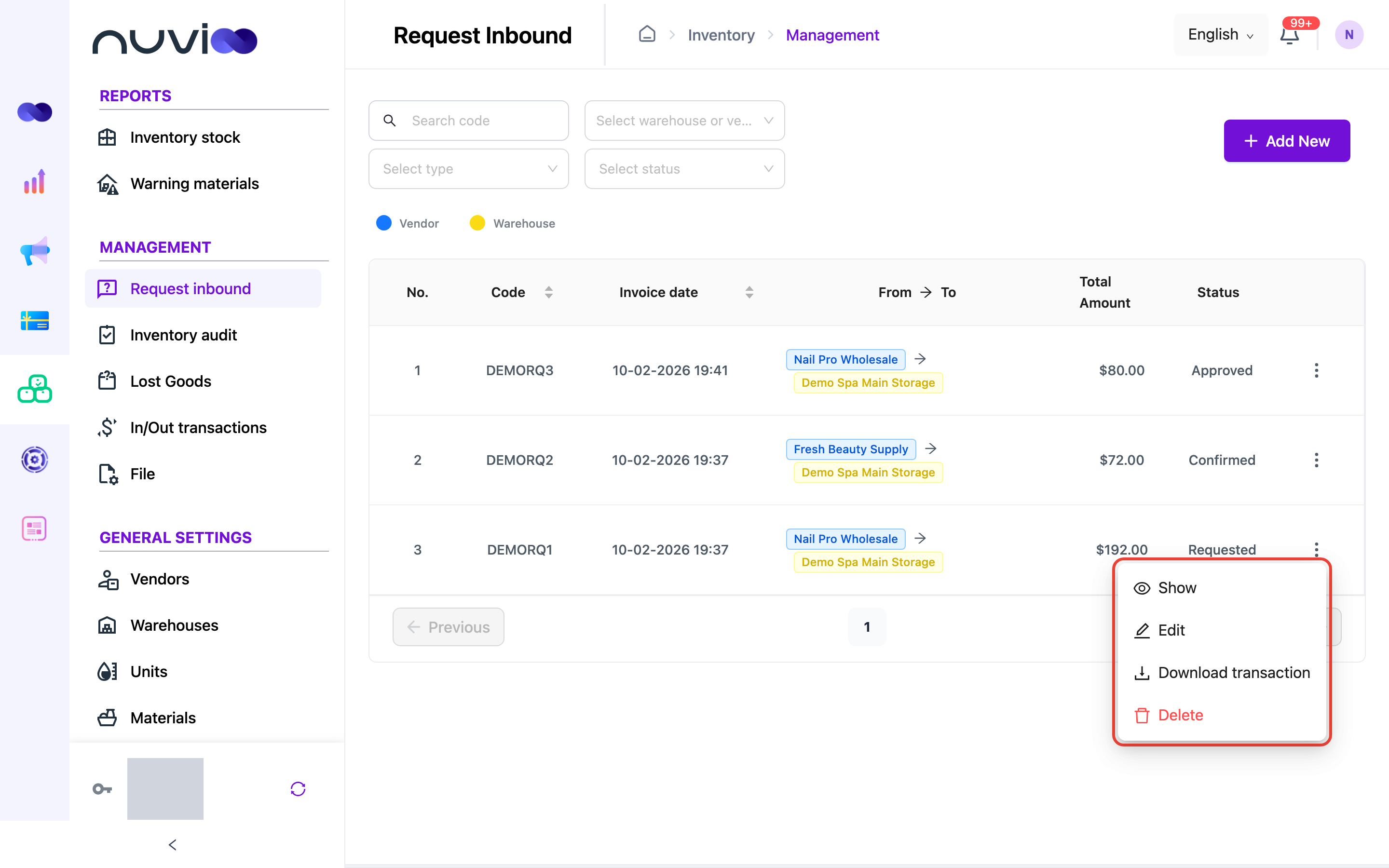
Section titled “Approve or reject a request”Click ⋮ on the request, then Show.
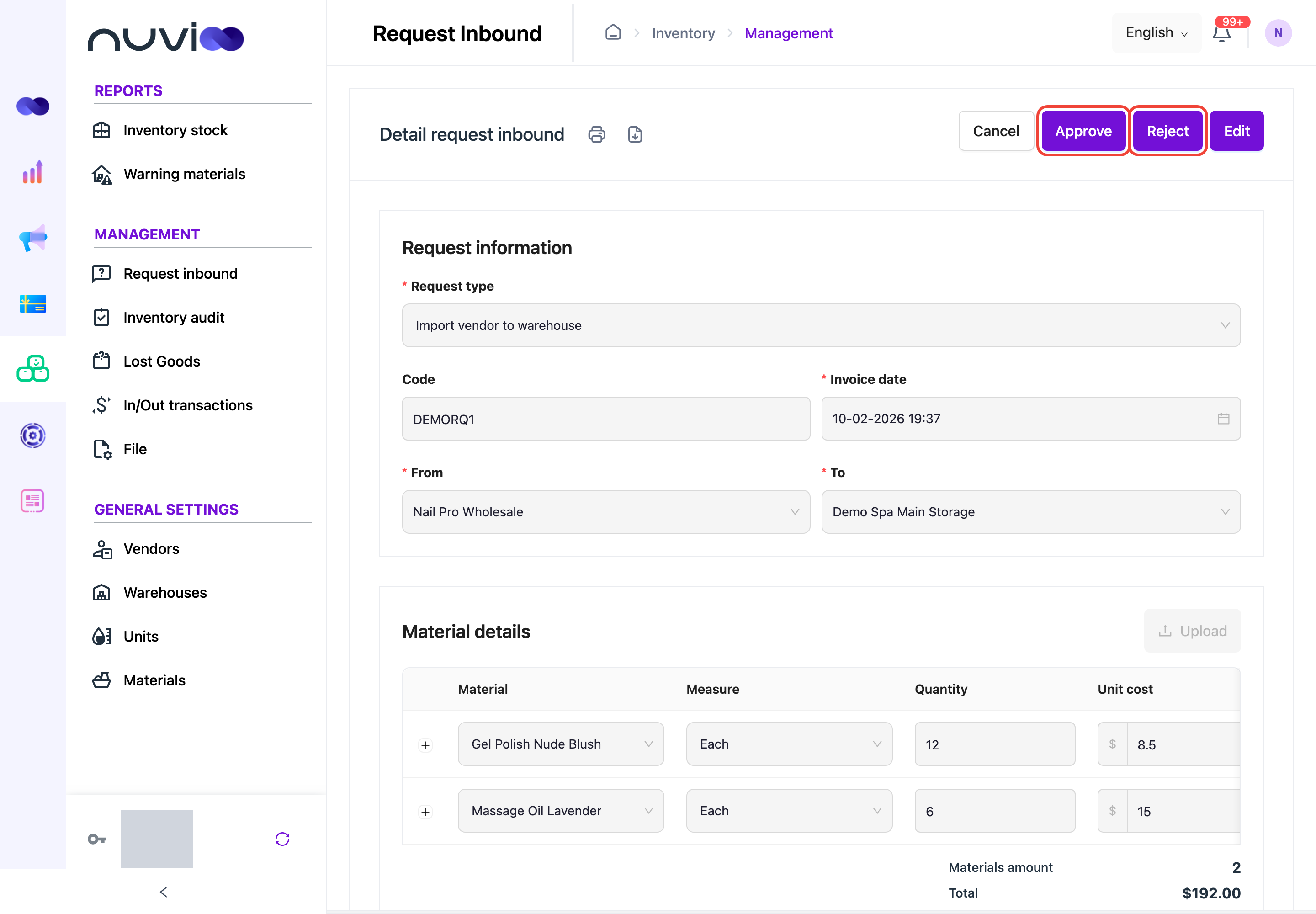
Check the details, then click Approve or Reject.
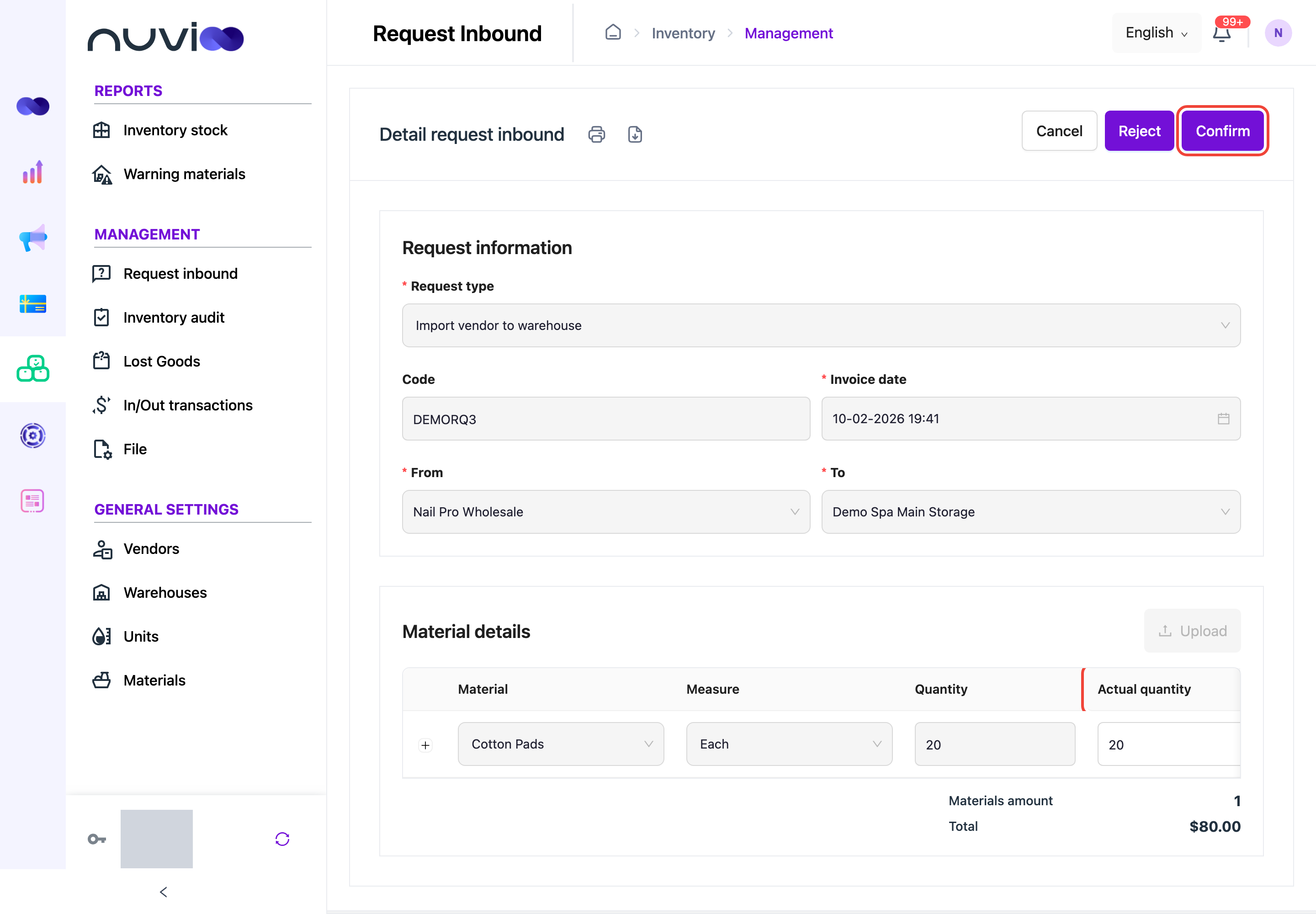
Confirm what arrived
Section titled “Confirm what arrived”When the stock arrives, open the approved request. Enter the Actual quantity for each material. It can differ from what was requested. Then click Confirm.
Other actions
Section titled “Other actions”- Edit and Delete are available only while a request is Requested.
- Download transaction downloads the request as a file.