Manage warehouses
A warehouse is any place where you keep stock: a storage room, a cold room, or a shop. Every stock movement goes into or out of a warehouse.
Add a warehouse
Section titled “Add a warehouse”Open Warehouses
In the sidebar, under General settings, click Warehouses, then click Add New.
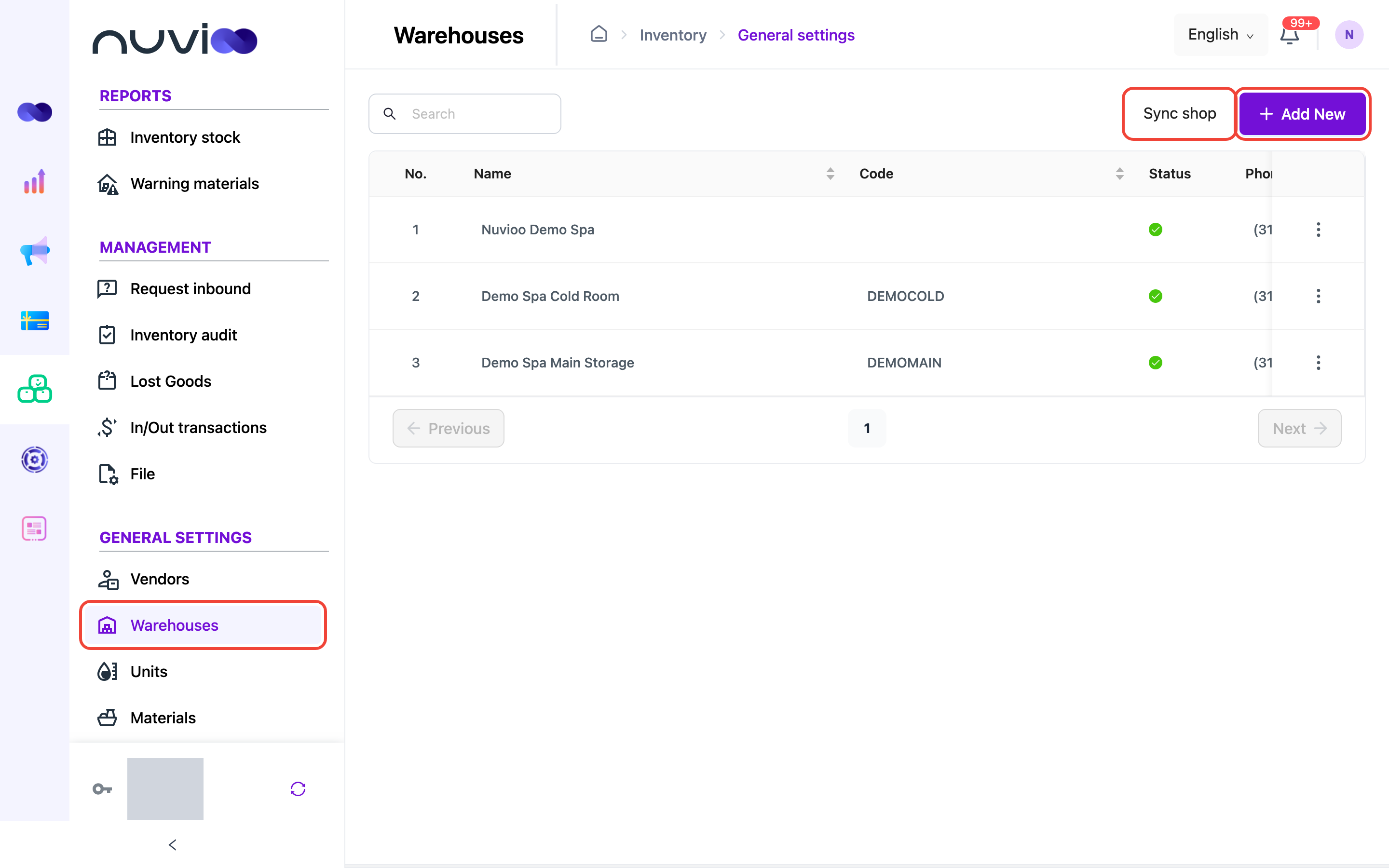
The Warehouses list Enter the warehouse details
In Create Warehouse, fill in the fields. Fields marked with a red asterisk (*) are required.
Field What to enter Status of the warehouse Active (default) or Inactive. Name * A unique name, for example “Back room”. Code Up to 25 letters, numbers or hyphens, with no spaces. It must be unique. Select country, Select state, Select city * Choose the country first, then the state, then the city. Postal code * A 5-digit US ZIP code, optionally with the 4-digit extension. Address * The street address. Phone Number * A 10-digit phone number. 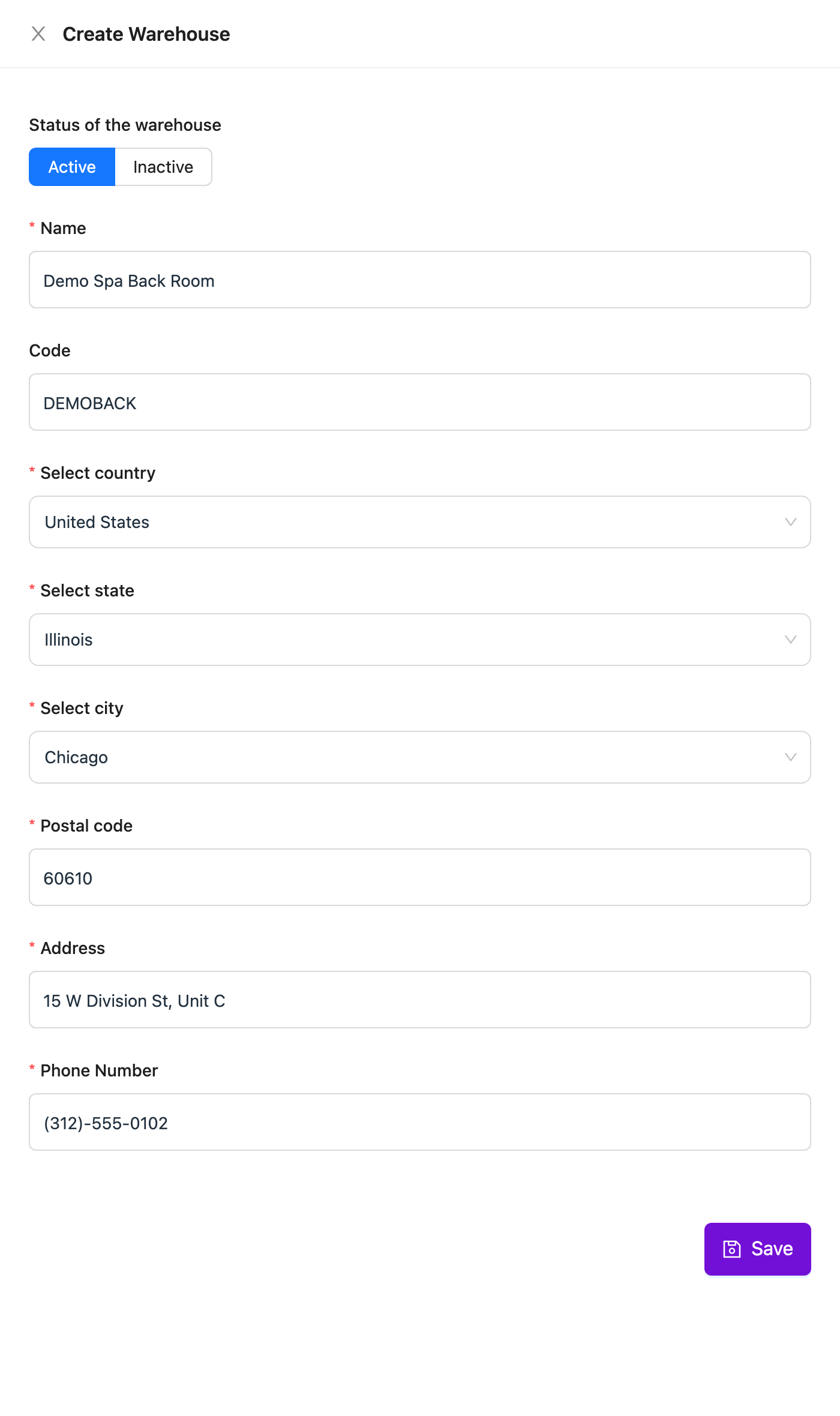
Create Warehouse form Save
Click Save. The warehouse appears in the list.
Add your POS locations as warehouses
Section titled “Add your POS locations as warehouses”If you use Nuvioo POS, click Sync shop. Each POS location is added as a warehouse, so stock used by POS orders is tracked there. Synced warehouses cannot be edited or deleted in Inventory.
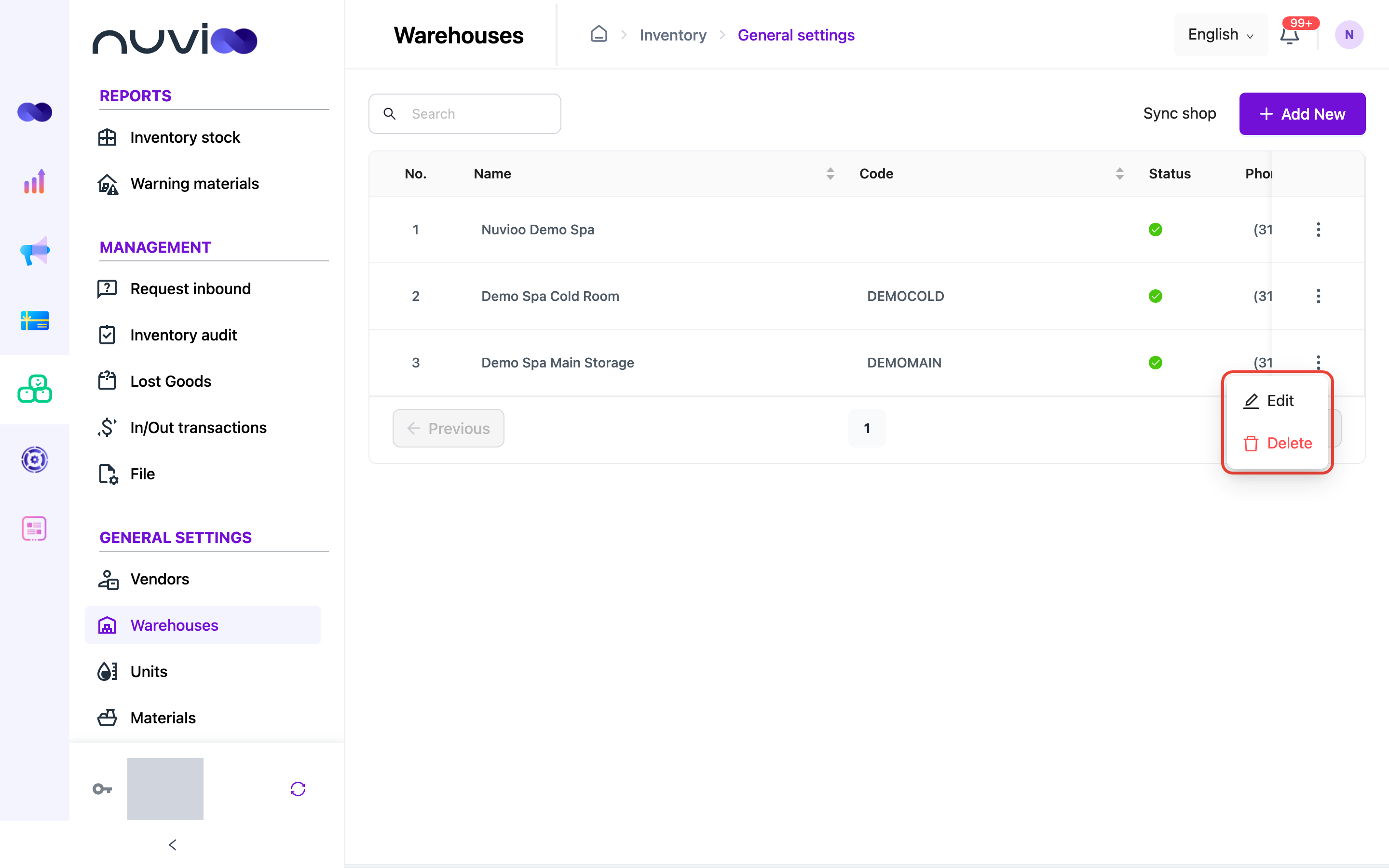
Edit or delete a warehouse
Section titled “Edit or delete a warehouse”Click ⋮ at the end of the warehouse’s row, then choose Edit or Delete.