

In/Out transactions
In/Out transactions record a stock movement straight away, without approval. To require approval first, use Request inbound.
The list also shows movements created elsewhere, such as lost goods, audit balances and POS orders. Colored tags show the source and destination type.
View transactions
Section titled “View transactions”In the sidebar, under Management, click In/Out transactions. The list shows the last 7 days. To change the period, click the date range and pick a preset such as This year. You can also search by code or material, and filter by type, source or destination.
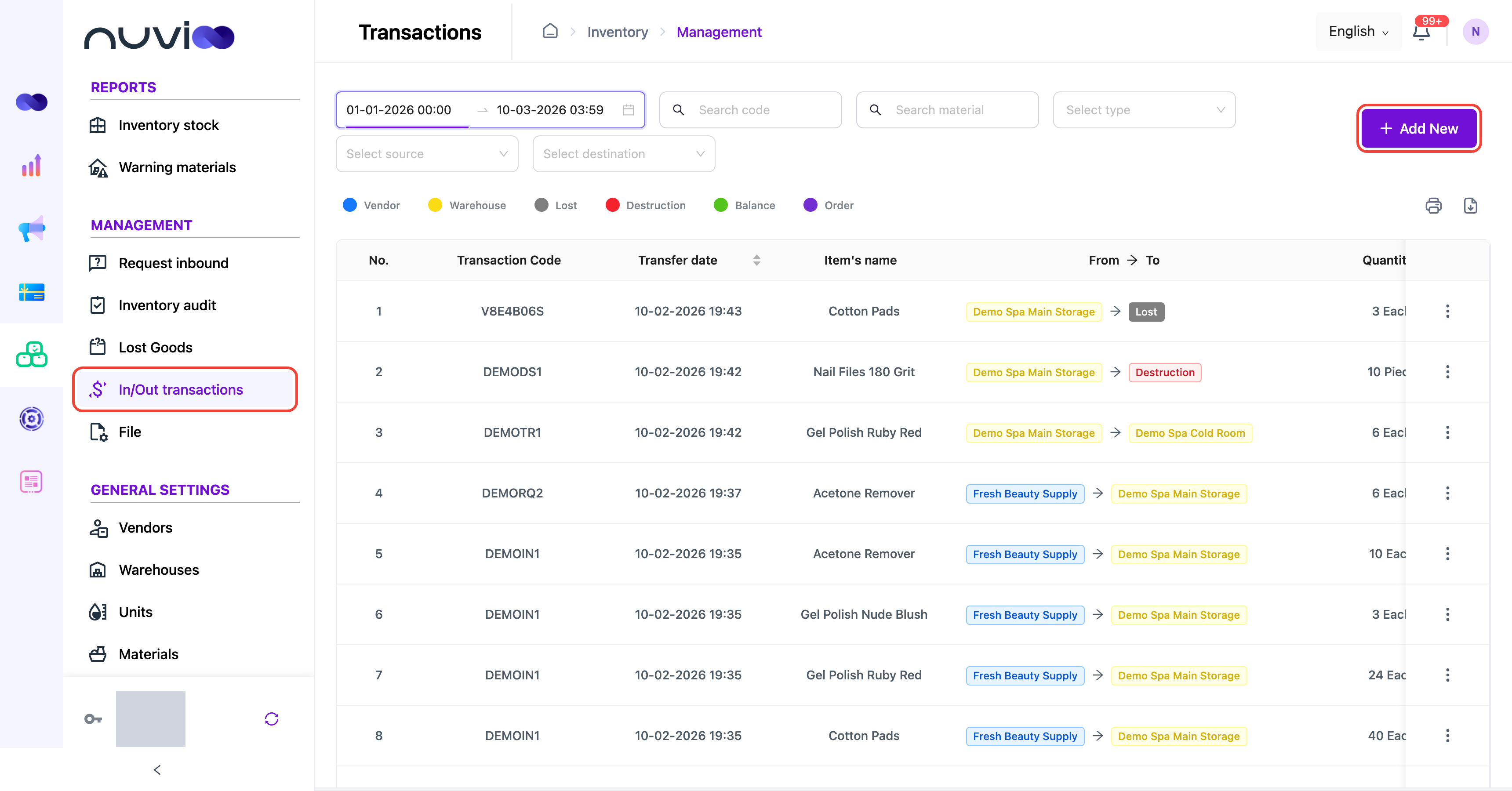
Record a transaction
Section titled “Record a transaction”Start a new transaction
Click Add New.
Choose the reason and the warehouses
Field What to enter Choose reason of the form * Import vendor to warehouse, Return from warehouse to vendor, Distribution from warehouse to retail location, or Transfer warehouse to destruction. Code Filled in for you. You can type your own. From * The source vendor or warehouse. Transfer date Defaults to now. Future dates are not allowed. To * The destination. For destruction it is fixed to Destruction. Add the materials
Under Material details, choose each Material, its Measure and Quantity, and the Unit cost where shown. Click Add Item for more lines, or Upload to import from Excel.
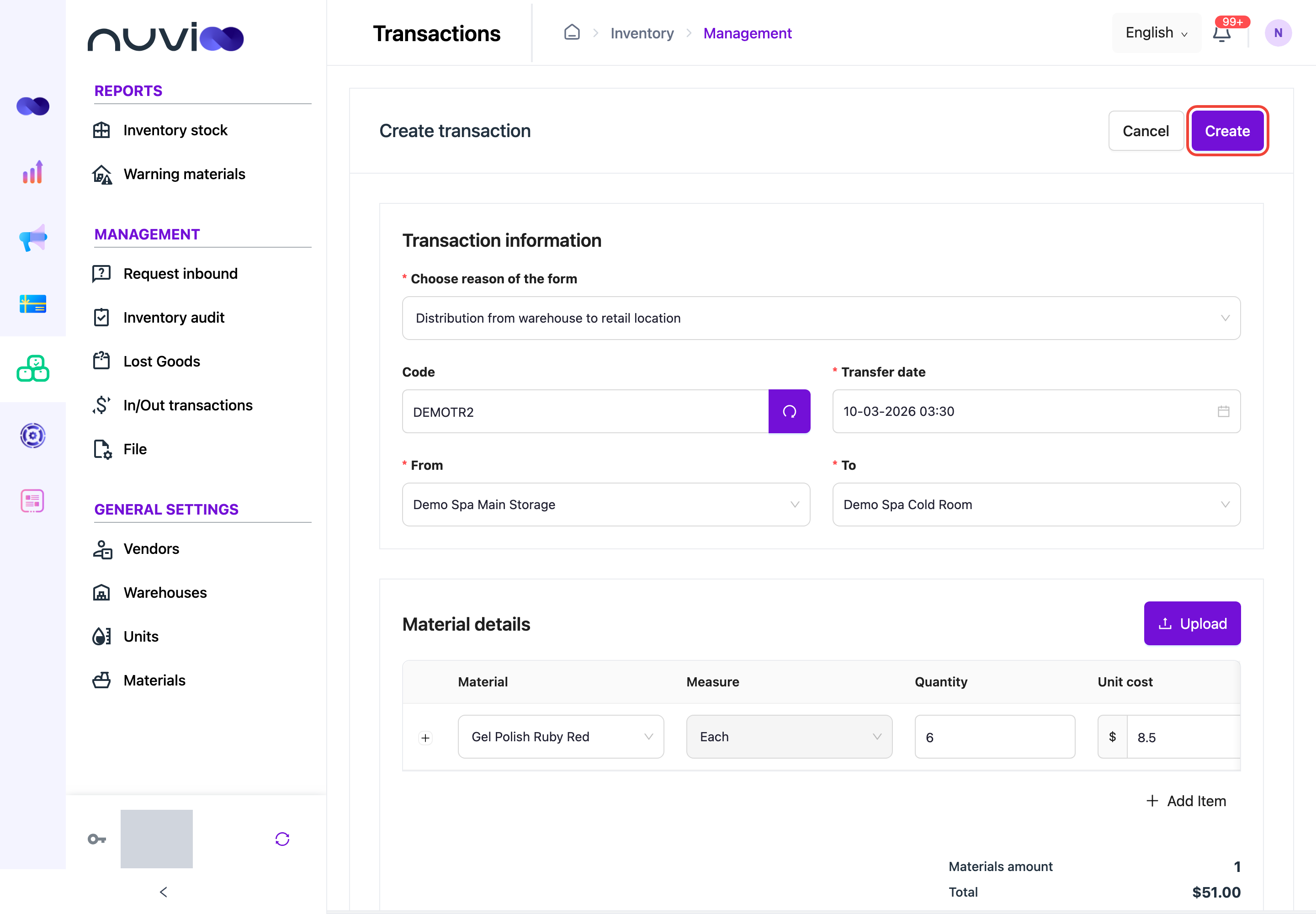
Create transaction: moving stock between warehouses Create
Click Create. Stock changes immediately.