

Manage materials
A material is anything you keep stock of, such as nail polish, cotton pads or massage oil. Each material has a purchase unit, the unit you buy and count it in. It can also have recipe measures, smaller units used when a service consumes part of it.
Before you start
Section titled “Before you start”- Check that the units you need exist.
Add a material
Section titled “Add a material”Open Materials
In the sidebar, under General settings, click Materials, then click Add New.
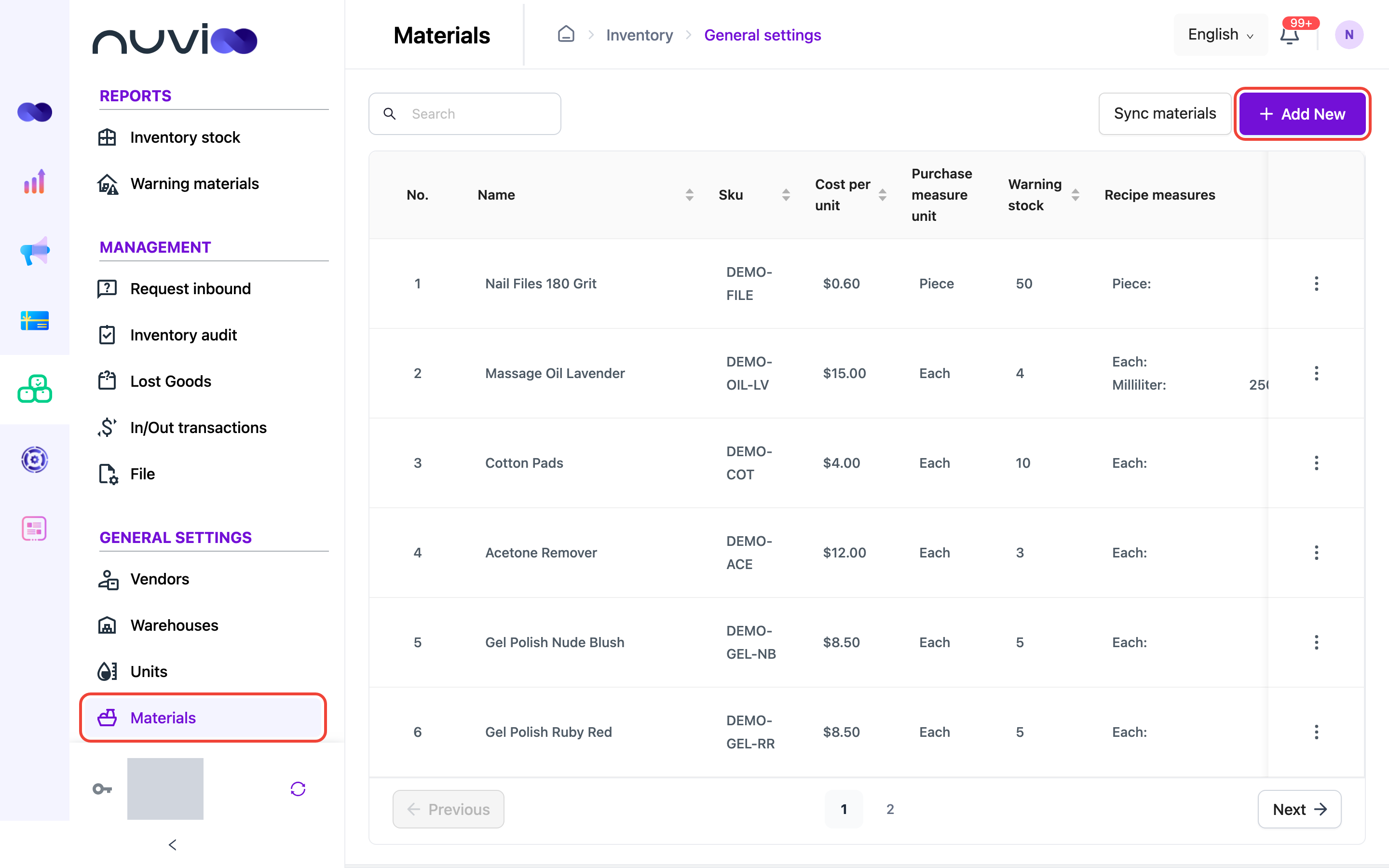
The Materials list Enter the material details
In Create Material, fill in the fields:
Field What to enter Name * The material name, for example “Cuticle Oil”. Cost per unit What one purchase unit costs you. Purchase measure unit * The unit you buy and count this material in, for example Each for a bottle. Warning stock When stock falls to this number, the material shows as Warning stock in Warning materials. Sku Your stock code, up to 25 characters. It must be unique. Status Leave Active on to use the material. 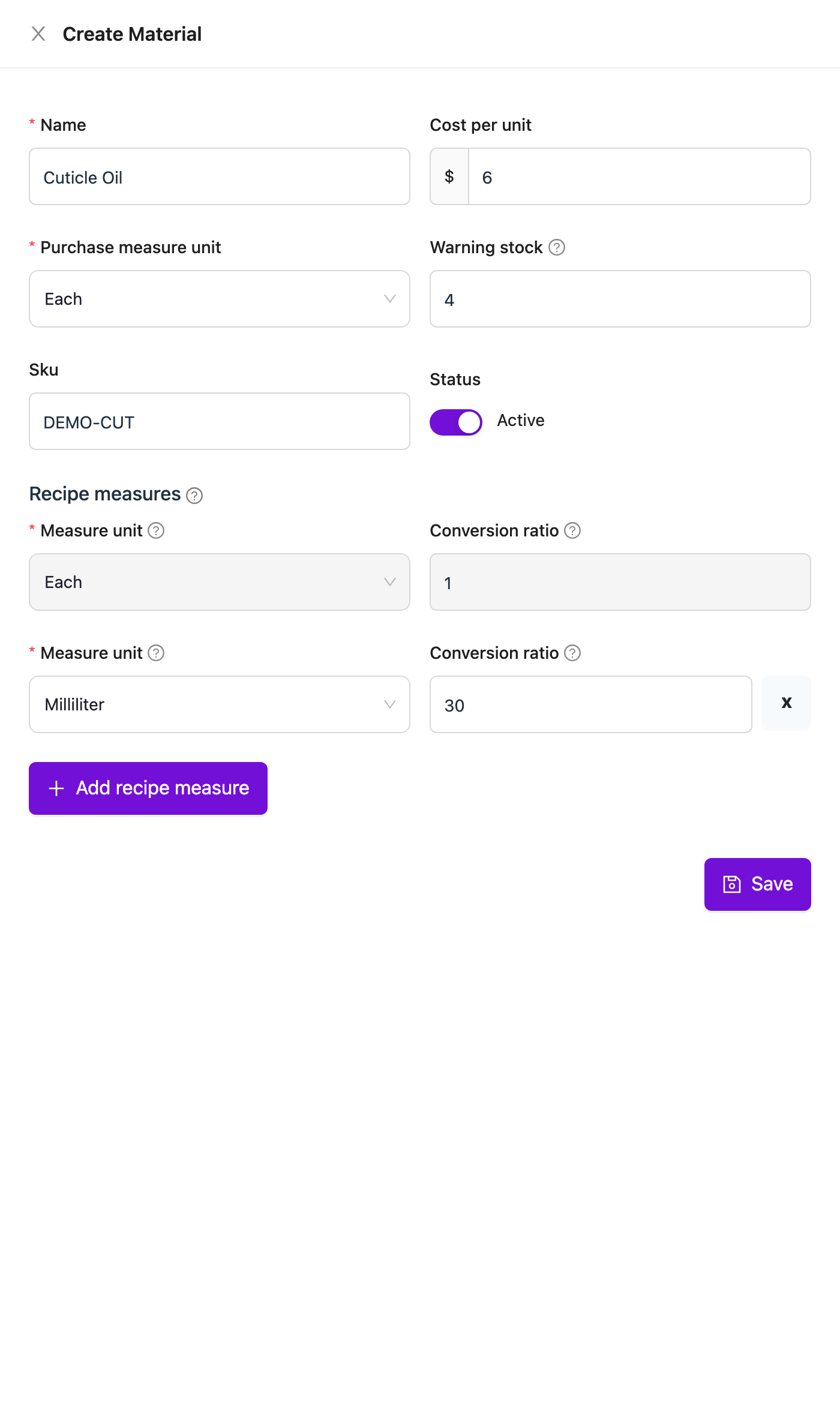
Create Material form with a recipe measure Add recipe measures (optional)
Under Recipe measures, the first row is always the purchase unit with a ratio of 1. To track partial use, click Add recipe measure, choose a Measure unit, and enter the Conversion ratio: how many of that unit make one purchase unit.
For example, a 30 ml bottle of cuticle oil bought as Each has a recipe measure of Milliliter with a ratio of 30.
Save
Click Save. The material appears in the list.
Add stock quickly with Re-stock
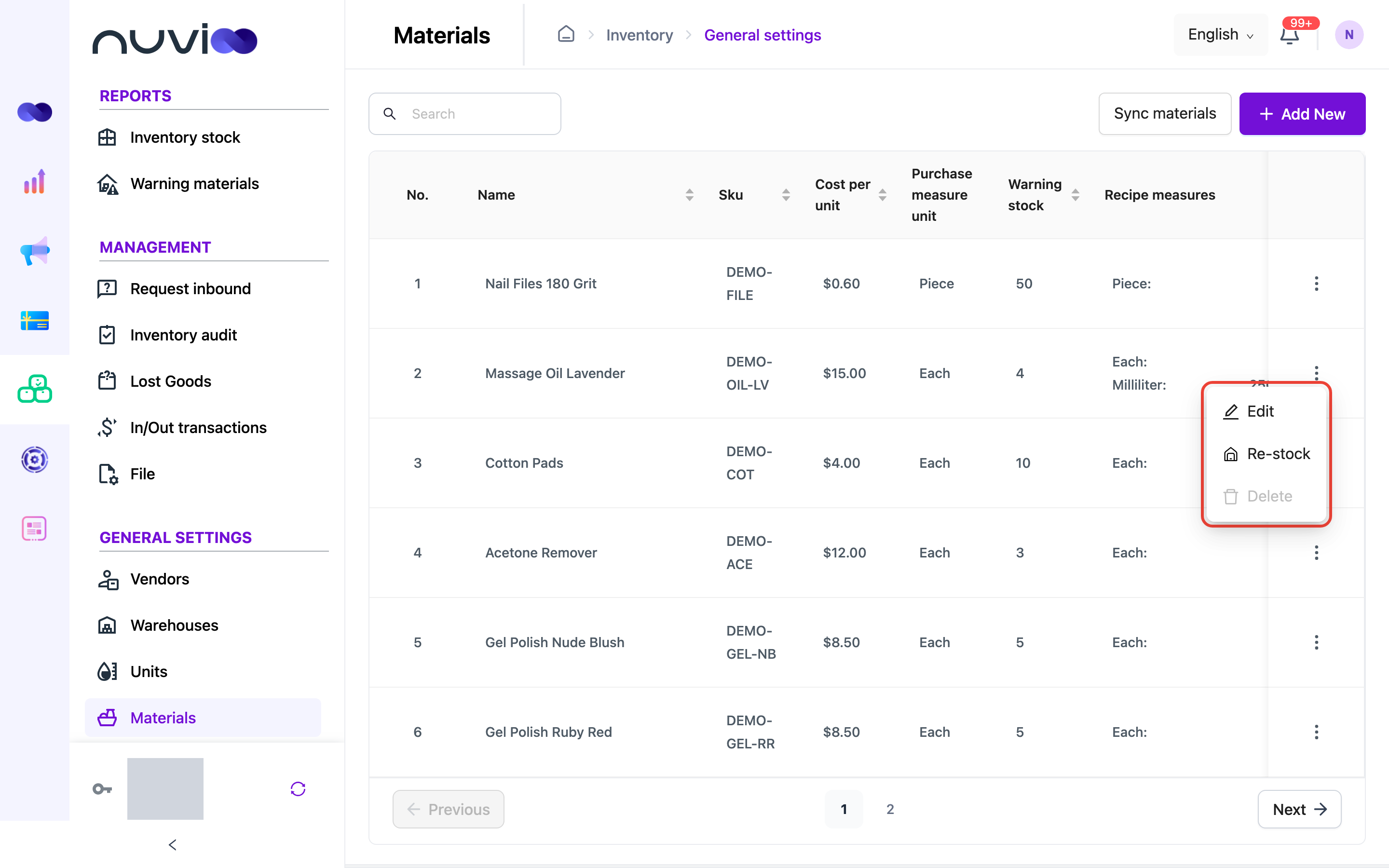
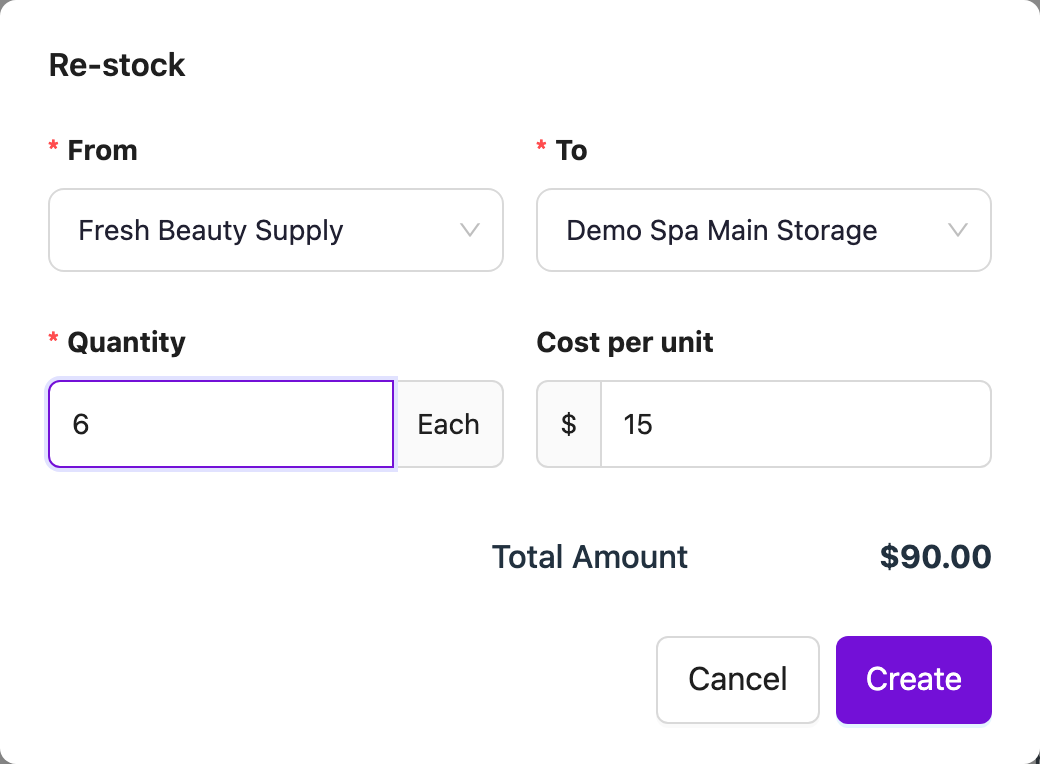
Section titled “Add stock quickly with Re-stock”To record a delivery for one material without creating a full transaction, click ⋮ on the material’s row, then Re-stock.
Choose the vendor in From and the warehouse in To, then enter the Quantity and Cost per unit. Check Total Amount, then click Create.
Edit or delete a material
Section titled “Edit or delete a material”Click ⋮ on the material’s row, then choose Edit or Delete. You cannot delete a material that has stock movements or is used in a recipe.