

Find your way around Nuvioo
Every Nuvioo page has the same layout: a module rail and sidebar on the left, and a header across the top.
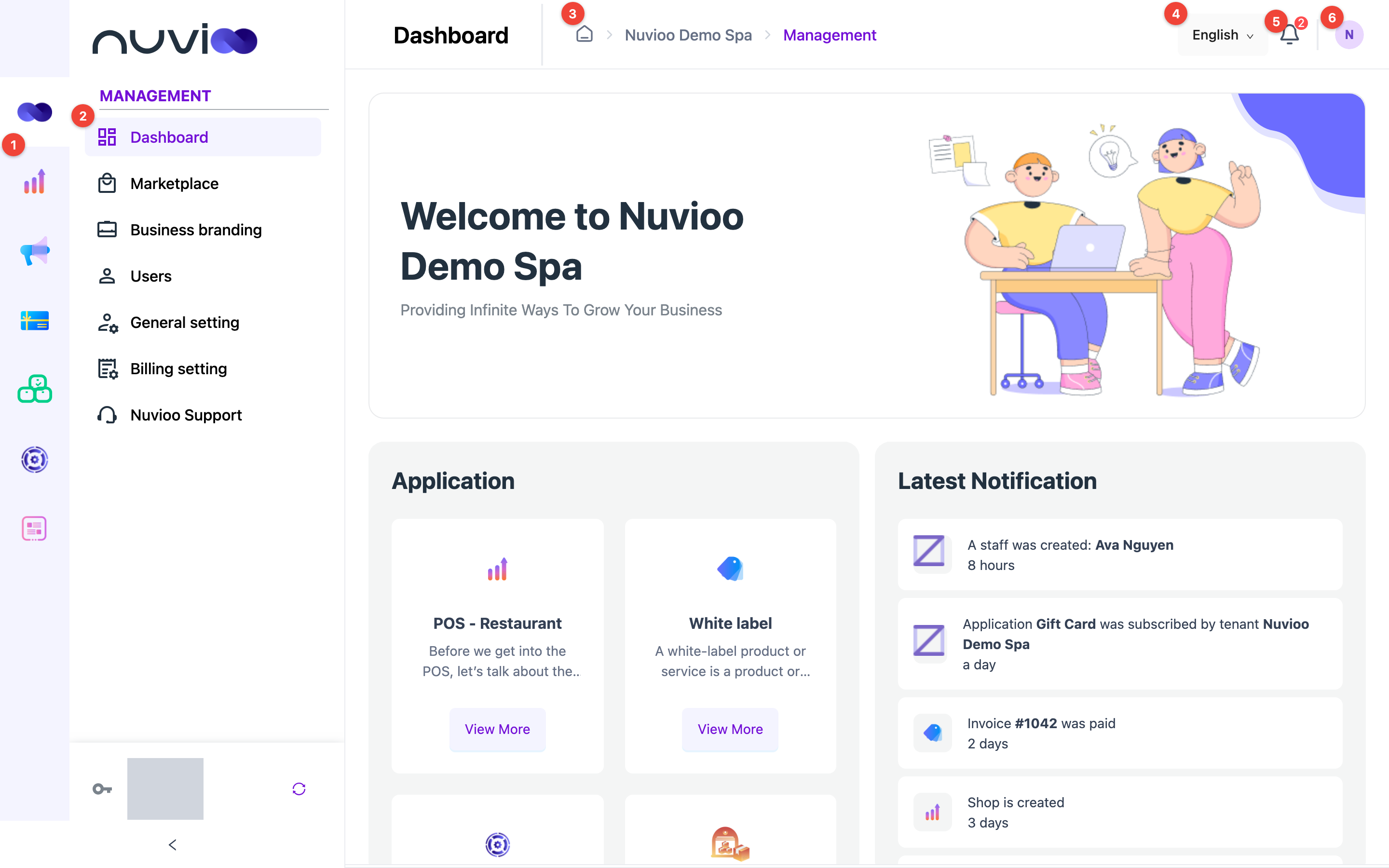
- Module rail: switch between modules. Hover over an icon to see its name. You only see the modules your business uses and your role can open.
- Sidebar: the pages of the module you’re in, grouped under headings such as Management or Reports.
- Page title and breadcrumbs: where you are. Click the home icon to go back to the dashboard.
- Language: switch between English and Vietnamese.
- Notifications: the bell shows how many notifications you haven’t read.
- Profile: your profile and Logout.
Switch modules
Section titled “Switch modules”Click an icon in the rail to switch the sidebar to that module. From top to bottom:
| Icon | Module | Sidebar shows |
|---|---|---|
| Your business logo | Management | Dashboard, Marketplace, settings |
| POS | POS | Reports, menu, shop, employees, settings |
| CRM (customers and rewards) | CRM loyalty | Customers, E vouchers, Triggers |
| Gift card | Gift card | Gift cards, codes, transactions |
| Inventory | Inventory | Stock reports, requests, audits, settings |
| CRM (sales and calendar) | CRM | Calendar, contacts, deals, quotes, invoices |
| CMS | CMS | Sites and forms |
You only see the modules your business has and your role can open.
To make more room, click the arrow at the bottom of the sidebar to collapse it. Hover over the collapsed sidebar to open it again.
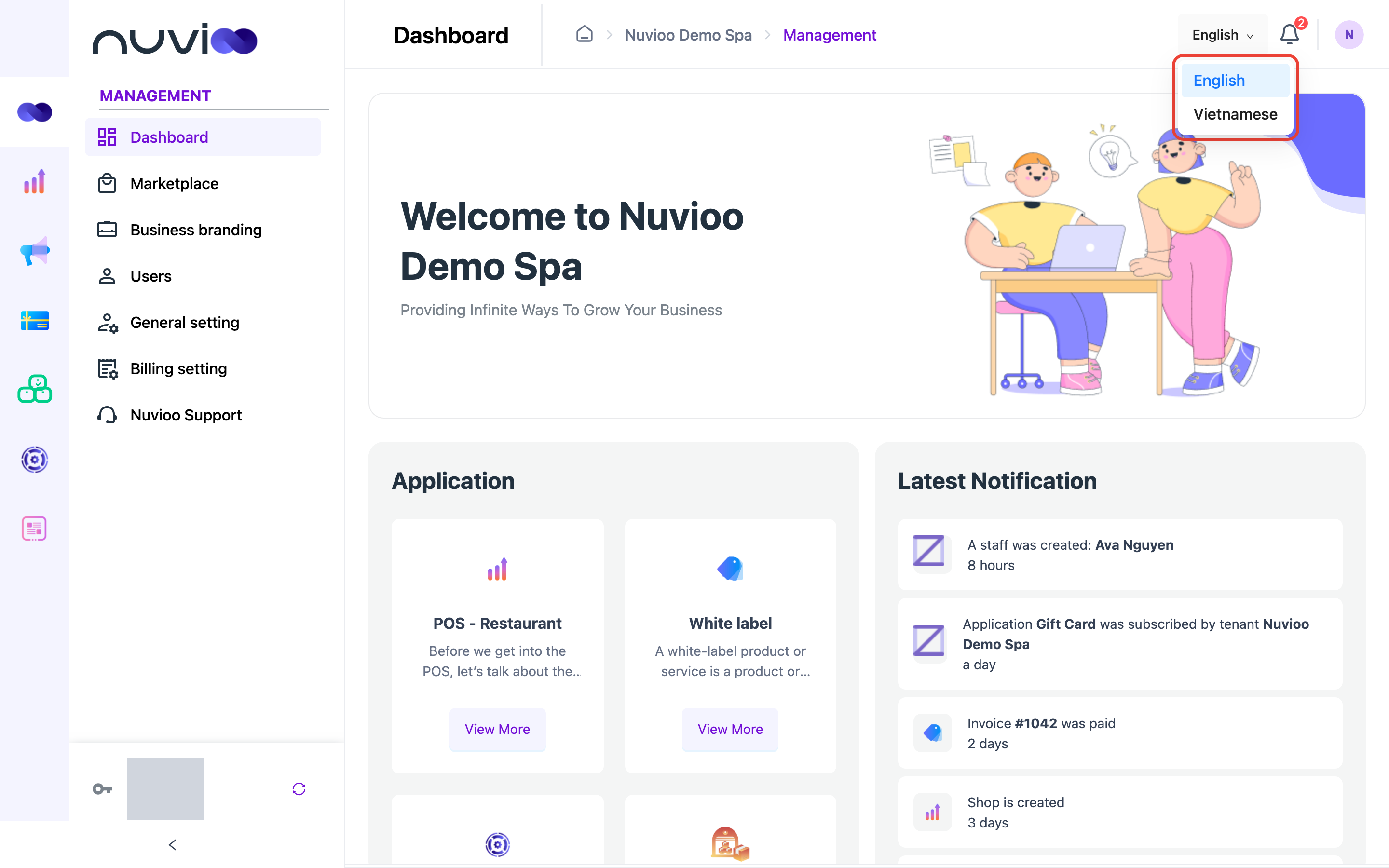
Change the language
Section titled “Change the language”Click the language button in the header and choose English or Vietnamese. The page reloads in the new language.
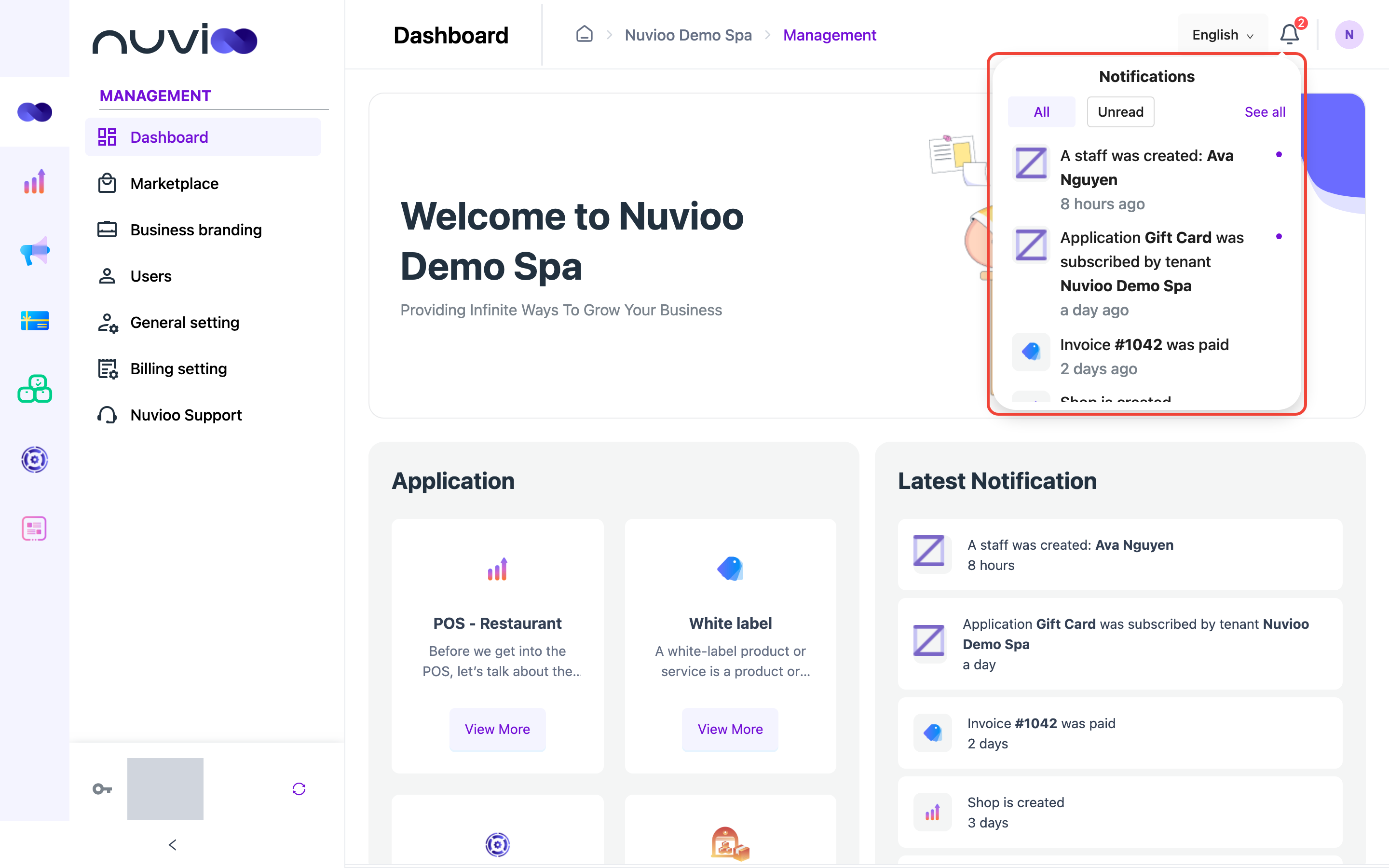
Read notifications
Section titled “Read notifications”Click the bell. Choose All or Unread. Click a notification to open the record it’s about; it’s marked as read. Click See all to open the Notifications page.
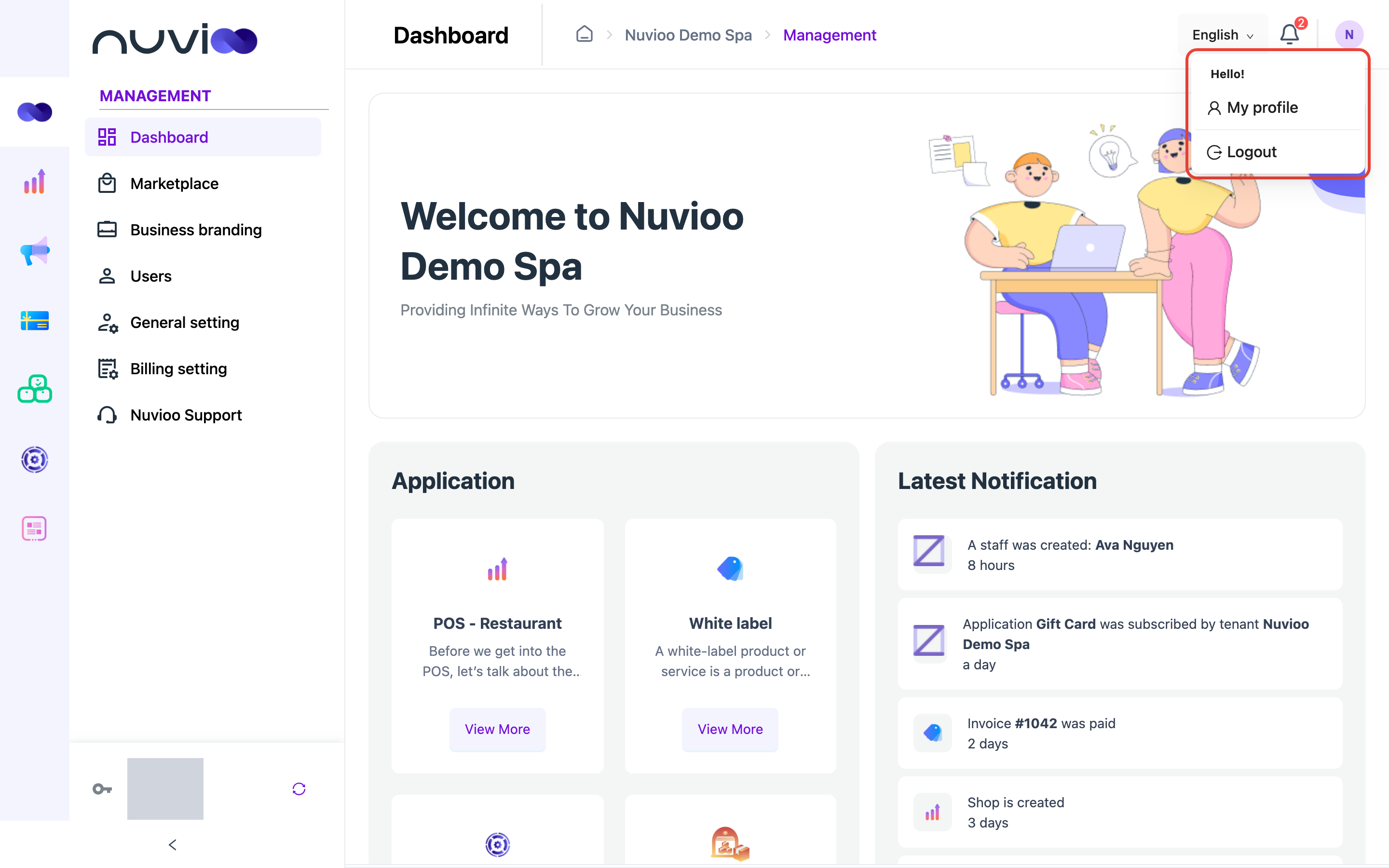
Your profile and logging out
Section titled “Your profile and logging out”Click your picture at the top right. Choose My profile to edit your details and password, see My profile, or Logout to sign out.
Your Support PIN
Section titled “Your Support PIN”Your Support PIN is at the bottom of the sidebar. Nuvioo Support asks for it to confirm it’s you when you call or chat.
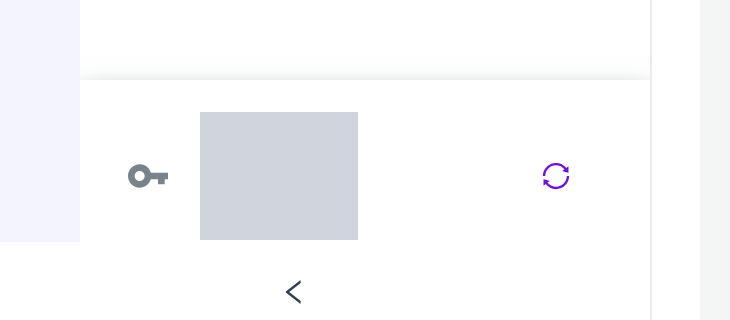
- Click the PIN to copy it.
- Click the refresh button to create a new PIN. Your old PIN stops working straight away. Do this if you think someone else knows your PIN.