

Subscribe to apps in the Marketplace
The Marketplace lists every Nuvioo app, such as POS, CRM, Gift card, Inventory and CMS. Each app has its own plans, its own subscription and its own invoices. Subscribing to an app adds it to your Nuvioo for your whole team.
Find an app
Section titled “Find an app”In the sidebar, under Management, click Marketplace. Type in Search Applications to find an app. Each card shows the app’s category, a short description and the starting price.
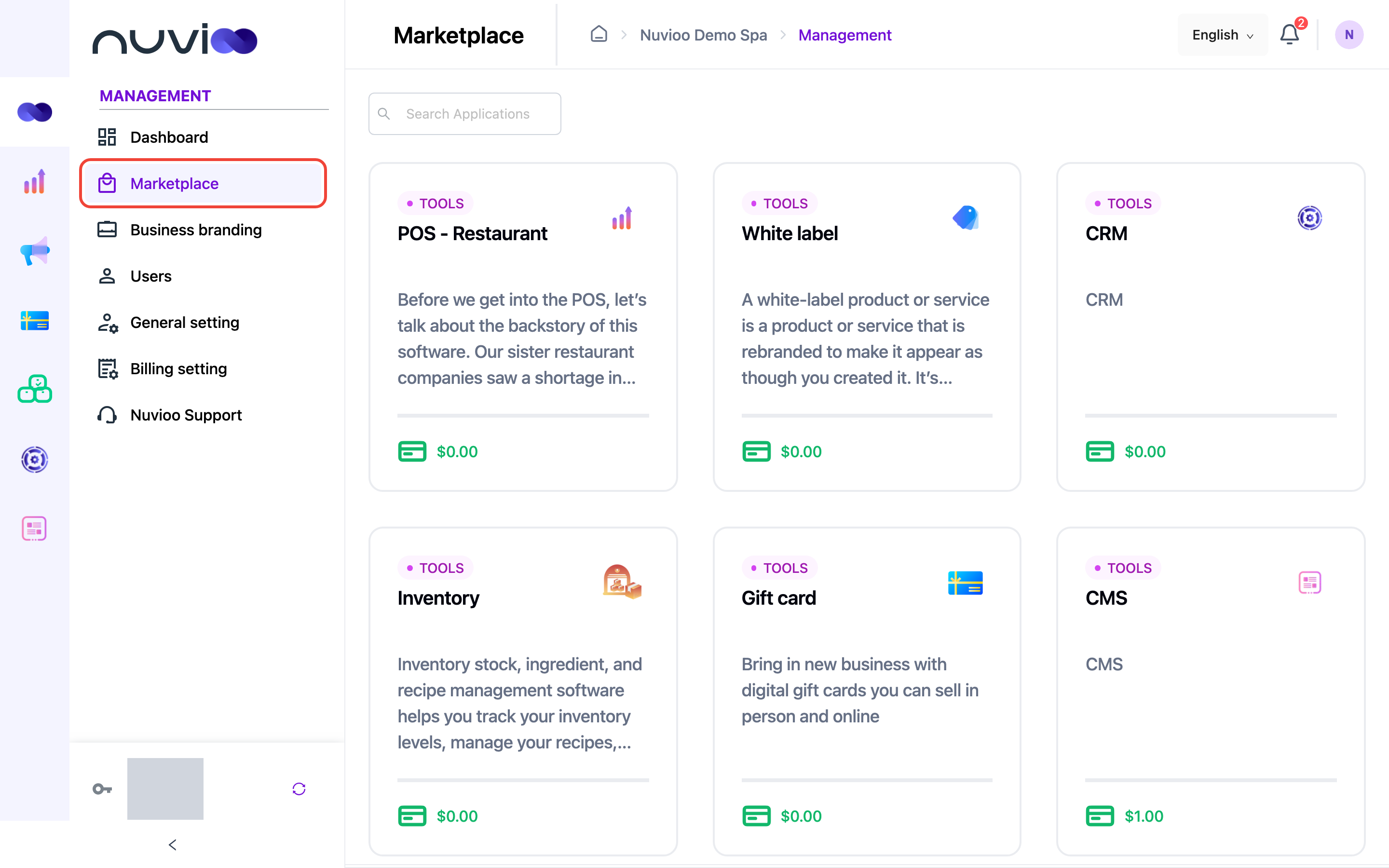
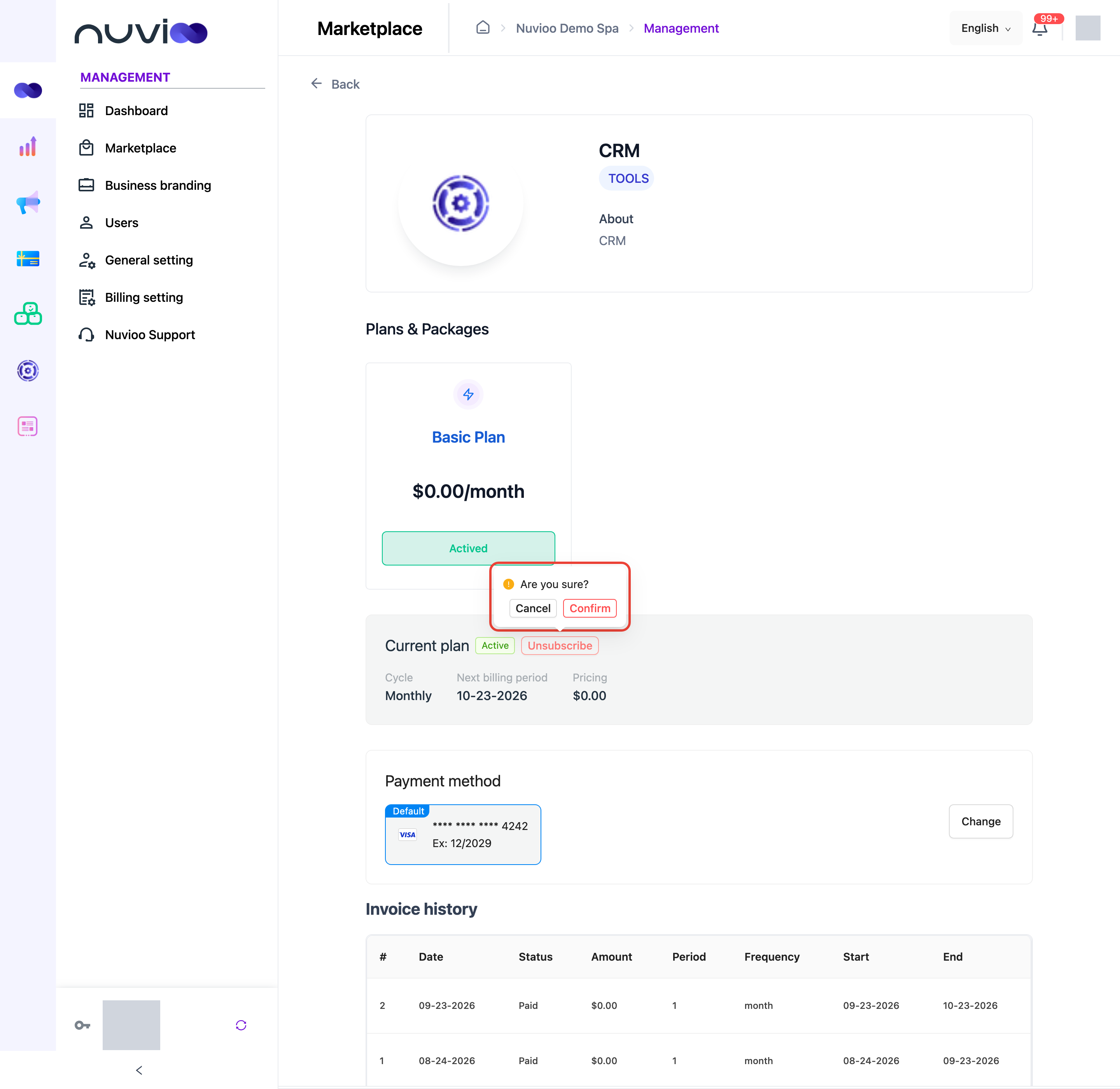
Click a card to open the app’s page: About, Plans & Packages, and, once you subscribe, Current plan, Payment method and Invoice history.
Before you subscribe
Section titled “Before you subscribe”You need a default card. Add one in Billing setting first: the first card you add becomes the default. Without a default card, the Payment window has no Subscribe button.
Subscribe to a plan
Section titled “Subscribe to a plan”Choose a plan
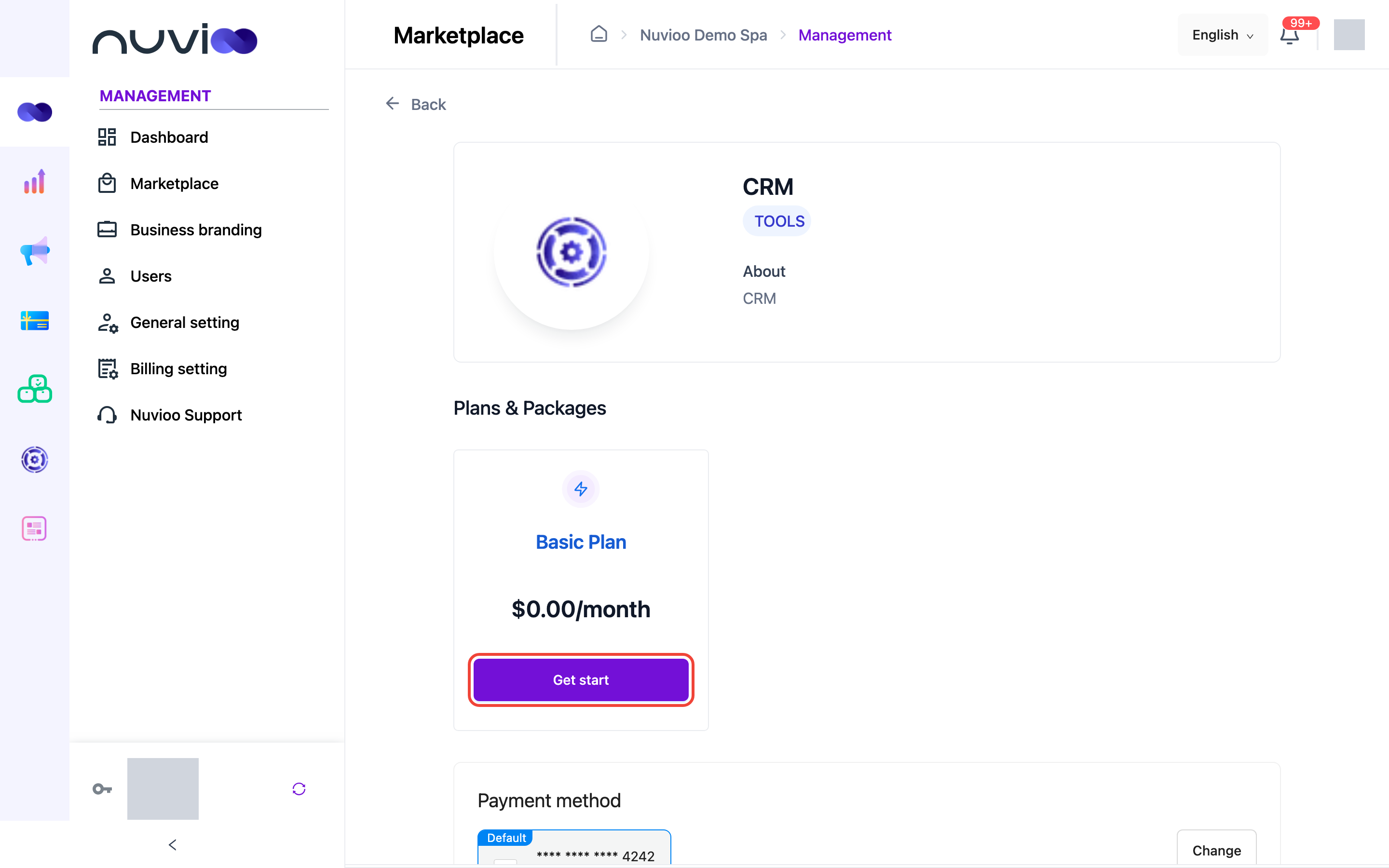
On the app’s page, under Plans & Packages, find the plan you want. Each plan shows its price and how often it’s billed, for example $0.00/month. Click Get start.
Check the payment
The Payment window shows the plan, its Cycle (Monthly, Yearly or Daily), the Pricing, and the default card under Payment method.
If the plan has a free trial and this is your first subscription to the app, the price is crossed out and the trial shows, for example 30 Days Trial $0.00: you pay nothing during the trial, and the plan’s price applies after it.
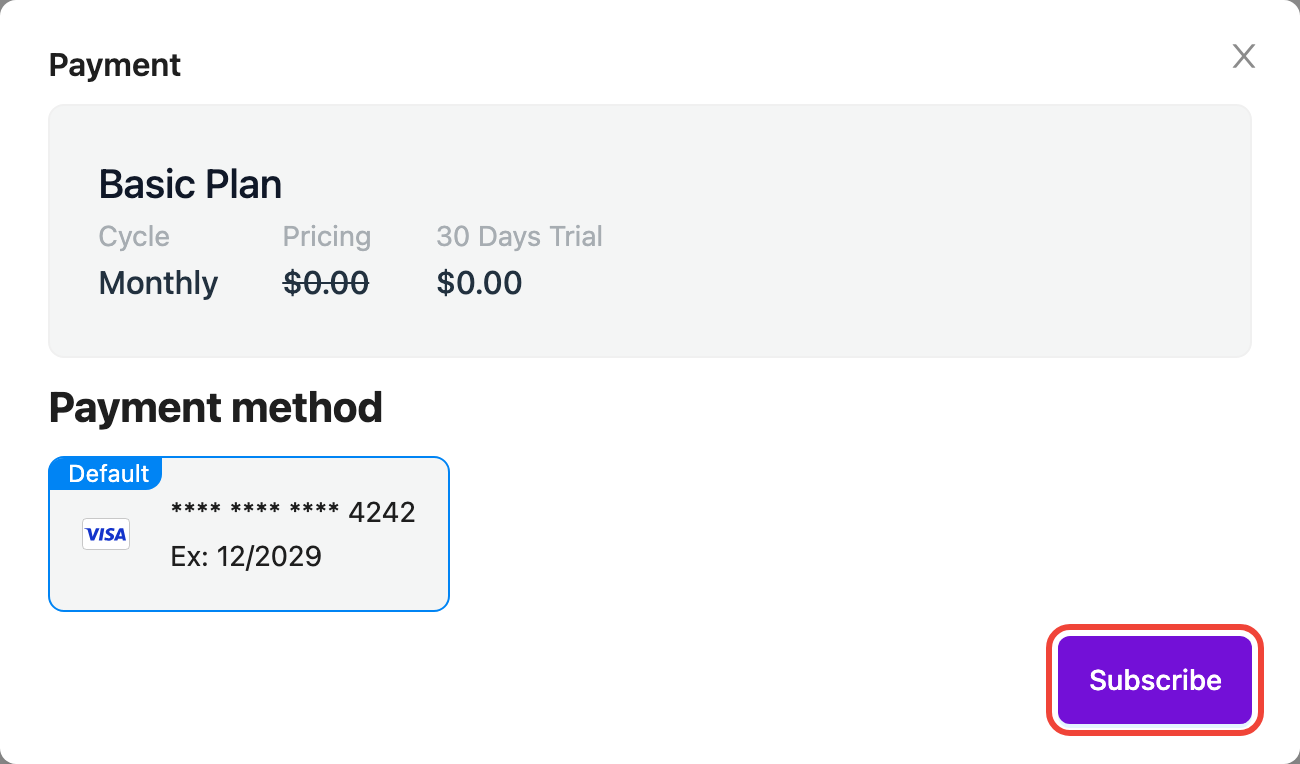
To use another card, close the window, change your default card in Billing setting, and come back.
Subscribe
Click Subscribe. You see Subscribed successfully, the page reloads, and the app appears in your module bar for your team. See Navigation.
If subscribing fails, you see one of these messages:
| Message | What to do |
|---|---|
| Payment failed | The card was declined. Check the card or make another card the default in Billing setting, then try again. |
| No default payment method | Add a card, or make one the default, in Billing setting. |
| Subscription already exist | You already have a subscription to this app. Reload the page to see it under Current plan. |
Check your plan and invoices
Section titled “Check your plan and invoices”After you subscribe, the app’s page shows your subscription.
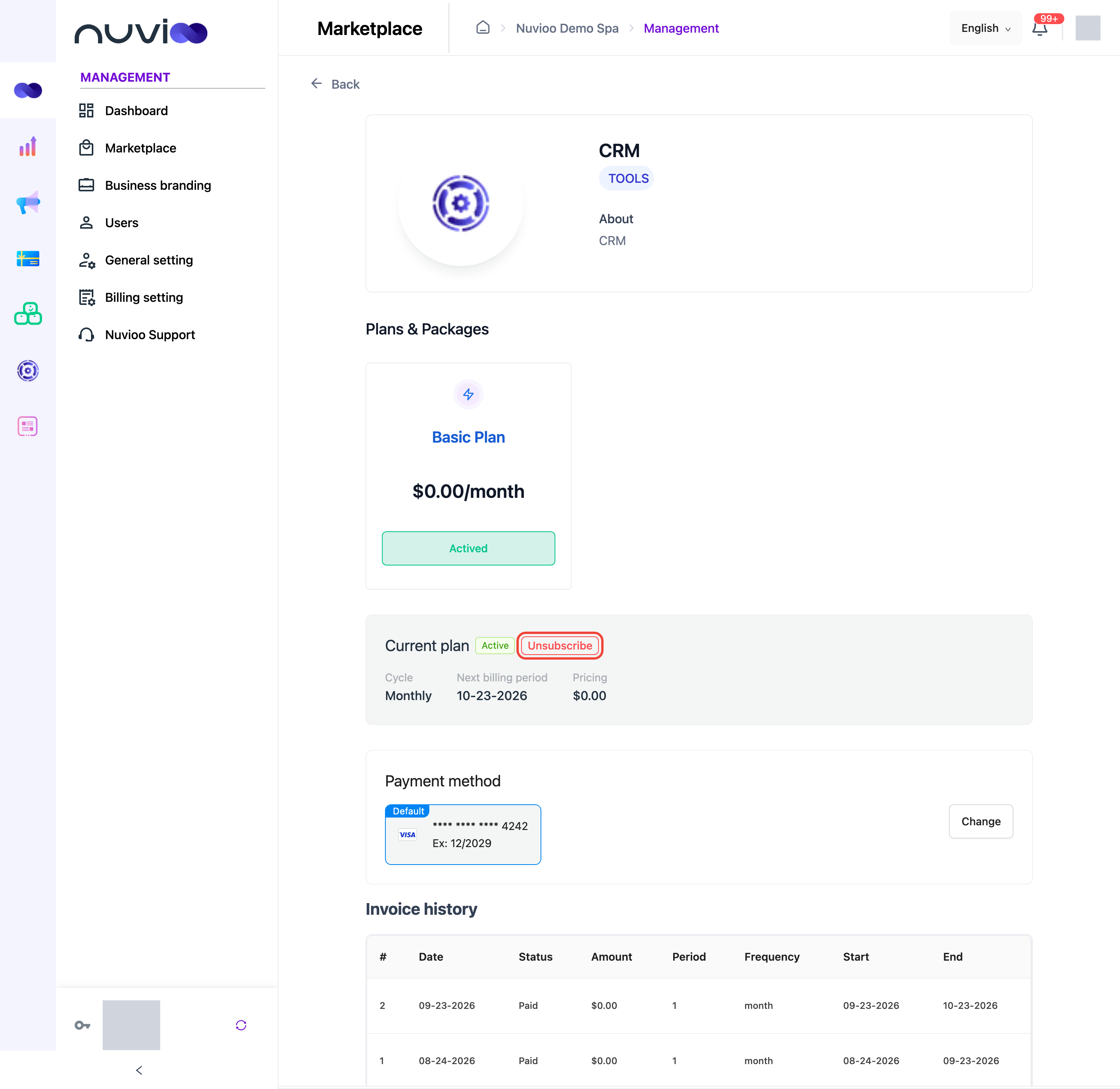
- Plans & Packages: your plan’s button reads Actived. While a plan is active, the other plans’ Get start buttons are turned off.
- Current plan: Trial or Active, the Cycle, the Next billing period (when you’re charged next) and the Pricing.
- Payment method: the default card used for this app. Change opens Billing setting.
- Invoice history: one row per invoice.
| Column | What it shows |
|---|---|
| # | The invoice number. |
| Date | When the invoice was created. |
| Status | Paid, Open (not paid yet), Draft, Void, Uncollectible or Deleted. |
| Amount | What was charged. |
| Period and Frequency | The billing cycle, for example 1 month. |
| Start and End | The period the invoice covers. |
To move to a different plan, contact Nuvioo Support. Plans can’t be switched from this page while one is active.
Unsubscribe
Section titled “Unsubscribe”Start
Under Current plan, click Unsubscribe.
Confirm
In Are you sure?, click Confirm, or Cancel to keep the plan.
The app keeps working until the end of the period you paid for. Next billing period changes to Will cancel at with that date, and Unsubscribe disappears.