

Sites
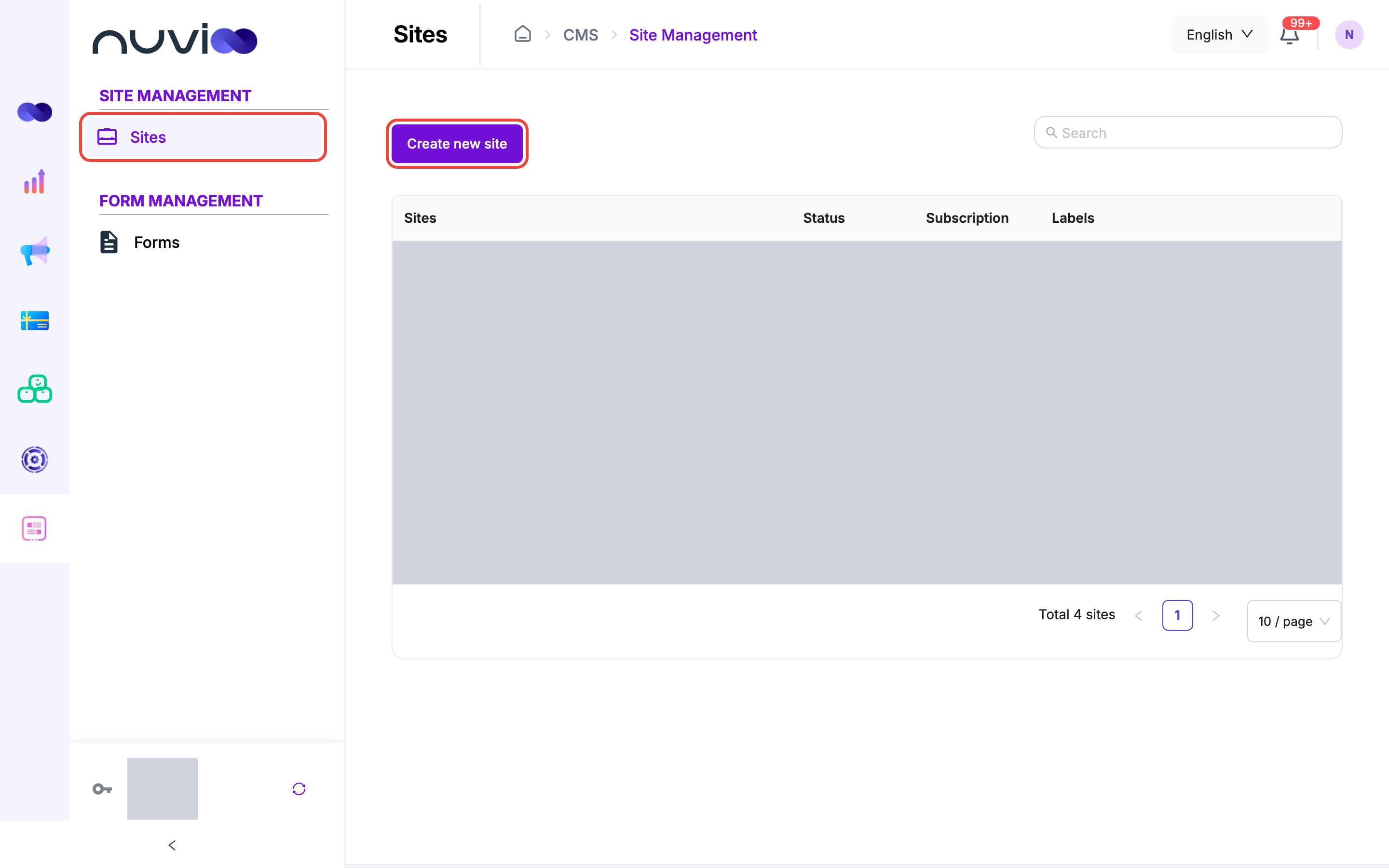
In the sidebar, under Site Management, click Sites to see your websites with their status and subscription.
The Sites list
Section titled “The Sites list”The list shows one row per site. Use Search (top right) to find a site by name. The list is paged, and the footer shows Total N sites and a page-size selector.
| Column | What it shows |
|---|---|
| Sites | A thumbnail, the site’s address prefix, and its name. A site that isn’t published yet shows Site not published under the address. While a site is still being created, the address reads Generating site…. |
| Status | Published, Unpublished or Generating…. A site that was never published also shows Unpublished. |
| Subscription | A plan label. It reads Business+ for every site. |
| Labels | Tags on the site. Sites created with the AI generator get an AI label. |
The icons next to the site name open the site in a new tab:
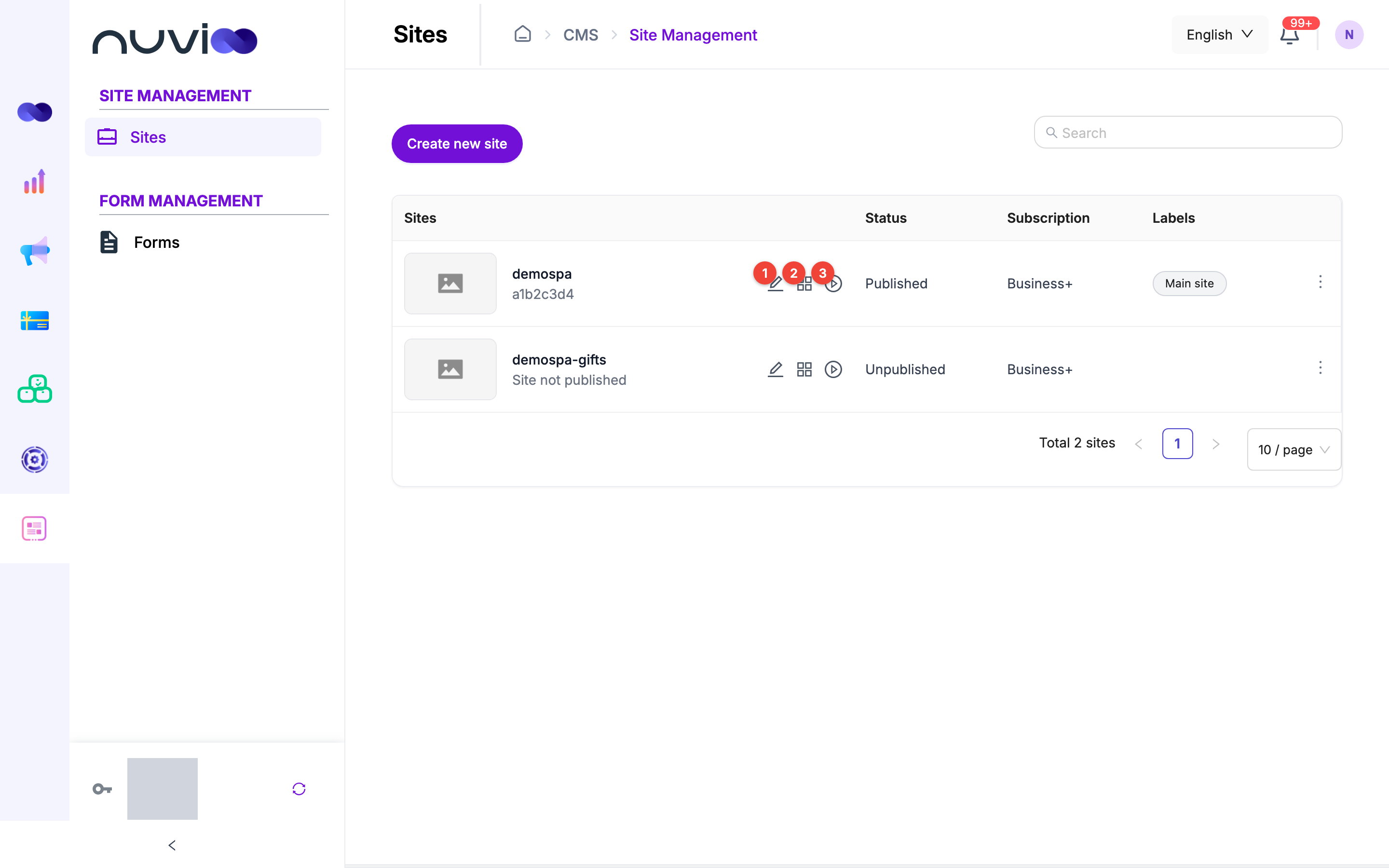
- Edit: open the site editor to change pages, text, images and forms.
- Dashboard: open the site’s overview in the site editor.
- Preview: see the site as visitors will.
Edit and Dashboard appear once the site has a name. Preview appears once the site has a preview address, so a site that is still generating may show fewer icons.
The editor opens in a new tab and signs you in automatically. When you come back to Sites, the list refreshes and a message confirms your changes were saved.
Create a site
Section titled “Create a site”Click Create new site. In the Create site dialog, choose how to start:
| Option | Button | What happens |
|---|---|---|
| Do it yourself | Get started with a template | Opens the template gallery. |
| Let us do it for you | Create site using AI | Opens the AI site generator. |
Create a site from a template
Section titled “Create a site from a template”Find a template
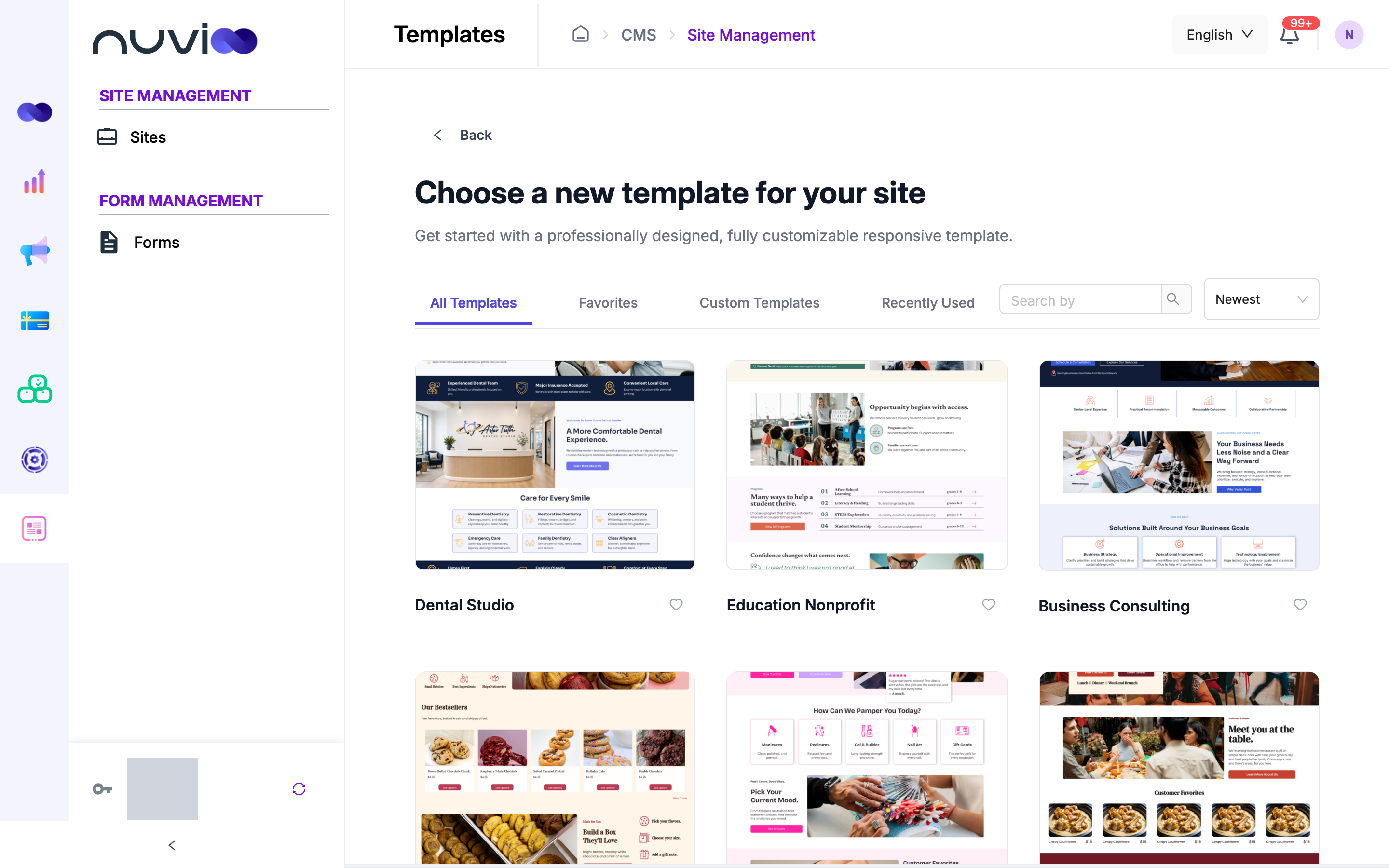
The gallery is titled Choose a new template for your site. Use the tabs, Search by box and sort list to narrow it down.
Control What it does All Templates Every template. Favorites Templates you marked with the heart icon. The heart is remembered only until you reload the page. Search by Filters by template name. Sort list Newest keeps the order Nuvioo returns. Name sorts A to Z. If nothing matches, the page says No templates found matching your criteria. Click Back to return to the Sites list.
Open a template
Hover over a template and click View. A Build Your Site dialog opens with the template.
Preview it, name it and start
Click Preview to open the template’s demo in a new tab. In the box Enter your site domain, type the prefix for your site’s address. Spaces turn into hyphens. Start Building stays off until you type something.
Edit in the site editor
Click Start Building. Nuvioo creates the site from the template and opens the site editor in a new tab. Back in Nuvioo, the new site is in the Sites list.
Create a site with the AI generator
Section titled “Create a site with the AI generator”The generator takes four steps. The progress bar at the top shows where you are, and Back takes you to the previous step. On the first step, Back returns you to the page you came from.
Basic Info
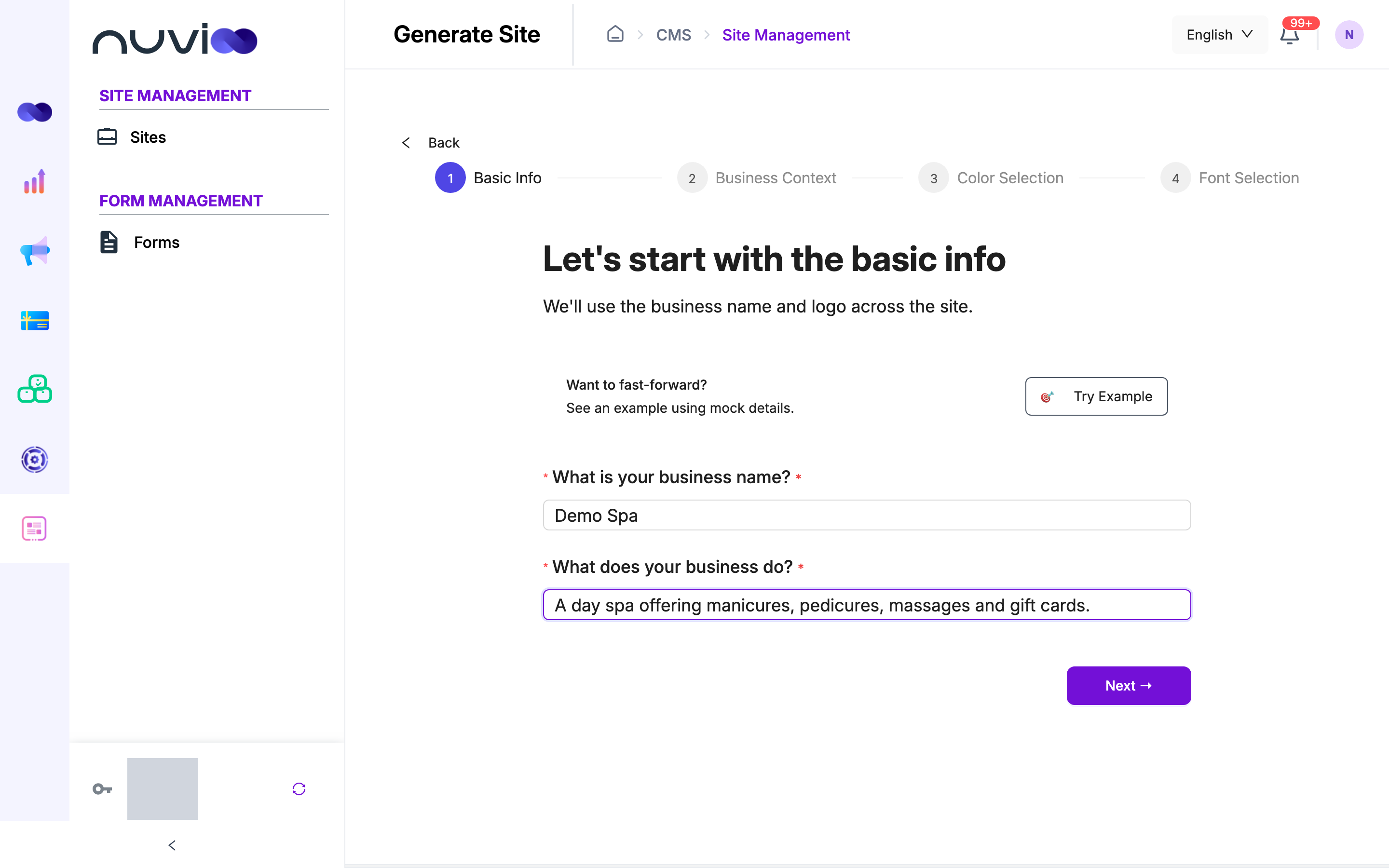
The page is titled Let’s start with the basic info. Both fields are required.
Field What to enter What is your business name? Your business name, for example D-Lish Bakery. It’s also used to build the site’s address, with spaces turned into hyphens. What does your business do? A short description of your business, for example Bakery. Click Try Example under Want to fast-forward? to fill both fields with sample details. Click Next.
Business Context
The page is titled Additional info & preferences.
Field What to enter Give more context about the business (required) A few sentences about what you offer and where, for example “A Los Angeles-based bakery offering organic pastries, breads, desserts and coffee.” The AI uses it to write your content. Click Next.
Color Selection
The page is titled Choose a theme. Pick one of the color sets under Or choose a color set: Navy & Blue, Forest Green, Royal Purple, Burgundy & Pink, Charcoal & Tan, Terracotta & Orange, Golden Yellow or Monochrome. Click See More Colors for four more: Teal & Cyan, Coral & Peach, Olive & Sage and Plum & Lavender. Navy & Blue is selected until you choose another.
Font Selection
Choose a font pair. Each card shows a heading font and a body font: ABORETO with Work Sans, Space Grotesk with Roboto Mono, Outfit with Poppins, Hedvig Letters Serif with Albert Sans, Questrial with Arapey, or Marcellus with Rubik. Click Generate Site.
Nuvioo sends your answers to the generator and returns you to the Sites list. The new site shows Generating… until it is ready. The generator creates up to 5 pages in English, with a professional tone of voice.
If you stay on the Sites list, the editor opens in a new tab when generation finishes (your browser may ask you to allow pop-ups). If the site still shows Generating…, open the row menu and click Sync site.
Row actions
Section titled “Row actions”Click the ⋮ menu at the end of a row.
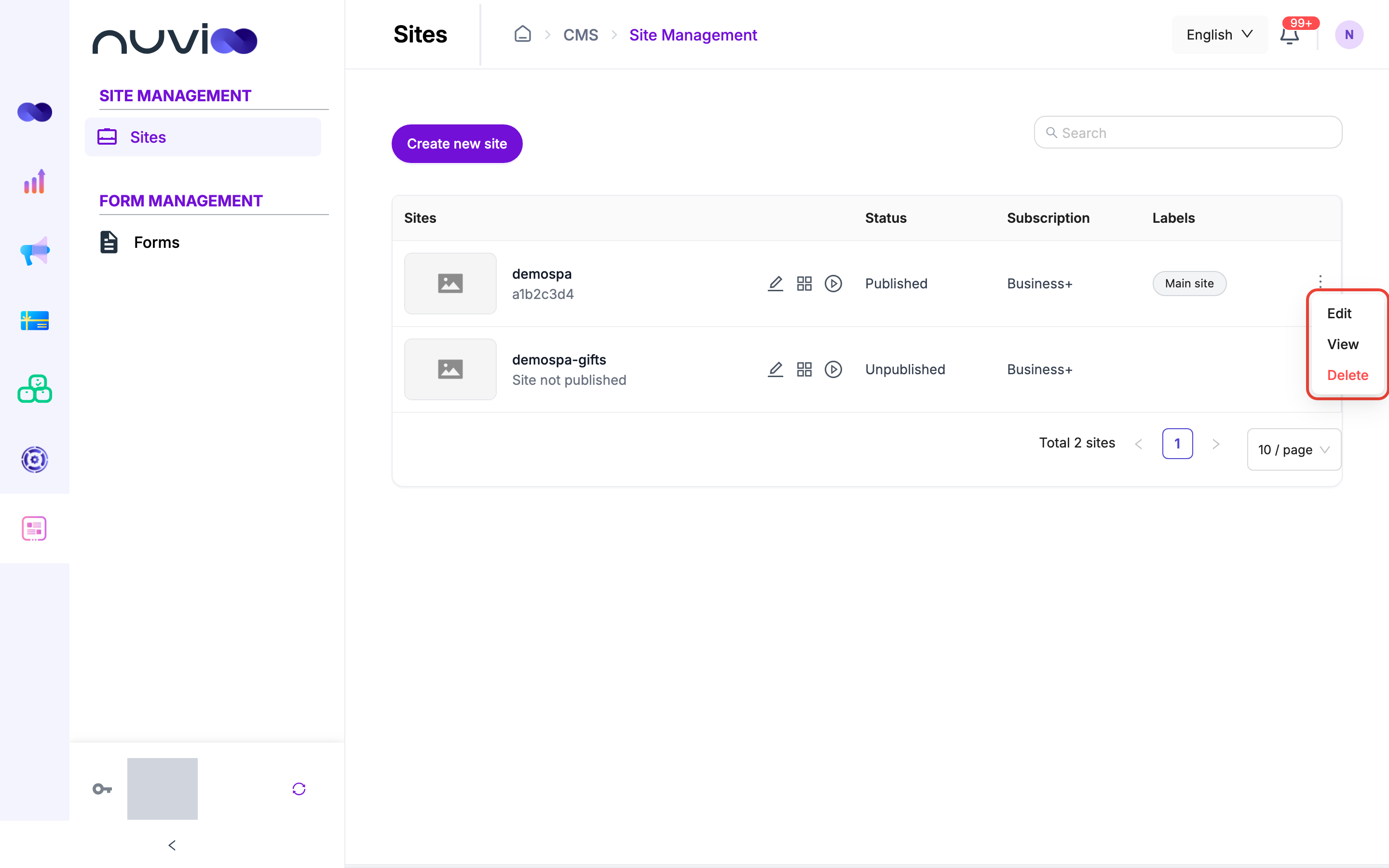
| Action | What it does |
|---|---|
| Edit | Opens the site editor in a new tab. |
| View | Opens the site preview in a new tab. |
| Delete | Deletes the site after you confirm. |
| Sync site | Only for a site still being generated. Checks whether it’s ready. If it is, you see a message that the sync started and the list refreshes. If not, you see Site is generating. Please sync again later. |
All actions except Sync site are unavailable until the site has a name, which happens once generation finishes.
Delete a site
Section titled “Delete a site”Click Delete. The Delete Site dialog asks you to confirm. Click Delete to continue or Cancel to keep the site.
To collect enquiries on your site, add a form. See Create a form and Publish and embed a form. For the whole CMS, see the CMS overview.