

Form submissions and analytics
Results has two tabs for each form: Submissions lists every entry, and Analyze shows how the form performs. You start from the Forms list.
The Forms list
Section titled “The Forms list”In the sidebar, under Form Management, click Forms.
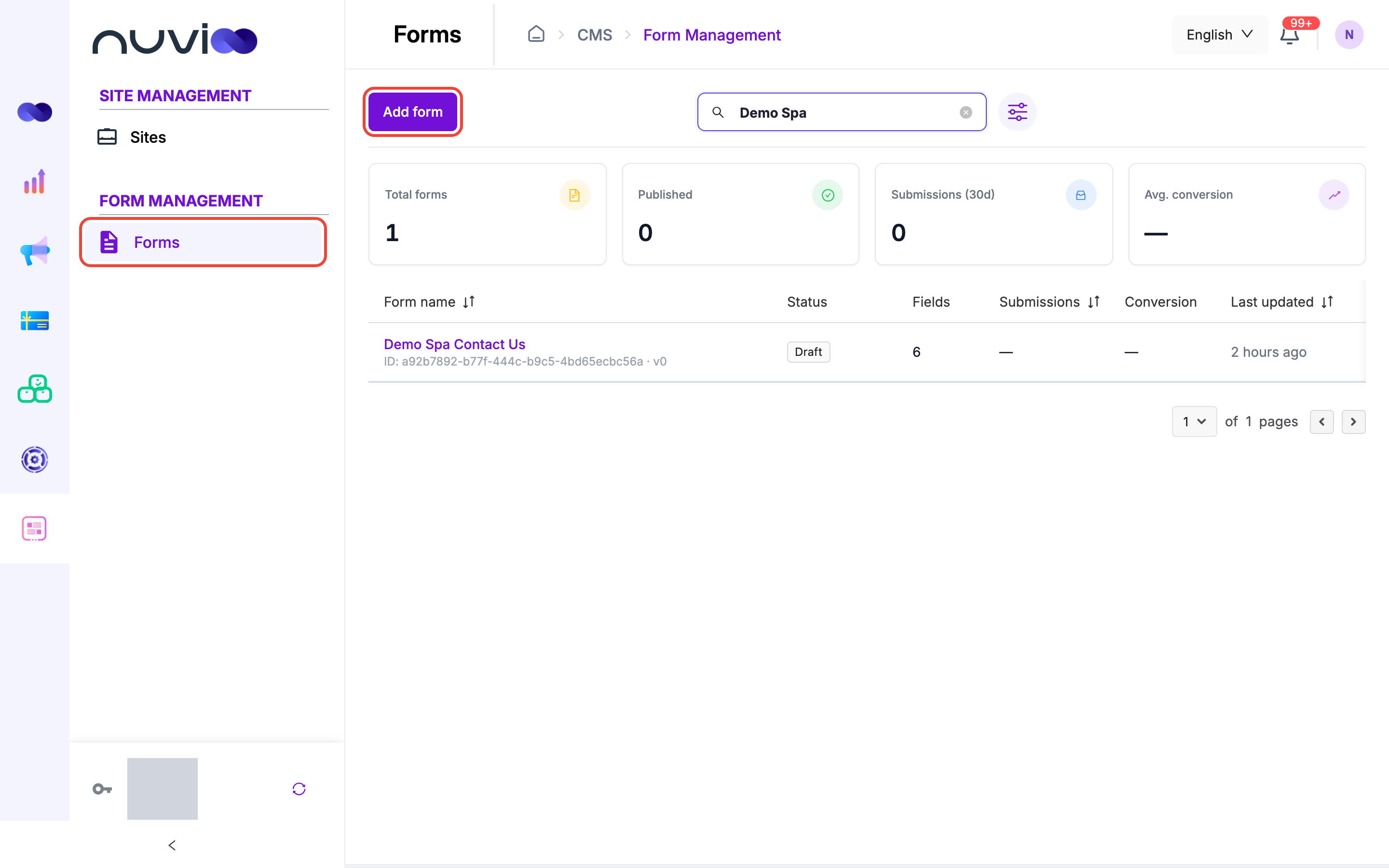
Totals
Section titled “Totals”| Card | What it shows |
|---|---|
| Total forms | The number of forms that match your search and filter. |
| Published | How many of the forms on the current page are published. |
| Submissions (30d) | The Submissions column added up for the forms on the current page. It counts all submissions, not only the last 30 days. |
| Avg. conversion | Not available yet. It always shows a dash. |
Find a form
Section titled “Find a form”Type in Search forms… to search by form name. Click the filter icon to open Filter and choose a Status: Draft, Published or Disabled. Click Apply, or Clear filters to remove it. The list shows 10 forms per page. Click Form name, Submissions or Last updated to sort.
Columns
Section titled “Columns”| Column | What it shows |
|---|---|
| Form name | The name, the form’s ID and its version, for example v3. Click the name to open Submissions if the form is published, or the form builder if it isn’t. |
| Status | Draft, Published or Disabled. See Form status. |
| Fields | The number of fields in the form’s current version. |
| Submissions | All submissions since the form was created, including spam. Click the number to open Submissions. A dash means none yet. |
| Conversion | Not available yet. It always shows a dash. See Analyze for the conversion rate. |
| Last updated | When the form last changed. |
Row actions
Section titled “Row actions”Click the menu at the end of a row.
| Action | When it shows | What it does |
|---|---|---|
| Edit | Always | Opens the form builder. |
| Results | Always | Opens Submissions and Analyze. |
| Automation | Always | Opens the form’s automation. |
| Embed | Always | Opens Embed & Publish. |
| Publish | Draft forms | Publishes the form after you confirm in Publish form. |
| Enable | Disabled forms | Turns a disabled form back on, after you confirm in Enable form. |
| Deactivate | Published forms | Stops visitors seeing the form, after you confirm in Deactivate form. Submissions are kept. |
The three confirmation dialogs each have a Note (optional) field, up to 500 characters. For Deactivate and Enable, the note appears in the form’s version history.
Submissions
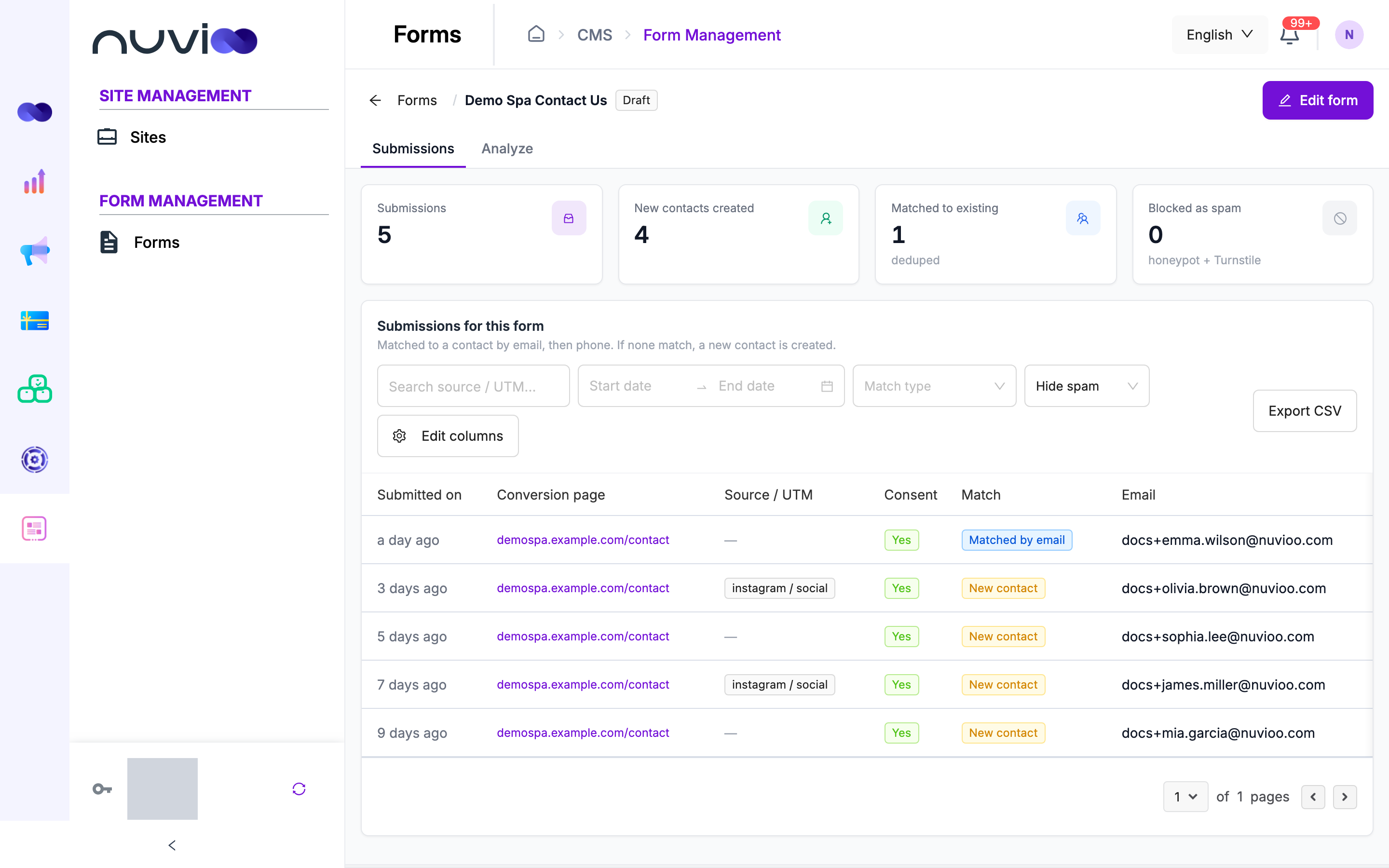
Section titled “Submissions”Open a form’s results and click Submissions. The bar at the top shows the form’s name and status. Click Edit form to go back to the builder.
Totals
Section titled “Totals”The four cards follow your filters, except the spam filter.
| Card | What it counts |
|---|---|
| Submissions | Submissions that aren’t spam. |
| New contacts created | Submissions that created a new contact. |
| Matched to existing | Submissions matched to a contact you already had. The card is labeled deduped. |
| Blocked as spam | Submissions marked as spam, labeled honeypot + Turnstile. The number turns red when it isn’t zero. |
New contacts created plus Matched to existing equals Submissions.
Filters
Section titled “Filters”| Filter | What it does |
|---|---|
| Search source / UTM… | Finds submissions where the UTM source, medium, campaign, term or content contains your text. It doesn’t search page addresses. |
| Date range | Pick dates, or use Last 7 days, Last 30 days or Last 90 days. |
| Match type | New contact, Matched by email, Matched by phone or Blocked (spam). |
| Spam list | Hide spam, Spam only or Include spam. |
When no submission matches, the table says No submissions match your filters. Click Clear filters. A form with no submissions says No submissions yet.
Columns
Section titled “Columns”By default the table shows these columns, 20 rows per page.
| Column | What it shows |
|---|---|
| Submitted on | How long ago it was sent. Hover to see the date and time. |
| Conversion page | The page the visitor was on, as a link. Hover to see the full address. |
| Source / UTM | The UTM source and medium, with the campaign underneath. A dash means the visitor arrived without UTM tags. |
| Consent | Yes if the visitor ticked the consent box, otherwise No. See Marketing consent. |
| Match | How the submission was matched. See Match types. |
Click Edit columns to change the table. Under Form fields, every field of the form is a column, so you can see each answer. Heading and divider fields aren’t listed.
- Tick the columns you want. Use the search box to find one.
- Drag the entries in Selected columns to change their order, or remove them.
- Click Save.
Your choice is saved for each form in this browser. A File upload answer shows a link: images open in a preview, other files open in a new tab, and a download button saves the file with its original name. The link is created when you click it.
Match types
Section titled “Match types”Nuvioo checks every new submission against your contacts in CRM: first by email, then by phone number.
| Match | What happened |
|---|---|
| New contact | No contact matched, so Nuvioo created one. |
| Matched by email | A contact with the same email exists. Nuvioo fills in only what was empty on that contact and never replaces what you already have. |
| Matched by phone | No email match, but a contact has the same phone number. It’s updated the same way. |
| Blocked · spam | The submission was marked as spam. No contact was made. |
A submission is marked as spam when the Honeypot field is filled in, Cloudflare Turnstile fails, or it looks like a bot, for example because it was sent very quickly. See Spam checks. Spam submissions:
- are saved, so you can review them, and show dimmed in the table with Blocked · spam in Match, with their answers hidden;
- don’t create or update a contact, notify your team or start automation;
- are not counted in Submissions, New contacts created, Matched to existing, or in Analyze.
Choose Spam only in the spam list to see just them. If real people end up there, see Submissions marked as spam.
Export CSV
Section titled “Export CSV”Click Export CSV to download the submissions that match your current filters, newest first. The file holds up to 10,000 submissions.
The file always has the columns Submitted on, Conversion page, Source/UTM, Consent, Match and Spam, followed by one column for every form field. It doesn’t follow your Edit columns choice. For a file field, the file name is exported.
Analyze
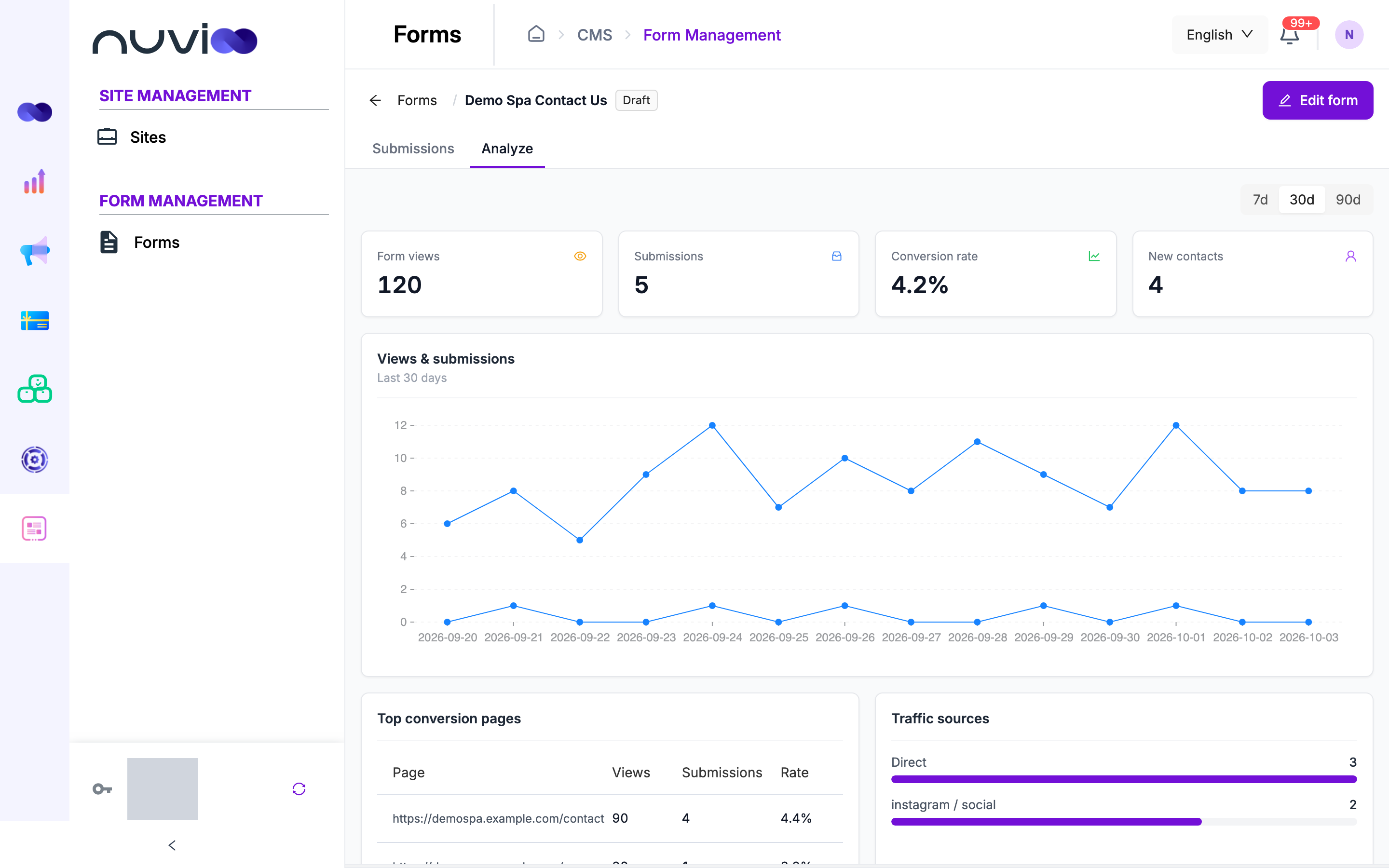
Section titled “Analyze”Open a form’s results and click Analyze. Use the 7d, 30d and 90d switch at the top right to choose how far back to look. It starts on 30d. Days run on UTC time and include today.
Totals
Section titled “Totals”| Metric | How it’s worked out |
|---|---|
| Form views | Visitors who saw the form, counted once per browser session. Opening the form again in the same session doesn’t add a view. |
| Submissions | Submissions that aren’t spam. |
| Conversion rate | Submissions divided by Form views, as a percentage. A dash means no views yet. |
| New contacts | Submissions that created a new contact. |
A view is counted when the form loads on a page, so only a published form that is allowed on that website collects views.
Views and submissions
Section titled “Views and submissions”The Views & submissions chart shows two lines, one for views and one for submissions, for each day in the range. Days with no activity count as zero. With no data, it says No data for this range.
Top conversion pages
Section titled “Top conversion pages”The table lists the pages where the form was shown, most views first.
| Column | What it shows |
|---|---|
| Page | The page address. (unknown) means Nuvioo couldn’t tell which page. |
| Views | Views of the form on that page. |
| Submissions | Submissions sent from that page. |
| Rate | Submissions divided by Views for that page. |
Traffic sources
Section titled “Traffic sources”A bar for each combination of UTM source and medium, for example newsletter / email, with the number of submissions it brought. Visitors who arrived without UTM tags are grouped as Direct. With none yet, it says No traffic yet.
To track your campaigns, add UTM tags to the links you share, such as ?utm_source=newsletter&utm_medium=email&utm_campaign=spring.
Field drop-off
Section titled “Field drop-off”A bar for each field, with the number of submissions that have an answer and the share of all submissions, for example 42 · 84.0%. A short bar means many visitors leave that field empty. It measures answers in submitted forms, so it doesn’t show where visitors give up before submitting.
Devices
Section titled “Devices”The share of views from Desktop, Mobile and Tablet, as percentages. Views that Nuvioo can’t classify are listed as Unknown.