

Publish and embed a form
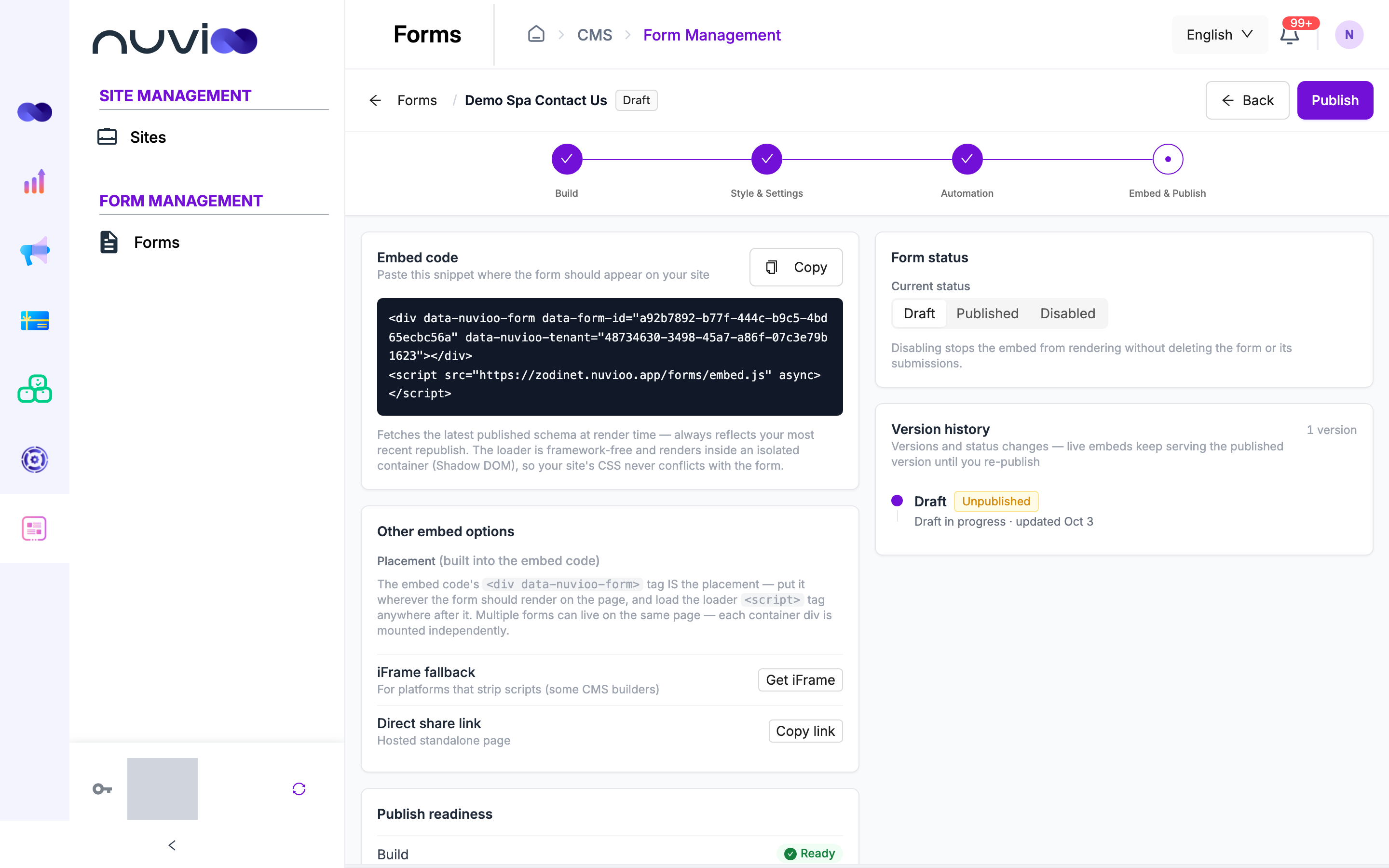
The Embed & Publish step is the last step of a form. It has the embed code, other ways to share the form, your publish checks, the form’s status and its version history.
To open it, click Next from Automation, or open the ⋮ menu of a form in the Forms list and click Embed.
Publish a form
Section titled “Publish a form”Check that the form is ready
Publish readiness lists Build, Style & Settings and Automation. Each shows Ready, or a message and a Fix button. See Publish readiness.
Click Publish
On the last step, click Publish. If something needs fixing, a Complete this step message tells you what, and Nuvioo takes you to that step.
Add a note and confirm
The Publish this form? dialog explains that publishing creates a new live version and that visitors on embedded pages see the updated form straight away. Add a Note (optional) of up to 500 characters, then click Publish.
Share it
A message confirms Published as v1 (or the next version number). The Share form dialog opens with three tabs: Link, Embed code and iFrame. Click Copy link or Copy code.
Once a form is published, the Publish button is replaced by Done. Click Done to open Share form again. On a disabled form, Publish and Done both show, and Done takes you back to the Forms list.
You can also publish from the Forms list: open the ⋮ menu of a draft form and click Publish. The dialog has the same optional note.
Embed code
Section titled “Embed code”Click Copy on the Embed code card, then paste the code where the form should appear on your page. It has two lines: a <div data-nuvioo-form> that marks the spot, and a <script> that loads the form.
- Put the
<div>exactly where you want the form. The<script>can go anywhere after it. - Paste the code as copied. It contains your form’s ID and your account’s ID.
- You can put several forms on one page. Each
<div>is loaded on its own. - The form shows your latest published version. After you publish a change, you don’t need to paste the code again.
- The form loads in its own isolated container, so your site’s CSS doesn’t change how it looks.
Other embed options
Section titled “Other embed options”| Option | Button | Use it when |
|---|---|---|
| iFrame fallback | Get iFrame | Your website builder removes scripts. The iFrame embed code dialog has a Copy code button. |
| Direct share link | Copy link | You want a standalone page to share in an email, a message or a social post. |
The iFrame code is 100% wide and 720 pixels high. Change the height value in the code if your form is taller or shorter.
Publish readiness
Section titled “Publish readiness”Publish readiness checks your saved form and automation. Click Fix to jump to the step with the problem.
| Check | What must be true |
|---|---|
| Build | The form has at least one field visitors can fill in, not only headings, dividers or captcha. Every field has a label. Dropdown, radio and multi-checkbox fields have choices with a label and a unique value. A minimum length or value isn’t above its maximum. First name, last name and email are each mapped to a field and set as required. See Form fields. |
| Style & Settings | Show a message has a thank-you message, or Redirect to a URL has a full http:// or https:// address. If Send submission notifications is on, at least one person is selected. |
| Automation | If automation is Enabled, it has at least one action, every required setting is filled in, and a webhook URL is a full http:// or https:// address. An automation that is off isn’t checked. See Form automation. |
If the check can’t read your automation, the Automation row asks you to open it and try again.
Form status
Section titled “Form status”The Form status card has a switch with up to three states.
| Status | What visitors see |
|---|---|
| Draft | A form that was never published is not available. If you changed a published form and haven’t published the changes, visitors still see the last published version. |
| Published | The latest published version. |
| Disabled | Nothing. The embed stops showing the form. The form, its submissions and its versions are kept. |
- Click Published on the switch to publish the current draft, or to turn a disabled form back on. Unlike the Publish button, this has no dialog and no note.
- After the first publish, Draft disappears from the switch unless the form is a draft again.
- When you edit a published form, its status changes to Draft while the old version stays live. Publish again to push your changes.
- In the Forms list, Deactivate disables a published form and Enable brings a disabled form back. Both ask for an optional note.
See Publish and embed troubleshooting for what visitors see when a form is disabled.
Version history
Section titled “Version history”Each publish saves a version. The Version history card lists versions and status changes together, newest first, and shows how many versions the form has.
| Entry | What it means |
|---|---|
| v1, v2, … with Live | A published version. Live marks the one visitors see now. The date is when it was published. |
| Draft with Unpublished | Changes you haven’t published, with the date of the last edit. |
| Disabled, Enabled, Reverted to draft | A status change, with the date, time and the note you added. |
Click Restore on an older version to copy it into a new draft. The live version doesn’t change until you publish. A confirmation reads Restored vN as the new draft.
The note you add when you publish is saved with the publish. It is not shown in Version history.
What visitors see
Section titled “What visitors see”The embedded form checks answers before sending them and shows a message under each field that needs attention. It moves the visitor to the first problem.
| Field | Message |
|---|---|
| Required field left empty | [Field label] is required. |
| Enter a valid email address. | |
| Phone | Enter a valid phone number. |
| Link | Enter a valid URL (including https://). |
| Number | Enter a valid number., Must be at least N., Must be at most N., or Must be a multiple of N. |
| Date | Enter a valid date., Date must be on or after [date]. or Date must be on or before [date]. |
| Text | Must be at least N characters., Must be at most N characters. or Invalid format. |
| Consent box | Consent is required. |
| File | File must be smaller than N MB. |
The minimums, maximums and format come from the field’s validation settings in Form fields. Nuvioo checks the answers again when they arrive, so a visitor can’t skip the checks.
Conditional fields
Section titled “Conditional fields”A field with conditional logic appears and disappears as the visitor answers. A field that is hidden is not checked and its answer is not sent, even if it is required.
File upload
Section titled “File upload”A File upload field shows Drop a file or browse. The visitor picks one file. Nuvioo uploads it when they click the submit button, then sends the form.
- The file must be under the field’s maximum size. Nuvioo also applies its own overall maximum and a list of allowed file types.
- A file that is too large or of a type that isn’t allowed stops the submission with a message, so the visitor can choose another file.
- If the visitor retries after another error, the file isn’t uploaded twice.
- You open the file from the Submissions table.
After they submit
Section titled “After they submit”The submit button changes to Submitting… while the form is sent. Then:
- With Show a message, your thank-you message replaces the form. If you left it empty, visitors see Thank you! Your submission has been received.
- With Redirect to a URL, the visitor goes to your page. In an iFrame, only the iFrame moves to that page.
If the submission fails, the form stays on screen with an error above the button, such as Network error. Please check your connection and try again. or Too many submissions, please try again later.
Spam checks
Section titled “Spam checks”| Check | What happens |
|---|---|
| Honeypot | The form has a hidden field that people can’t see. If it is filled in, the submission is marked as spam. |
| Cloudflare Turnstile | A check runs before sending, usually with no puzzle. If it can’t finish, the visitor sees Please complete the verification challenge and try again. If it can’t load at all, they see The verification challenge could not load. Disable any content blocker or try a different browser, then submit again. |
| Speed | A form submitted within a second or two of loading counts towards a spam score. |
| Rate limit | Too many submissions from one internet address in a short time are refused with Too many submissions, please try again later. |
A submission that is judged to be spam still shows the visitor the thank-you message, so bots don’t learn they were caught. It is saved, marked as spam, and doesn’t create a contact, send notifications or start your automation. See Results.
Allowed domains
Section titled “Allowed domains”If you filled in Allowed domains, the form loads and accepts submissions only on those websites and their subdomains. On any other site, visitors see Unable to load this form. Please try again later. This also applies to a site that holds your form in an iFrame.
Disabled or unpublished forms
Section titled “Disabled or unpublished forms”When a form is disabled, or was never published, the embed shows Unable to load this form. Please try again later. The share link page shows the same message.
Next steps
Section titled “Next steps”- If the form doesn’t show or doesn’t submit, see Publish and embed troubleshooting.
- To read submissions and see how the form performs, see Form submissions and analytics.