

Form automation
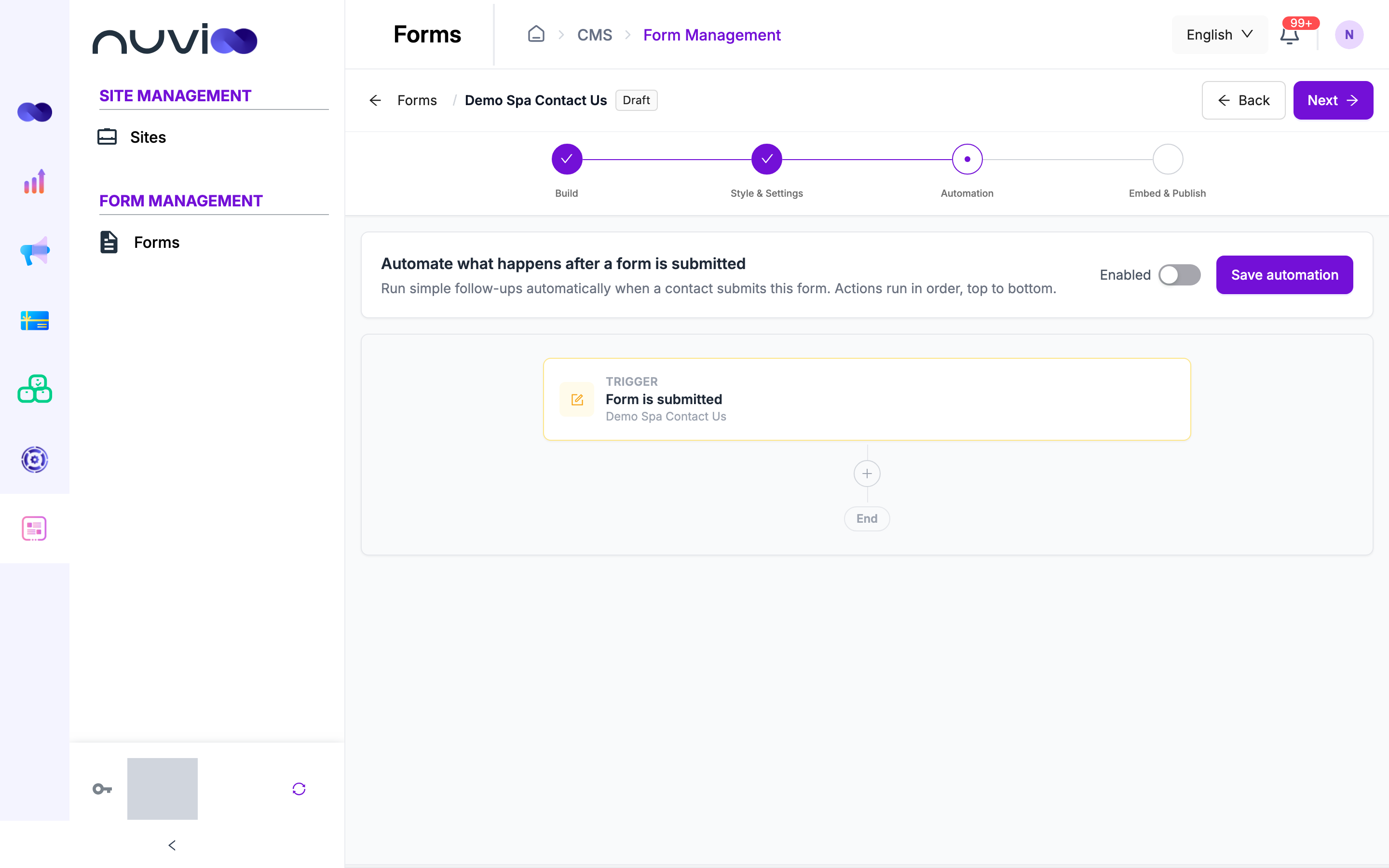
An automation runs every time a form is submitted. It starts with the trigger Form is submitted, then runs your actions in order, from top to bottom, until it reaches End.
Before you start
Section titled “Before you start”Most actions work on the contact who submitted the form: they email them, text them, assign them an owner, or add a note, deal, ticket or appointment for them. The automation knows who that contact is only when the form creates contacts.
To check this, open the form’s settings and make sure Always create a contact for new email addresses is turned on. If you created the form with Collect submissions and contacts ticked, it’s already on.
Build an automation
Section titled “Build an automation”Open the automation
Open the form and go to Automation.
Add an action
Click + under the trigger (or between two actions). In Choose an action, pick an action from the list, or type in Search actions… to find one.
Configure the action
The action’s settings open on the right. Fill in the fields, then click Save action. Fields marked as required must be filled in before you can turn the automation on. A preview under the settings shows the action with sample contact data.
Add more actions
Repeat for each follow-up. To change an action, click its card. To change the order, drag the handle on the left of a card. To remove an action, click the delete icon on its card.
Turn it on
Turn on Enabled and click Save automation. You see Automation saved. when it’s done.
If something is missing, Automation needs attention appears with the action and field to fix. For example: “Complete “Subject” for action 2: Send email.” You can always save a draft with Enabled turned off.
Personalize with tokens
Section titled “Personalize with tokens”Fields with Insert token accept tokens: placeholders that are replaced with real data when the action runs. Click Insert token under the field and pick one, or type it in double braces, for example Thanks, {{first_name}}!
| Group | Tokens |
|---|---|
| Form fields | Every field on this form, by its field ID |
| Contact | {{first_name}}, {{last_name}}, {{email}}, {{phone}}, {{company}}, {{job_title}} |
| Page & UTM | {{page_url}}, {{utm_source}}, {{utm_medium}}, {{utm_campaign}} |
Date fields such as Due date offer Pick a date for a fixed date, or Use a token for a date from the submission, for example a date field on the form.
Delay waits before running the next action. Use it to space out follow-ups, for example a reminder email two days after the first one.
| Field | Required | What it does |
|---|---|---|
| Wait for | Yes | How long to wait, in minutes, hours or days. |
| Only continue during business hours | If the wait ends outside business hours (Monday to Friday, 9 AM to 5 PM), the next action waits until business hours start. | |
| Skip weekends if the wait lands there | If the wait ends on a Saturday or Sunday, the next action runs on Monday at the same time. |
Communications
Section titled “Communications”Send email
Section titled “Send email”Emails the contact who submitted the form.
| Field | Required | What it does |
|---|---|---|
| From | The sender name and address, for example Nuvioo Marketing <hello@nuvioo.com>. It starts with your account’s name and email. |
|
| Subject | Yes | The subject line. Accepts tokens. |
| Email body | Yes | The message. Write it in Visual, or switch to HTML to edit the source. Accepts tokens. |
| Preview text | The short line inboxes show next to the subject. Accepts tokens. | |
| Reply-to | Where replies go. It starts with your account’s email. | |
| Only send if marketing consent was given | Skips the email when the contact didn’t give marketing consent on the form. |
The email is skipped when the submission has no contact email.
Send internal notification
Section titled “Send internal notification”Alerts people on your team in Nuvioo that the form was submitted, for example so sales can follow up quickly.
| Field | Required | What it does |
|---|---|---|
| Notify | Yes | The users who receive the notification. |
| Subject | Yes | The notification title. Accepts tokens. |
| Message | Yes | The notification text. Accepts tokens. |
| Include all submitted fields | Attaches every answer from the submission to the notification. |
Send SMS
Section titled “Send SMS”Texts the contact who submitted the form, from a connected phone number.
| Field | Required | What it does |
|---|---|---|
| From (staff) | Yes | The user whose connected SMS account sends the message. |
| From number (E.164) | Yes | The sending number in international format, for example +15551234567. |
| Message | Yes | The text message. Accepts tokens. |
| Opt-out footer | A line added on a new line at the end, for example Reply STOP to unsubscribe. |
|
| Skip if the contact has no phone number | Skips the SMS instead of stopping the automation when the contact has no phone number. |
Send in-app / push notification
Section titled “Send in-app / push notification”Sends an alert to users in the Nuvioo app (the notification bell and push).
| Field | Required | What it does |
|---|---|---|
| Notify user(s) | Yes | The users who receive the alert. |
| Title | Yes | The alert title. Accepts tokens. |
| Body | Yes | The alert text. Accepts tokens. |
| Open link (deep link / URL) | The page that opens when the user taps the alert. | |
| Priority | Low, Normal or High. |
Create / update contact
Section titled “Create / update contact”Creates a contact from the submission, or updates the existing contact with the same email.
| Field | Required | What it does |
|---|---|---|
| Contact field mapping | For each Record field (contact property), choose the Form field that fills it. First name, Last name and Email are required; Phone number, Job title and Note are optional. Leave a row on — Leave blank — to skip it. | |
| Contact owner | The user who owns the contact. | |
| Update the existing contact if the email already exists | Updates the matching contact instead of creating a duplicate. |
Create / update company
Section titled “Create / update company”Creates a company record from the submission, for example from a B2B enquiry form.
| Field | Required | What it does |
|---|---|---|
| Company field mapping | For each company property, choose the form field that fills it. Company name is required; Website URL, Number of employees and LinkedIn URL are optional. | |
| Company owner | The user who owns the company. | |
| Update the existing company if it already exists | Updates the company with the same name instead of creating a duplicate. | |
| Associate the submitting contact with this company | Links the contact who submitted the form to the company. |
Set contact owner
Section titled “Set contact owner”Assigns the contact to a user for follow-up.
| Field | Required | What it does |
|---|---|---|
| Assignment | Yes | Specific user always assigns the same person. Round-robin across team spreads contacts evenly across several people. |
| Owner (when Specific user) | The user to assign when Assignment is Specific user. | |
| Round-robin candidates | The users to share contacts between when Assignment is Round-robin across team. The same contact always goes to the same person. | |
| Don’t reassign if the contact already has an owner | Keeps the current owner of existing contacts. | |
| Notify the new owner | Sends the new owner a notification. |
Update contact property
Section titled “Update contact property”Sets one property on the contact, for example to record which form they used.
| Field | Required | What it does |
|---|---|---|
| Contact property | Yes | First name, Last name, Email, Phone number, Job title or Note. |
| New value | Yes | The value to set. Type text, insert a token, or both. |
| Overwrite if the property already has a value | When off, the property changes only if it’s empty. |
Create a deal
Section titled “Create a deal”Opens a new deal in your sales pipeline. See Deals.
| Field | Required | What it does |
|---|---|---|
| Deal name | Yes | For example {{company}} – website enquiry. Accepts tokens. |
| Pipeline | Yes | The pipeline the deal goes into. |
| Stage | Yes | The stage in that pipeline. Choose the pipeline first. |
| Amount | The deal value. | |
| Expected close date | When you expect to close the deal. | |
| Deal owner | The user who owns the deal. | |
| Associate with the submitting contact | Links the deal to the contact who submitted the form. |
Associate with company
Section titled “Associate with company”Links the contact to a company, and can create the company if it doesn’t exist yet.
| Field | Required | What it does |
|---|---|---|
| Company name from | Yes | Where the company name comes from: Email domain (for example, jane@acme.com gives acme), Company field (token) (a form field), or Static value (the same company every time). |
| Value / token | Yes | The email token (for example {{email}}), the company field token, or the company name, depending on Company name from. |
| Create the company if it doesn’t exist | When off and no company matches the name exactly, the automation stops at this action. |
Tasks & activities
Section titled “Tasks & activities”Create a task
Section titled “Create a task”Adds a follow-up task, for example “Call back new lead”. See Tasks.
| Field | Required | What it does |
|---|---|---|
| Task title | Yes | Accepts tokens, for example Call {{first_name}} {{last_name}}. |
| Assign to | Yes | The user who does the task. |
| Due date | Yes | Pick a date, or Use a token for a date from the submission. |
| Priority | Low, Medium or High. | |
| Notes | Details for the person doing the task. Accepts tokens. |
Log a note
Section titled “Log a note”Adds a note to the contact’s timeline, for example a summary of what they asked for. See Contact timeline.
| Field | Required | What it does |
|---|---|---|
| Note | Yes | The note text. Accepts tokens. |
| Pin note to top of the timeline | Keeps the note at the top of the contact’s timeline. |
Book an appointment
Section titled “Book an appointment”Creates an appointment on your calendar with the contact as the attendee. See Appointments.
| Field | Required | What it does |
|---|---|---|
| Appointment title | Yes | Accepts tokens. |
| Start time | Yes | Pick a date and time, or use a token for a date and time from the submission. |
| End time | Yes | Pick a date and time, or use a token. |
| Host(s) | Yes | The staff who host the appointment. |
| Time zone | Shows your workspace time zone, which the times use. Change it in your calendar settings. | |
| Description | Details shown on the appointment. Accepts tokens. |
Service
Section titled “Service”Create a support ticket
Section titled “Create a support ticket”Opens a help desk ticket for the contact, for example from a “Report a problem” form. See Help desk.
| Field | Required | What it does |
|---|---|---|
| Ticket subject | Yes | Accepts tokens. |
| Description | Yes | What the customer needs. Insert the form fields that describe the problem. |
| Priority | Yes | Low, Normal, High or Critical. |
Integrations
Section titled “Integrations”Trigger a webhook
Section titled “Trigger a webhook”Sends the submission to another system, for example your own app or an automation tool.
| Field | Required | What it does |
|---|---|---|
| Method | Yes | GET, POST, PUT or PATCH. Most services expect POST. |
| Target URL | Yes | The full address, starting with https:// (or http://). |
| Signing secret | When set, each request carries an X-Nuvioo-Signature header so the receiving system can check that the request came from Nuvioo. |
|
| Include UTM & page metadata | Adds the time the automation ran to the request. | |
| Max retries on failure (0-5) | How many times to try again when the other system doesn’t respond or returns an error. Default 3. |
The request is JSON with the submitted answers in data and the contact’s ID in contactId.
When an action can’t run
Section titled “When an action can’t run”- Skipped: an action that can’t apply moves on to the next one. For example, Send email with no contact email, or Set contact owner when the contact already has an owner and Don’t reassign if the contact already has an owner is on.
- Failed: an action that fails stops the automation, and the actions below it don’t run for that submission. For example, Send SMS with no phone number, or Associate with company when the company doesn’t exist and Create the company if it doesn’t exist is off.
To avoid failures, turn on the “skip” and “create if missing” options where they exist, and make the fields your actions depend on required on the form.